
Customization defines the modern smartphone experience. The ability to tailor your home screen, streamline workflows, and access information at a glance separates a functional device from a truly personal one. On this front, Android and iOS have taken divergent paths. Android leans into visual, persistent widgets—miniature apps that live on your home screen. iOS, in contrast, embraces efficiency through Shortcuts, automations, and contextual tools like the Control Center and Widget Gallery. But when it comes to “smarter” customization—where intelligence, adaptability, and user control intersect—the debate is far from settled.
The answer isn’t just about features; it’s about philosophy. Android prioritizes user freedom and immediate access. iOS values consistency, security, and seamless integration. Both systems empower users, but in fundamentally different ways. Understanding these differences reveals not just which platform is more customizable, but which offers deeper, more intelligent personalization for real-world use.
Understanding the Core Concepts
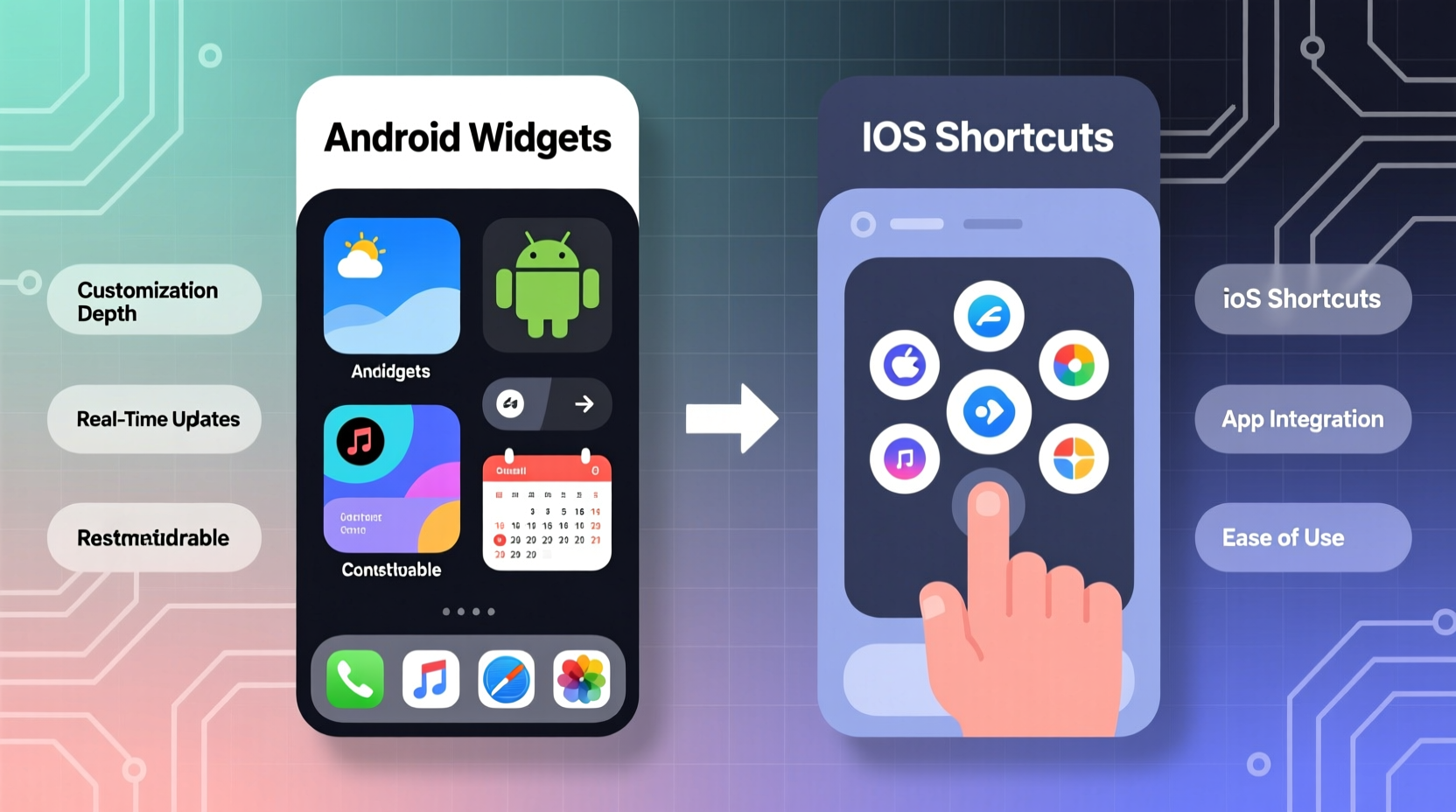
Before comparing, it’s essential to define what each system offers.
Android Widgets are live app components that reside directly on the home screen or within folders. They display dynamic content—weather forecasts, calendar events, music playback, fitness stats—and often support interaction without opening the full app. Their strength lies in persistence and visibility. A widget remains active, updating in real time, giving users constant access to relevant data.
iOS Shortcuts, introduced in iOS 12 and expanded since, are automation scripts built using Apple’s Shortcuts app. They can combine actions across apps, trigger routines based on time, location, or device state, and surface as buttons, voice commands (via Siri), or widgets. Unlike Android widgets, iOS widgets are primarily informational and non-interactive—they don’t typically allow tapping to perform in-app actions. Instead, they serve as entry points or status displays, while the real power lives in automation.
This distinction sets the tone: Android emphasizes visual presence, iOS emphasizes behavioral intelligence.
Flexibility and User Control: Android’s Open Canvas
Android’s greatest strength in customization is its openness. Users can:
- Resize widgets vertically and horizontally across multiple grid sizes.
- Place widgets anywhere on the home screen or lock screen (on supported devices).
- Use third-party launchers to completely overhaul the interface, including icon packs, gestures, and custom animations.
- Embed interactive elements—like play/pause controls or quick note inputs—directly into widgets.
This level of control allows for highly personalized layouts. A power user might design a home screen with a large Google Calendar widget on one side, a compact Spotify controller in the corner, and a battery usage meter tucked beneath. Each element is instantly usable, reducing the need to open apps repeatedly.
However, this flexibility comes with trade-offs. The lack of design uniformity can lead to cluttered screens. Third-party widgets vary in quality and update frequency. And because Android allows deep system access, poorly optimized widgets can drain battery life or slow performance.
“Android gives you the tools to build your ideal interface—but with great power comes great responsibility.” — David Kim, Mobile UX Designer
Intelligence and Automation: iOS’s Quiet Power
iOS may appear more restrictive, but its approach to customization is rooted in automation and context-aware intelligence. The Shortcuts app enables users to create complex workflows—such as automatically sending a text when arriving at work, adjusting settings when connecting to car Bluetooth, or compiling daily briefings from emails, weather, and calendar events.
iOS widgets, while less interactive, are smartly curated. They appear in a dedicated Widget Gallery and can be added to the Home Screen or Lock Screen (iOS 16+). Crucially, iOS supports Smart Stacks—widget groups that rotate based on time of day, location, or usage patterns. For example, a morning commute might surface transit times, while evenings show bedtime reminders.
This predictive behavior reduces manual management. Instead of manually switching widgets, the system adapts. This is where iOS shines: it doesn’t just let you customize—it learns from you.
Moreover, Shortcuts integrate deeply with Siri, allowing voice-triggered automations. Saying “Hey Siri, start my day” could turn off Do Not Disturb, read the news, and begin a meditation playlist—all without touching the phone.
Real-World Example: The Commuter’s Workflow
Consider Sarah, a marketing manager who commutes daily. On her iPhone, she uses a shortcut triggered by location: when she leaves her office, her phone automatically switches to driving mode, sends a message to her partner saying “On my way,” launches Apple Maps with her home route, and plays her favorite podcast. She also has a Smart Stack on her Lock Screen showing traffic updates in the morning and weather in the evening.
On Android, she could replicate parts of this with Tasker or Bixby Routines, but the native experience would require more manual setup. However, she could place a persistent Maps widget on her home screen showing real-time ETAs—a feature iOS lacks due to its static widget model.
In this case, iOS delivers smarter automation, while Android offers faster access.
Comparative Analysis: Features at a Glance
| Feature | Android | iOS |
|---|---|---|
| Widget Interactivity | High – direct taps, media controls, input fields | Low – usually opens app, limited interaction |
| Widget Placement | Anywhere on home/lock screen | Home & Lock Screen (iOS 16+), fixed zones |
| Resizing | Multiple grid options, freeform resizing | Three standard sizes (small, medium, large) |
| Automation Tools | Google Assistant Routines, Tasker (third-party) | Built-in Shortcuts app, robust triggers |
| Context Awareness | Limited natively; enhanced via third-party apps | Strong – Smart Stacks, time/location triggers |
| Third-Party Customization | Full launcher replacement possible | Restricted – no alternative launchers |
| Learning Capability | Minimal native AI adaptation | Yes – widgets and shortcuts adapt over time |
The table highlights a clear divide: Android excels in user-driven layout freedom, while iOS leads in adaptive intelligence and integrated automation.
Which System Offers Smarter Customization?
“Smarter” implies more than just configurability—it suggests efficiency, foresight, and reduced cognitive load. By this standard, iOS edges ahead in long-term usability.
While Android lets you place any widget anywhere, maintaining that setup requires ongoing effort. You decide what to show and when. iOS, through Smart Stacks and automation, reduces decision fatigue. It surfaces what you need, when you need it, often before you ask.
Apple’s ecosystem integration amplifies this. Shortcuts work across iPhone, iPad, and Mac. Automations can trigger HomeKit devices, sync with iCloud data, and respond to Health app insights. This cross-platform coherence makes iOS customizations feel like part of a unified digital lifestyle—not isolated tweaks.
Yet, Android still wins for immediacy. If you want a calculator button on your lock screen or a Twitter feed preview on your home screen, Android allows it—natively and instantly. iOS would require a workaround, if possible at all.
The key difference: Android customization is user-directed, iOS is system-assisted. One empowers creativity; the other enhances convenience.
Step-by-Step: Building a Smarter Home Screen
Whether you're on Android or iOS, you can optimize your setup for intelligence and efficiency. Follow this guide:
- Assess Your Daily Needs: Identify the top 3–5 pieces of information or actions you use most (e.g., calendar, weather, music, notes).
- Map by Time and Context: Note when and where you use them. Is weather important only in the morning? Do you check fitness stats after workouts?
- Choose the Right Tool:
- On Android: Place high-use widgets prominently. Use a launcher with scheduling to rotate widgets.
- On iOS: Build a Smart Stack with morning, work, and evening widgets. Create a “Start Workday” shortcut.
- Automate Repetitive Tasks:
- iOS: Use Shortcuts to auto-enable Focus modes, send routine messages, or log habits.
- Android: Use Google Assistant Routines or Tasker for similar triggers.
- Review and Refine Monthly: Remove unused widgets or shortcuts. Update triggers based on changing habits.
Frequently Asked Questions
Can I make iOS widgets as interactive as Android’s?
Not natively. iOS widgets are designed to be lightweight and secure, so they don’t support in-widget editing or complex interactions. Tapping usually opens the app. Third-party developers cannot bypass this limitation due to Apple’s sandboxing policies.
Are Android widgets bad for battery life?
Some can be, especially those that refresh frequently or run in the background (e.g., social media widgets). To minimize impact, disable auto-refresh for non-essential widgets, use system-native ones (like Clock or Calendar), and avoid placing too many on always-on displays.
Can I use Shortcuts on Android?
Not Apple’s Shortcuts app, but Android offers alternatives. Google Assistant Routines provide basic automation. For advanced users, apps like Tasker or MacroDroid offer powerful scripting capabilities, though they require more technical knowledge.
Checklist: Optimize Your Customization Strategy
- ✅ Audit your current home screen: remove unused apps and widgets.
- ✅ Identify your top three daily tasks or information needs.
- ✅ Set up at least one automation (iOS Shortcut or Android Routine).
- ✅ Organize widgets into logical groups or stacks.
- ✅ Test battery impact after adding new widgets or automations.
- ✅ Schedule a monthly review to refine your setup.
“The future of customization isn’t just about how things look—it’s about how well they anticipate your needs.” — Leila Chen, Human-Computer Interaction Researcher
Conclusion
Android and iOS represent two philosophies of personalization. Android gives you the tools to design exactly what you want—visually rich, immediately accessible, and endlessly flexible. iOS offers a more curated, intelligent path—automating routines, adapting to context, and minimizing friction through thoughtful design.
For raw customization power, Android wins. For smarter, more intuitive adaptation, iOS takes the lead. The best choice depends on your priorities: do you value control and visibility, or efficiency and foresight?
Rather than declaring a universal winner, the insight lies in understanding that true customization mastery comes from intentionality. Whether you’re arranging widgets or scripting shortcuts, the goal isn’t complexity—it’s clarity. A well-designed interface should feel effortless, almost invisible, letting you focus on what matters.




 浙公网安备
33010002000092号
浙公网安备
33010002000092号 浙B2-20120091-4
Comments
No comments yet. Why don't you start the discussion?