
If your Anycubic Photon refuses to read STL files from a USB drive, you're not alone. This is one of the most common frustrations among resin 3D printer users—especially when you're ready to print and the machine just won’t recognize your file. The issue can stem from multiple sources: file formatting, USB compatibility, slicing errors, or even firmware quirks. But with a methodical approach, nearly every case can be resolved quickly. This guide walks through proven solutions, real-world scenarios, and expert-backed best practices to get your Photon printing again.
Understanding the Problem: Why Your Photon Won't Read STL Files
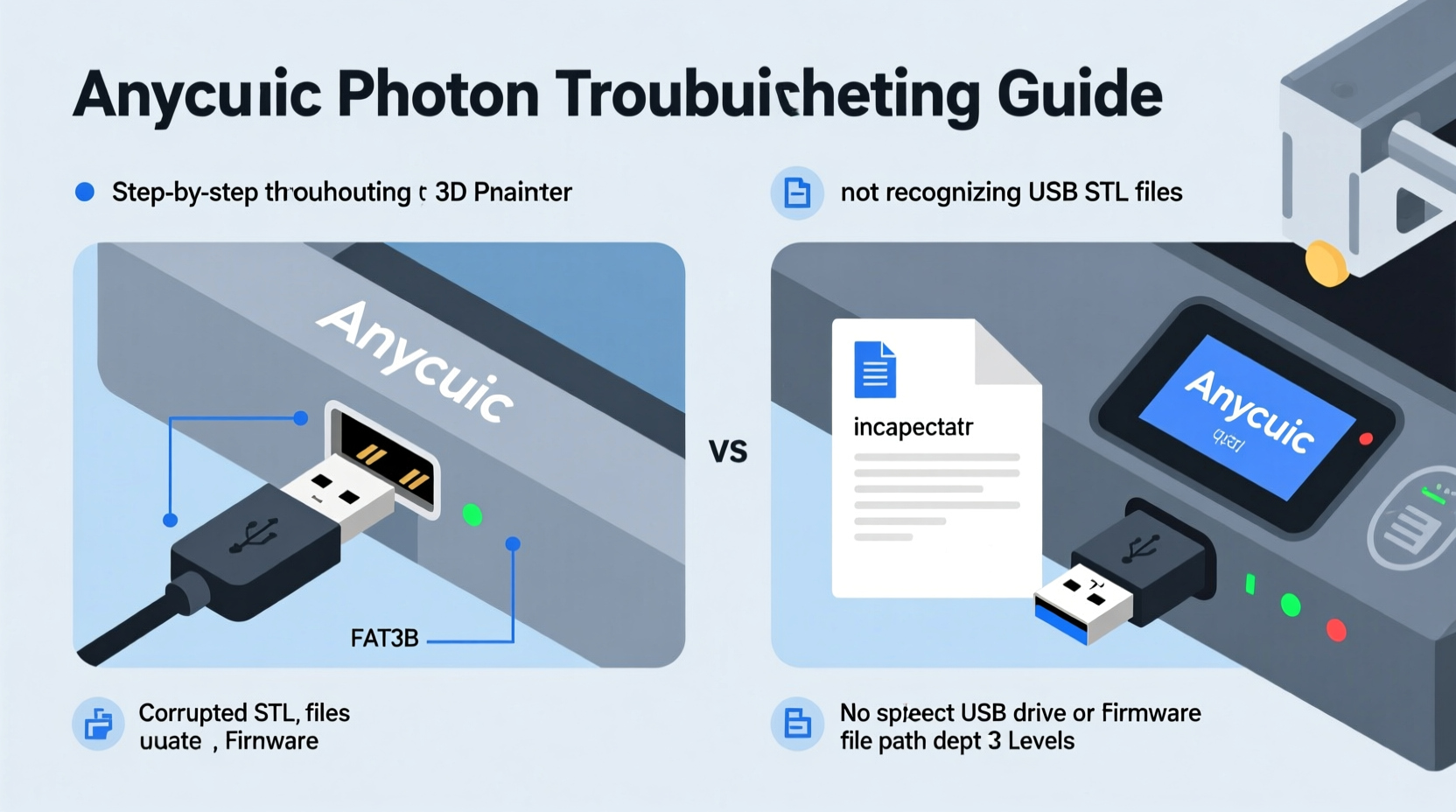
The Anycubic Photon series relies on standard USB flash drives to load print jobs. Unlike networked printers, it doesn’t support Wi-Fi or SD cards (except for specific models like the M3). When you insert a USB drive and see no files—or worse, an error message—the root cause usually falls into one of these categories:
- Incorrect file format (not a valid .STL or unsupported file type)
- USB drive formatting incompatibility (NTFS, exFAT, etc.)
- Faulty or incompatible USB drive (capacity, speed, or design)
- Improper slicing or export settings
- Firmware bugs or outdated software
Before diving into fixes, confirm that the file you’re trying to load is actually an STL and was sliced correctly for the Photon’s build volume and layer height. Many users assume the file is ready only to discover later it was exported improperly or corrupted during transfer.
Step-by-Step Troubleshooting Process
Follow this sequence to isolate and resolve the issue efficiently. Start simple and work toward more advanced diagnostics.
- Verify the STL file opens in a viewer – Use software like Meshmixer, Ultimaker Cura, or ChiTuBox to open the file on your computer. If it fails to load, the file is corrupt.
- Check file extension visibility – Ensure your OS isn’t hiding extensions. A file named “part.stl.txt” will not be recognized by the printer.
- Reformat the USB drive to FAT32 – The Photon requires FAT32. Drives formatted as NTFS or exFAT will not work, even if they appear to mount.
- Use a small-capacity USB drive (≤32GB) – Larger drives, especially 64GB or higher, often have partitioning issues the Photon can’t parse.
- Copy only one sliced .photon or .ctb file at a time – While the Photon supports multiple files, clutter increases the chance of read failure.
- Power cycle the printer after inserting the USB – Some units fail to scan the drive unless restarted with the USB already inserted.
- Update firmware – Visit Anycubic’s official site and ensure you’re running the latest firmware version for your model.
Common USB and File Compatibility Issues
Not all USB drives are created equal. The Photon’s internal controller is sensitive to both physical design and logical formatting. Below is a comparison of recommended vs. problematic USB configurations.
| Factor | Recommended | Avoid |
|---|---|---|
| File System | FAT32 | NTFS, exFAT, HFS+ |
| USB Capacity | 8GB or 16GB | 64GB+, multi-partition drives |
| USB Type | Standard-A, single-body design | Retractable, dual-drive, or hub-connected |
| File Format | .photon (sliced) or .ctb | .stl (raw), .obj, .gcode |
Note: The Photon does not natively read raw .STL files. You must slice them using compatible software such as Anycubic Workshop, ChiTuBox, or Lychee Slicer, then export as a .photon or .ctb file. This is a frequent point of confusion—users plug in un-sliced STLs expecting the printer to process them, which it cannot do.
Mini Case Study: Resolving a Persistent USB Recognition Issue
Jamie, a hobbyist in Portland, spent two hours trying to print a custom mini figurine. The Photon S showed “No File Detected” despite the USB appearing in the menu. After checking the file in ChiTuBox and confirming it was properly sliced, Jamie realized the USB was 128GB and formatted as exFAT. Following online advice, Jamie reformatted it to FAT32 using a third-party tool (since Windows doesn’t support FAT32 for drives over 32GB by default), copied a single 16MB .photon file, and inserted it into the printer after a full power-off reboot. The file appeared immediately. The issue? A combination of incorrect file system and drive size beyond the Photon’s parsing capability.
This case highlights how multiple small factors can compound into a major roadblock—and why systematic troubleshooting matters more than guesswork.
Expert Insight: What Firmware and Slicing Software Really Do
“Many users overlook that the Photon’s screen isn’t a general-purpose computer. It’s a microcontroller with limited drivers. If the USB isn’t perfectly formatted or the file structure is non-standard, it simply skips it.” — David Lin, Embedded Systems Engineer and 3D Printing Consultant
Lin emphasizes that unlike modern PCs, the Photon uses basic USB host protocols without error recovery or fallback mechanisms. That means there’s little room for deviation in file system standards. He recommends always using dedicated USB drives solely for 3D printing to avoid accidental reformatting or mixed content.
Troubleshooting Checklist
Use this checklist before each print job to prevent avoidable failures:
- ✅ STL file verified and opened successfully in slicing software
- ✅ Model sliced for correct Photon model (e.g., Photon Mono X vs. Photon SE)
- ✅ Exported as .photon or .ctb (not .stl)
- ✅ USB drive formatted as FAT32
- ✅ USB capacity 32GB or less
- ✅ Single file copied directly to root directory (no folders)
- ✅ USB ejected safely from computer before insertion
- ✅ Printer powered off, USB inserted, then powered back on
- ✅ Firmware updated to latest version
Frequently Asked Questions
Can the Anycubic Photon read .gcode files?
No. The Photon series uses its own proprietary file formats (.photon or .ctb) generated by compatible slicers. G-code is used by FDM printers and is not supported by resin-based Photon models.
Why does my USB show up but my file doesn’t?
This typically means the file isn’t in the correct format or is buried in a subfolder. The Photon only reads files located in the root directory and ignores any folder structures. Also, ensure the file wasn’t partially transferred or corrupted during copy.
Does the brand of USB drive matter?
While not strictly required, reliable brands like SanDisk, Samsung, or Kingston tend to have better controller compatibility. Avoid no-name or multi-functional USB drives (e.g., those with built-in card readers), as their firmware may conflict with the Photon’s USB stack.
Final Recommendations and Preventive Practices
Prevention is far more efficient than troubleshooting. Once you’ve resolved the immediate issue, implement habits that reduce future failures. Keep a dedicated, low-capacity USB drive labeled specifically for your Photon. Reformat it monthly as a maintenance routine. Store your sliced files in organized backups on your computer, and consider maintaining a log of successful prints with associated file names and settings.
Also, stay informed about firmware updates. Anycubic periodically releases patches that improve USB stability and file handling. Signing up for their newsletter or joining community forums like r/Anycubic on Reddit can alert you to known issues before they disrupt your workflow.
Conclusion
The frustration of a Photon not reading your USB can halt creativity and waste valuable time. But with a clear understanding of file formats, proper USB preparation, and disciplined slicing workflows, these issues become rare and easily fixable. Don’t let technical hiccups discourage you—each solution you learn strengthens your mastery of the medium. Take control of your setup today, apply these steps, and return to the joy of bringing digital designs to life, layer by precise layer.




 浙公网安备
33010002000092号
浙公网安备
33010002000092号 浙B2-20120091-4
Comments
No comments yet. Why don't you start the discussion?