
The Apple Pencil is a powerful tool for artists, note-takers, and professionals who rely on precision input with their iPad. However, when it refuses to pair or maintain a stable connection, the experience can quickly turn frustrating. Connection issues are common but often solvable with methodical troubleshooting. Whether you're using the first-generation Apple Pencil with a Lightning connector or the second-gen that magnetically attaches to compatible iPads, this guide provides clear, actionable steps to diagnose and fix pairing failures.
Understanding Apple Pencil Compatibility
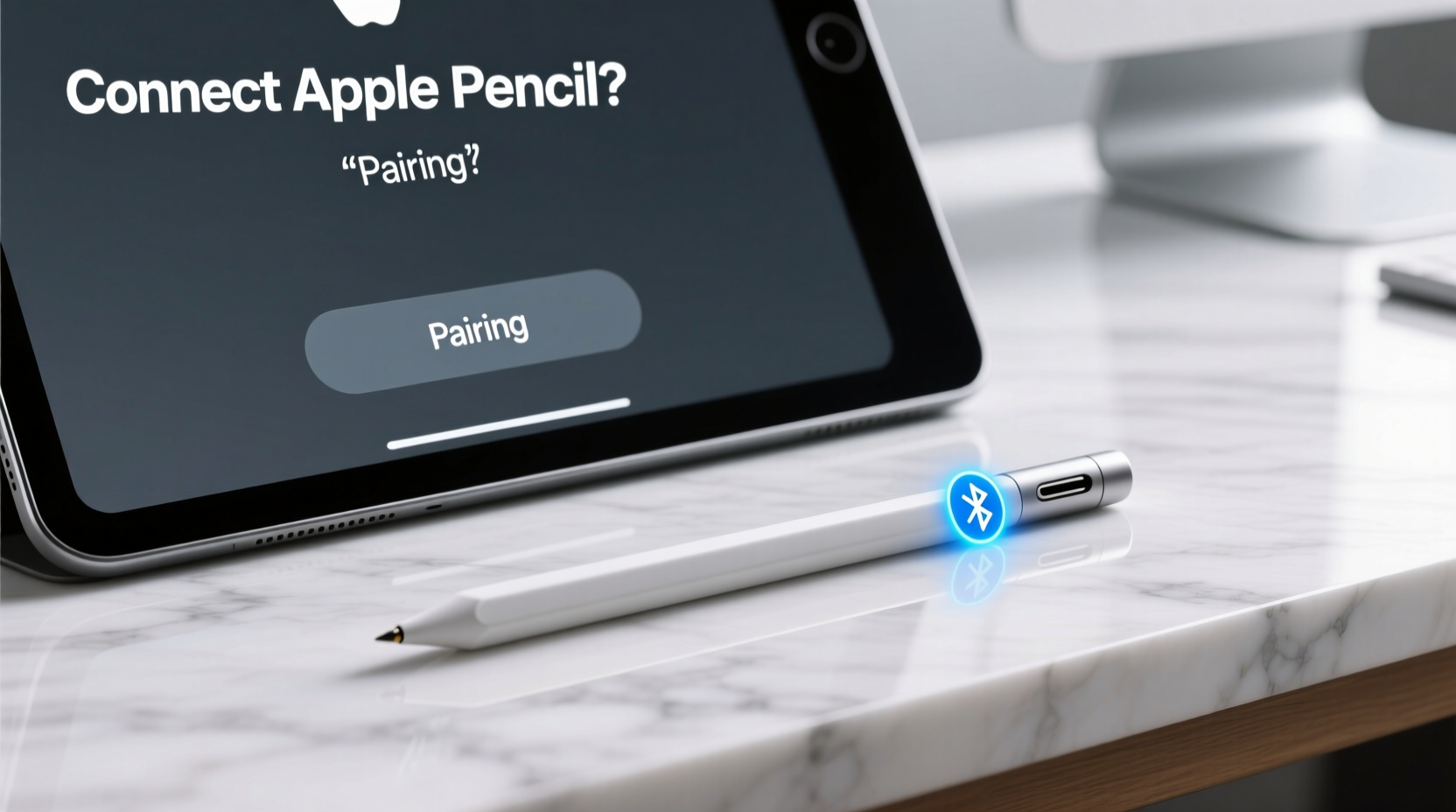
Before diving into fixes, confirm your Apple Pencil model is compatible with your iPad. Mismatched hardware is a frequent root cause of pairing failure.
| Apple Pencil Model | Compatible iPad Models | Pairing Method |
|---|---|---|
| First Generation | iPad (6th–10th gen), iPad Air (3rd–5th gen), iPad mini (5th–6th gen), iPad Pro 12.9” (1st–2nd gen), iPad Pro 10.5” | Bluetooth via Lightning connector |
| Second Generation | iPad Pro 12.9” (3rd–6th gen), iPad Pro 11” (1st–4th gen) | Magnetic attachment with touch pairing |
If your device isn’t listed, the Apple Pencil won’t pair regardless of troubleshooting efforts. Double-check Apple’s official compatibility chart if uncertain.
Step-by-Step Troubleshooting for Pairing Failures
Follow this sequence to isolate and resolve the issue. Start with basic checks and progress to advanced resets.
- Check Battery and Charging
A depleted Apple Pencil won’t pair. Charge it:- 1st Gen: Plug into iPad’s Lightning port or use a USB adapter for 10+ seconds.
- 2nd Gen: Attach magnetically to the right edge of a compatible iPad. A charge status bar should appear.
- Ensure Bluetooth is On
Go to Settings > Bluetooth and confirm it’s enabled. Toggle it off and on if needed. Avoid enabling “Low Power Mode,” which can disable Bluetooth accessories. - Remove Existing Pairing
In Settings > Bluetooth, tap the circled \"i\" next to your Apple Pencil and select “Forget This Device.” - Re-pair the Pencil
- 1st Gen: Connect to iPad’s Lightning port. A pairing prompt should appear.
- 2nd Gen: Attach magnetically. Tap “Connect” when prompted.
- Restart Your iPad
Hold the power button (and home or volume button depending on model) until the slider appears. Power off, wait 30 seconds, then restart. - Update iPadOS
Outdated software can prevent proper accessory recognition. Go to Settings > General > Software Update.
“Over 70% of reported Apple Pencil connectivity issues are resolved by resetting Bluetooth and re-pairing after a full reboot.” — Jordan Lee, Senior Support Technician at Apple Authorized Service Provider
Common Causes and Fixes
Different symptoms point to specific underlying causes. Match your situation to these scenarios:
- No Pairing Prompt Appears: Likely a Bluetooth stack error. Reset network settings via Settings > General > Transfer or Reset iPad > Reset > Reset Network Settings. Note: This erases saved Wi-Fi passwords.
- Pencil Disconnects Frequently: Could be interference or low battery. Keep the iPad and Pencil away from metal surfaces, wireless chargers, or dense electromagnetic sources.
- Charging Fails Despite Connection: Inspect the Lightning tip (1st gen) for lint or damage. Use a soft brush to clean debris gently.
- 2nd Gen Pencil Doesn’t Magnetize: Ensure correct orientation—attach near the top-right edge. Some cases block magnetic alignment; remove the case temporarily.
Mini Case Study: Artist Regains Workflow After Week-Long Downtime
Sophia, a digital illustrator using an iPad Pro 11” (M1) and 2nd-gen Apple Pencil, experienced sudden disconnections during client sketches. The pencil would connect briefly, then drop signal. She tried restarting and re-pairing multiple times without success. After reading support forums, she disabled “Double-Tap to Switch Tools” in Settings > Apple Pencil. The feature had become unresponsive and was causing system-level conflicts. Disabling it restored stable connectivity. She later updated her iPadOS, which resolved the glitch permanently.
This example shows how software features, not just hardware, can disrupt performance. Always consider settings adjustments alongside physical troubleshooting.
Do’s and Don’ts When Fixing Connection Issues
| Do | Don't |
|---|---|
| Charge the pencil for at least 10 seconds before pairing | Force the Lightning connector if it feels tight |
| Keep iPad and Pencil firmware up to date | Use third-party charging adapters unless MFi-certified |
| Clean the charging area with a dry, soft brush | Drop or expose the pencil to moisture |
| Test with another compatible iPad if possible | Assume the pencil is defective without full diagnostics |
Advanced Solutions and When to Seek Help
If standard steps fail, escalate cautiously:
- Reset All Settings: Go to Settings > General > Transfer or Reset iPad > Reset > Reset All Settings. This preserves data but clears system preferences, including Wi-Fi and accessibility options.
- DFU Restore (Last Resort): Use Finder (macOS) or iTunes (Windows) to perform a full restore. Backup first. This reinstalls iPadOS and clears all accessories, offering a clean slate.
- Contact Apple Support: If the pencil still won’t pair, it may have internal hardware failure. Bring it to an Apple Store or authorized service provider. Second-gen pencils under warranty can be replaced if diagnostics confirm a fault.
Note: Apple offers limited standalone diagnostics for Apple Pencils. Technicians typically test them against known-good iPads to isolate defects.
Frequently Asked Questions
Why does my Apple Pencil keep disconnecting?
Intermittent disconnections often stem from low battery, software bugs, or Bluetooth interference. Update your iPadOS, ensure consistent charging, and avoid placing the iPad near strong electromagnetic sources like microwaves or large speakers.
Can I pair my Apple Pencil with multiple iPads?
You can pair it with multiple devices, but only one at a time. To switch, unpair from the current iPad via Bluetooth settings, then pair with the new one. The pencil will remember previous devices, making reconnection faster.
How do I know if my Apple Pencil is faulty?
If it fails to charge, produce a pairing prompt, or work across multiple compatible iPads—even after full troubleshooting—it likely has a hardware defect. Consistent lag, no response, or failure to magnetically attach (2nd gen) are red flags.
Final Checklist Before Seeking Repair
- ✅ Verify iPad and Apple Pencil model compatibility
- ✅ Fully charge the Apple Pencil
- ✅ Enable Bluetooth and disable Low Power Mode
- ✅ Forget the device and attempt re-pairing
- ✅ Restart the iPad
- ✅ Install the latest iPadOS update
- ✅ Test with another compatible iPad if available
- ✅ Reset network settings or all settings as needed
Conclusion
Connection issues with the Apple Pencil are rarely permanent. Most problems arise from simple oversights—low battery, outdated software, or incorrect pairing procedures. By following a structured approach, users can restore functionality without costly replacements. Patience and attention to detail make the difference between frustration and resolution. If every step has been taken and the pencil remains unresponsive, professional evaluation is the next logical step. But for most, the solution lies in persistence and precision.




 浙公网安备
33010002000092号
浙公网安备
33010002000092号 浙B2-20120091-4
Comments
No comments yet. Why don't you start the discussion?