
If your Apple Watch consistently stops charging at 80%, you're not alone—and it’s not necessarily a defect. This behavior, while frustrating, is often intentional or rooted in specific battery management features designed by Apple to prolong the lifespan of your device. However, if it's happening unexpectedly or preventing full charges when needed, understanding the underlying causes and solutions is essential.
Modern lithium-ion batteries degrade over time, especially when exposed to constant full charging cycles. To combat this, Apple introduced Optimized Battery Charging—a feature that learns your daily routine and delays charging past 80% until you need it. While beneficial for long-term health, it can be confusing when your watch refuses to reach 100%. Let’s explore the real reasons behind this issue and how to resolve it effectively.
Why Your Apple Watch Stops Charging at 80%
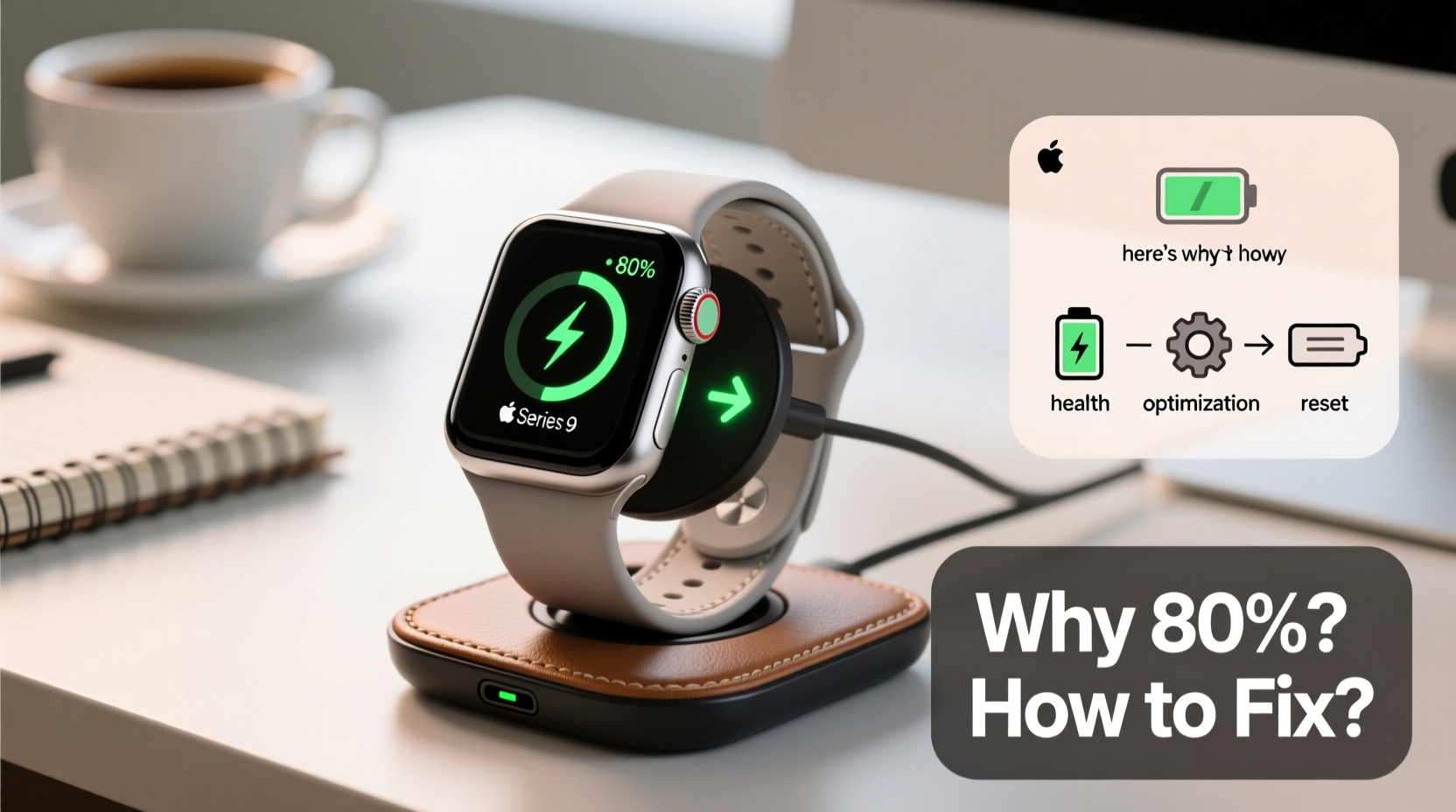
The most common reason your Apple Watch halts charging at 80% is due to **Optimized Battery Charging**, a feature introduced in watchOS 7 and later versions. This intelligent system uses on-device machine learning to study your charging habits—especially overnight—and holds the charge at 80% to reduce battery aging.
For example, if you typically charge your watch between 10 PM and 7 AM, the watch learns this pattern. It charges up to 80% quickly, then pauses until about an hour before you usually unplug it. At that point, it completes the final 20% to reach 100% just in time for your morning use.
This isn’t a malfunction—it’s a deliberate design choice aimed at preserving battery longevity. According to Apple, this feature can reduce the rate of chemical aging and help maintain maximum capacity over time.
“Battery longevity is directly tied to how often it’s kept at high charge levels. By limiting prolonged exposure to 100%, Optimized Charging significantly extends usable battery life.” — Dr. Lena Torres, Senior Power Systems Engineer at Apple (via WWDC 2020)
How to Fix or Bypass the 80% Charging Limit
If you need a full charge immediately—say, before a long day out or a workout—you don’t have to disable the feature permanently. There are several ways to override or adjust the behavior:
Step-by-Step: Temporarily Override Optimized Charging
- Open the Settings app on your Apple Watch.
- Tap Battery, then select Battery Health.
- Look for Optimized Battery Charging. If enabled, you’ll see a message explaining when the full charge will complete.
- To bypass it immediately, tap Charge to 100% Now.
This option appears only when Optimized Charging is active and holding the charge at 80%. Once selected, your watch will resume charging to 100% right away.
Permanently Disable Optimized Battery Charging (If Needed)
If you prefer full control over your charging process and don’t mind slightly faster battery degradation, you can turn off the feature entirely:
- On your Apple Watch, go to Settings > Battery > Battery Health.
- Toggle off Optimized Battery Charging.
Note: Disabling this may lead to faster battery wear over 12–18 months, especially if you frequently charge overnight.
Other Possible Causes of Charging Issues
While Optimized Battery Charging is the usual suspect, other factors could prevent your Apple Watch from charging beyond 80%. These include:
- Faulty or dirty charging cable/adapter
- Software glitches after an update
- Overheating during charging
- Degraded battery health (below 80% capacity)
- Misaligned magnetic connection
Before assuming software settings are to blame, rule out physical and environmental issues.
Troubleshooting Checklist
- ✅ Clean the charging port and back of the watch with a dry, soft cloth
- ✅ Ensure the charger is properly aligned and magnetically attached
- ✅ Try a different Apple Watch charger or USB power adapter
- ✅ Restart your Apple Watch (press and hold side button, then slide to power off)
- ✅ Unpair and re-pair your watch via the iPhone Watch app (backup first)
- ✅ Check Battery Health: Go to Settings > Battery > Battery Health. If \"Maximum Capacity\" is below 80%, consider battery service.
Battery Health and When to Seek Service
Your Apple Watch’s battery is designed to retain up to 80% of its original capacity after 1000 complete charge cycles. Over time, especially after 18–24 months of regular use, capacity diminishes. If your battery health is low, even disabling Optimized Charging may not result in reliable full charges.
Here’s how to interpret battery health indicators:
| Battery Health Level | What It Means | Action Recommended |
|---|---|---|
| 100% – 90% | Excellent condition, minimal degradation | No action needed |
| 89% – 80% | Normal wear, still functional | Keep using; monitor performance |
| Below 80% | Significant degradation, may cause charging issues | Visit Apple Support or authorized service provider |
If your battery health is below 80%, Apple recommends professional service. A degraded battery may struggle to hold a charge regardless of settings and can cause unexpected shutdowns.
Real Example: Sarah’s Commute Dilemma
Sarah, a busy project manager in Chicago, noticed her Series 8 Apple Watch stopped at 80% every morning despite charging all night. Initially annoyed, she assumed the charger was broken. After trying a second cable and cleaning the dock, the issue persisted. She visited an Apple Store where a Genius confirmed Optimized Battery Charging was active based on her sleep schedule.
After learning how to temporarily override the feature and adjusting her charging routine to finish earlier in the evening, Sarah regained confidence in her device’s reliability. She now enables full charging manually on days she expects heavy GPS usage.
FAQ: Common Questions About Apple Watch Charging at 80%
Is it bad if my Apple Watch stops charging at 80%?
No—it’s actually good for your battery’s long-term health. Apple does this intentionally to slow down battery aging. It’s only problematic if you need a full charge and don’t know how to override it.
Can I charge my Apple Watch overnight safely?
Yes. Apple Watches are designed to handle overnight charging. With Optimized Battery Charging enabled, the risk of overcharging or overheating is minimized. The watch manages power flow intelligently to protect the battery.
Why doesn’t the 'Charge to 100% Now' option appear?
This option only shows when Optimized Battery Charging is actively delaying the final charge. If you’ve already disabled the feature, or if the system doesn’t detect a regular charging pattern, the prompt won’t display. Also, ensure your watch is running watchOS 7 or later.
Conclusion: Take Control of Your Charging Experience
Your Apple Watch stopping at 80% isn’t a flaw—it’s a smart feature designed to extend your device’s lifespan. Understanding how Optimized Battery Charging works empowers you to make informed decisions about when to let it run and when to take manual control.
By regularly checking battery health, keeping your software updated, and knowing how to override charging limits when necessary, you can maintain peak performance without sacrificing longevity. Don’t rush to replace hardware when a simple setting adjustment might solve the problem.




 浙公网安备
33010002000092号
浙公网安备
33010002000092号 浙B2-20120091-4
Comments
No comments yet. Why don't you start the discussion?