
When apps won’t open, it disrupts everything—from checking email to navigating your commute. Whether you're using an iPhone or an Android device, unresponsive apps are a common frustration. The good news: most issues can be resolved without technical expertise. Understanding the root causes—be it outdated software, corrupted data, or insufficient storage—empowers you to fix the problem quickly and prevent future disruptions.
Why Apps Fail to Open
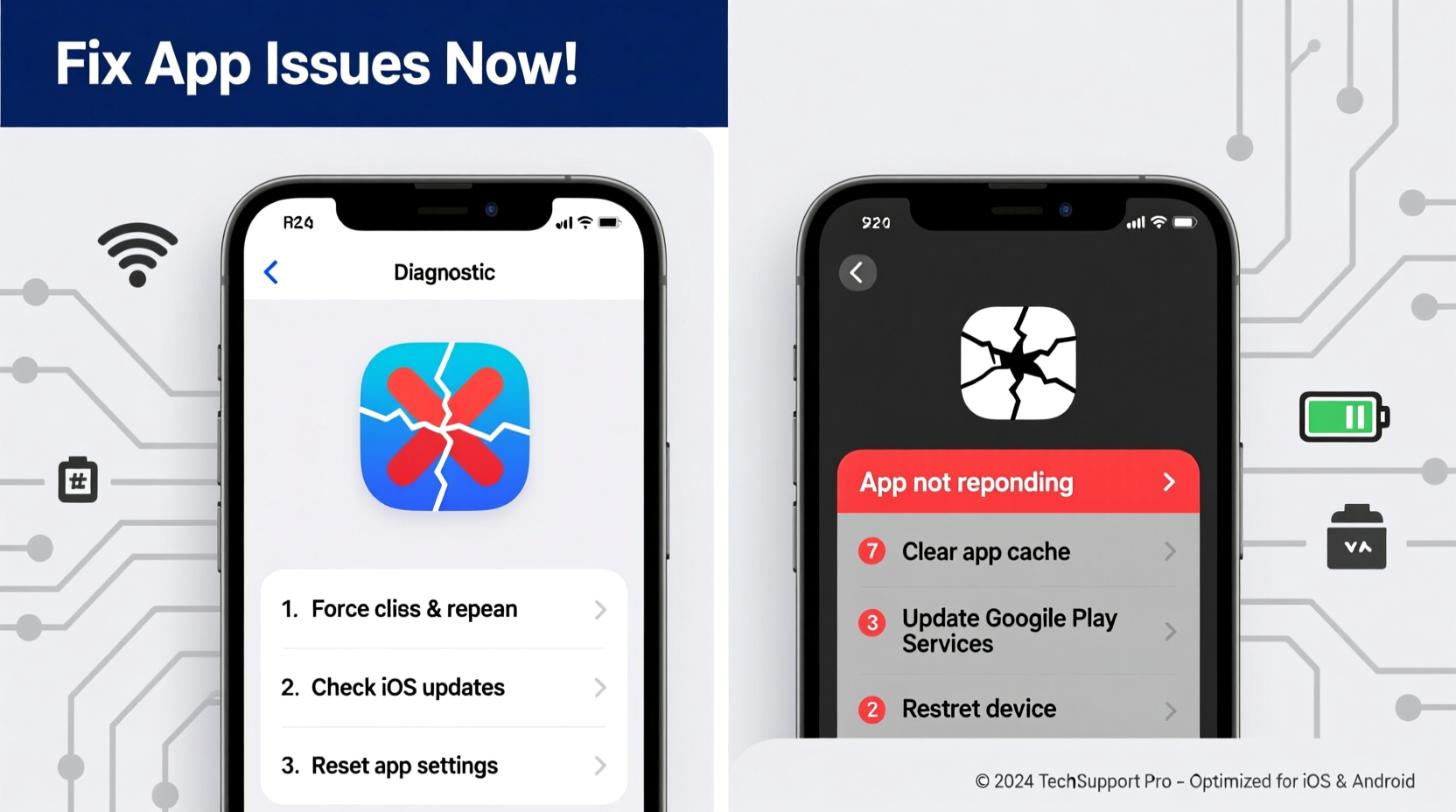
App crashes or failures to launch stem from various sources. On both iOS and Android, apps rely on stable operating systems, adequate memory, and consistent updates. When any of these elements falter, performance suffers.
Common triggers include:
- Outdated apps or OS: Older versions may not support current system requirements.
- Corrupted cache or data: Temporary files can become damaged, blocking normal startup.
- Insufficient storage: Devices need free space to run apps smoothly.
- Background app overload: Too many running apps consume RAM and processing power.
- Server-side issues: Some apps fail due to problems on the developer’s end, not your device.
“Over 60% of app crashes are resolved by clearing cache or updating the app. Users often overlook simple fixes before assuming hardware failure.” — Raj Patel, Mobile Software Engineer at TechFix Labs
Step-by-Step Troubleshooting Guide
Follow this logical sequence to diagnose and resolve app issues efficiently. Start with basic checks and progress to more advanced solutions only if needed.
- Check Internet Connection
If the app requires online access (e.g., social media, banking), verify Wi-Fi or cellular data is active and stable. Try loading a website to confirm connectivity. - Force Close and Reopen the App
On iPhone: Swipe up from the bottom (or double-click Home button) and swipe the app away. On Android: Go to Recent Apps and swipe the app off the screen. Then relaunch. - Restart Your Device
A reboot clears temporary glitches in memory and resets background processes. Hold the power button, select restart, and wait 30 seconds before turning it back on. - Update the App
Open the App Store (iPhone) or Google Play Store (Android). Tap your profile icon, go to “Manage Apps & Device,” and check for available updates. Install any pending ones. - Update Your Operating System
Outdated iOS or Android versions can cause compatibility issues. On iPhone: Settings > General > Software Update. On Android: Settings > System > System Update. - Clear Cache (Android Only)
Go to Settings > Apps > [Problem App] > Storage > Clear Cache. This removes temporary files without deleting account data. - Reinstall the App
Delete the app, then download it again from the official store. This replaces potentially corrupted installation files.
Do’s and Don’ts: Common Mistakes That Worsen App Issues
| Do | Don’t |
|---|---|
| Regularly update apps and OS | Ignore update notifications |
| Clear app cache monthly (Android) | Delete apps without backing up data |
| Restart your phone weekly | Install third-party APKs or sideloaded iOS apps |
| Free up storage when below 1GB | Leave dozens of apps running in the background |
| Check app reviews for known bugs | Assume every crash is your fault—sometimes it’s the developer |
Real Example: Fixing a Frozen Banking App
Sarah, a small business owner in Portland, couldn’t open her mobile banking app one morning. She had an urgent transfer to make. The app opened briefly, then froze. She tried tapping repeatedly—no response.
Instead of panicking, she followed a methodical approach:
- She restarted her iPhone XR—no change.
- Checked for iOS updates: none available.
- Went to the App Store and saw a pending update for the banking app.
- Updated the app and reopened it. It launched instantly.
Later, she discovered the bank had rolled out a security patch overnight. Users who hadn’t updated faced login loops and crashes. Sarah’s quick action saved her from missing a critical payment.
Advanced Fixes for Persistent Problems
If basic steps fail, consider deeper interventions. These are safe but should be used cautiously.
Reset All Settings (iPhone)
This doesn’t erase data but resets network settings, keyboard dictionary, and privacy permissions. Go to Settings > General > Transfer or Reset iPhone > Reset > Reset All Settings.
Clear App Data (Android)
Unlike cache, clearing data resets the app entirely—like a fresh install. Go to Settings > Apps > [App Name] > Storage > Clear Data. Note: You’ll need to log in again.
Check for Storage Space
Low storage cripples app performance. iPhones need at least 1–2 GB free; Android devices perform poorly under 500 MB. Delete unused apps, old photos, or offload content to the cloud.
Test in Safe Mode (Android)
Sometimes third-party apps interfere. Boot into Safe Mode to disable all non-system apps:
- Press and hold the power button.
- Long-press “Power Off” until “Reboot to Safe Mode” appears.
- Tap OK. If the problematic app works now, another app is conflicting.
FAQ: Quick Answers to Common Questions
Why do apps keep crashing after I updated my phone?
Operating system updates sometimes break app compatibility. Developers usually release patches within days. In the meantime, reinstall the app or wait for an update. Avoid downgrading the OS—it creates security risks.
Can a virus cause apps not to open?
True malware is rare on iPhones due to Apple’s sandboxing. On Android, malicious apps from unofficial sources can interfere. Stick to Google Play and avoid “free premium app” websites. Use Google Play Protect to scan apps automatically.
What if only one app won’t open, but others work fine?
This points to an issue with that specific app—likely corrupted data or a bug. Uninstall and reinstall it. If the problem persists, check the app’s support page or contact the developer. Server downtime could also be the cause.
Final Checklist: Restore App Functionality Fast
- ✅ Restart your device
- ✅ Force close the app and reopen
- ✅ Check internet connection
- ✅ Update the app via App Store or Google Play
- ✅ Update your phone’s operating system
- ✅ Free up storage space if below 1GB
- ✅ Clear cache (Android) or reinstall (both platforms)
- ✅ Contact app support if the issue continues
Conclusion: Take Control of Your Device’s Performance
App malfunctions don’t have to derail your day. Most issues stem from correctable oversights—outdated software, cluttered storage, or minor glitches. By applying systematic troubleshooting, you regain control and improve your phone’s reliability. Make maintenance a habit: schedule weekly reboots, enable auto-updates, and monitor storage. A few minutes of proactive care prevents hours of frustration. Your smartphone is a powerful tool; treat it with consistent attention, and it will serve you seamlessly.




 浙公网安备
33010002000092号
浙公网安备
33010002000092号 浙B2-20120091-4
Comments
No comments yet. Why don't you start the discussion?