
For remote workers who spend hours typing, clicking, and navigating digital interfaces, the physical toll on the body can be subtle but significant. While much attention is given to keyboards and chairs, the mouse—often overlooked—is a major contributor to wrist strain, forearm fatigue, and even repetitive strain injuries (RSIs). As more professionals work from home with less-than-ideal setups, the question arises: are ergonomic mice truly worth the investment? The answer, backed by biomechanics, occupational therapy, and real-world user experience, leans heavily toward yes—especially for those who type and click throughout the day.
The Hidden Cost of Standard Mice
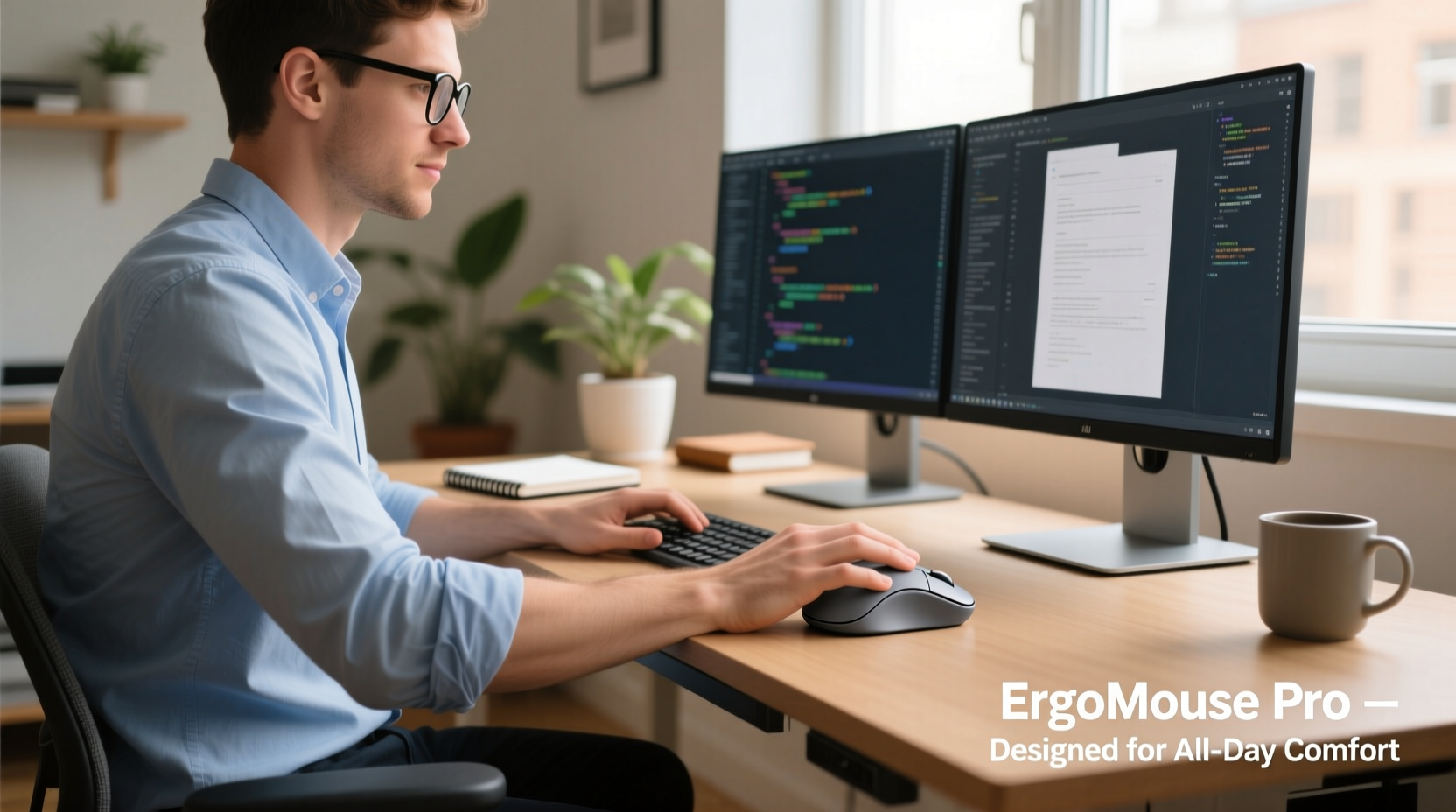
A traditional mouse forces the hand into a pronated position—palm down, fingers curled, thumb extended—resembling a handshake. This posture may seem natural at first, but over time, it places continuous stress on the tendons in the wrist and forearm. For remote workers logging eight or more hours daily, this cumulative strain increases the risk of conditions like carpal tunnel syndrome, tendonitis, and ulnar deviation.
Dr. Lena Patel, an occupational health specialist at the Institute for Workplace Wellness, explains:
“Prolonged use of a standard mouse leads to sustained muscle tension and poor blood flow in the forearm. Over weeks and months, this creates microtrauma that can develop into chronic pain. Remote workers, who often lack structured ergonomics training, are particularly vulnerable.”
Unlike office environments where IT departments may provide ergonomic equipment, remote employees frequently rely on whatever mouse came with their laptop—usually a small, flat device designed for portability, not comfort.
How Ergonomic Mice Reduce Physical Strain
Ergonomic mice are engineered to align with the body’s natural anatomy. Instead of forcing the hand into an unnatural grip, they promote a neutral wrist position—where the forearm, wrist, and hand form a straight line. This alignment reduces pressure on nerves and tendons, minimizing fatigue and injury risk.
Key design features of ergonomic mice include:
- Vertical orientation: Keeps the hand in a handshake-like position, reducing forearm pronation by up to 50%.
- Contoured shape: Supports the palm and fingers, distributing pressure evenly.
- Thumb rests: Allow the thumb to rest comfortably rather than hover or grip tightly.
- Programmable buttons: Reduce the need for keyboard switching, minimizing hand movement.
- Adjustable DPI settings: Enable precise control without excessive wrist motion.
A 2022 study published in the Journal of Occupational Rehabilitation found that participants using vertical ergonomic mice reported a 37% reduction in wrist discomfort after just four weeks of regular use. Another study showed a 28% decrease in muscle activity in the forearm compared to standard mice, indicating lower physical load during typical tasks.
Real-World Impact: A Case Study
Consider Sarah Lin, a technical writer based in Portland who transitioned to full-time remote work in 2020. She spent 8–10 hours daily typing reports, editing documents, and managing email. Within a year, she began experiencing numbness in her right hand and occasional shooting pain up her forearm. After a visit to a physical therapist, she was diagnosed with early-stage carpal tunnel syndrome.
Her treatment plan included wrist splints, stretching exercises, and—critically—a switch to an ergonomic vertical mouse. “At first, it felt awkward,” Sarah admits. “But after about five days, my hand adjusted. Within three weeks, the numbness was gone, and I could work longer without breaks.”
Sarah also paired the new mouse with a split keyboard and improved chair setup. “The mouse wasn’t a magic fix, but it was the most noticeable change. It took the constant pressure off my wrist that I didn’t even realize was there.”
This case reflects a common pattern: symptoms develop slowly, often dismissed as normal fatigue, until discomfort becomes disruptive. Ergonomic tools don’t eliminate the need for good habits, but they significantly reduce the physical burden of knowledge work.
Choosing the Right Ergonomic Mouse: A Practical Guide
Not all ergonomic mice are created equal. What works for one person may feel uncomfortable for another. Here’s a step-by-step approach to finding the best fit:
- Assess your current pain points: Do you have wrist pain, thumb strain, or shoulder tension? Identify where discomfort occurs to guide your choice.
- Determine your grip style: Palm, claw, or fingertip grip affects which shape will suit you best. Vertical mice favor palm grip; some ambidextrous models support claw gripping.
- Try before you buy (if possible): Visit a tech store or borrow a friend’s model. Spend at least 10 minutes using it to gauge comfort.
- Check compatibility: Ensure the mouse works with your operating system (Windows, macOS, Linux) and has reliable wireless connectivity (Bluetooth or USB dongle).
- Test sensitivity settings: Look for adjustable DPI so you can minimize large arm movements across a wide mousepad.
- Read return policies: Many brands offer 30-day trials. Take advantage of these to test long-term comfort.
| Mouse Type | Best For | Potential Drawbacks |
|---|---|---|
| Vertical Mouse | Reducing wrist pronation, general typing and browsing | May require desk space adjustment; initial learning curve |
| Trackball Mouse | Minimizing hand movement; users with limited desk space | Finger strain if using thumb-driven models; cleaning required |
| Pen Grip Mouse | Precision tasks (graphic design, CAD) | Less suited for long-duration typing workflows |
| Split/Adjustable Mouse | Customizable hand positioning; severe RSI cases | Expensive; bulky; limited software support |
Maximizing Benefits: Ergonomic Best Practices Beyond the Mouse
An ergonomic mouse alone won’t solve all issues. It must be part of a broader strategy to reduce musculoskeletal strain. Consider these complementary practices:
- Align your monitor at eye level: Prevents neck strain that can radiate into shoulders and arms.
- Use a keyboard tray or negative tilt: Keeps wrists straight while typing.
- Position the mouse close to the body: Avoid reaching; keep elbows at 90 degrees.
- Take microbreaks every 30 minutes: Stand, stretch, or perform wrist circles.
- Practice dynamic posture: Shift positions gently rather than staying static.
Cost vs. Value: Are They Worth the Investment?
Ergonomic mice typically range from $50 to $150—significantly more than a basic $10 mouse. However, when viewed through the lens of long-term health and productivity, the value proposition becomes clear.
Consider the cost of untreated RSI: missed workdays, medical visits, physical therapy, and potential surgery. According to the U.S. Bureau of Labor Statistics, the average worker compensation claim for carpal tunnel syndrome exceeds $5,000. Even conservative estimates suggest that preventing just one episode of injury pays for dozens of ergonomic mice.
Moreover, increased comfort translates to better focus and efficiency. Users consistently report fewer distractions due to physical discomfort, leading to smoother workflow continuity. For remote workers juggling multiple responsibilities, this subtle gain in concentration can compound over time.
“The ROI on ergonomic equipment isn’t just financial—it’s measured in energy, attention, and career longevity.” — Dr. Marcus Tran, Human Factors Engineer
FAQ: Common Questions About Ergonomic Mice
Do ergonomic mice really make a difference for people who type all day?
Yes. While typing primarily involves the keyboard, mouse use is frequent and repetitive. Each click, drag, and scroll contributes to cumulative strain. An ergonomic mouse reduces the load on the wrist and forearm, complementing good typing posture and lowering overall injury risk.
How long does it take to get used to an ergonomic mouse?
Most users adapt within 3 to 7 days. Initial discomfort is common due to unfamiliar hand positioning, but this usually resolves as muscles adjust. Using the mouse consistently during this period accelerates acclimation.
Can I use an ergonomic mouse with a laptop on the couch?
It’s not recommended. Ergonomic benefits depend on proper posture and surface stability. Using any mouse—ergonomic or not—on soft or uneven surfaces negates its advantages. Always use it at a desk with proper back and arm support.
Action Plan: Steps to Upgrade Your Setup Today
If you’re a remote worker spending most of your day at a computer, here’s what to do next:
- Pause and assess: Notice any tingling, stiffness, or fatigue in your hands or arms after a work session.
- Research models: Look into top-rated ergonomic mice like the Logitech MX Vertical, Anker Vertical Ergonomic Mouse, or Elecom Huge Optical Trackball.
- Order one with a trial policy: Choose a brand offering returns if it doesn’t suit you.
- Set it up correctly: Position it close to your keyboard, at the same height, and aligned with your elbow.
- Monitor changes: Track comfort levels daily for two weeks. Note reductions in pain or fatigue.
- Optimize further: Pair the mouse with other ergonomic upgrades—wrist pads, sit-stand desks, or footrests—as needed.
Final Thoughts: Small Change, Long-Term Gain
Remote work offers flexibility, but it also shifts responsibility for health and safety onto the individual. Investing in an ergonomic mouse is not about luxury—it’s about sustainability. For those who type all day, the cumulative effect of poor ergonomics can quietly erode well-being and performance.
The transition may feel minor—a different-shaped device on your desk—but the impact on comfort, endurance, and long-term joint health can be profound. Whether you’re already experiencing discomfort or simply aiming to prevent future issues, upgrading your mouse is one of the most accessible and effective steps you can take.




 浙公网安备
33010002000092号
浙公网安备
33010002000092号 浙B2-20120091-4
Comments
No comments yet. Why don't you start the discussion?