
In today’s digital landscape, pop-up blockers have become a standard feature in most web browsers. They promise a cleaner, distraction-free browsing experience by automatically preventing intrusive advertisements and unsolicited windows from appearing. But as websites grow more complex—relying on pop-ups not just for ads but also for authentication, notifications, and essential user interactions—the role of pop-up blockers has become increasingly controversial. Are they safeguarding our privacy and focus, or are they silently undermining the functionality we rely on daily?
The truth lies somewhere in between. Pop-up blockers serve a vital protective function, yet their overzealous filtering can disrupt legitimate site operations. Understanding when and how they help—and when they hinder—is key to making informed decisions about online security and usability.
The Origins and Purpose of Pop-Up Blockers
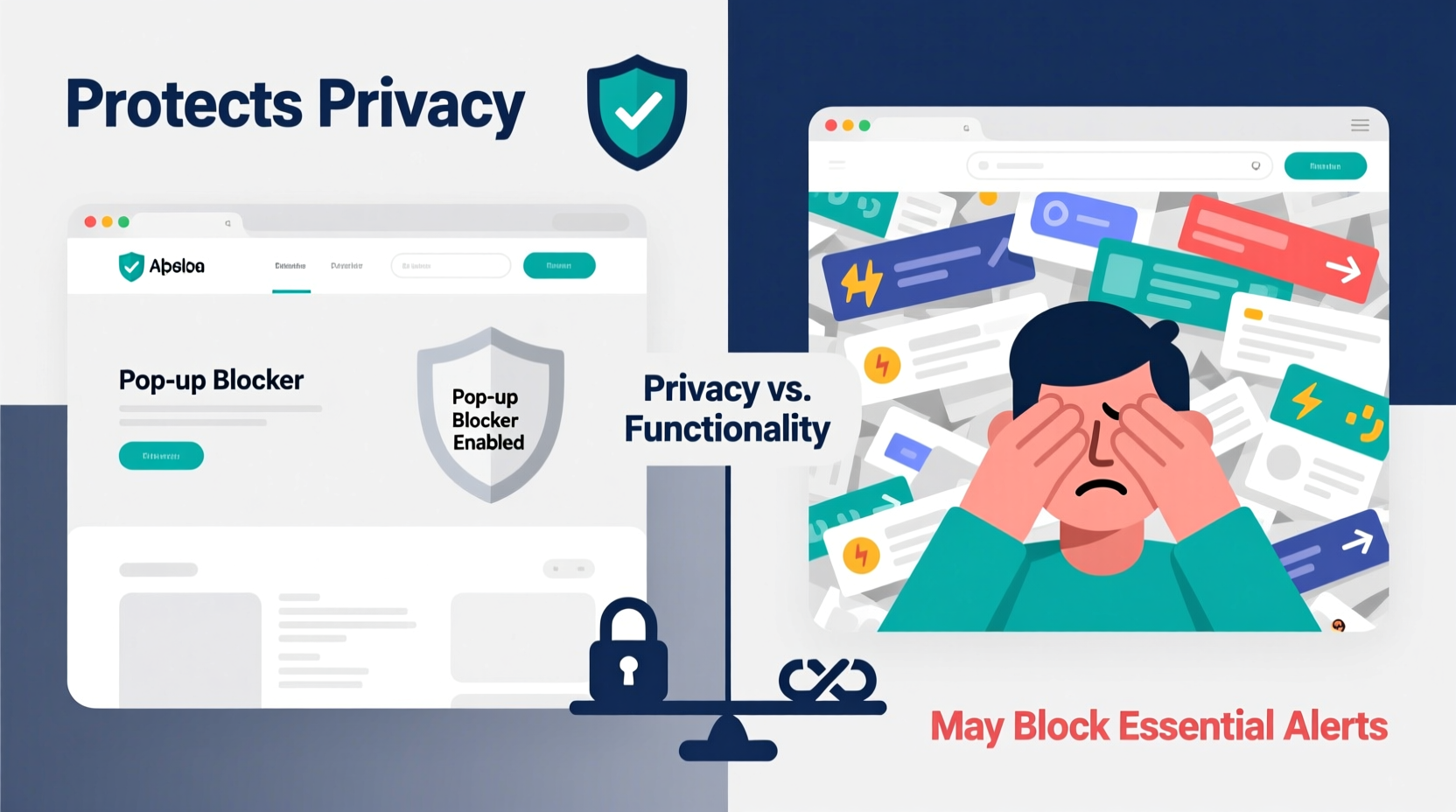
Pop-up blockers first gained popularity in the early 2000s, during the peak of aggressive online advertising. At that time, it was common for users to click a link and be bombarded with multiple new browser windows promoting dubious products, adult content, or malware-laden downloads. These interruptions weren’t just annoying—they posed real security risks.
Developers responded by creating tools to intercept these unwanted windows before they could load. Over time, this functionality was integrated directly into major browsers like Chrome, Firefox, and Safari. Today, nearly every modern browser includes a built-in pop-up blocker enabled by default.
The primary goals of pop-up blockers are threefold:
- Enhance user experience by reducing visual clutter and distractions.
- Protect against malicious software often delivered through deceptive pop-ups (e.g., fake virus alerts).
- Safeguard privacy by preventing third-party trackers embedded in ad pop-ups from collecting user data.
Despite these benefits, the evolution of web applications has complicated the narrative. What once were mostly spammy ads now include critical components like login modals, two-factor authentication prompts, chat widgets, and subscription forms—all technically classified as “pop-ups.” This shift raises an important question: when does protection cross the line into obstruction?
How Pop-Up Blockers Protect Privacy and Security
One of the strongest arguments in favor of pop-up blockers is their role in defending user privacy. Many pop-ups, especially those generated by third-party advertisers, contain tracking scripts designed to monitor browsing behavior across sites. This practice, known as cross-site tracking, allows companies to build detailed profiles for targeted advertising—often without explicit consent.
By blocking these elements at the source, pop-up blockers reduce exposure to invasive data collection. Consider the following protections they offer:
- Prevention of drive-by downloads: Some pop-ups trigger automatic file downloads disguised as updates or media players. Blocking them stops potential malware installations.
- Reduction of phishing exposure: Fake pop-ups mimicking system warnings (“Your computer is infected!”) are common social engineering tactics. Blockers help prevent these from appearing.
- Limitation of cookie stuffing and fingerprinting: Third-party pop-ups often deploy advanced tracking techniques that persist even after cookies are cleared.
“Pop-up blockers are one of the simplest yet most effective tools users have to maintain control over their digital footprint.” — Dr. Lena Patel, Cybersecurity Researcher at OpenWeb Institute
A study conducted by Princeton University found that over 70% of third-party trackers on popular websites originated from pop-up-style elements. Disabling pop-up blockers increased data leakage by an average of 43% across tested sessions. This underscores their importance not just for convenience, but for fundamental digital hygiene.
When Pop-Up Blockers Interfere with Legitimate Functionality
While the privacy benefits are clear, pop-up blockers don’t distinguish between malicious ads and necessary interface elements. As a result, users frequently encounter broken workflows on otherwise well-designed websites.
Common scenarios where pop-up blockers cause issues include:
- OAuth Login Flows: Services like Google, Facebook, or GitHub use pop-up windows for secure authentication. If blocked, users see no error—just silence—leading to confusion and failed logins.
- Payment Gateways: Some payment processors open transaction windows in new tabs to maintain session integrity. A strict blocker may prevent checkout completion.
- Live Chat Support: Customer service widgets often launch in pop-up format. Blocking them cuts off access to real-time assistance.
- Form Submissions: After submitting a contact form, some sites display confirmation messages in pop-up overlays. If blocked, users may think the submission failed.
- Interactive Tools: Calculators, configurators, or preview panels sometimes open in secondary windows for better usability.
This interference creates friction. According to a 2023 UX survey by WebUsability Labs, 38% of users reported abandoning a transaction due to a pop-up-related error, believing the site was malfunctioning—even though the issue stemmed from their own browser settings.
Real Example: The Online Banking Dilemma
Consider Maria, a small business owner trying to set up multi-bank integration for her accounting software. She clicks “Connect Bank Account” and selects her financial institution. Instead of seeing a login prompt, nothing happens. Frustrated, she tries multiple times, then contacts customer support.
The support agent asks if she uses a pop-up blocker. Maria confirms she does—and always has. The agent explains that the bank’s secure authentication portal opens in a pop-up window, which her browser silently suppressed. Once Maria temporarily disables the blocker for that site, the connection works instantly.
This scenario illustrates a growing tension: security features meant to protect users can inadvertently block trusted services, leading to poor user experiences and misplaced blame on the website itself.
Striking the Right Balance: Best Practices
The solution isn’t to abandon pop-up blockers—but to use them intelligently. With thoughtful configuration, users and developers alike can enjoy both security and seamless functionality.
Step-by-Step Guide: Managing Pop-Up Settings Safely
- Keep the default blocker enabled for general browsing to maintain baseline protection.
- Whitelist trusted domains where you frequently encounter essential pop-ups (e.g., banks, SaaS platforms, email providers).
- Train yourself to recognize safe triggers: Legitimate pop-ups usually appear only after direct user action (like clicking a button), not automatically on page load.
- Use private browsing modes strategically: In incognito mode, many trackers are already limited, so consider relaxing pop-up rules there if needed.
- Review permissions annually: Remove outdated exceptions and re-evaluate which sites still require pop-up access.
Checklist: Optimizing Pop-Up Behavior
- ✅ Ensure pop-up blocker is active in your browser settings.
- ✅ Identify 3–5 critical sites that need pop-up access (e.g., work tools, banking).
- ✅ Add these sites to your browser’s allowed list.
- ✅ Test each site to confirm pop-ups function correctly.
- ✅ Educate family members or team members about managing exceptions responsibly.
- ✅ Monitor for unusual pop-up activity; if unblocked ads appear, review installed extensions.
Comparison: Pop-Up Blockers Across Major Browsers
| Browser | Default Pop-Up Blocking | Customization Options | Privacy Integration | User-Friendly Exception Management |
|---|---|---|---|---|
| Google Chrome | Enabled | Site-specific allow/block lists | Integrated with Google Safe Browsing | High – easy via lock icon |
| Mozilla Firefox | Enabled | Detailed permission controls | Enhanced Tracking Protection blocks pop-ups from known trackers | High – clear interface in Preferences |
| Apple Safari | Enabled | Allow/Deny per site in Website Settings | Integrates with Intelligent Tracking Prevention | Medium – slightly buried in settings |
| Microsoft Edge | Enabled | Per-site permissions + tracker prevention levels | Uses Microsoft Defender SmartScreen | High – similar to Chrome |
| Brave | Enabled (aggressive) | Granular ad-block settings | Built-in ad and tracker blocking | Medium – focused on privacy-first defaults |
As shown, all major browsers provide robust pop-up protection out of the box. However, customization depth varies. Firefox and Chrome offer the most transparent management, while Brave prioritizes maximum privacy with less manual intervention required.
Frequently Asked Questions
Can pop-up blockers stop all types of malware?
No single tool offers complete protection. While pop-up blockers prevent many attack vectors—especially those relying on deceptive windows—they should be used alongside antivirus software, updated systems, and cautious browsing habits. Sophisticated malware can bypass pop-up defenses through other means, such as compromised downloads or phishing emails.
Why do some websites still show pop-ups even with a blocker enabled?
This typically occurs when the pop-up is triggered by a user action (like clicking a button), which browsers interpret as “allowed.” Additionally, some sites use inline modal windows (not true pop-ups) that aren’t caught by blockers because they don’t open new windows. Ad blockers or script filters may be needed for full suppression.
Should I disable my pop-up blocker for better site functionality?
Not entirely. Instead, selectively allow pop-ups for specific, trusted websites. Disabling the blocker globally exposes you to unnecessary risks. Use the exception system provided by your browser to maintain both security and usability.
Conclusion: Empowerment Through Awareness
Pop-up blockers are neither inherently harmful nor universally beneficial. Their impact depends on how they’re configured and the context in which they operate. Used wisely, they shield users from invasive tracking, scams, and clutter. Mismanaged, they can break essential functions and erode trust in legitimate services.
The key is balance. By understanding what pop-ups are for, recognizing when they serve a purpose, and learning to manage exceptions effectively, users can reclaim control over their browsing experience. Developers, too, must design with pop-up dependencies in mind—considering fallbacks and clear messaging when windows are blocked.




 浙公网安备
33010002000092号
浙公网安备
33010002000092号 浙B2-20120091-4
Comments
No comments yet. Why don't you start the discussion?