
Programmable pixel lights—such as WS2812B (commonly known as NeoPixels), SK6812, or APA102—are increasingly popular in DIY lighting projects. From ambient room setups to synchronized holiday displays, these addressable LEDs offer dynamic color control at the individual light level. But can they be effectively driven by a Raspberry Pi to create custom animations? The short answer is yes—but with important technical considerations.
The Raspberry Pi, especially models like the Pi 4, Pi 3, and Pi Zero, has become a go-to platform for makers due to its GPIO capabilities, Linux environment, and support for Python and other programming languages. When paired correctly with pixel strips, it enables powerful, software-driven light shows. However, achieving smooth, glitch-free animations requires understanding signal timing, power management, and software libraries.
Understanding Pixel Light Types and Protocols
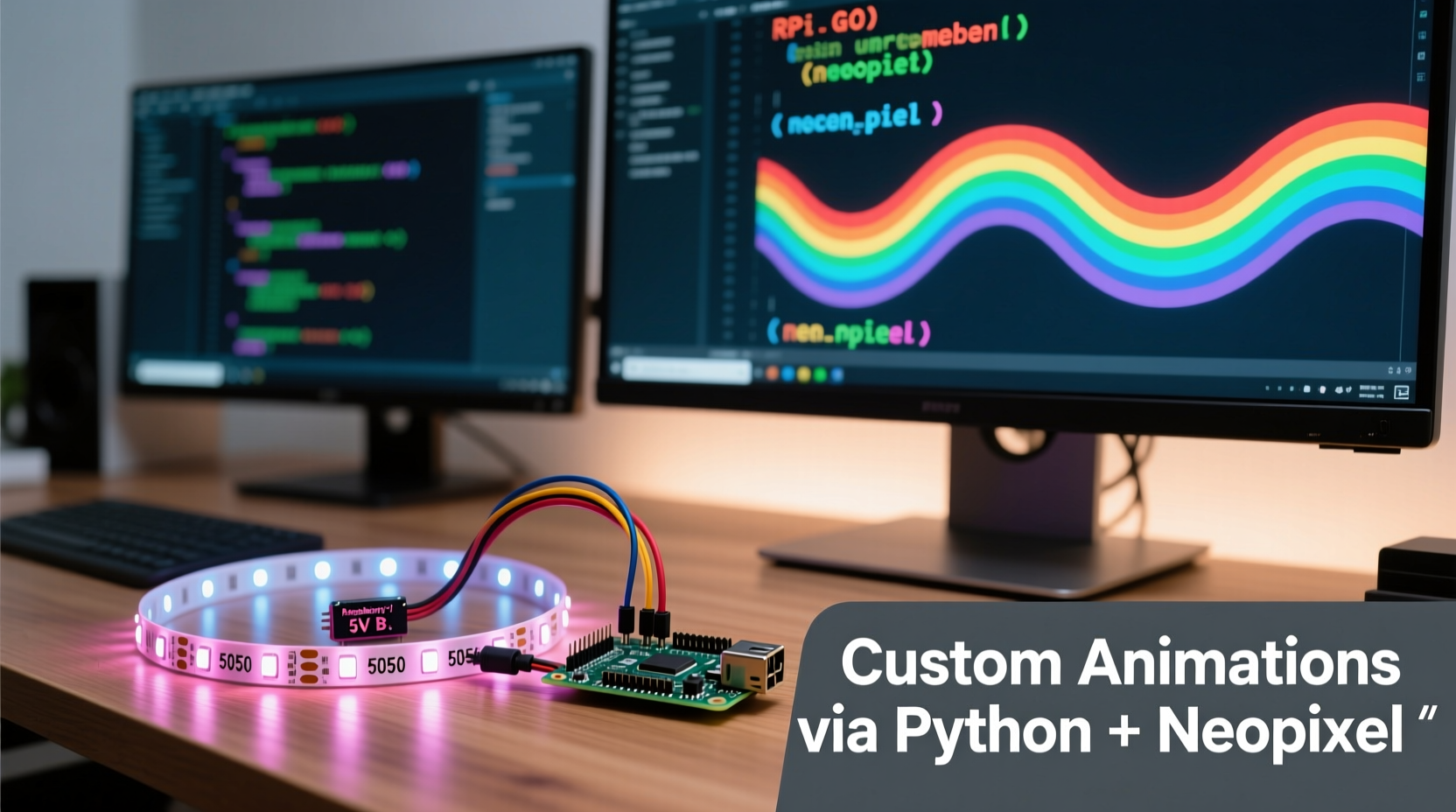
Not all programmable LEDs are created equal. Their compatibility with the Raspberry Pi depends heavily on the communication protocol they use. The two most common types are:
- WS2812B / NeoPixel (One-Wire Protocol): These use a single data line with strict timing requirements. They're widely used but sensitive to signal jitter.
- APA102 / DotStar (SPI-based Protocol): These use clock and data lines (like traditional SPI), making them more reliable on systems where precise timing is hard to maintain.
The Raspberry Pi’s Linux operating system is not real-time, meaning background processes can interrupt GPIO signals. This makes driving WS2812B strips tricky without additional tools, while APA102s are generally easier to manage due to their clocked interface.
“While both types work with the Pi, APA102s give you more headroom for complex animations because they don’t rely on microsecond-accurate timing.” — David Lin, Embedded Systems Developer
Hardware Requirements and Setup
To successfully run programmable pixels from a Raspberry Pi, several hardware components must be considered beyond just the Pi and LED strip.
Essential Components
| Component | Purpose | Notes |
|---|---|---|
| Raspberry Pi (3B+, 4, or Zero W) | Main controller | Pi 4 recommended for smoother multitasking |
| 5V Programmable LED Strip | Light output | Match voltage; avoid mixing 5V and 12V strips |
| Logic Level Shifter (3.3V → 5V) | Signal conversion | Mandatory for WS2812B to prevent data errors |
| External 5V Power Supply | Power delivery | Use separate supply for long strips (>30 LEDs) |
| Breadboard & Jumper Wires | Prototyping connections | Mention only if prototyping; optional for permanent builds |
The Raspberry Pi operates at 3.3V logic levels, but most pixel strips expect 5V signals. Without a level shifter, the data signal may be too weak, leading to erratic behavior or no response. For APA102s, which also operate at 5V input, this step is equally important.
Power is another critical factor. While short strips (under 15–20 LEDs) can sometimes draw power from the Pi’s GPIO pin, doing so risks overloading the board. Always use an external regulated 5V power supply for anything beyond minimal testing. Connect ground between the Pi and power supply to ensure a common reference.
Wiring Diagram (Text-Based)
For a typical WS2812B setup:
- Connect the 5V rail of the LED strip to the + terminal of the external 5V power supply.
- Connect the GND of the LED strip to both the − terminal of the power supply and a ground pin on the Raspberry Pi.
- Route the Data In line of the strip through a **logic level shifter**:
- Input (LV side): GPIO pin (e.g., GPIO 18)
- Output (HV side): Data In on LED strip
- Power the level shifter using 3.3V (Pi) and 5V (supply).
This configuration ensures clean signal transmission and safe operation.
Software Libraries and Animation Programming
The Raspberry Pi runs full Linux distributions like Raspberry Pi OS, enabling access to robust programming environments. Python is the most accessible language for controlling pixel lights, thanks to mature libraries.
Top Libraries for Pixel Control
- NeoPixel Library (by Adafruit): Supports WS2812B and similar. Uses memory-mapped PWM or DMA for timing-critical output.
- rpi_ws281x: Lower-level C library with Python bindings. Offers better performance than basic bit-banging.
- DotStar Library (APA102): Leverages hardware SPI, which the Pi handles natively with high reliability.
- LEDscape: Advanced option for large-scale installations using PRU-like real-time processing (requires BeagleBone expertise porting).
For example, initializing a WS2812B strip in Python using rpi_ws281x:
from rpi_ws281x import PixelStrip, Color

# Configuration
LED_COUNT = 60
LED_PIN = 18
LED_FREQ_HZ = 800000
LED_DMA = 10
LED_BRIGHTNESS = 200
LED_INVERT = False

strip = PixelStrip(LED_COUNT, LED_PIN, LED_FREQ_HZ, LED_DMA, LED_INVERT, LED_BRIGHTNESS)
strip.begin()

# Set first pixel red
strip.setPixelColor(0, Color(255, 0, 0))
strip.show()
This code initializes a 60-pixel strip and sets the first LED to red. Animations are built by looping over pixels, changing colors over time, and calling strip.show() to update.
time.sleep() carefully in animation loops—too short causes flicker, too long reduces frame rate. Aim for ~30ms per frame for smooth motion.
Step-by-Step Guide: Create Your First Custom Animation
Follow this sequence to build a simple \"chase\" animation on a WS2812B strip connected to a Raspberry Pi.
- Prepare Hardware: Wire your LED strip with a level shifter and external 5V supply. Confirm all grounds are connected.
- Install Required Software:
sudo apt-get update
sudo apt-get install python3-pip
pip3 install rpi-ws281x
- Create Animation Script: Save the following as
chase.py:import time from rpi_ws281x import PixelStrip, Color # Settings LED_COUNT = 30 LED_PIN = 18 DELAY_MS = 50 strip = PixelStrip(LED_COUNT, LED_PIN) strip.begin() def wheel(pos): if pos < 85: return Color(pos * 3, 255 - pos * 3, 0) elif pos < 170: pos -= 85 return Color(255 - pos * 3, 0, pos * 3) else: pos -= 170 return Color(0, pos * 3, 255 - pos * 3) def chase_animation(wait_ms=50): for j in range(256): for q in range(3): for i in range(0, strip.numPixels(), 3): strip.setPixelColor(i + q, wheel((i + j) % 255)) strip.show() time.sleep(wait_ms / 1000.0) for i in range(0, strip.numPixels(), 3): strip.setPixelColor(i + q, 0) try: while True: chase_animation(DELAY_MS) except KeyboardInterrupt: print(\"Animation stopped\") finally: for i in range(strip.numPixels()): strip.setPixelColor(i, 0) strip.show() - Run the Script: Execute with
sudo python3 chase.py. You should see a colorful chasing pattern. - Troubleshoot: If lights flicker or show random colors, check wiring, add a 470Ω resistor on the data line, or reduce strip length during testing.
This foundation can be expanded into rainbow cycles, sound-reactive effects, or network-controlled scenes using Flask or MQTT.
Mini Case Study: Home Theater Ambient Lighting
Mark, a hobbyist in Manchester, wanted to enhance his home cinema with edge-lit walls that mirrored screen colors. He used a Raspberry Pi 4 connected to two 144-pixel/meter WS2812B strips mounted behind his TV.
He faced initial flickering due to using the Pi’s 5V pin directly. After switching to a 5A external power supply and adding a logic level shifter, stability improved. Using a modified version of hyperion-ng, he captured screen colors via HDMI grabber and mapped them to the LED strip in real time.
The result was a seamless ambient glow that reacted instantly to scene changes. Mark later added voice control via Google Assistant integration, allowing him to switch themes based on movie genre. His project now serves as a template for local maker meetups.
Do’s and Don’ts Checklist
- ✅ Do:
- Use a logic level shifter for data lines
- Power long strips externally
- Test with short segments first
- Ground the Pi and power supply together
- Use hardware-accelerated libraries like rpi_ws281x
- ❌ Don’t:
- Chain more than 500 pixels without signal refreshers
- Run animations without current limiting resistors
- Ignore heat buildup on long-running setups
- Use unregulated wall adapters for stable voltage
- Assume all “5V” strips tolerate 5.5V+ spikes
Frequently Asked Questions
Can I control multiple strips at once?
Yes, but each strip needs its own data line unless daisy-chained properly. The Pi has limited GPIO pins, so consider using shift registers or dedicated driver boards (like TLC59711) for expansion. Alternatively, use multiple Pi Zeros in sync via network commands.
Why do my pixels flicker or turn white randomly?
This usually stems from power instability or signal interference. Common fixes include adding a 1000µF capacitor across the power rails near the strip’s start, using a level shifter, reducing brightness, or shortening the data wire. Also, ensure the ground loop is complete between Pi and PSU.
Is Wi-Fi control possible?
Absolutely. Since the Pi runs a full OS, you can host a web server (using Flask or FastAPI) that accepts color commands via HTTP requests. Pair this with a mobile frontend or voice assistant for remote control. Many open-source projects like Hyperion and WLED offer ready-made solutions.
Conclusion: Bringing Creative Vision to Life
Programmable pixel lights are not only compatible with the Raspberry Pi—they thrive when paired thoughtfully. With attention to signal integrity, power delivery, and software optimization, the Pi becomes a capable brain for intricate, responsive light animations.
Whether you're building mood lighting, interactive art, or synchronized music visualizers, the combination of affordable hardware and open-source tools puts professional-grade results within reach. The ecosystem continues to grow, with community-driven improvements in libraries and frameworks making advanced features more accessible every year.




 浙公网安备
33010002000092号
浙公网安备
33010002000092号 浙B2-20120091-4
Comments
No comments yet. Why don't you start the discussion?