
If your AT&T internet suddenly stops working, you're not alone. Millions of users experience connectivity disruptions each year due to local outages, equipment malfunctions, or network maintenance. Before calling customer support or assuming the worst, there are practical, immediate steps you can take to diagnose the issue, confirm whether it's a widespread outage, and restore service quickly. This guide walks you through everything from checking real-time outage maps to troubleshooting your gateway, so you can minimize downtime and stay connected.
How to Confirm If AT&T Internet Is Down in Your Area
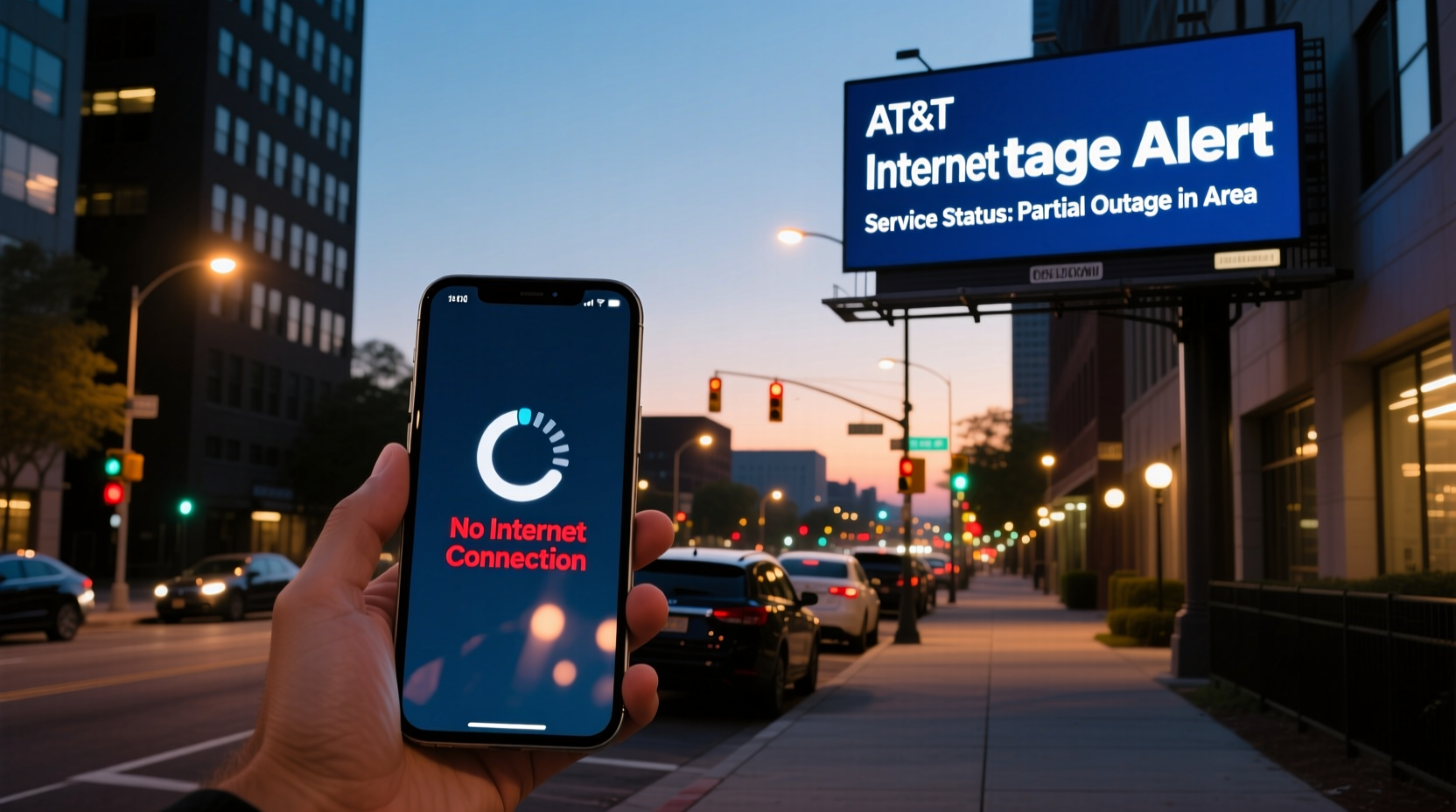
The first step when your internet stops working is determining whether the problem is isolated to your home or part of a broader service disruption. A quick way to verify this is by checking AT&T’s official service status page.
Visit att.com/support/service-status to view real-time updates on network performance across the U.S. The page highlights known outages affecting internet, TV, and phone services. It includes details like affected regions, estimated restoration times, and ongoing maintenance schedules.
In addition to the official site, third-party platforms such as Downdetector and Outage.Report aggregate user-reported issues and display them on interactive maps. These tools help identify if multiple users in your ZIP code are experiencing similar problems.
Step-by-Step Guide to Troubleshooting AT&T Internet Issues
Even if there’s no reported outage, your connection may still fail due to hardware or configuration problems. Follow this sequence to isolate and resolve common causes:
- Check Physical Connections: Ensure the power cable, Ethernet cord, and coaxial line (if applicable) are securely plugged into your gateway or modem.
- Restart Your Gateway: Unplug the device for 30 seconds, then reconnect. Wait 2–3 minutes for all lights to stabilize—especially the \"Online\" or \"Broadband\" indicator.
- Inspect LED Indicators: A red or blinking light often signals a sync issue. Refer to your model’s manual for light codes (e.g., rapid flashing on the DSL light may indicate line noise).
- Test Without Wi-Fi: Connect a computer directly via Ethernet. If the wired connection works, the issue likely lies with your wireless settings or router placement.
- Log Into Your Gateway: Access http://192.168.1.254 using a browser. Check for error messages under “Connection Status.” Look at signal levels: downstream should be between -7 dBmV and +7 dBmV; upstream below 50 dBmV is ideal.
- Update Firmware: While logged in, navigate to “Gateway Information” and check for pending firmware updates. Outdated software can cause instability.
Common Causes of AT&T Internet Outages
Understanding why outages occur helps you respond more effectively. Below are the most frequent culprits:
- Network Maintenance: AT&T performs scheduled upgrades during off-peak hours, which may briefly interrupt service.
- Local Infrastructure Damage: Excavation work, storms, or fallen trees can sever fiber lines or damage utility poles.
- Equipment Failure: Modems older than 3–5 years may struggle with modern bandwidth demands or fail unexpectedly.
- Account or Billing Issues: Service suspension due to non-payment can mimic an outage—verify your account status online.
- Wi-Fi Interference: Nearby electronics, thick walls, or competing networks on the same channel can degrade signal strength.
“Over 40% of ‘outage’ calls we receive are resolved with a simple gateway reboot. Many customers don’t realize how much a restart can clear temporary glitches.” — James Rolen, Former AT&T Network Support Technician
Outage Response Checklist
When your internet goes down, use this checklist to act efficiently:
| Action | Status | Notes |
|---|---|---|
| Verify outage via att.com/service-status | ✅ / ❌ | Note any reported issues in your area |
| Restart gateway | ✅ / ❌ | Wait full 3 minutes after reboot |
| Check physical connections | ✅ / ❌ | Ensure coaxial lock is tight |
| Test wired connection | ✅ / ❌ | Use Ethernet cable to rule out Wi-Fi issues |
| Review account status | ✅ / ❌ | Confirm no billing suspension |
| Contact AT&T support | ✅ / ❌ | Have gateway MAC address ready |
Real Example: How One User Resolved a Persistent Outage
Sarah M., a remote worker in Austin, TX, lost her AT&T Fiber connection one Monday morning. Video calls kept dropping, and speed tests showed zero Mbps. She checked Downdetector and saw 27 reports in her neighborhood—but no official outage listed.
She followed the reboot process twice with no success. Then, she connected her laptop directly to the gateway using Ethernet. Surprisingly, the wired connection worked perfectly. The issue was isolated to Wi-Fi.
Logging into her gateway, she discovered that the 5 GHz band had disabled itself. After re-enabling it and changing the channel to reduce interference from neighboring networks, her devices reconnected seamlessly. The fix took less than 10 minutes—and saved her from a wasted afternoon waiting for a technician.
Frequently Asked Questions
How long do AT&T internet outages usually last?
Most minor outages caused by technical glitches or reboots resolve within 1–2 hours. Larger infrastructure-related outages, especially after severe weather, can last 24–72 hours depending on access and repair complexity.
Can I get compensation if my AT&T internet is down for days?
AT&T does not automatically provide refunds for outages, but prolonged service interruptions (over 48 hours) may qualify for a service credit upon request. Contact customer care to file a claim.
Does AT&T offer outage alerts?
Yes. You can sign up for outage notifications through your myAT&T account. Go to “Profile & Settings,” then “Communication Preferences,” and enable service alerts via text or email.
Proactive Measures to Minimize Future Downtime
While some outages are unavoidable, you can reduce their impact with smart preparation:
- Keep a Backup Connection: Use a mobile hotspot or secondary ISP (like satellite or LTE) for critical tasks.
- Label Your Equipment: Mark cables and filters clearly to speed up troubleshooting.
- Monitor Signal Levels Monthly: Log into your gateway periodically to ensure signal strength remains stable.
- Upgrade Old Hardware: Replace gateways older than five years—even if they seem functional—to prevent sudden failures.
- Use UPS Protection: A battery backup prevents abrupt shutdowns during brief power flickers, which can disrupt modem synchronization.
Conclusion: Stay Informed, Stay Connected
Dealing with AT&T internet outages doesn’t have to mean hours of frustration or unproductive waiting. By knowing where to check service status, how to interpret gateway signals, and when to escalate to support, you gain control over your connectivity. Most issues can be diagnosed and fixed in under 30 minutes with the right approach. Don’t assume every drop in service requires a technician—start with the basics, follow a structured process, and keep your tools ready.




 浙公网安备
33010002000092号
浙公网安备
33010002000092号 浙B2-20120091-4
Comments
No comments yet. Why don't you start the discussion?