
If your AT&T internet feels sluggish—videos buffering, pages loading slowly, or video calls dropping—it’s not just frustrating; it can disrupt work, entertainment, and daily routines. While service outages do happen, most slowdowns stem from fixable issues within your home network. The good news is that with a methodical approach, you can identify the root cause and restore your connection to peak performance.
AT&T delivers reliable broadband across fiber, DSL, and fixed wireless networks, but even the best infrastructure depends on proper setup and maintenance. This guide walks through real-world troubleshooting steps, optimization techniques, and expert-backed strategies to get your internet running smoothly again.
Step-by-Step Guide: Diagnose and Fix Slow AT&T Internet
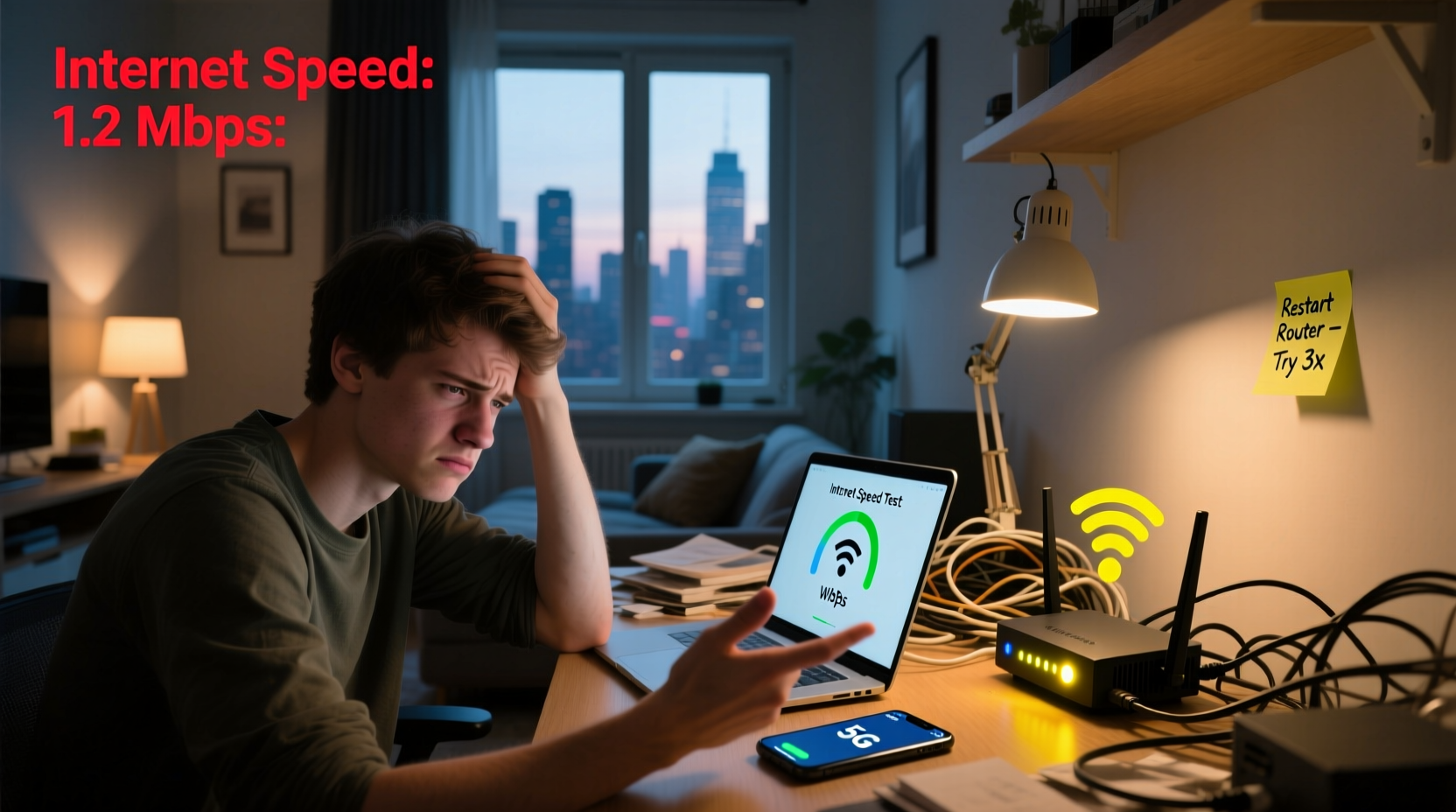
Before calling customer support or upgrading your plan, follow this structured process to isolate and resolve common causes of slow speeds.
- Check for Outages: Visit AT&T’s outage map to see if there’s a known issue in your area. Service disruptions due to weather, maintenance, or equipment failure are often temporary.
- Test Your Speed: Use a trusted speed test tool like Speedtest.net on a wired device. Compare results to your plan’s advertised speeds (e.g., 100 Mbps down, 20 Mbps up).
- Restart Equipment: Power cycle your gateway or modem and router. Unplug for 60 seconds, then plug back in. This clears memory glitches and reestablishes a clean connection to AT&T’s network.
- Connect via Ethernet: Test speed using a direct Ethernet cable to rule out Wi-Fi interference. If wired speeds are fast, the issue lies in your wireless setup.
- Inspect Network Congestion: Check how many devices are connected. Streaming, gaming, cloud backups, and smart home gadgets all consume bandwidth.
Optimize Your Wi-Fi for Better Coverage and Speed
Even with a strong signal, poor Wi-Fi placement or outdated settings can cripple performance. Optimize your wireless environment with these proven adjustments.
- Position Your Gateway Strategically: Place your AT&T gateway or router in a central, elevated location away from walls, metal objects, and appliances like microwaves or cordless phones.
- Reduce Interference: Avoid placing routers near Bluetooth speakers, baby monitors, or refrigerators. These emit signals that interfere with the 2.4 GHz band.
- Switch to 5 GHz When Possible: The 5 GHz band offers faster speeds and less interference than 2.4 GHz, though it has shorter range. Use it for high-bandwidth activities like streaming or gaming.
- Update Firmware: Log into your gateway’s admin panel (usually
http://192.168.1.254) and check for firmware updates under “Gateway Information.” AT&T automatically pushes updates, but manual checks ensure you’re current.
“Wi-Fi performance isn’t just about speed tiers—it’s about signal quality, channel selection, and device management. Small changes yield big gains.” — Raj Mehta, Senior Network Engineer at Broadband Insights Group
Do’s and Don’ts of Home Network Management
| Do | Don't |
|---|---|
| Use wired connections for critical devices (PCs, consoles, TVs) | Place your router in a closet or basement corner |
| Limit background downloads and automatic updates during peak use | Allow too many simultaneous HD streams on low-tier plans |
| Enable Quality of Service (QoS) to prioritize important traffic | Ignore unusual lights on your gateway (e.g., blinking red or amber) |
| Upgrade to Wi-Fi 6 if using modern devices and a fiber plan | Use third-party firmware unless technically experienced |
Real-World Example: Resolving Persistent Lag in a Family Home
The Thompson family in Austin, Texas, subscribed to AT&T Fiber 300 but consistently experienced buffering during evening streaming. Their speed tests showed only 40–60 Mbps during peak hours. After ruling out outages, they discovered their router was tucked behind a TV stand in a corner of the living room, surrounded by electronics.
They moved the gateway to a shelf in the hallway, switched devices to 5 GHz where possible, and scheduled large downloads (like game updates) for overnight. They also enabled QoS to prioritize their Apple TV and Zoom calls. Within a day, speeds improved to 220+ Mbps during testing, and streaming became seamless.
The issue wasn’t their plan or AT&T’s service—it was signal obstruction and unmanaged bandwidth usage. A few simple changes transformed their experience.
Advanced Optimization: Boost Performance Beyond Basic Fixes
For users who’ve tried standard troubleshooting without full success, consider these deeper optimizations.
Use a Mesh Network for Large Homes
If your home exceeds 2,000 sq ft or has thick walls, a single router may not suffice. AT&T offers mesh Wi-Fi systems (like the AT&T Pro-Grade Wi-Fi) that extend coverage seamlessly. Alternatively, install third-party mesh systems such as Google Nest Wifi or Eero compatible with your AT&T gateway.
Change Wi-Fi Channels Manually
In dense neighborhoods, multiple networks on the same channel cause interference. Access your gateway settings, go to “Wireless Settings,” and switch from “Auto” to a less crowded channel (use apps like WiFi Analyzer on Android to find optimal channels).
Upgrade Hardware if Necessary
Older gateways (e.g., NVG599) may struggle with modern demands. If you're on AT&T Fiber and still using a first-gen device, request a free upgrade to the BGW320 or similar. For non-Fiber customers, ensure your modem is DOCSIS 3.1-compliant for maximum DSL/fixed wireless performance.
Frequently Asked Questions
Why is my AT&T internet slow only at certain times?
This is typically due to network congestion—either within your home (multiple devices active) or in your neighborhood. ISPs share bandwidth across local nodes, so evenings often see slower speeds. Consider upgrading to a higher-tier plan if consistent peak-time performance is critical.
Can malware slow down my internet?
Yes. Malware-infected devices may run background processes like crypto-mining or botnet activity that consume bandwidth. Scan all devices with updated antivirus software and remove suspicious applications.
Does my computer affect internet speed?
Absolutely. An old laptop with limited RAM, a failing Wi-Fi card, or outdated drivers can bottleneck your connection—even if your network is fast. Always test speeds on multiple devices to isolate the issue.
Final Checklist: Quick Actions to Improve AT&T Internet Speed
- ✅ Restart modem/router every 2–4 weeks
- ✅ Position gateway centrally and off the floor
- ✅ Run a wired speed test to establish baseline
- ✅ Limit bandwidth-heavy tasks during video calls or streaming
- ✅ Update firmware and replace outdated equipment
- ✅ Contact AT&T support if wired speeds are below 80% of advertised
Conclusion: Take Control of Your Connection Today
Slow AT&T internet doesn’t have to be a permanent frustration. Most issues are solvable with careful diagnosis and practical adjustments. By optimizing your Wi-Fi layout, managing connected devices, and ensuring your hardware is up to date, you can unlock the full potential of your service.
Don’t settle for constant buffering or dropped calls. Apply these steps now—start with a restart and a speed test, then build from there. A faster, more reliable connection is within reach.




 浙公网安备
33010002000092号
浙公网安备
33010002000092号 浙B2-20120091-4
Comments
No comments yet. Why don't you start the discussion?