
If your headphones aren’t producing sound when plugged into your PC’s audio jack, you’re not alone. This common issue affects desktops and laptops alike, often stemming from software misconfigurations, outdated drivers, or physical damage. While it may seem frustrating, most cases can be resolved without professional help. With a methodical approach, you can identify the root cause and restore clear audio output—whether you're gaming, attending virtual meetings, or enjoying music.
Check Physical Connections and Hardware First
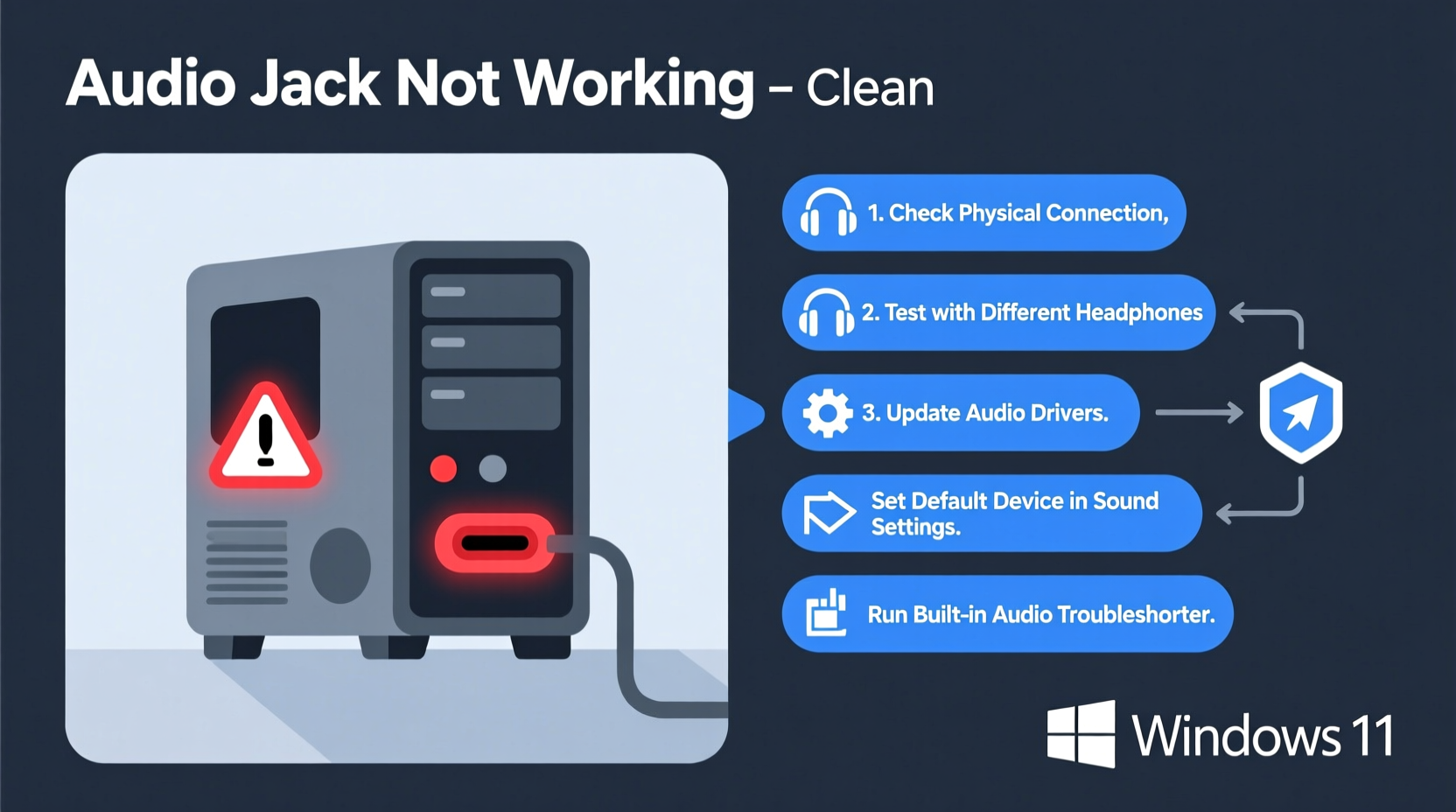
Before diving into complex software diagnostics, rule out simple hardware issues. A loose connection, damaged cable, or faulty port can mimic driver problems.
- Ensure your headphones or speakers are fully inserted into the correct audio jack (usually lime green for front output).
- Test your audio device on another computer or smartphone to confirm it works.
- Try a different pair of headphones or earbuds in your PC’s jack to isolate the problem.
- Inspect the audio port for debris, bent pins, or corrosion. Use compressed air to clean gently if needed.
Verify Audio Settings and Default Device Configuration
Windows sometimes routes audio to the wrong output device, especially after updates or when multiple audio sources (like HDMI or USB headsets) are connected.
- Right-click the speaker icon in the system tray and select Open Sound settings.
- Under Output, ensure the correct device is selected—look for options like “Speakers (Realtek Audio)” or “Headphones.”
- If your audio jack isn’t listed, click Manage sound devices and enable any disabled output devices under Input or Output.
- Scroll down and click Sound Control Panel on the right.
- In the Playback tab, double-click your default device and go to the Levels tab to verify volume isn’t muted or too low.
“Over 40% of reported audio jack failures are actually due to incorrect default device selection.” — Tech Support Division, Dell Inc.
Update or Reinstall Audio Drivers
Outdated, corrupted, or missing drivers are among the top causes of audio jack failure. The process varies slightly depending on your motherboard or laptop manufacturer.
Step-by-Step: Updating Realtek or HD Audio Drivers
- Press Win + X and choose Device Manager.
- Expand the Sound, video and game controllers section.
- Look for entries like Realtek High Definition Audio, Intel(R) Display Audio, or similar.
- Right-click the audio device and select Update driver.
- Choose Search automatically for updated driver software.
- If Windows finds no updates, visit your PC manufacturer’s support site (e.g., HP, Lenovo, ASUS) or your motherboard maker’s page to download the latest audio driver manually.
If updating doesn't work, try uninstalling and reinstalling:
- In Device Manager, right-click the audio driver and select Uninstall device.
- Restart your PC. Windows will automatically reinstall the generic audio driver upon boot.
- After restart, check if sound returns through the jack.
Run the Built-in Audio Troubleshooter
Windows includes a diagnostic tool that can detect and fix many common audio issues automatically.
How to Access the Audio Troubleshooter
- Go to Settings > System > Sound.
- Scroll down and click Run the troubleshooter under Related settings.
- Follow the prompts. The tool may detect issues such as:
- No audio output detected
- Driver conflicts
- Incorrect format settings
- Allow the troubleshooter to apply fixes, then test your audio jack again.
Note: This tool is more effective in Windows 10 and 11 than in earlier versions. It won’t fix hardware faults but can resolve configuration errors quickly.
Disable Audio Enhancements and Exclusive Mode
Sometimes, advanced audio features meant to improve sound quality can interfere with basic jack functionality.
To Disable Enhancements:
- Open Sound Control Panel via the system tray.
- Double-click your playback device (e.g., Speakers or Headphones).
- Go to the Enhancements tab and check Disable all enhancements.
- Next, go to the Advanced tab and uncheck:
- Allow applications to take exclusive control of this device
- Click Apply and OK, then restart your PC.
This step resolves conflicts where background apps block audio access—even when no app appears to be using the device.
Troubleshooting Table: Common Issues and Solutions
| Problem | Possible Cause | Solution |
|---|---|---|
| No sound from headphones | Wrong default device | Set correct output in Sound Settings |
| Sound only comes from speakers, not jack | Driver or jack detection failure | Update Realtek Audio Driver |
| Intermittent audio or static noise | Damaged cable or dirty port | Clean port, test with new headphones |
| Audio cuts out when moving plug | Loose internal connection | Consider repair or use USB audio adapter |
| No audio devices listed | Driver missing or disabled | Reinstall driver via Device Manager |
Mini Case Study: Resolving Jack Detection Failure on a Laptop
Sarah, a remote worker using a Lenovo ThinkPad, noticed her headphones stopped working after a Windows update. She could hear sound through external Bluetooth speakers but not the 3.5mm jack. Initially assuming hardware damage, she was about to request a repair.
Instead, she followed these steps:
- Tested headphones on her phone—confirmed they worked.
- Checked Sound Settings and found the output device was set to “Communications” instead of “Speakers.”
- Updated her Realtek Audio driver from Lenovo’s support website.
- Disabled audio enhancements as a final step.
Within 20 minutes, her audio jack functioned normally. The issue was a combination of driver incompatibility post-update and incorrect default routing—a fixable software glitch.
Preventive Checklist: Maintain Audio Jack Functionality
Use this checklist monthly to avoid future issues:
- ✅ Test audio output with known-working headphones
- ✅ Keep audio drivers updated (check every 3 months)
- ✅ Clean audio port gently with compressed air
- ✅ Avoid plugging/unplugging forcefully
- ✅ Disable exclusive mode if apps conflict with audio
- ✅ Run Windows Update regularly to receive audio patches
Frequently Asked Questions
Why does my PC not detect headphones when I plug them in?
This usually happens due to a driver issue or Windows failing to recognize the jack insertion. Try updating your audio driver or running the audio troubleshooter. Some motherboards require enabling front panel detection in the Realtek HD Audio Manager.
Can a software update disable my audio jack?
Yes. Major Windows updates occasionally replace or overwrite audio drivers with incompatible versions. If sound stops after an update, roll back the driver in Device Manager or reinstall the correct version from your manufacturer’s site.
Is it possible to fix a physically damaged audio jack?
Internal jack damage often requires soldering or replacement by a technician. For desktops, consider installing a PCIe sound card. For laptops, weigh repair costs against using USB-C or Bluetooth audio alternatives.
Final Steps and When to Seek Help
If you’ve completed all the above steps and your audio jack still doesn’t work, consider these final actions:
- Boot into Safe Mode and test audio—if it works, a third-party app is interfering.
- Perform a system restore to a point before the issue began.
- Use a USB-to-audio adapter as a reliable workaround.
Persistent hardware faults may require professional repair, but in most cases, the solution lies in proper configuration and updated drivers.




 浙公网安备
33010002000092号
浙公网安备
33010002000092号 浙B2-20120091-4
Comments
No comments yet. Why don't you start the discussion?