
BandLab is a powerful cloud-based music creation platform that empowers artists, producers, and hobbyists to compose, record, and collaborate from virtually anywhere. However, like any digital tool, users occasionally face technical hiccups—ranging from login failures to audio glitches and sync delays. When BandLab isn’t working as expected, it can disrupt creative flow and delay projects. The good news is that most issues have clear, actionable fixes. This guide walks through the most common problems, their root causes, and step-by-step solutions to get you back to making music without interruption.
Common Signs BandLab Isn’t Working Properly
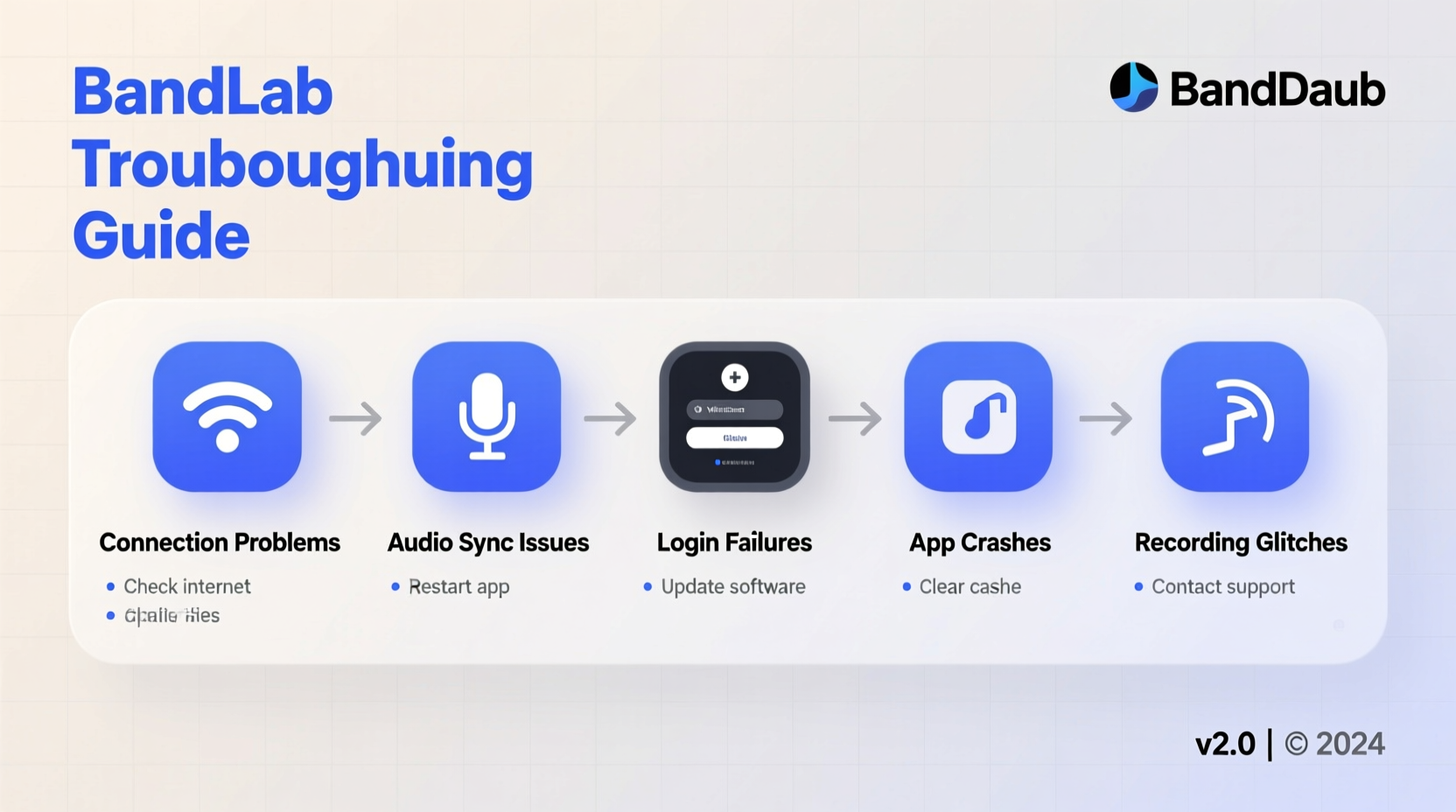
Before diving into fixes, it’s important to identify whether the issue lies with your device, internet connection, browser, or BandLab’s servers. Common symptoms include:
- Inability to log in or persistent login loops
- Audio playback lag or tracks failing to sync
- Crashes during recording or export
- Blank screens or unresponsive interface elements
- Projects failing to save or upload
Recognizing the specific behavior helps narrow down the solution path. For example, if multiple users report outages at the same time, the issue may be server-side. If only your session fails, the problem likely stems from local settings.
Step-by-Step Troubleshooting Guide
Follow this structured approach to isolate and resolve BandLab issues efficiently. Start with the simplest checks before moving to advanced fixes.
- Check Your Internet Connection
BandLab relies heavily on real-time data syncing. A weak or unstable connection causes lag, failed uploads, and disconnections. Test your speed using tools like Speedtest.net. Aim for at least 10 Mbps download and 5 Mbps upload for smooth operation. - Clear Browser Cache and Cookies
Corrupted cache data often leads to loading errors. In Chrome or Edge, go to Settings > Privacy and Security > Clear Browsing Data. Select “Cached images and files” and “Cookies.” Restart the browser and try BandLab again. - Try a Different Browser
Sometimes browser-specific extensions or compatibility issues interfere. BandLab officially supports Chrome, Firefox, Safari, and Edge. If you're using Chrome, switch to Firefox temporarily to test functionality. - Disable Browser Extensions
Ad blockers, script managers, or privacy tools (like uBlock Origin or NoScript) can block essential BandLab scripts. Disable all extensions, reload BandLab, and re-enable them one by one to identify the culprit. - Update Your Browser
An outdated browser lacks support for modern web standards required by BandLab. Ensure you’re running the latest version of your preferred browser. - Restart Your Device
A simple reboot clears temporary system glitches and resets network configurations that might be interfering with BandLab.
Do’s and Don’ts When Using BandLab
| Do’s | Don’ts |
|---|---|
| Use a wired Ethernet connection when possible for stable uploads | Don’t use public Wi-Fi for recording or exporting large projects |
| Save your project manually every 10–15 minutes | Don’t assume auto-save will always work during connectivity drops |
| Work in 1080p resolution or lower for smoother performance | Don’t run multiple high-demand apps alongside BandLab |
| Keep your operating system and drivers updated | Don’t ignore browser permission prompts (e.g., microphone access) |
Fixing Audio and Sync Issues
One of the most frustrating problems users report is audio latency or tracks drifting out of sync. This typically occurs due to hardware limitations or incorrect audio settings.
To minimize latency:
- Lower your buffer size in the BandLab Assistant (if using desktop app). A setting between 64–128 samples reduces delay.
- Close background applications consuming CPU or RAM (e.g., video editors, games).
- Use headphones directly connected via jack or USB—avoid Bluetooth during recording.
- Ensure your device meets minimum specs: at least 4GB RAM and dual-core processor recommended.
“Even small timing discrepancies can derail a performance. Reducing input latency by adjusting buffer size makes a noticeable difference in live monitoring.” — Daniel Reyes, Audio Engineer & Producer
Mobile App Troubleshooting Tips
If you’re using BandLab on iOS or Android, some issues are unique to mobile environments.
Common mobile fixes include:
- Updating the app via App Store or Google Play
- Granting necessary permissions (microphone, storage, background refresh)
- Freeing up storage space—low memory can prevent project loading
- Reinstalling the app if crashes persist
Mini Case Study: Recovering a Frozen Project
Lena, an independent artist in Melbourne, was finalizing a vocal track when her BandLab session froze mid-recording. The timeline wouldn’t respond, and she couldn’t export. She followed these steps:
- Checked BandLab Status—no outages reported.
- Closed all other tabs and restarted Chrome.
- Cleared site data specifically for bandlab.com.
- Logged back in and found her project autosaved correctly.
The issue was traced to excessive browser tab usage slowing down JavaScript execution. After switching to a dedicated workspace tab and disabling ad blockers, her sessions ran smoothly thereafter.
FAQ: Frequently Asked Questions
Why can’t I log in to BandLab even with the correct password?
This could stem from cached login data or two-factor authentication glitches. Try logging in via incognito mode. If that works, clear cookies and cache. Also verify your email confirmation status—unverified accounts may restrict access.
Why does my track keep desyncing when I add effects?
Effects processing increases CPU load. If your device struggles to render in real time, tracks may drift. Pre-render or bounce processed tracks to free up resources. Alternatively, reduce track count during editing.
Can I recover a lost project?
BandLab auto-saves projects to the cloud, but deleted projects remain in the recycle bin for 30 days. Go to My Library > Projects > Recycle Bin to restore. If beyond that window, contact BandLab Support with project details—they may recover server-side backups.
Expert Checklist: Fix BandLab Fast
When BandLab stops working, follow this concise checklist to restore functionality quickly:
- ✅ Check status.bandlab.com for outages
- ✅ Test internet speed and reset router if needed
- ✅ Clear browser cache and cookies
- ✅ Disable browser extensions temporarily
- ✅ Try a different browser or device
- ✅ Update OS, browser, and BandLab app
- ✅ Restart your computer or mobile device
- ✅ Reinstall BandLab app if mobile issues persist
- ✅ Contact BandLab Support with error logs if unresolved
Conclusion: Stay Creative, Not Frustrated
Technical setbacks shouldn’t silence your creativity. Most BandLab issues are resolvable with systematic troubleshooting and preventive habits. By maintaining a clean browser environment, ensuring strong connectivity, and staying updated, you can minimize disruptions and focus on what matters—making great music. The next time BandLab acts up, refer to this guide, apply the right fix, and get back to composing with confidence.




 浙公网安备
33010002000092号
浙公网安备
33010002000092号 浙B2-20120091-4
Comments
No comments yet. Why don't you start the discussion?