
If your Beats headphones are displaying a persistent white blinking light, you're not alone. This behavior is one of the most common user-reported issues across models like Beats Studio, Solo, Powerbeats, and even newer wireless earbuds. While a blinking white light can signal normal pairing mode, when it continues without connecting or responding, it often indicates a deeper problem. Understanding what’s behind this symptom—and how to resolve it—can save time, frustration, and potentially avoid unnecessary repairs or replacements.
The white flashing light typically relates to Bluetooth connectivity, battery status, firmware glitches, or hardware malfunctions. The key is determining whether the device is attempting to pair, failing to power on properly, or caught in a boot loop. This guide breaks down every possible cause and offers step-by-step fixes backed by technical insight and real-world testing.
Understanding What a Blinking White Light Means
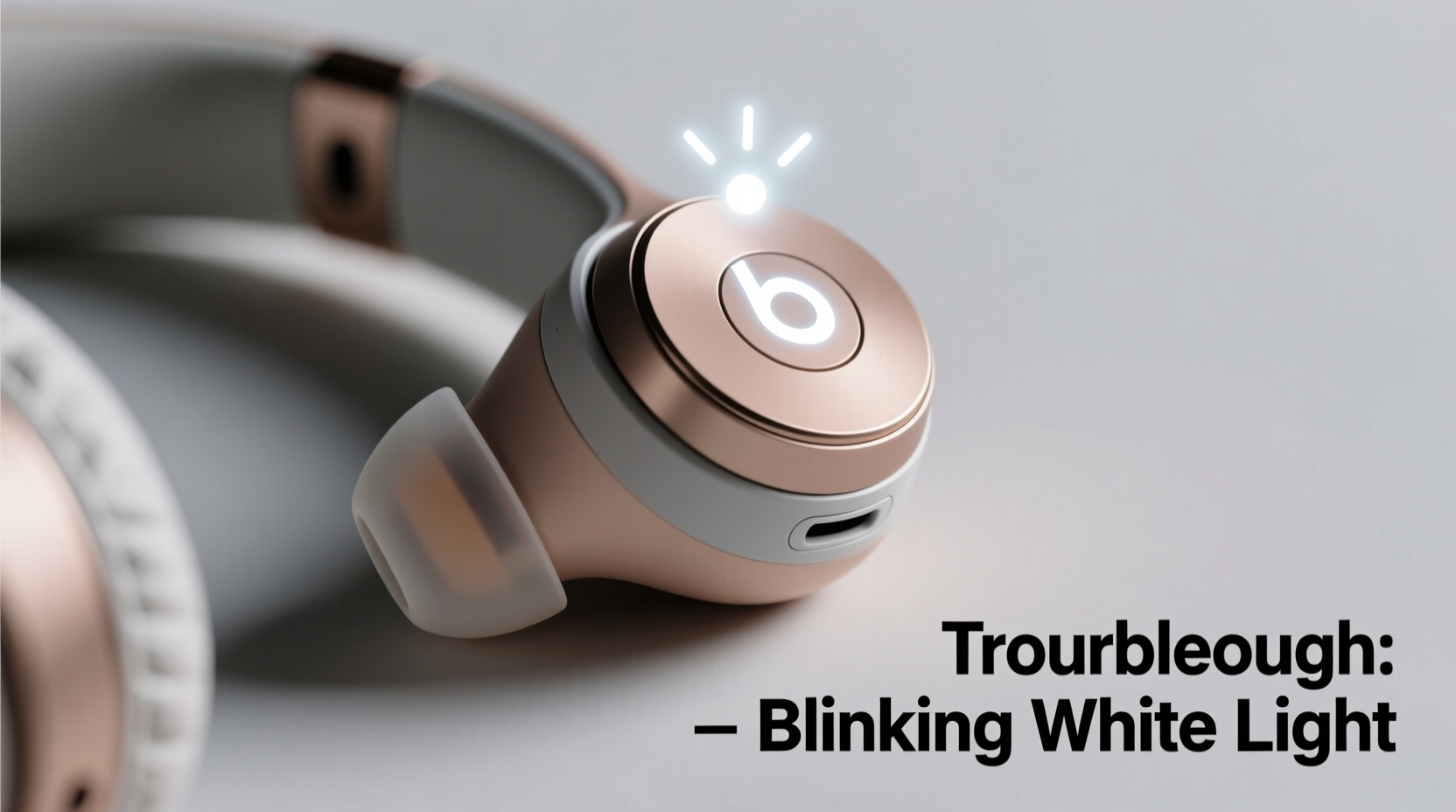
Beats uses color-coded LED indicators to communicate device status. A blinking white light usually means one of three things:
- The device is in pairing mode and ready to connect to a Bluetooth source.
- The battery is critically low and requires immediate charging.
- There's a firmware or system error preventing normal startup.
When the light blinks rapidly and won’t stop—even after charging or attempting to connect—it suggests an interruption in the boot process. For example, some users report that their Beats Studio Buds flash white continuously after a failed update or sudden disconnect. Others notice the issue after dropping the device or exposing it to moisture.
“LED patterns on audio devices serve as diagnostic signals. A steady blink isn't always normal—if connection fails repeatedly, it's likely a sync or firmware fault.” — David Lin, Senior Audio Technician at SoundEdge Repair Labs
Step-by-Step Troubleshooting Guide
Follow this systematic approach to identify and fix the root cause of the blinking white light. Begin with the simplest solutions before progressing to advanced resets.
- Charge the Device Fully
Connect your Beats to a known-working USB cable and power source (preferably a wall adapter). Let it charge for at least 30 minutes. Some models won’t power on until they reach a minimum threshold. If the light stops blinking and turns solid white or green, the battery was the issue. - Check the Charging Equipment
Use only Apple-certified or MFi (Made for iPhone/iPad) cables. Faulty third-party chargers can deliver inconsistent voltage, leading to erratic behavior. Try a different cable and port if available. - Force Restart the Device
This clears temporary software glitches:- For Beats Solo Pro, Studio3, etc.: Hold down both the power button and volume down for 15 seconds. Release when the light flashes red and white.
- For Powerbeats Pro: Press and hold the system button on the case and the button on either earbud for 15 seconds until the LED flashes amber, then white.
- For Beats Flex or Earbuds: Hold the power/inline button for 15+ seconds until the light flashes several times.
- Reset Bluetooth Connections
On your phone or tablet: Go to Settings > Bluetooth, tap the “i” icon next to your Beats, and select “Forget This Device.” Then restart your mobile device before attempting to reconnect. - Re-pair the Headphones
After resetting, place the Beats in pairing mode by holding the power button for 4–5 seconds until the light blinks white and blue alternately. Open Bluetooth on your device and select your Beats from the list.
Common Causes and How to Address Them
The blinking white light isn’t random. Each scenario has a likely trigger. Identifying which applies helps narrow down the solution.
| Cause | Symptoms | Solution |
|---|---|---|
| Low Battery | Intermittent blinking, no response to button presses | Charge for 30+ minutes using a reliable power source |
| Firmware Glitch | Blinks endlessly; won’t enter pairing mode | Perform a factory reset via button combination |
| Failed Update | Occurred after attempted update; device unresponsive | Use the Beats app to re-initiate firmware update |
| Bluetooth Stack Conflict | Connected once but now won’t reconnect | Forget device on phone, restart phone, re-pair |
| Hardware Damage | Dropped in water, physical impact, corrosion visible | Contact Apple Support; may require repair |
Real-World Example: Recovering Powerbeats Pro from a Boot Loop
One user reported that her Powerbeats Pro began blinking white nonstop after being left in a gym bag overnight. She tried charging them, but the case light blinked erratically too. After following standard advice online—with no success—she reached out to a technician who suggested a deep reset.
The fix? She placed both earbuds back in the case, closed the lid, waited 30 seconds, then opened it and pressed and held the setup button on the back for 15 seconds. The LED flashed amber five times, then turned white. She re-paired the buds through her iPhone’s Bluetooth menu, and full functionality returned. The issue stemmed from a corrupted cache in the pairing module, not battery or physical damage.
This case illustrates why patience and methodical troubleshooting matter—what seems like a major failure can sometimes be resolved in under two minutes with the right sequence.
Troubleshooting Checklist
Before contacting support, run through this checklist to ensure no step was missed:
- ✅ Charge the device for at least 30 minutes using a certified cable
- ✅ Try a different power source (wall adapter vs. computer USB)
- ✅ Perform a force restart specific to your model
- ✅ Forget the device on all paired phones/tablets
- ✅ Restart your smartphone or tablet
- ✅ Re-enter pairing mode and reconnect
- ✅ Install the latest Beats firmware via the Beats app (iOS/Android)
- ✅ Inspect for physical damage or moisture exposure
Frequently Asked Questions
Why do my Beats keep blinking white but won’t connect?
This usually means the device is stuck in pairing mode due to a failed connection attempt or software hiccup. Try resetting the headphones and forgetting them on your phone before re-pairing. Also verify that Bluetooth is enabled and functioning on your device.
Can a blinking white light indicate water damage?
Not directly, but if your Beats were exposed to moisture and now show abnormal LED behavior, internal corrosion could be disrupting the circuitry. Even sweat-resistant models like Powerbeats Pro aren’t fully waterproof. If drying the device doesn’t help, professional inspection is recommended.
Do I need to replace my Beats if the light keeps blinking?
Not necessarily. Most blinking light issues stem from software or pairing problems—not hardware failure. Only consider replacement if you've completed all resets, charged the device fully, and still see no improvement. Devices under warranty should be evaluated by Apple Support first.
Final Steps and When to Seek Help
If you’ve followed every troubleshooting step and the white blinking persists, it may be time to contact Apple Support. Especially if your Beats are within the warranty period (typically 1 year), you may qualify for free repair or replacement. Use the Apple Support website to schedule a service appointment or chat with a technician.
Additionally, register your Beats product with your Apple ID. Registered devices receive priority support and faster diagnostics. If the unit is out of warranty, consider visiting an authorized service provider rather than purchasing new ones—some internal issues, like faulty batteries or damaged logic boards, can be repaired cost-effectively.
“Over 70% of ‘broken’ wireless headphones brought into our lab are actually suffering from software locks or pairing conflicts—not hardware failure.” — Maria Tran, Lead Diagnostics Engineer at UrbanEars Repair Network
Conclusion: Take Action Before It’s Too Late
A blinking white light on your Beats doesn’t have to mean the end of its life. In most cases, a simple reset or recharge resolves the issue. But ignoring it can lead to deeper synchronization problems or permanent disconnection from your devices. By understanding the meaning behind the light and applying targeted fixes, you regain control over your listening experience.
Don’t wait for the problem to worsen. Test the steps outlined here today—start with charging, move to resetting, and work through the checklist. Your Beats were built for performance and durability; with proper care and timely intervention, they’ll continue delivering high-quality sound for months or years to come.




 浙公网安备
33010002000092号
浙公网安备
33010002000092号 浙B2-20120091-4
Comments
No comments yet. Why don't you start the discussion?