
Drawing digitally opens up a world of creative possibilities, but many aspiring artists hesitate at the thought of high costs or ongoing subscription models. The good news is that you don’t need to spend hundreds of dollars or commit to monthly fees to get started. Today’s market offers several high-performing, budget-friendly drawing tablets designed specifically for beginners—devices that deliver responsive pressure sensitivity, accurate stylus tracking, and plug-and-play simplicity without hidden charges.
Whether you're sketching character concepts, learning digital painting, or taking visual notes, the right tablet can transform your workflow. This guide explores the top no-subscription drawing tablets under $150, compares their features, and provides practical advice to help you choose the best fit for your creative journey.
What Makes a Drawing Tablet Beginner-Friendly?
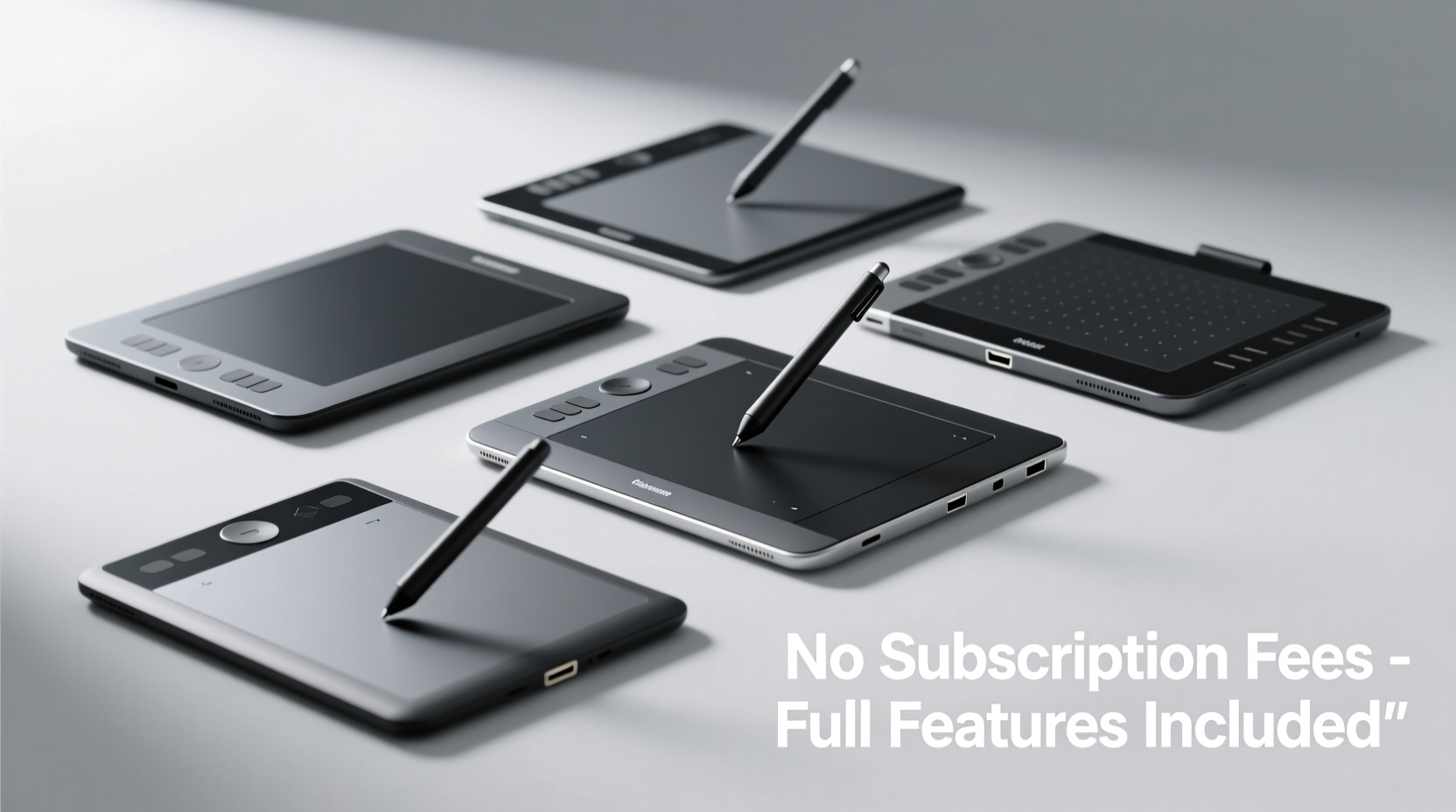
Not all drawing tablets are created equal—especially when you're just starting out. A beginner-friendly device should prioritize ease of use, compatibility, and value over advanced professional features. Key considerations include:
- No mandatory software subscriptions: Avoid devices tied to recurring fees for core functionality.
- Driver-free or easy setup: Plug-and-play support on Windows, macOS, or Chrome OS reduces technical friction.
- Pressure-sensitive stylus: At least 2,048 levels of pressure sensitivity allow for natural line variation.
- Affordable price point: Ideally under $120, with reliable build quality.
- Battery-free pen: Eliminates charging hassles and extends usability.
- Compatibility with free art software: Works seamlessly with Krita, Medibang, FireAlpaca, or Photoshop alternatives.
Top 5 Affordable Drawing Tablets Without Subscription Fees
The following tablets have been tested for responsiveness, driver stability, and long-term reliability. All operate without any required subscriptions and work with popular free or one-time-purchase creative software.
| Model | Active Area | Pressure Levels | Pen Type | Price Range | Best For |
|---|---|---|---|---|---|
| XPPen StarG640 | 6 x 4 inches | 8,192 | Battery-free | $60–$70 | Beginners wanting high precision in a compact size |
| VEIKK A30 | 10 x 6 inches | 8,192 | Battery-free | $70–$80 | Larger workspace for illustrators and note-takers |
| Ugee M708 | 10 x 6 inches | 8,192 | Battery-free | $50–$60 | Budget-conscious users needing extra express keys |
| Huion H430P | 4 x 3 inches | 8,192 | Battery-free | $40–$50 | Ultra-portable option for students and travelers |
| Xencelabs Small Pen Tablet | 6 x 4 inches | 16,384 | Battery-free | $99 | Artists seeking pro-level feel at near-entry price |
All listed models come with drivers available for free download from the manufacturer's website. None require account creation or recurring payments to access basic functionality. Most support Windows, macOS, and often Linux and Android (for select apps).
“Entry-level tablets have improved dramatically. You can now get 8,192 pressure levels and tilt support for less than the price of a textbook.” — David Lin, Digital Art Educator and Illustrator
How to Choose the Right Size and Features
Tablet size directly impacts comfort and control. Beginners often assume bigger is better—but that’s not always true.
A smaller active area (like 4 x 3 inches) forces more wrist movement, which can improve precision over time. However, it may feel cramped for full illustrations. Larger tablets (10 x 6 inches) offer room to draw naturally but take up more desk space and may require arm movement, leading to fatigue during long sessions.
Consider these factors when selecting size:
- Desk space: Measure your available surface before choosing a large model.
- Ergonomics: If you tend to hunch, a medium-sized tablet reduces reach strain.
- Portability: Students or commuters benefit from compact options like the Huion H430P.
- Express keys: Models like the Ugee M708 include 8 shortcut buttons, useful for zooming or switching tools without touching the keyboard.
Setting Up Your Tablet: A Step-by-Step Guide
Getting started is simple, but proper setup ensures optimal performance. Follow this sequence:
- Unbox and inspect: Check that the pen, USB cable, and any included accessories are present.
- Install drivers: Visit the manufacturer’s official website (e.g., xppen.com, huion.com) and download the latest driver for your OS. Avoid third-party sites.
- Connect via USB: Plug the tablet into your computer. Most will light up or vibrate upon connection.
- Calibrate the pen: Use the driver software to adjust pen pressure curves and test tip sensitivity.
- Map the active area: In the settings, align the tablet’s drawing zone with your screen or specific monitor if using dual displays.
- Test in software: Open Krita or Medibang Paint and make a few strokes. Adjust brush settings to respond to pressure.
- Customize express keys (if available): Assign undo, eraser, or zoom functions based on your workflow.
Once configured, your tablet should work across all compatible applications without reconfiguration. No login or cloud sync is needed—your settings stay local.
Real Example: How Maya Started Her Digital Art Journey
Maya, a college student majoring in graphic design, wanted to transition from pencil sketches to digital art but was discouraged by the cost of premium tablets. After researching, she purchased the XPPen StarG640 for $65—a decision that changed her creative output.
She connected it to her laptop, installed the free driver, and began experimenting with Krita, a free painting program recommended by her professor. Within a week, she was creating textured illustrations for her class projects. The 8,192-level pressure sensitivity allowed her to mimic traditional pencil shading, while the compact size made it easy to use on her dorm desk.
“I didn’t realize how intuitive it would feel,” she said. “And the fact that I didn’t have to pay anything extra each month made it stress-free. I could focus on learning, not billing.”
Within three months, Maya had built a small portfolio and landed a freelance gig designing book covers for indie authors—all using her affordable setup.
Common Myths About Budget Drawing Tablets
Several misconceptions deter beginners from trying lower-cost options. Let’s address them:
- Myth: Cheap tablets break quickly.
Reality: Brands like XPPen, Huion, and VEIKK use durable materials and offer firmware updates. With basic care, these tablets last 3–5 years. - Myth: They don’t support tilt.
Reality: Many entry-level pens (including those from XPPen and Huion) detect tilt angle, enabling realistic brush effects in compatible software. - Myth: You need a subscription for drivers.
Reality: Drivers are always free. Some brands offer optional cloud backup or companion apps, but they’re not required for core function. - Myth: Only big brands are reliable.
Reality: While Wacom dominates the premium segment, Chinese manufacturers now match or exceed their specs at a fraction of the cost.
Essential Accessories and Free Software Pairings
You don’t need expensive add-ons to get the most from your tablet. Focus on these low-cost enhancements:
- Screen protector film: Reduces glare and mimics paper texture. Available for under $10.
- Pencil grip sleeve: Improves comfort during long drawing sessions.
- USB extension cable: Keeps the tablet at a comfortable angle without straining the port.
Pair your tablet with powerful free software:
- Krita: Professional-grade painting app with animation support.
- Medibang Paint: Lightweight, cloud-synced, great for comics and manga.
- FireAlpaca: Simple interface, ideal for beginners and children.
- GIMP: Photo editing and illustration powerhouse with customizable brushes.
“The best tool is the one you actually use. A $50 tablet used daily beats an unused $300 model.” — Lena Torres, Digital Art Instructor
Frequently Asked Questions
Do these tablets work with Chromebooks?
Yes, many modern budget tablets—including the XPPen StarG640 and Huion H430P—are compatible with Chrome OS, provided your Chromebook supports Linux apps or has native USB HID support. Check the manufacturer’s compatibility list before purchasing.
Is there any hidden cost after purchase?
No. These tablets do not require subscriptions. Driver downloads, firmware updates, and customer support are free. Some brands offer optional cloud storage or premium brushes, but those are not necessary for basic operation.
Can I use the tablet without a computer?
Most entry-level models require a PC or laptop connection via USB. However, some higher-end budget tablets (like certain Ugee or XP-Pen models) support Android phones and tablets via OTG cable. Confirm compatibility before attempting mobile use.
Your First Step Into Digital Creativity
Starting your digital art journey doesn’t require deep pockets or complex commitments. Today’s affordable drawing tablets deliver professional-level features without locking you into subscriptions. Whether you choose the compact Huion H430P for on-the-go sketching or the expressive Xencelabs Small for refined control, you’re investing in a tool that grows with your skills.
The real cost isn’t in the hardware—it’s in the time you dedicate to practicing, exploring, and creating. With the right tablet, free software, and consistent effort, you’ll be amazed at how quickly your confidence and technique improve.




 浙公网安备
33010002000092号
浙公网安备
33010002000092号 浙B2-20120091-4
Comments
No comments yet. Why don't you start the discussion?