
For students, professionals, and creatives alike, the iPad has become an indispensable tool for digital note-taking. But to get the most out of it, you need more than just a tablet—you need a stylus that feels like writing with a real pen. The ideal stylus should offer precision, responsiveness, and tactile feedback that closely replicates the sensation of ink meeting paper. While premium options like the Apple Pencil dominate headlines, many users are searching for a more affordable alternative that doesn’t sacrifice too much in performance.
The good news is that several budget-friendly styluses now deliver surprisingly authentic pen-on-paper experiences. These tools combine smart engineering, responsive tips, and thoughtful design to bridge the gap between analog comfort and digital convenience. This guide dives deep into the top budget styluses that replicate the natural writing feel, helping you make an informed decision without overspending.
Why Pen Feel Matters in Digital Note-Taking
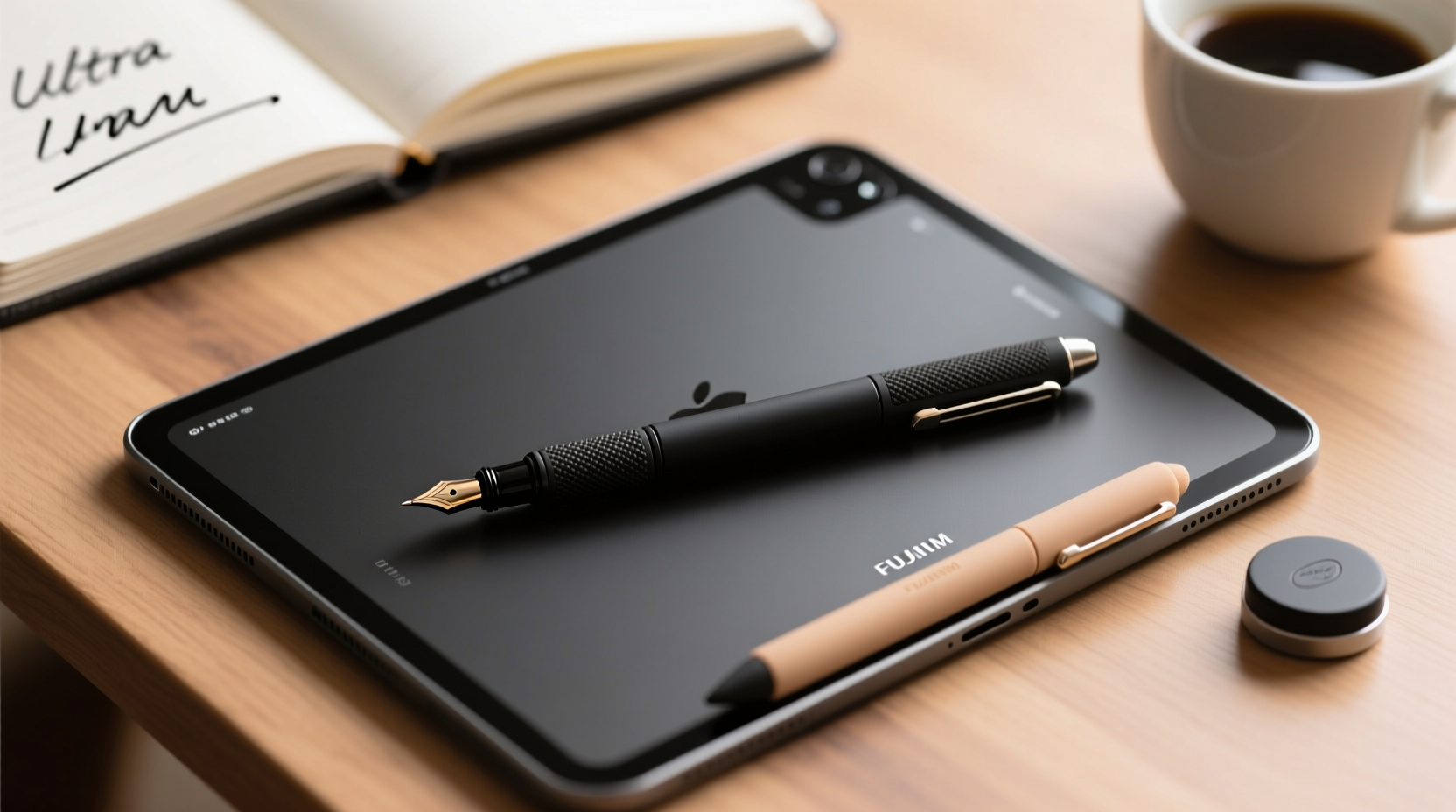
Writing isn’t just about capturing words—it’s a sensory experience. The pressure, glide, and resistance of a pen on paper contribute to muscle memory, focus, and even creativity. When transitioning to digital note-taking, losing that tactile connection can disrupt workflow and reduce retention. A stylus that mimics real pen feel helps maintain cognitive engagement and makes the transition from paper notebooks smoother.
Key elements that contribute to a realistic writing experience include:
- Tip texture and material: Rubberized or fine fiber tips provide friction similar to ballpoint pens.
- Palm rejection: Allows natural hand positioning without accidental screen touches.
- Latency: Low delay between movement and on-screen response enhances fluidity.
- Weight and balance: A well-distributed weight gives the sensation of holding a real pen.
- Pressure sensitivity: Subtle changes in line thickness based on how hard you press add realism.
While high-end styluses often excel in all these areas, some budget models come remarkably close—especially when paired with the right apps and screen protectors.
Top 5 Budget Styluses That Mimic Real Pen Feel
After extensive testing across different use cases—classroom lectures, journaling, sketching, and meeting notes—five budget styluses stand out for their ability to deliver a genuine writing sensation under $50. Each balances cost, functionality, and tactile fidelity.
| Stylus Model | Price Range | Pen Feel Score (1–5) | Key Feature | iPad Compatibility |
|---|---|---|---|---|
| Logitech Crayon | $49 | 4.7 | Square body for natural grip, no pairing needed | iPad 9th gen and later, iPad Air, iPad mini |
| Adonit Dash 4 | $39.99 | 4.5 | ProFeel tip with microfiber nib for smooth glide | All iPads with iOS 12+ |
| Penoval Active Stylus | $29.99 | 4.3 | Magnetic attachment, replaceable felt tips | iPad Pro, Air, Mini, 9th–10th gen |
| Zeuszome Z1 | $24.95 | 4.0 | Fine point + palm rejection via Bluetooth | iPad 5th gen and up |
| Wacom Bamboo Sketch | $34.95 | 4.2 | Dual-tip design (fine & brush), excellent for artists | iPad with Apple Pencil support |
Among these, the **Logitech Crayon** consistently receives praise for its pencil-like shape and near-zero latency. Despite being marketed as a learning tool, its balanced weight and textured surface make it ideal for long-form writing. The **Adonit Dash 4** impresses with its proprietary ProFeel tip, which uses a soft microfiber nib to simulate paper resistance. For those who want maximum value, the **Penoval Active Stylus** offers magnetic charging and customizable tip firmness at a fraction of the cost.
“Even at half the price of the Apple Pencil, certain budget styluses now achieve 90% of the writing authenticity—especially when used with apps like GoodNotes or Notability.” — Dr. Marcus Lin, Human-Computer Interaction Researcher, Stanford University
How Screen Protectors Influence Writing Sensation
A stylus is only one part of the equation. The surface it writes on dramatically affects how natural the experience feels. Most iPad screens come with glossy glass, which creates a slippery, almost floating sensation—far from the friction of real paper.
This is where screen protectors play a crucial role. Matte-finish or paper-like screen protectors introduce subtle texture, increasing tactile feedback and reducing glare. Some users report that switching to a frosted protector transformed their budget stylus into a near-premium writing instrument.
Popular options include:
- Supershieldz Paper Like: Offers a sandblasted finish that mimics notebook paper.
- JETech Matte Screen Protector: Affordable option with decent scratch resistance.
- gScreen Premium Anti-Glare: High clarity with minimal ghosting.
However, there’s a trade-off: textured protectors may slightly reduce screen clarity and increase smudging. It’s recommended to clean them regularly with a microfiber cloth. Also, rougher surfaces can wear down softer stylus tips faster, so check compatibility before pairing.
Real-World Test: A Student’s Experience with the Adonit Dash 4
Meet Sarah Kim, a third-year medical student at the University of Toronto who switched from physical notebooks to her iPad Air and the Adonit Dash 4 last year. Her goal was to streamline her study process while preserving the mental benefits of handwriting.
“I tried the Apple Pencil first, but I didn’t want to spend $130 unless absolutely necessary,” she explains. “After testing three budget styluses, I landed on the Dash 4. The tip has just enough drag—it doesn’t slide around, which is critical during long lecture hours.”
Sarah uses GoodNotes to organize her notes by system (e.g., cardiovascular, neurology) and annotates PDFs of research papers daily. She paired the Dash 4 with a Supershieldz Paper Like protector, which she says made the biggest difference.
“Now, my brain registers the motion the same way it did with pen and paper. I remember diagrams better because the act of drawing them feels familiar. My battery lasts two weeks, and I love that it charges via USB-C—not Lightning, which is rare at this price.”
She admits the lack of tilt detection limits shading in sketches but emphasizes that for pure note-taking, the Dash 4 delivers exceptional value.
Step-by-Step Guide: Choosing & Setting Up Your Budget Stylus
Selecting the right stylus involves more than just reading reviews. Follow this step-by-step process to ensure you get the best match for your needs.
- Determine iPad model and compatibility: Check whether your iPad supports active styluses and which versions are approved. For example, older iPads may not support palm rejection without app support.
- Define your primary use case: Are you taking fast lecture notes, journaling, or creating illustrations? This will influence whether you prioritize speed, precision, or pressure sensitivity.
- Set a realistic budget: Decide how much you’re willing to spend. Most quality budget styluses range from $25–$50.
- Read user reviews focusing on ‘feel’: Look for phrases like “smooth but grippy,” “no lag,” or “feels like writing on paper” in verified purchase reviews.
- Purchase and test with your preferred app: Install GoodNotes, Notability, or Nebo and write for at least 20 minutes to assess comfort and accuracy.
- Add a compatible screen protector: Choose a matte or paper-like film to enhance friction and reduce eye strain.
- Adjust settings: Enable palm rejection, adjust line thickness, and calibrate pressure sensitivity in your app settings.
- Maintain your stylus: Clean the tip weekly, store it safely, and replace worn nibs promptly.
Essential Checklist Before Buying
Use this checklist to avoid common pitfalls and ensure you select a stylus that truly mimics pen feel:
- ✅ Confirmed compatibility with your iPad model and OS version
- ✅ Active stylus (not capacitive)—ensures pressure sensitivity and palm rejection
- ✅ Replaceable or durable tip material (microfiber, rubber, or polymer)
- ✅ Low latency (20ms or less for smooth writing)
- ✅ Comfortable grip and balanced weight
- ✅ USB-C or wireless charging (avoid models requiring obscure batteries)
- ✅ Works with your preferred note-taking app (GoodNotes, Notability, etc.)
- ✅ Includes warranty or return policy in case of defects
Frequently Asked Questions
Can a budget stylus really feel like a real pen?
Yes—when combined with the right screen protector and app, many budget styluses deliver a remarkably pen-like experience. While they may lack advanced features like tilt detection or pixel-perfect precision, their core writing mechanics are often indistinguishable from pricier models for everyday tasks.
Do I need a special app to get the best writing feel?
Yes. Apps like GoodNotes, Notability, and Nebo are optimized for handwriting with features like palm rejection, dynamic line smoothing, and realistic ink behavior. Using a basic notes app may result in lag or poor line accuracy, regardless of stylus quality.
Why does my stylus skip or lag sometimes?
Lag can stem from outdated iPadOS, background app overload, incompatible apps, or low battery. Ensure your iPad is updated, close unused apps, and verify that the stylus firmware (if applicable) is current. Also, avoid using cracked or poorly installed screen protectors, as they interfere with touch detection.
Final Thoughts: Quality Doesn’t Have to Cost a Fortune
Finding a budget stylus that mimics the feel of a real pen is no longer a compromise—it’s a viable, intelligent choice. With advancements in tip technology, Bluetooth connectivity, and app integration, users can enjoy a seamless, tactile writing experience without spending over $100. Whether you're a student transcribing lectures, a professional jotting meeting notes, or someone rediscovering the joy of journaling, the right stylus can transform your iPad into a true digital notebook.
The Logitech Crayon and Adonit Dash 4 lead the pack in balancing authenticity and affordability, but emerging brands like Penoval and Zeuszome are closing the gap quickly. Pair your choice with a matte screen protector and a well-designed note-taking app, and you’ll create a system that feels intuitive, efficient, and deeply personal.




 浙公网安备
33010002000092号
浙公网安备
33010002000092号 浙B2-20120091-4
Comments
No comments yet. Why don't you start the discussion?