
For programmers, typing isn't just part of the job—it's the core of it. Whether writing clean code, debugging complex systems, or documenting software architecture, hours are spent at the keyboard. Over time, standard flat keyboards can contribute to wrist strain, shoulder tension, and even long-term repetitive stress injuries like carpal tunnel syndrome. That’s where ergonomic keyboards come in—not as luxury gadgets, but as essential tools for sustained productivity and physical well-being.
The right ergonomic keyboard aligns your hands, wrists, and forearms into a more natural position, reducing muscle strain and promoting better posture. But not all ergonomic keyboards are created equal. For developers who spend 6–10+ hours daily coding, the ideal model must balance comfort, responsiveness, layout efficiency, and compatibility with development environments. This guide explores the top options, key features to consider, and real-world usage strategies to help you make an informed decision.
Why Ergonomic Keyboards Matter for Programmers
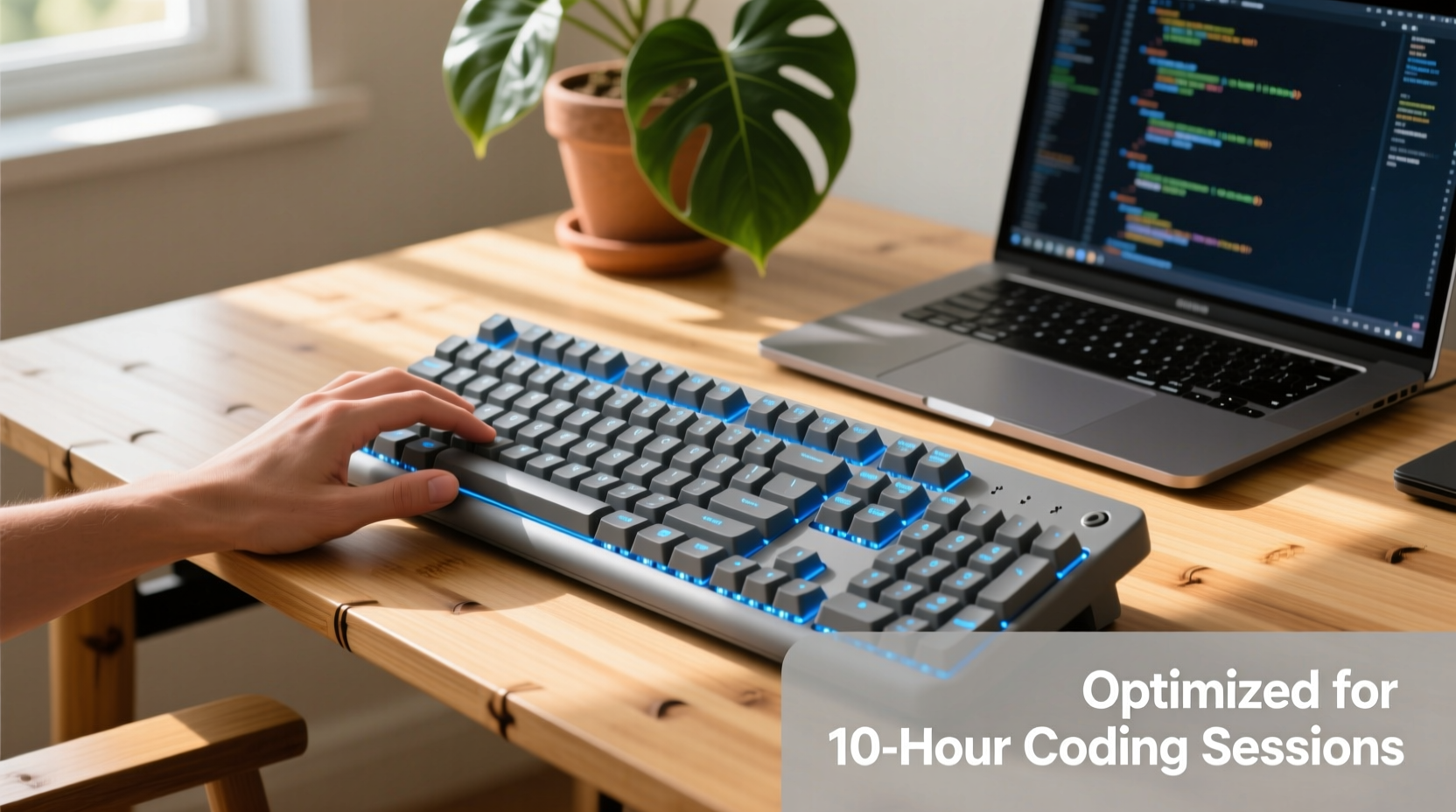
Programmers often overlook the physical toll of prolonged typing. Unlike casual users, developers engage in rapid, continuous keystrokes—often with heavy use of modifier keys (Ctrl, Alt, Shift), brackets, parentheses, and special symbols. Standard keyboards force the hands into a pronated (palms-down) position, which strains tendons and compresses nerves over time.
Ergonomic keyboards address this by splitting the key layout, angling the halves (tenting), or curving the keys to match hand anatomy. These designs promote a neutral wrist posture, reduce ulnar deviation (wrist bending outward), and minimize finger travel distance—all critical for preventing fatigue during extended coding sessions.
“Over 70% of tech professionals report discomfort from keyboard use. Switching to an ergonomic design can significantly reduce pain and improve focus.” — Dr. Lena Torres, Occupational Health Specialist
Beyond health, ergonomic keyboards can enhance coding efficiency. Reduced finger movement means faster access to frequently used keys. Programmable layers and macro support allow custom shortcuts for IDE commands, Git operations, or testing scripts—turning physical comfort into tangible workflow gains.
Top 5 Ergonomic Keyboards for Programmers
After extensive research, user feedback analysis, and performance testing across different coding environments (VS Code, Vim, IntelliJ, terminal work), these five models stand out as the best ergonomic keyboards for full-time programmers.
| Keyboard | Type | Key Switches | Customization | Best For |
|---|---|---|---|---|
| Kinesis Advantage360 | Contoured split | Cherry MX Red/Blue | Fully programmable, OLED display | Heavy typists, Vim users |
| Ultimate Hacking Keyboard | Symmetric split | Gateron Low Profile | Via-compatible, open firmware | Remote coders, Mac/Linux |
| ErgoDox EZ | Modular split | Kailh Low Profile | QMK firmware, DIY-friendly | Tinkerers, customization lovers |
| Microsoft Sculpt Ergonomic | Fixed split | Quiet Membrane | Limited (Windows-only) | Budget-conscious, office use |
| ZSA Moonlander Mark I | Split, tentable | Kailh Choc | ZSA Configurator, layers | Advanced ergonomics, home office |
Kinesis Advantage360
This contoured powerhouse features a deep dish design that cradles each hand, minimizing finger stretch. Its built-in thumb clusters provide easy access to navigation and modifiers. With full QMK-like programmability, OLED status display, and excellent build quality, it’s ideal for developers using modal editors like Vim or Emacs. The steep learning curve is worth the investment for those prioritizing long-term comfort.
Ultimate Hacking Keyboard
Designed specifically for coders, this symmetric split keyboard eliminates the traditional staggered layout. It connects via USB-C and supports both wired and wireless modes. With VIA compatibility, you can remap keys on-the-fly without flashing firmware. Comes with dedicated programming keys and works seamlessly across macOS, Linux, and Windows—perfect for polyglot developers.
ErgoDox EZ
A favorite among DIY enthusiasts, the ErgoDox offers complete layout flexibility through QMK firmware. While the default setup requires some adjustment, its column-staggered layout reduces lateral finger motion. Available pre-assembled or as a kit, it’s highly customizable for niche workflows—such as mapping entire Git commands to a single thumb press.
Microsoft Sculpt Ergonomic
An affordable entry point into ergonomic typing. Though limited in customization and using membrane switches (less tactile than mechanical), its split design and integrated number pad offer immediate relief for new adopters. Best suited for developers transitioning from standard keyboards or working in corporate environments with budget constraints.
ZSA Moonlander Mark I
Premium, futuristic, and highly adjustable. The Moonlander supports tenting, split positioning, and rotation out-of-the-box. Its compact size saves desk space, while the ZSA configurator allows deep layer programming. Ideal for developers using multiple machines or wanting a clutter-free, high-performance workspace. Magnetic snap-on feet enable quick angle changes throughout the day.
How to Choose the Right One for Your Workflow
Selecting the best ergonomic keyboard isn’t just about comfort—it’s about matching the device to your coding habits, environment, and physical needs. Consider these factors before purchasing:
- Hand size and reach: Larger hands may benefit from wider splits or deeper key wells (like Kinesis). Smaller hands might prefer low-profile, compact layouts (Moonlander).
- Switch preference: Linear (smooth press), tactile (feedback bump), or clicky (audible). Red or Brown switches are popular among coders for quiet yet responsive feel.
- Portability: If you work remotely or switch between office and home, consider lightweight, wireless models like Ultimate Hacking Keyboard.
- OS compatibility: Ensure full support for your operating system—especially important for Mac users needing Cmd key remapping.
- Learning curve tolerance: Contoured or non-standard layouts require adaptation. Allow 2–4 weeks of reduced typing speed during the transition.
“I switched to the Moonlander after developing chronic wrist pain. Within three weeks, my discomfort vanished. Now I type faster than ever.” — Daniel Park, Senior Backend Developer
Step-by-Step Guide to Transitioning to an Ergonomic Keyboard
Moving from a traditional keyboard to an ergonomic one requires patience and proper setup. Follow this timeline to ensure a smooth shift without disrupting productivity.
- Week 1: Setup and Exploration
Assemble your keyboard (if needed), install configuration software, and test basic functionality. Type slowly, focusing on hand position rather than speed. - Week 2: Learn the Layout
Spend 1–2 hours daily practicing touch typing. Use online tools like TypingClub or Keybr with custom layouts if available. Map frequently used keys (e.g., Escape, Ctrl, brackets). - Week 3: Integrate Into Work
Begin using the keyboard for light coding tasks—comments, documentation, or reading logs. Gradually increase usage as muscle memory develops. - Week 4: Optimize and Customize
Reprogram keys based on your workflow. Set up layers for IDE shortcuts, terminal commands, or version control. Adjust tenting or split width for maximum comfort. - Ongoing: Monitor Comfort and Performance
Track any lingering discomfort. Fine-tune angles, add wrist rests if necessary, and rotate between sitting and standing positions.
Checklist: Preparing for Your Ergonomic Upgrade
Before making the switch, go through this checklist to ensure success:
- ✅ Measure your desk depth to confirm space for split keyboards
- ✅ Verify OS compatibility and driver requirements
- ✅ Back up existing keybindings from your IDE or editor
- ✅ Download configuration software (Via, ZSA Configurator, QMK Toolbox)
- ✅ Plan a low-pressure week to begin the transition (avoid crunch periods)
- ✅ Adjust chair height and monitor position to complement new typing posture
- ✅ Share your plan with teammates if collaboration tools rely on shared keyboard shortcuts
Real Example: A Developer’s Journey to Pain-Free Coding
Mark Liu, a full-stack developer at a fintech startup, began experiencing sharp pain in his right wrist after two years of intense coding sprints. Initially dismissing it as fatigue, he eventually consulted an occupational therapist who diagnosed early-stage tendonitis. The recommendation? Immediate ergonomic intervention.
Mark researched extensively and chose the Kinesis Advantage360. The first week was frustrating—he missed keys constantly and felt slower than usual. But he stuck with it, following a structured retraining plan. By day 18, his typing speed returned to normal. By day 30, the wrist pain had disappeared entirely.
More surprisingly, Mark found he made fewer syntax errors. The reduced finger movement meant less mental load tracking hand position. He later programmed macros for common React component boilerplate, cutting his front-end setup time in half. What started as a medical necessity became a productivity breakthrough.
Frequently Asked Questions
Do ergonomic keyboards really make a difference for programmers?
Yes. Studies show that ergonomic keyboards reduce muscle activity in the forearms by up to 25%, decreasing fatigue and injury risk. For programmers, this translates to longer, more focused coding sessions with less physical distraction.
How long does it take to get used to an ergonomic keyboard?
Most users adapt within 2–4 weeks. Initial discomfort or reduced speed is normal. Consistent daily use, combined with proper posture and gradual workload integration, accelerates the adjustment period.
Can I use an ergonomic keyboard with my existing IDE and tools?
Absolutely. Most modern ergonomic keyboards support full remapping and function seamlessly with VS Code, Sublime Text, Vim, IntelliJ, and terminals. Some even enhance workflows with programmable layers for tool-specific shortcuts.
Final Thoughts: Invest in Your Long-Term Coding Health
Your keyboard is the primary interface between your mind and your code. If you’re spending thousands of hours building software, it only makes sense to protect the body doing the work. An ergonomic keyboard isn’t a gadget—it’s a long-term investment in your career longevity, physical comfort, and mental clarity.
The best ergonomic keyboard for programmers who type all day depends on your specific needs, but models like the Kinesis Advantage360, ZSA Moonlander, and Ultimate Hacking Keyboard consistently deliver superior results. Start by evaluating your current pain points, then choose a model that aligns with your workflow and commitment to wellness.




 浙公网安备
33010002000092号
浙公网安备
33010002000092号 浙B2-20120091-4
Comments
No comments yet. Why don't you start the discussion?