
For programmers who spend hours coding each day, wrist strain is more than an inconvenience—it’s a serious occupational hazard. Repetitive strain injuries (RSIs), carpal tunnel syndrome, and chronic wrist pain are common among developers who rely on standard flat keyboards. The solution lies in switching to an ergonomic keyboard designed to support natural hand and wrist alignment. Not all ergonomic keyboards are created equal, especially when it comes to the specific needs of coders who type complex syntax, use shortcuts extensively, and require high precision.
This guide focuses on identifying the best ergonomic keyboard options that genuinely alleviate wrist strain while meeting the functional demands of programming. From split designs to tented layouts and customizable key switches, we’ll explore models backed by user experience, biomechanical research, and long-term usability.
Why Ergonomic Keyboards Matter for Programmers
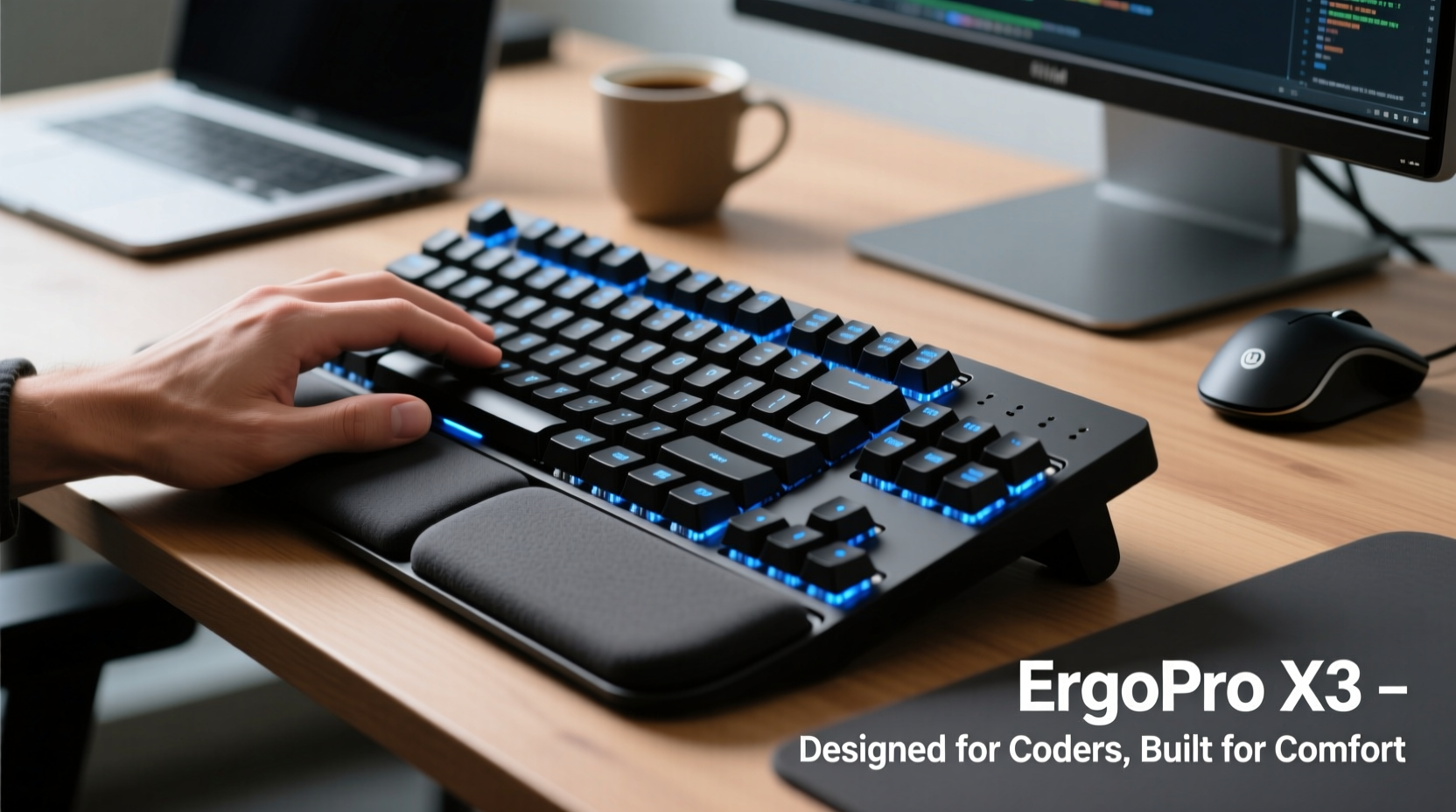
Programmers often work 8–12 hours daily, typing thousands of characters across codebases, documentation, and communication platforms. Standard keyboards force hands into ulnar deviation (inward bending) and pronation (palms-down position), increasing pressure on the median nerve and tendons in the wrist. Over time, this leads to inflammation, numbness, and persistent pain.
Ergonomic keyboards counteract these issues by promoting a neutral hand posture. Features such as split key layouts, adjustable tenting, and negative tilt reduce muscle strain and joint stress. According to Dr. Alan Hedge, director of the Human Factors and Ergonomics program at Cornell University:
“Maintaining a neutral wrist posture—where the hands float straight from the forearm—can reduce tendon load by up to 50%. For professionals like programmers, investing in proper input devices isn’t optional; it’s preventive healthcare.” — Dr. Alan Hedge, Cornell University
Top 5 Ergonomic Keyboards for Programmers with Wrist Strain
After evaluating dozens of models based on adjustability, build quality, tactile feedback, and real-world programmer feedback, these five keyboards stand out for reducing wrist strain without sacrificing functionality.
| Keyboard Model | Type | Key Switches | Tenting/Split Adjustability | Best For |
|---|---|---|---|---|
| Kinesis Freestyle Pro | Split mechanical | Cherry MX Brown/Blue | Yes – fully adjustable via center riser | Customizable layout & heavy typists |
| Ultimate Hacking Keyboard (UHK) | Modular split | Cherry MX Red/Brown | Yes – tenting, split, columnar stagger | Advanced customization & macro use |
| Microsoft Sculpt Ergonomic | Compact split dome | Dome rubber | Limited – fixed split angle | Budget-conscious users |
| ErgoDox EZ | Ortholinear split | Kailh Low Profile | Yes – modular assembly with tenting kit | Typists wanting full control over layout |
| ZSA Moonlander | Highly adjustable split | Kailh Choc or Tactile | Yes – magnetic tenting, split, rotation | Maximum comfort & programmability |
Kinesis Freestyle Pro
The Kinesis Freestyle Pro offers one of the most accessible entry points into true ergonomic typing. Its fully detachable split design allows you to position each half at shoulder width, eliminating ulnar deviation. With mechanical Cherry MX switches, it provides satisfying tactile feedback ideal for fast, accurate coding. Add the optional palm supports and tenting kit to further refine your posture.
ZSA Moonlander
If budget is less of a concern and comfort is paramount, the Moonlander is arguably the gold standard. Its magnetic center hinge allows infinite adjustment in split width, tenting height, and inward rotation. Every key is programmable via ZSA’s intuitive web configurator, letting you create layers for different programming languages. Users report significant reductions in wrist fatigue within two weeks of consistent use.
Ultimate Hacking Keyboard (UHK)
The UHK combines modularity with deep customization. It features a two-piece design with thumb clusters and built-in trackpoints, minimizing mouse dependency. Firmware lets you define macros for repetitive commands—such as inserting boilerplate code or toggling between terminals. While steeper in learning curve, it pays off in long-term efficiency and reduced strain.
How to Choose the Right Ergonomic Keyboard: A Step-by-Step Guide
Selecting the right ergonomic keyboard isn't just about brand reputation—it's about matching the device to your body mechanics and workflow. Follow this sequence to make an informed decision.
- Assess Your Pain Points: Identify whether your discomfort stems from wrist flexion, shoulder tension, or finger reach. If your wrists bend sideways, prioritize a wider split. If palms collapse downward, look for negative tilt support.
- Determine Typing Load: Heavy coders benefit from mechanical switches (e.g., Cherry MX Brown) for durability and responsiveness. Light typists may prefer low-profile or scissor-switch models.
- Test Adjustability Needs: Beginners should start with moderately adjustable models like the Microsoft Sculpt. Advanced users needing full tenting and splay control should consider the Moonlander or ErgoDox EZ.
- Check Compatibility: Ensure the keyboard works with your OS (macOS, Linux, Windows) and supports necessary drivers or configuration tools.
- Budget Realistically: Entry-level ergonomic keyboards start around $80 (Sculpt), while premium models like the Moonlander cost $300+. Consider it an investment in long-term health.
- Try Before You Commit (If Possible): Some coworking spaces or ergonomics clinics offer demo units. Alternatively, purchase from retailers with generous return policies.
Real Example: How One Developer Reduced Wrist Pain in 3 Weeks
Jamal, a backend engineer at a SaaS startup, began experiencing sharp pain in his right wrist after transitioning to remote work. He was using a laptop keyboard with no external setup, typing 10+ hours daily. After consulting an occupational therapist, he switched to the Kinesis Freestyle Pro paired with vertical mouse and raised his monitor to eye level.
Within three days, Jamal noticed less morning stiffness. By week two, he eliminated regular ibuprofen use. At the end of month one, his grip strength improved, and he reported a 70% reduction in discomfort during debugging sessions. “I thought ergonomic gear was overkill,” he said. “But now I can’t imagine going back. My productivity actually went up because I’m not pausing to shake out my hands every hour.”
Essential Tips for Maximizing Ergonomic Benefits
A keyboard alone won’t fix poor posture or bad habits. Pair your new device with these practices to amplify results.
- Maintain a 90-degree elbow angle with arms close to your body.
- Keep wrists floating slightly above the desk—never resting on hard edges.
- Use keyboard shortcuts instead of reaching for the mouse frequently.
- Take micro-breaks every 30 minutes to stretch fingers, wrists, and forearms.
- Position the keyboard so the top row aligns with your lap, encouraging negative tilt.
Checklist: Setting Up Your Ergonomic Workspace
Use this checklist to ensure your entire setup supports wrist recovery and prevention.
- ✅ Choose a split ergonomic keyboard with adjustable tenting
- ✅ Position keyboard at elbow height or slightly below
- ✅ Enable negative tilt (front higher than back) if supported
- ✅ Align shoulders with elbows, keep upper arms relaxed
- ✅ Use a vertical mouse or trackball to reduce forearm strain
- ✅ Set up dual monitors at eye level, centered or slightly offset
- ✅ Schedule hourly stretch reminders via apps like Stretchly or Workrave
- ✅ Invest in a supportive chair with lumbar adjustment
Frequently Asked Questions
Can an ergonomic keyboard cure carpal tunnel syndrome?
No single device can \"cure\" carpal tunnel syndrome, but an ergonomic keyboard can significantly reduce symptoms by minimizing pressure on the median nerve. Combined with physical therapy, rest, and proper workstation setup, many users experience remission of mild to moderate cases. Severe cases may require medical intervention.
Are mechanical switches better for wrist strain?
Mechanical switches generally require less actuation force (45–60g) compared to membrane keyboards, which reduces finger fatigue. However, tactile feedback varies. Cherry MX Browns (tactile) or Reds (linear) are preferred by programmers for their balance of responsiveness and quiet operation. Avoid stiff Blue switches if you're prone to tension.
How long does it take to adapt to an ergonomic keyboard?
Most users adapt within 1–3 weeks. Initial discomfort is normal as muscles adjust to new hand positions. Typing speed may drop temporarily but typically rebounds—and often improves—as posture stabilizes. Consistent daily use accelerates adaptation.
Final Thoughts: Prioritize Long-Term Health Over Short-Term Convenience
Wrist strain doesn’t develop overnight, and neither does recovery. Switching to the best ergonomic keyboard for programmers with wrist strain isn’t just about immediate relief—it’s about building sustainable work habits that protect your body for years to come. Whether you choose the highly customizable ZSA Moonlander, the reliable Kinesis Freestyle Pro, or another well-designed model, the key is consistency and proper setup.
Don’t wait until pain becomes debilitating. Many developers delay action until they can barely type, turning a preventable issue into a career-limiting condition. Start today: evaluate your current setup, test recommended models, and commit to a healthier way of working.




 浙公网安备
33010002000092号
浙公网安备
33010002000092号 浙B2-20120091-4
Comments
No comments yet. Why don't you start the discussion?