
Remote work has reshaped how we interact with technology, often extending our typing sessions far beyond traditional office hours. Without proper support, prolonged keyboard use can lead to wrist strain, carpal tunnel syndrome, and chronic discomfort. One of the most effective interventions is switching to an ergonomic keyboard—designed to align your hands, wrists, and forearms in a natural, neutral position.
Unlike flat, rigid standard keyboards, ergonomic models promote healthier posture by splitting the key layout, adjusting angles, or introducing tenting features that reduce ulnar deviation and wrist extension. With dozens of options on the market, choosing the right one depends on your typing habits, workspace setup, and physical needs. This guide explores top-performing ergonomic keyboards backed by design principles and user feedback, helping you make an informed decision to safeguard your long-term comfort.
Why Ergonomic Keyboards Matter for Remote Workers
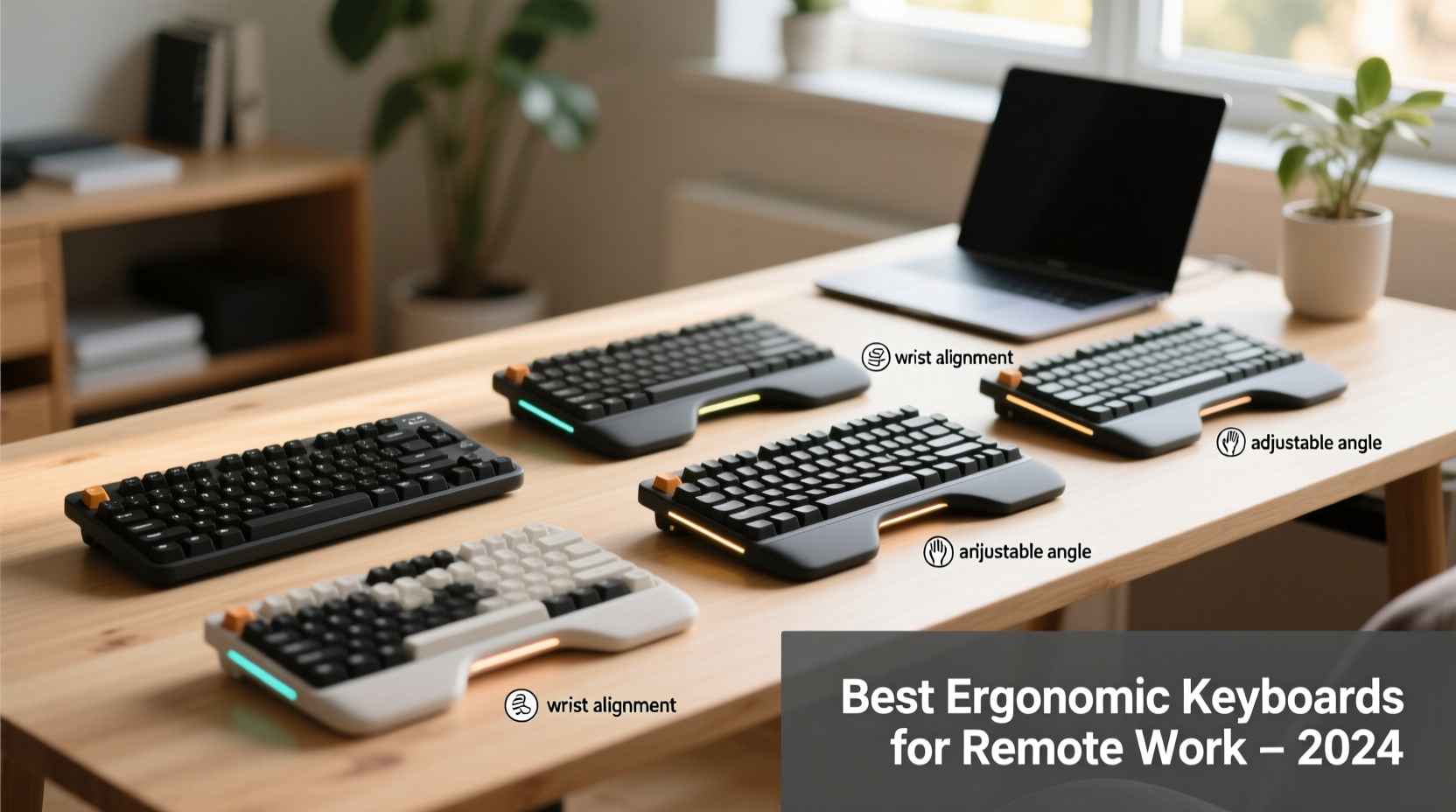
Typing for several hours a day places repetitive stress on tendons, nerves, and muscles in the hands and wrists. Traditional keyboards force the hands into a pronated (palms-down) position, which can compress the median nerve over time—a primary contributor to carpal tunnel syndrome. Ergonomic keyboards counteract this by encouraging a more anatomically sound posture.
The core benefits include:
- Reduced ulnar deviation: Keys are split or angled so wrists don’t bend inward.
- Neutral wrist alignment: Tenting or vertical designs keep hands in a handshake-like position.
- Lower shoulder tension: Proper hand placement reduces strain on shoulders and upper back.
- Improved typing endurance: Less fatigue means longer, more productive work sessions.
A 2022 study published in the Journal of Occupational Rehabilitation found that participants using split ergonomic keyboards reported a 40% reduction in wrist pain after six weeks compared to those using standard layouts. For remote workers spending 30+ hours weekly at a desk, even minor improvements in ergonomics can yield significant long-term health gains.
Top 5 Ergonomic Keyboards for Reducing Wrist Strain
After evaluating performance, adjustability, build quality, and user-reported comfort, these five keyboards stand out as optimal choices for remote professionals seeking relief from wrist strain.
| Keyboard Model | Type | Key Features | Best For |
|---|---|---|---|
| Kinesis Freestyle Pro | Split, tentable | Adjustable split design, programmable keys, palm supports | Customizable setups; advanced users |
| Microsoft Sculpt Ergonomic Keyboard | Sculpted dome | Natural arc layout, domed keywell, wireless | Beginners; budget-conscious buyers |
| ErgoDox EZ | Fully split, ortholinear | Highly customizable, open-source firmware, DIY-friendly | Tech-savvy typists; programmers |
| Anne Pro 2 (with ergonomic layout) | Compact mechanical | Bluetooth, RGB lighting, programmable via software | Minimalist desks; Mac users |
| Logitech ERGO K860 | Wave-shaped, split | Palm lift, curved keyframe, wireless, quiet keys | Office-to-home transitioners |
Kinesis Freestyle Pro
This keyboard excels in adaptability. Its two fully separate halves can be positioned at any width, and when paired with optional tenting kits, it allows for up to 30 degrees of tilt. Mechanical switches provide tactile feedback without excessive force, reducing finger strain. Ideal for users who want full control over their typing angle and spacing.
Microsoft Sculpt Ergonomic Keyboard
An accessible entry point into ergonomics, the Sculpt uses a pronounced curve to bring the outer keys closer to the home row. The cushioned palm rest supports the wrists without pressure points. While not as adjustable as higher-end models, its plug-and-play simplicity makes it ideal for non-technical users.
ErgoDox EZ
Built for precision and personalization, the ErgoDox EZ features a grid-based ortholinear layout (keys aligned in columns rather than staggered rows). This eliminates unnecessary finger travel and promotes straight vertical movement. Firmware customization lets you remap keys, create layers, and fine-tune actuation. Best suited for coders and writers who value efficiency and long-term comfort.
Anne Pro 2
Though compact, this Bluetooth-enabled keyboard offers surprising ergonomic value when programmed with split-hand shortcuts or used with a vertical mouse. Its low-profile mechanical switches require less force to actuate, reducing impact on joints. Great for small home offices where space is limited.
Logitech ERGO K860
One of the most popular mainstream ergonomic keyboards, the K860 combines a wave-shaped design with a built-in palm lift that keeps wrists elevated and neutral. Wireless connectivity and quiet keystrokes make it suitable for shared living spaces. It’s also compatible with both Windows and macOS, appealing to hybrid device users.
“Switching to an ergonomic keyboard isn’t just about comfort—it’s injury prevention. We see fewer cases of repetitive strain among clients who adopt split designs early.” — Dr. Lena Torres, Occupational Therapist & Remote Work Consultant
How to Choose the Right Ergonomic Keyboard for You
Selecting the best model involves more than reading reviews. Your ideal keyboard should align with your anatomy, work demands, and existing setup. Follow this step-by-step framework to narrow your options.
Step 1: Assess Your Current Pain Points
Are you experiencing numbness in your pinky finger? That may indicate ulnar nerve compression, suggesting a split keyboard would help. Do your wrists collapse downward while typing? A model with palm support or negative tilt could correct that. Document symptoms before shopping—they guide better decisions.
Step 2: Determine Your Typing Style
Touch typists benefit most from split or tented keyboards because they maintain consistent hand positioning. Hunt-and-peck typists might find ortholinear or highly sculpted layouts disorienting. If you frequently use shortcut-heavy applications (e.g., Adobe Suite, Excel), prioritize programmable keys.
Step 3: Measure Your Desk Space
Split keyboards like the ErgoDox EZ require wider surfaces. If your desk is narrow, consider a compact curved model like the Microsoft Sculpt or a vertically oriented option such as the Periboard 47. Ensure there's room for a mouse on the same plane as the keyboard.
Step 4: Test Actuation Type
Mechanical switches (e.g., Cherry MX Browns) offer durability and responsiveness but vary in noise and resistance. Low-force linear switches reduce finger effort, beneficial for those with arthritis or tendonitis. Membrane keyboards are quieter and softer but lack feedback. Try switch samples if possible.
Step 5: Prioritize Adjustability
The ability to modify tenting angle, split width, or palm rest height ensures long-term usability. As your body adapts, your needs may change. Fully modular systems like the Kinesis Advantage360 allow upgrades over time, making them cost-effective investments.
Real-World Example: From Chronic Pain to Comfortable Workflow
Jamal, a freelance copywriter based in Portland, began experiencing sharp tingling in his right wrist after transitioning to full-time remote work in 2020. He worked 8–10 hours daily on a laptop with an external membrane keyboard, often typing late into the night. Over six months, the discomfort escalated to constant ache, affecting his sleep and productivity.
After consulting a physical therapist, he was advised to eliminate wrist extension and adopt a split keyboard. He chose the Kinesis Freestyle Pro with a center riser bar and 15-degree tenting. Within three weeks, Jamal noticed reduced stiffness. By week six, his nighttime numbness had disappeared. He now types faster and reports fewer breaks due to discomfort.
“I thought I just had to push through the pain,” Jamal said. “But changing my keyboard was like upgrading my entire work experience. My hands feel lighter, and I’m actually excited to start writing again.”
Action Checklist: Transitioning to an Ergonomic Setup
To ensure a smooth shift to an ergonomic keyboard, follow this checklist:
- ✅ Evaluate current wrist and hand discomfort levels.
- ✅ Measure available desk space and ensure symmetry with mouse placement.
- ✅ Research models based on adjustability, switch type, and compatibility.
- ✅ Purchase from a retailer with a return policy or trial period.
- ✅ Set up the keyboard at elbow height with wrists floating slightly above the surface.
- ✅ Use configuration software (if available) to optimize key mapping.
- ✅ Commit to daily use for at least 14 days to allow muscle adaptation.
- ✅ Reassess comfort and performance monthly for the first quarter.
Frequently Asked Questions
Can ergonomic keyboards cure carpal tunnel syndrome?
No single device can cure carpal tunnel syndrome, but ergonomic keyboards significantly reduce contributing factors like wrist flexion and repetitive strain. When combined with proper posture, stretching, and medical guidance, they play a critical role in managing and preventing worsening symptoms.
Are mechanical switches better for wrist health?
Mechanical switches aren’t inherently healthier, but their consistency and lower actuation force (especially with tactile or linear variants) can reduce finger fatigue. However, some mechanical keyboards have stiff springs, so choose models with light-touch options if you have joint sensitivity.
How long does it take to get used to an ergonomic keyboard?
Most users adapt within 1–3 weeks. Initial awkwardness is common, especially with split or ortholinear layouts. Typing speed may dip temporarily, but accuracy and endurance typically improve afterward. Practice touch typing exercises to accelerate adjustment.
Final Thoughts: Invest in Long-Term Hand Health
Your keyboard is one of the most frequently used tools in your remote work arsenal—yet it’s often overlooked until discomfort arises. Switching to an ergonomic model isn't merely a comfort upgrade; it's a proactive measure against chronic musculoskeletal issues. Whether you choose the accessible Logitech ERGO K860 or dive into full customization with the ErgoDox EZ, the goal remains the same: preserving your ability to work comfortably for years to come.
Don’t wait for pain to dictate change. Start by assessing your current setup, identifying risk factors, and experimenting with designs that align with your body’s needs. Small adjustments today can prevent debilitating strain tomorrow.




 浙公网安备
33010002000092号
浙公网安备
33010002000092号 浙B2-20120091-4
Comments
No comments yet. Why don't you start the discussion?