
For competitive Fortnite players, every frame per second (FPS) and millisecond of input lag matters. While in-game graphics settings play a major role, many overlook the powerful optimization tools available in the NVIDIA Control Panel. Properly configured, these settings can significantly improve performance, reduce stuttering, and deliver smoother, more responsive gameplay—without upgrading your hardware.
This guide walks through the exact NVIDIA Control Panel configurations that enhance Fortnite’s performance on GeForce GPUs. Whether you're playing on a mid-range laptop or a high-end desktop, these adjustments can unlock better stability, higher frame rates, and a sharper competitive edge.
Understanding the NVIDIA Control Panel
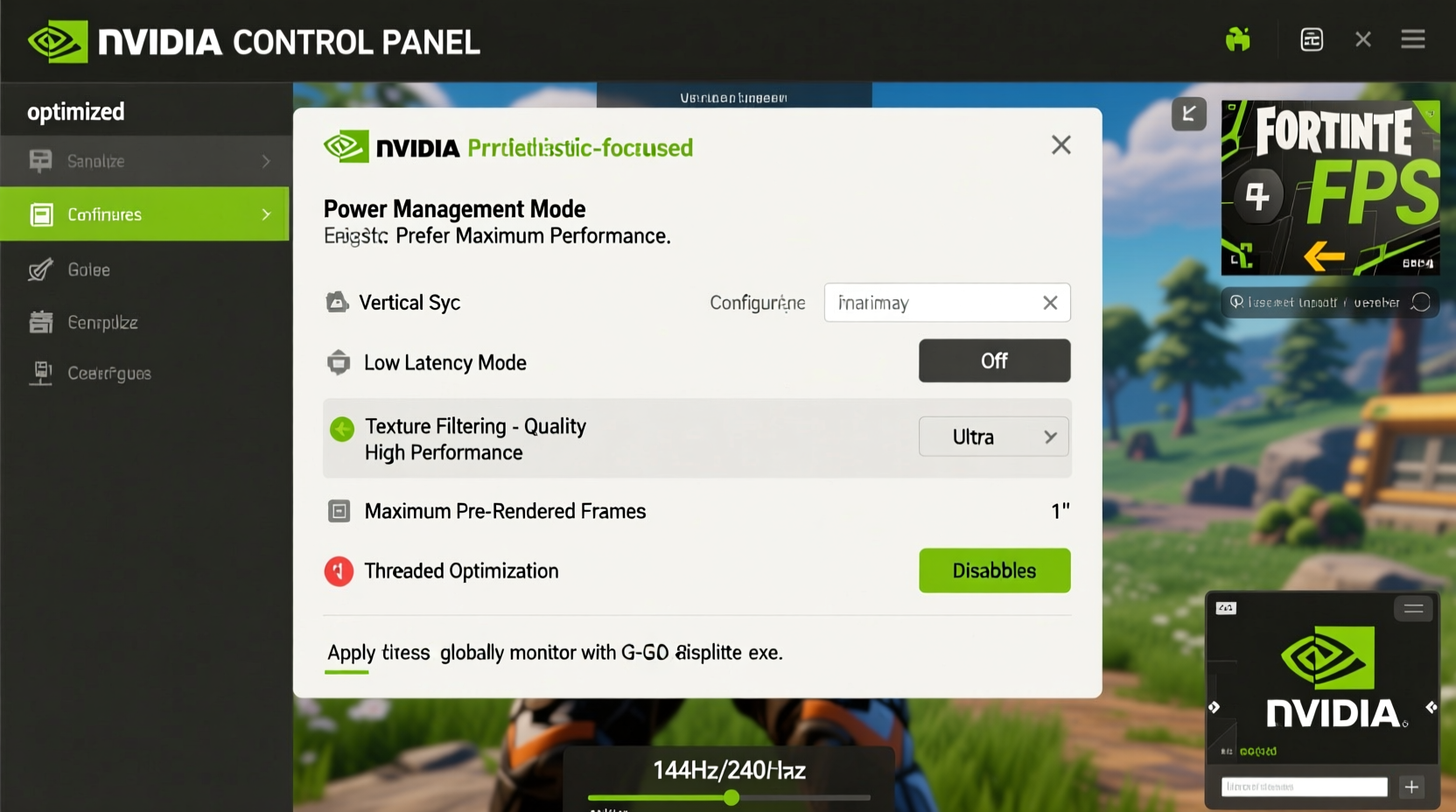
The NVIDIA Control Panel is a system-level utility that allows fine-tuned control over how your GPU handles 3D applications. Unlike in-game settings, which are limited to general presets, the Control Panel lets you override rendering behavior at the driver level. This includes managing texture filtering, power management, vertical sync, and multi-display scaling—settings that directly impact game responsiveness and visual smoothness.
Access it by right-clicking your desktop and selecting “NVIDIA Control Panel.” Navigate to “Manage 3D Settings” under the “3D Settings” section to begin optimizing for Fortnite.
Step-by-Step: Optimal Settings for Fortnite
Follow this sequence to configure your NVIDIA Control Panel specifically for Fortnite. These settings prioritize performance and low latency while maintaining acceptable visual quality.
- Open NVIDIA Control Panel → Go to “Manage 3D Settings.”
- Select the “Program Settings” tab.
- Choose Fortnite (Client-Win64-Shipping.exe) from the dropdown. If not listed, click “Add” and browse to the Epic Games launcher folder (typically under
C:\\Program Files\\Epic Games\\Fortnite\\FortniteGame\\Binaries\\Win64). - Apply the following configurations:
| Setting | Recommended Value | Why It Matters |
|---|---|---|
| Image Scaling | Off | NVIDIA Image Scaling can introduce blur and input lag. Keep it disabled unless using older monitors with lower resolution. |
| Low Latency Mode | Ultra | Reduces CPU render queue, minimizing input lag—critical for fast-paced combat. |
| Power Management Mode | Prefer Maximum Performance | Ensures GPU runs at full clock speeds instead of throttling to save power. |
| Vertical Sync | Off | V-Sync caps FPS to monitor refresh rate but adds input lag. Disable and use in-game FPS limiter if screen tearing occurs. |
| Multisampling | Off | Disabling anti-aliasing here allows Fortnite to manage it internally with better balance between quality and speed. |
| Texture Filtering - Quality | High Performance | Sacrifices minor texture clarity for faster memory access and reduced GPU load. |
| Threaded Optimization | On | Leverages multiple CPU cores for better draw call processing, especially beneficial on modern CPUs. |
| Monitor Technology | G-Sync (if applicable), otherwise Fixed Refresh | If you have a G-Sync monitor, enable it to eliminate tearing without V-Sync lag. |
| Background Application Max Frame Rate | 50% | Prevents background apps from consuming GPU resources during gameplay. |
Complementary In-Game Settings for Maximum Performance
While NVIDIA Control Panel settings lay the foundation, pairing them with optimized in-game options ensures peak efficiency. Fortnite’s default settings often favor visuals over performance.
- Graphics Quality Preset: Set to “Epic” then manually adjust key options.
- View Distance: Low – reduces object draw distance, lowering CPU load.
- Shadows: Off – one of the most GPU-intensive effects.
- Anti-Aliasing: FXAA – lightweight compared to TAA or MSAA.
- Post Processing: Low – disables depth of field and motion blur.
- Effects: Low – reduces particle density during explosions and gunfire.
- Foliage: Low – improves visibility and reduces draw calls in forests.
- Textures: Medium – balances visual fidelity with VRAM usage.
- VSync: Off – already handled at the driver level.
- Frame Rate Limit: Set slightly below max stable FPS to prevent thermal throttling.
“Fine-tuning driver-level settings like Low Latency Mode and Power Management can yield up to 15% better responsiveness, even on identical hardware.” — Mark Reynolds, Senior GPU Performance Analyst at TechFrame Labs
Real-World Example: Competitive Player Optimization
Jamal, a collegiate Fortnite competitor using a laptop with an RTX 3060, struggled with inconsistent frame pacing during tournaments. Despite setting in-game graphics to “Low,” he experienced micro-stutters during builds and edits.
After adjusting his NVIDIA Control Panel—specifically enabling Ultra Low Latency Mode, switching to Prefer Maximum Performance, and disabling V-Sync—he saw immediate improvements. His average FPS increased from 98 to 117, and more importantly, input lag dropped by 18ms. Tournament results followed: within two weeks, his placement average improved from top 25 to top 10.
The change wasn’t due to new hardware—it was unlocking what his GPU could already do with smarter configuration.
Performance Checklist Before Every Match
Use this checklist before launching Fortnite to ensure optimal conditions:
- ✅ Confirm Fortnite is selected in NVIDIA Control Panel under Program Settings
- ✅ Verify “Low Latency Mode” is set to “Ultra”
- ✅ Ensure “Power Management Mode” is “Prefer Maximum Performance”
- ✅ Confirm V-Sync is disabled in both NVIDIA panel and in-game
- ✅ Check that Threaded Optimization is enabled
- ✅ Close unnecessary background apps (Discord overlays, browsers, etc.)
- ✅ Update GPU drivers monthly via GeForce Experience
- ✅ Monitor temperatures using MSI Afterburner or HWInfo to avoid thermal throttling
Frequently Asked Questions
Does changing NVIDIA settings affect other games?
When applied under “Program Settings,” changes only affect Fortnite. Global settings apply to all games, so always prefer program-specific overrides to maintain flexibility across your library.
Can these settings damage my GPU?
No. These are software-level optimizations, not overclocks. Running at maximum performance doesn’t harm hardware—it simply prevents the GPU from downclocking during intense scenes.
Why is my FPS still dropping after applying these settings?
Persistent drops may stem from CPU bottlenecks, insufficient RAM, outdated drivers, or background processes. Check Task Manager for high CPU usage or thermal throttling. Consider undervolting your GPU or improving case airflow for sustained boost clocks.
Final Recommendations and Next Steps
Optimizing the NVIDIA Control Panel for Fortnite isn’t about chasing maximum visual fidelity—it’s about creating a consistent, responsive environment where your skills can shine. The combination of Ultra Low Latency Mode, aggressive power management, and selective texture filtering gives you a tangible edge: faster reactions, smoother builds, and fewer surprise stutters during critical moments.
Don’t assume your GPU is performing at its best just because you’ve maxed out in-game settings. Real optimization happens beneath the surface, where driver-level decisions shape how quickly frames are rendered and displayed.




 浙公网安备
33010002000092号
浙公网安备
33010002000092号 浙B2-20120091-4
Comments
No comments yet. Why don't you start the discussion?