
A high-quality soundbar can transform how you experience movies, music, and games. Samsung offers some of the most advanced soundbars on the market, integrating technologies like Dolby Atmos, Adaptive Sound, and wireless subwoofers. However, even the most sophisticated hardware underperforms without proper configuration. The right settings unlock clarity, depth, and immersion that match the visual quality of modern 4K and HDR displays. Whether you’re using a Q-Series, HW-Q990C, or a mid-tier model like the HW-T420, optimizing your soundbar’s audio profile makes a tangible difference.
Understanding Your Soundbar’s Core Features
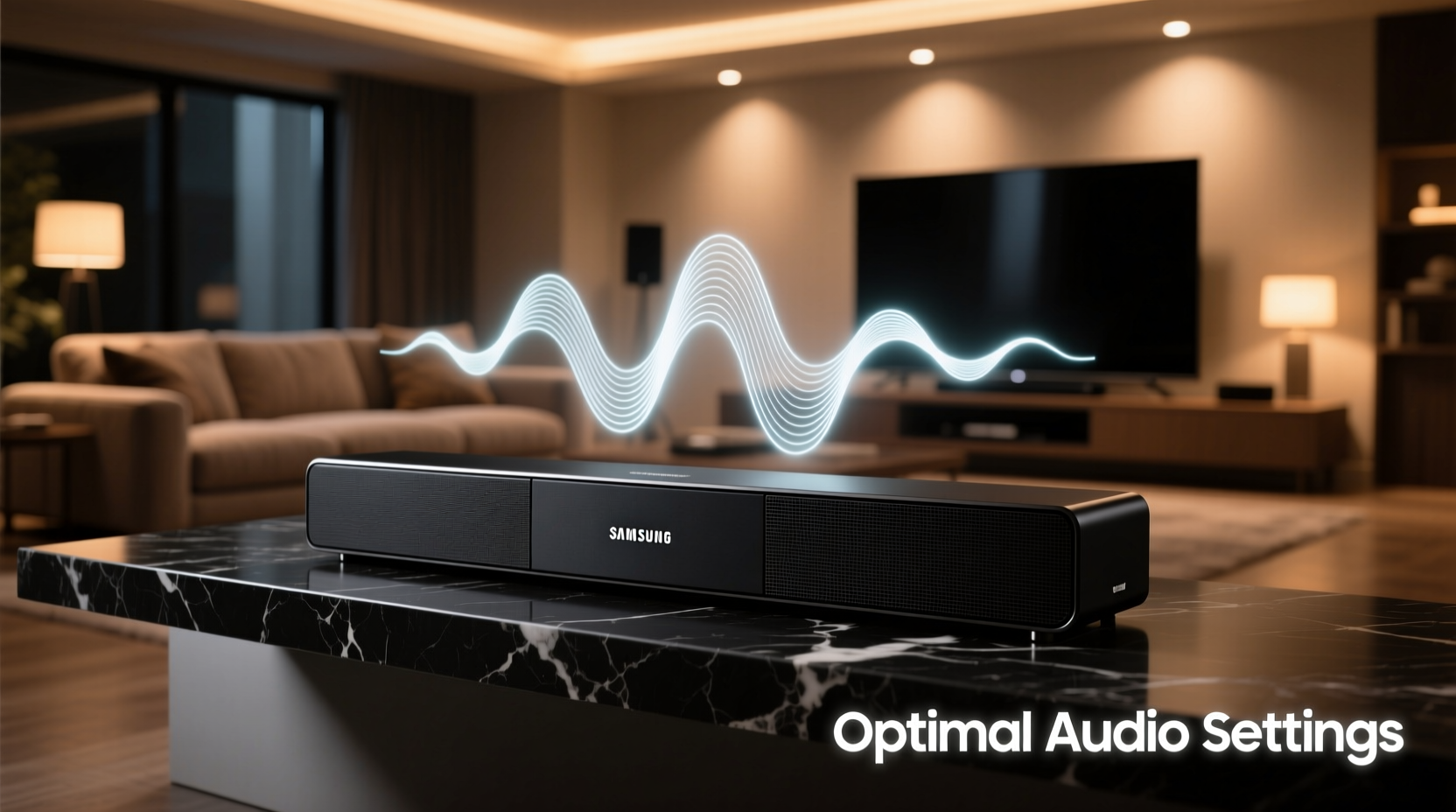
Samsung soundbars come equipped with intelligent processing engines designed to adapt to content and room acoustics. Key features include:
- Dolby Atmos & DTS:X support: Enables object-based surround sound for three-dimensional audio.
- Adaptive Sound: Automatically adjusts audio based on content type (movie, music, voice).
- SpaceFit Sound: Analyzes your room’s acoustics and optimizes speaker output accordingly.
- Wireless Rear Speakers & Subwoofer: Expands the soundstage for true surround immersion.
- Smart Calibration Tools: Built-in microphones and algorithms fine-tune frequency response.
To get the most from these capabilities, manual adjustments are often necessary. Factory presets may not account for your room’s layout, furniture, or listening position.
Optimal Audio Settings by Use Case
Different content types demand different audio profiles. Applying one-size-fits-all settings diminishes performance. Below is a breakdown of recommended configurations based on usage.
Movies and TV Shows
For cinematic content, prioritize spatial accuracy and dynamic range. Enable Dolby Atmos if supported by your model and source device.
- Set Sound Mode to “Surround” or “Dolby Atmos” (if available).
- Enable Adaptive Sound Lite to balance dialogue and effects.
- Increase Center Channel level slightly (+1 to +2) for clearer dialogue.
- Adjust Subwoofer Level between +4 and +6 for impactful but clean bass.
- Turn on Virtual Surround Plus if rear speakers aren’t in use.
Music Listening
When streaming music or playing through Bluetooth, stereo imaging and tonal balance become critical.
- Select Music Mode or “Standard” sound profile.
- Reduce bass level slightly (0 to +2) to prevent muddiness.
- Increase Treble by +1 to +2 for brighter highs.
- Disable Dolby Atmos to preserve original stereo mix integrity.
- Use “Wide” mode only in large rooms; otherwise, keep it off for focused imaging.
Gaming and Fast-Paced Content
Low latency and directional precision are essential. Gamers should prioritize responsiveness over deep bass.
- Enable Game Pro Mode (on compatible models) to reduce audio lag.
- Set Sound Mode to “Game” or “Surround” with minimal post-processing.
- Ensure HDMI eARC is enabled for uncompressed audio transmission.
- Keep subwoofer at +3 to avoid slow bass overshadowing quick sound cues.
- Use rear speakers to detect enemy footsteps or ambient cues in open-world games.
Step-by-Step Calibration Process
Follow this sequence to calibrate your Samsung soundbar for optimal performance in your environment.
- Position the Soundbar Correctly: Center it below or above your TV, ensuring no obstructions. Avoid placing inside enclosed cabinets.
- Connect via HDMI eARC: Use a premium high-speed HDMI cable connected to the eARC port on both TV and soundbar for highest-quality audio return.
- Run SpaceFit Sound: Press and hold the “Sound Mode” button on the remote until “SpaceFit Sound” appears. The soundbar will emit test tones and adjust speaker levels automatically.
- Test with Real Content: Play a movie with varied scenes (dialogue, action, quiet moments). Listen for imbalances.
- Manual Fine-Tuning: Access the SmartThings app or soundbar menu to adjust individual channels:
- Boost center channel if voices sound thin.
- Lower subwoofer if bass overwhelms midrange.
- Increase rear speaker volume if surround effects feel distant.
- Save Custom Preset: If your model supports it, save your adjusted profile as a custom mode for quick access.
Do’s and Don’ts: Audio Optimization Table
| Do’s | Don’ts |
|---|---|
| Use HDMI eARC instead of optical cable for lossless audio | Don’t place the soundbar inside a closed entertainment unit |
| Run SpaceFit Sound after any physical relocation | Don’t max out all EQ sliders—this causes distortion |
| Pair rear speakers symmetrically behind the listening area | Don’t ignore firmware updates—they often improve audio processing |
| Adjust center channel for clearer dialogue | Don’t enable multiple sound enhancements simultaneously (e.g., Bass Boost + Adaptive Sound) |
| Use the SmartThings app for granular control | Don’t expect full-room coverage from a soundbar alone in very large spaces |
Expert Insight: Why Calibration Matters
“Most people never adjust their soundbar beyond turning it on. But room acoustics, speaker placement, and content type drastically affect perceived sound quality. A two-minute calibration like SpaceFit Sound can deliver a 70% improvement in clarity and immersion.” — Dr. Alan Reyes, Audio Engineer and Home Theater Consultant
Mini Case Study: Transforming a Living Room Setup
Mark, a film enthusiast in Austin, owned a Samsung HW-Q900B but complained about muffled dialogue and weak surround effects. His soundbar was placed inside a low cabinet, partially blocked by decor. After moving it to an open shelf and running SpaceFit Sound, he noticed immediate improvements. He then accessed the SmartThings app and increased the center channel by +2 and reduced subwoofer gain to +3. The change was dramatic: dialogue became crisp, and ambient sounds in films like *Dune* gained depth and directionality. Mark later added wireless rear speakers, completing a true 7.1.4 setup. “It went from ‘okay’ to theater-like,” he said. “I didn’t realize how much I was missing.”
Checklist: Optimize Your Samsung Soundbar in 7 Steps
- ✅ Position the soundbar in an unobstructed location, centered with your TV
- ✅ Connect using HDMI eARC for full audio fidelity
- ✅ Run SpaceFit Sound to auto-calibrate to your room
- ✅ Select appropriate sound mode (Surround, Dolby Atmos, Music, etc.) per content
- ✅ Manually adjust center channel and subwoofer levels for balance
- ✅ Update firmware via SmartThings app for latest audio enhancements
- ✅ Pair rear speakers and re-run calibration if expanding to full surround
Frequently Asked Questions
How do I know if my Samsung soundbar supports Dolby Atmos?
Check the model number on Samsung’s official website or packaging. Models with “Q” series designations (e.g., HW-Q990C, HW-Q800B) typically support Dolby Atmos. You can also verify in the sound settings menu—if “Dolby Atmos” appears as a selectable mode, your device supports it.
Why is dialogue hard to hear even with the volume up?
This is often due to a low center channel setting. Increase the center level in the soundbar’s audio settings. Also, ensure “Voice Enhancement” or “Adaptive Sound” is enabled, as these prioritize speech frequencies. Avoid excessive bass, which can mask vocal clarity.
Can I use my Samsung soundbar with non-Samsung TVs?
Yes. Most Samsung soundbars work with any TV via HDMI ARC/eARC or optical cable. However, features like Seamless Wake-Up and Tap Sound require Samsung TVs. For full functionality, use HDMI eARC and manually configure audio formats in your TV’s sound settings.
Conclusion: Elevate Your Audio Experience Today
The best audio experience doesn’t come from hardware alone—it comes from intelligent tuning. By leveraging Samsung’s built-in tools and applying thoughtful adjustments, you turn a good soundbar into an exceptional audio system. Whether you're watching late-night shows, hosting movie nights, or gaming competitively, precise settings make every sound count. Don’t settle for default configurations. Take 15 minutes to calibrate, experiment, and personalize your sound. The clarity, depth, and realism you gain are well worth the effort.




 浙公网安备
33010002000092号
浙公网安备
33010002000092号 浙B2-20120091-4
Comments
No comments yet. Why don't you start the discussion?