
Virtual reality gaming offers unparalleled immersion, but for many players, it comes with an unwelcome side effect: motion sickness. Also known as cybersickness, this condition can cause dizziness, nausea, sweating, and disorientation—often cutting sessions short and discouraging continued use. The good news is that motion sickness in VR is not inevitable. With the right combination of hardware adjustments, software settings, and behavioral strategies, most users can significantly reduce or even eliminate symptoms. This guide dives into the science behind VR-induced discomfort and delivers actionable, tested methods to make your virtual adventures comfortable and enjoyable.
Understanding Why VR Causes Motion Sickness
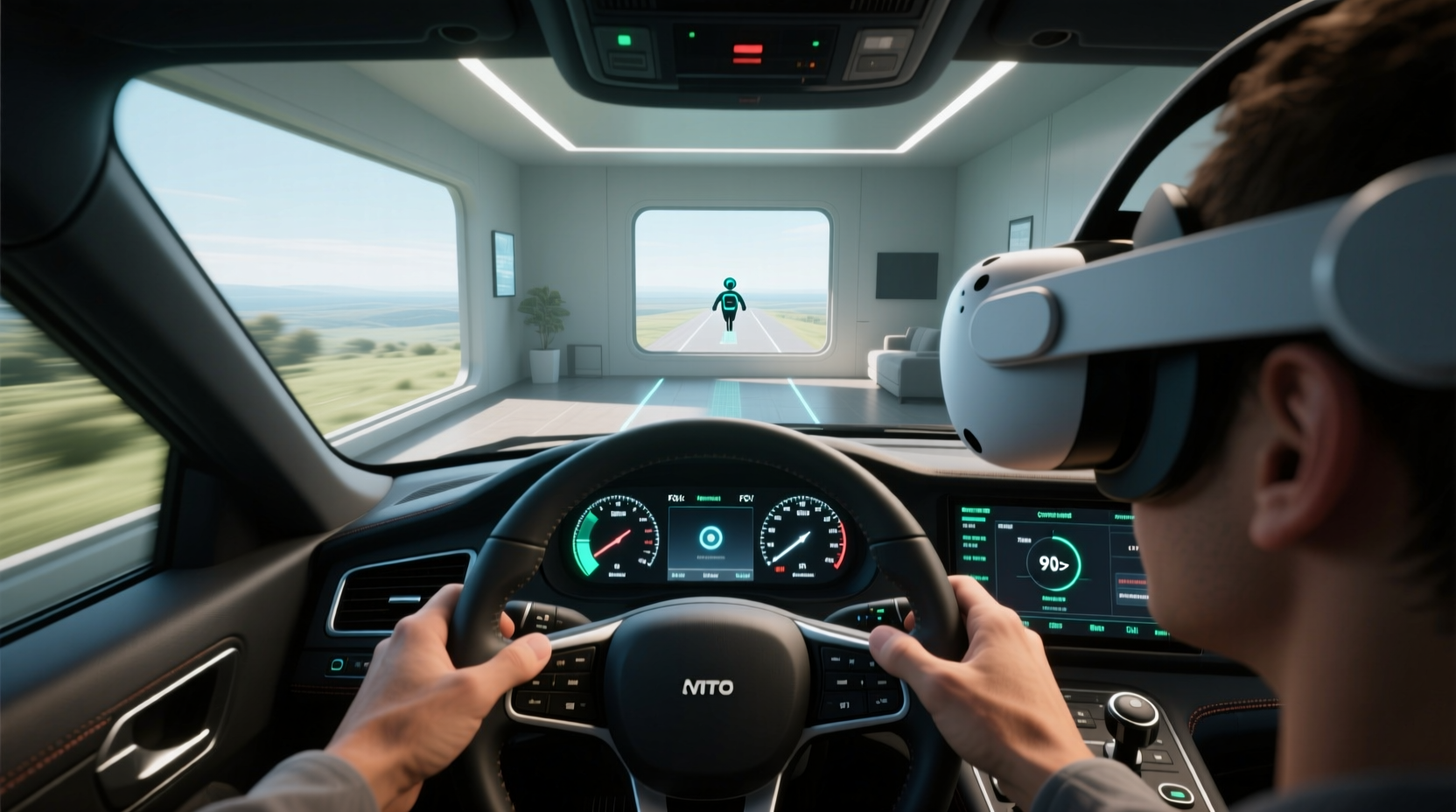
Motion sickness in VR stems from a sensory mismatch between what your eyes see and what your body feels. In real life, when you move, your inner ear (vestibular system), muscles, and joints all send consistent signals to your brain. But in VR, your visual field may suggest rapid movement—like sprinting through a battlefield or flying over a city—while your body remains stationary. This conflict confuses the brain, triggering physiological responses similar to those caused by seasickness or car sickness.
Latency, frame rate drops, poor tracking, and unnatural locomotion mechanics amplify this disconnect. The brain interprets these inconsistencies as potential poisoning, prompting nausea as a protective reflex. According to Dr. Thomas Stoffregen, a kinesiology professor at the University of Minnesota who has studied simulator sickness for decades:
“Visual-vestibular conflict is the primary driver of motion sickness in virtual environments. Reducing perceptual discrepancies—even slightly—can dramatically improve user comfort.” — Dr. Thomas Stoffregen, Human Factors Research Lab, University of Minnesota
The key, then, is minimizing that conflict through intelligent configuration and mindful usage.
Optimize Your VR Hardware and Environment
Before adjusting in-game settings, ensure your physical setup supports stability and comfort. A poorly calibrated or inconsistently tracked system will undermine even the best software tweaks.
- Ensure full sensor coverage: Whether using external base stations, inside-out cameras, or lighthouse systems, confirm all areas of your play space are fully monitored. Gaps in tracking lead to stuttering visuals, which heighten discomfort.
- Use a stable headset fit: A loose headset shifts during movement, causing image slippage. This forces your brain to constantly reorient, increasing cognitive load and nausea risk.
- Minimize cable tension (if applicable): For tethered headsets like older Valve Index or Rift models, use a ceiling mount or anti-tangle swivel to prevent cord drag that disrupts natural motion.
- Play seated when possible: Sitting reduces vestibular input conflict because your body expects less movement. It’s especially effective for driving, flight, or rail-based games.
Essential In-Headset and Software Settings
Most modern VR platforms offer built-in features designed specifically to combat motion sickness. These should be adjusted before launching any game.
1. Enable Comfort Mode or Fixed Reference Points
Many headsets allow you to set a “comfort mode” that anchors your view with a static frame or artificial horizon. For example, Meta Quest offers a “Guardian Boundary Reminder,” while SteamVR includes chaperone grid lines that persist during gameplay. These visual references help ground your perception, reducing disorientation.
2. Adjust IPD (Interpupillary Distance) Accurately
Incorrect IPD settings blur visuals and strain eye focus, contributing to fatigue and nausea. Use your headset’s calibration tool or measure your IPD manually (average is ~63mm for adults). Even a 5mm discrepancy can cause subtle double vision that worsens over time.
3. Prioritize Frame Rate and Reduce Rendering Load
Consistent high frame rates (90Hz or higher) are critical. Frame drops create temporal lag, making movements appear jerky. Lower graphical settings such as texture quality, shadow detail, and super-sampling can boost performance without sacrificing core clarity.
| Setting | Recommended Adjustment | Rationale |
|---|---|---|
| Super Sampling (Render Scale) | Set to 1.0 or lower if performance suffers | Reduces GPU load; prevents frame drops |
| Asynchronous Spacewarp (ASW) | Keep enabled | Fills frames during dips to maintain smoothness |
| Chaperone Visibility | Enable persistent outline | Provides spatial grounding |
| Audio Spatialization | Enable 3D audio | Improves sensory alignment; helps orient the brain |
Game-Specific Locomotion Settings That Work
How you move in VR has the biggest impact on comfort. Teleportation, snap turning, and redirected walking are far gentler than smooth locomotion for new or sensitive users.
Use Teleportation Over Smooth Movement
Instead of simulating continuous walking, teleportation lets you click a destination and instantly reposition. This eliminates the illusion of self-motion while preserving agency. Games like *Half-Life: Alyx*, *The Walking Dead: Saints & Sinners*, and *Boneworks* support robust teleport systems. Enable them in settings under “Movement Type” or “Locomotion Method.”
Implement Snap Turning
Smooth turning rotates your view gradually, which often causes nausea. Snap turning jumps in fixed increments (e.g., 30° or 45° per press), mimicking how people naturally pivot in real life. Set turn angle to no more than 45° for balance between precision and comfort.
Leverage Vignettes and Dynamic FOV Reduction
Some games and mods include a dynamic tunneling effect that darkens peripheral vision during movement. Since motion blur in the periphery is a major trigger, narrowing the field of view (FOV) during locomotion can help. Titles like *Lone Echo* and *Moss* use this subtly and effectively. Third-party tools like *OpenComposite* allow adding vignettes to unsupported apps.
Step-by-Step Guide to Calibrating Your VR Setup for Comfort
Follow this sequence each time you begin a new VR session or install a new game to minimize risk of motion sickness:
- Check physical environment: Clear your play area, ensure good lighting, and confirm boundary setup is accurate.
- Adjust IPD and headset fit: Use the dial or menu to match your measured interpupillary distance. Tighten straps so the headset doesn’t shift.
- Launch system-level comfort features: Enable chaperone lines, set snap turning to 30°–45°, and activate any built-in vignette options.
- Select appropriate locomotion: Choose teleportation or arm swinging instead of smooth movement. Disable free-fly modes initially.
-
Reduce render scale to 0.9 if frame rate dips below 85fps consistently. - Start with short sessions: Limit initial playtime to 15–20 minutes. Gradually increase as tolerance builds.
- Take breaks every 20–30 minutes: Step out of VR, focus on a distant real-world object, and breathe deeply to reset your vestibular system.
This routine establishes consistency and trains your brain to adapt to VR stimuli without triggering defensive responses.
Real-World Example: How One Player Overcame Severe VR Nausea
Mark, a 34-year-old software developer, tried VR several times over three years but always quit within 10 minutes due to dizziness and headaches. He assumed he was “just not built for VR.” After reading about locomotion settings, he decided to retry *Arizona Sunshine* with strict modifications: he enabled teleport-only movement, set snap turning to 30°, lowered super sampling to 0.85, and played seated at a desk. His first session lasted 18 minutes—still uncomfortable, but manageable. Over two weeks, he increased duration by 5-minute increments, added wrist-based turning, and eventually transitioned to limited smooth movement with a persistent vignette. Today, Mark plays for up to 90 minutes at a stretch without symptoms.
His breakthrough wasn’t due to a single fix, but a layered approach combining hardware optimization, progressive exposure, and intelligent setting choices.
Checklist: Settings to Apply Before Every VR Session
- ✅ Confirm play area boundaries are visible and accurate
- ✅ Adjust IPD to your measured value
- ✅ Enable snap turning (30°–45° increment)
- ✅ Set locomotion to teleportation or arm swinging
- ✅ Activate chaperone/grid lines during gameplay
- ✅ Lower render scale if frame rate is unstable
- ✅ Play seated or standing still for first 20 minutes
- ✅ Schedule 5-minute breaks every half hour
Frequently Asked Questions
Can I train myself to tolerate smooth locomotion in VR?
Yes. Many users develop increased tolerance over time through gradual exposure. Start with teleportation for 1–2 weeks, then introduce short bursts of smooth movement in low-intensity environments (e.g., slow walking in a calm forest). Consistency and patience are key—your brain can adapt neurologically to the sensory mismatch with repeated, controlled exposure.
Are some headsets better for reducing motion sickness?
Higher-end headsets with superior refresh rates (120Hz+) and lower persistence displays tend to reduce perceived motion blur and latency. Devices like the Valve Index, HP Reverb G2, and Meta Quest 3 offer sharper visuals and faster response times, which contribute to smoother perception. However, proper settings matter more than hardware alone—a well-configured Quest 2 often outperforms a misconfigured高端 headset.
Does playing VR while tired make motion sickness worse?
Absolutely. Fatigue lowers your threshold for sensory discomfort. When sleep-deprived or mentally exhausted, your brain struggles to reconcile conflicting inputs. Always prioritize VR sessions when well-rested, hydrated, and not on a full or empty stomach.
Conclusion: Take Control of Your VR Experience
Motion sickness doesn’t have to be the price of entry into virtual reality. By understanding the root causes and applying targeted settings—from snap turning and teleportation to frame rate optimization and environmental awareness—you can reclaim comfort and immersion. Start with the checklist, commit to short adaptive sessions, and build tolerance over time. The virtual world is vast and rewarding; with the right approach, it can be yours to explore without nausea or hesitation.




 浙公网安备
33010002000092号
浙公网安备
33010002000092号 浙B2-20120091-4
Comments
No comments yet. Why don't you start the discussion?