
External hard drives are essential tools for backing up critical data, from family photos to business documents. Yet, many users overlook one crucial factor: how they store these devices when not in use. Improper storage can lead to mechanical failure, magnetic interference, moisture damage, or even permanent data loss. Unlike cloud storage, physical drives require environmental awareness and careful handling. Understanding the best practices for storing external hard drives isn’t just about prolonging their life—it’s about preserving the integrity of your irreplaceable files.
Whether you're archiving old projects, preparing for disaster recovery, or simply rotating backup drives, the conditions under which you store them matter more than most realize. Temperature fluctuations, humidity, physical shocks, and electromagnetic fields all play a role in drive degradation over time. This guide breaks down the science-backed methods for safe, long-term storage—so your data remains intact, accessible, and secure for years to come.
Environmental Factors That Affect Drive Integrity
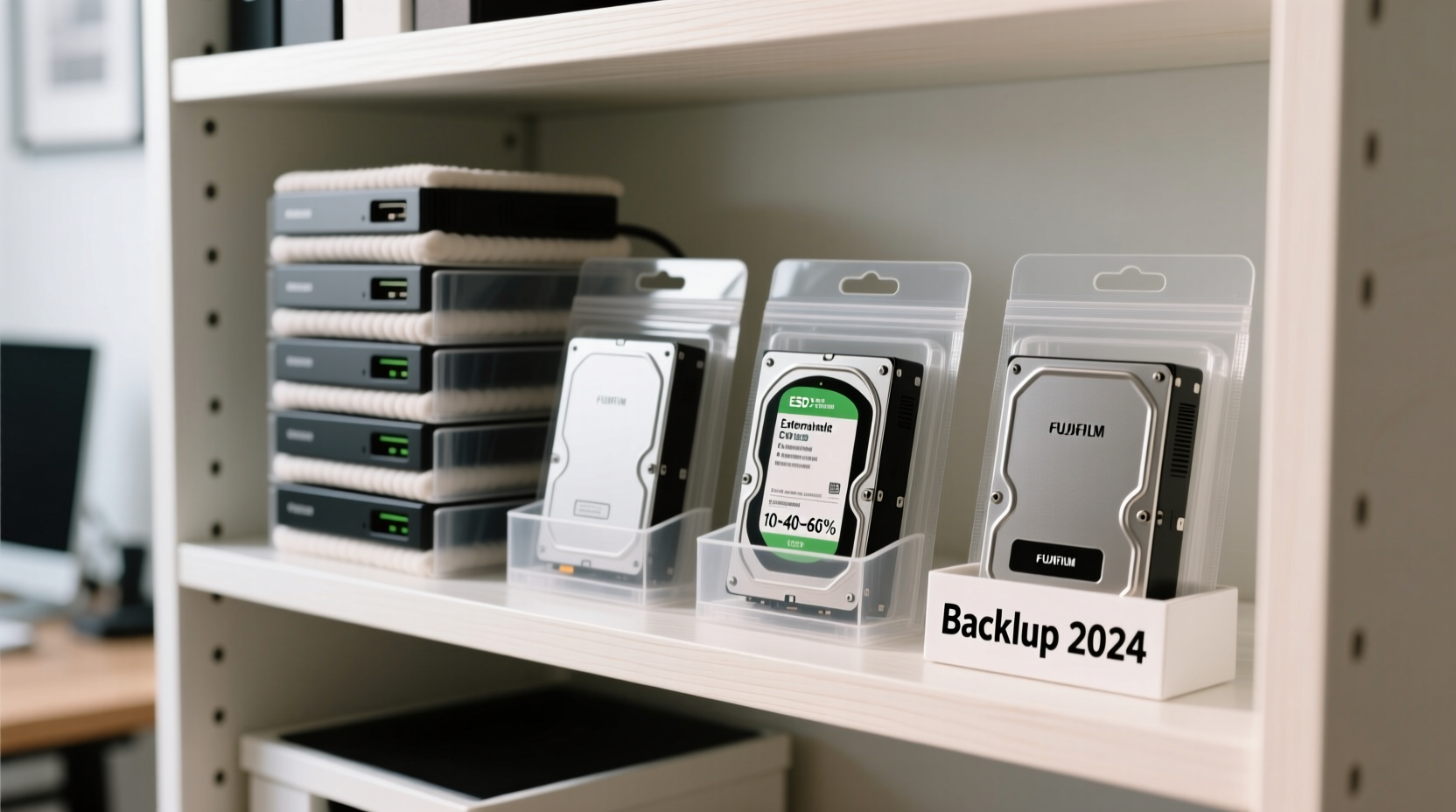
External hard drives, particularly traditional spinning-disk (HDD) models, contain delicate moving parts. Even solid-state drives (SSDs), though more resilient, are sensitive to certain environmental stressors. The primary threats during storage include temperature extremes, humidity, dust, physical impact, and exposure to magnetic fields.
High temperatures accelerate electronic component aging and can cause lubricants inside HDDs to degrade, leading to increased friction and head stiction—a condition where the read/write head sticks to the platter surface upon startup. Conversely, extremely cold environments may cause condensation when the drive warms up, risking short circuits or corrosion.
Humidity is another silent killer. Relative humidity above 60% encourages mold growth and metal oxidation. Below 30%, static electricity becomes a risk, especially in dry climates or heated indoor spaces during winter. Dust particles can infiltrate poorly sealed enclosures, potentially interfering with internal mechanisms in HDDs.
Optimal Storage Conditions: The Gold Standard
The ideal environment for storing an external hard drive mimics archival standards used by professional data centers. According to the National Archives and Records Administration (NARA), magnetic media—including HDDs—should be stored in stable conditions with controlled temperature and humidity.
A consistent temperature between 60°F and 70°F (15°C–21°C) is recommended. Fluctuations should not exceed ±5°F per day. Humidity levels should remain between 40% and 50%. These ranges minimize thermal expansion, reduce corrosion risks, and prevent static buildup.
Storage areas should be dark, as prolonged UV exposure can degrade plastic casings and labels. Avoid attics, basements, garages, and vehicles—locations prone to wide temperature swings and moisture infiltration. Instead, choose interior closets, climate-controlled cabinets, or dedicated storage boxes kept away from windows and exterior walls.
“Even if a drive appears idle, its components continue to age. Stable environmental conditions are the single most effective way to slow that process.” — Dr. Alan Prescott, Data Archivist & Senior Engineer at Digital Preservation Labs
Step-by-Step Guide to Preparing Your Drive for Long-Term Storage
Storing a drive properly begins well before it goes into a drawer. Follow this sequence to ensure maximum protection:
- Back up and verify data: Before disconnecting, confirm all files have been successfully transferred and validated. Use checksum tools (like MD5 or SHA-256) to create digital fingerprints of important folders for future verification.
- Safely eject the drive: Always use the “Safely Remove Hardware” function to prevent file system corruption caused by interrupted write processes.
- Clean the exterior: Wipe the casing with a dry microfiber cloth to remove fingerprints and dust. Avoid solvents or water-based cleaners that could seep into ports.
- Power down completely: Ensure no indicator lights are active. Some drives enter sleep mode but remain partially powered; full shutdown reduces wear on circuitry.
- Pack in anti-static packaging: Place the drive in its original box or wrap it in anti-static foam or bubble wrap. Never use regular plastic bags, which generate static.
- Store vertically or flat—not on edges: Position HDDs so the platters sit parallel to the ground to minimize stress on internal bearings.
- Label clearly: Use soft labels or masking tape to note contents and date. Avoid adhesive-heavy stickers that might degrade or leak chemicals over time.
Do’s and Don’ts of External Hard Drive Storage
| Do’s | Don’ts |
|---|---|
| Store in a cool, dry, climate-controlled room | Leave in hot cars or unheated sheds |
| Use padded cases or original packaging | Stack heavy objects on top of drives |
| Keep away from magnets and speakers | Place near microwaves, motors, or power transformers |
| Inspect every 6 months for signs of damage | Forget about drives for decades without checking |
| Rotate backups periodically (every 12–18 months) | Rely solely on one archived drive indefinitely |
Comparing HDDs vs. SSDs: Are Storage Needs Different?
While both types benefit from stable environments, their vulnerabilities differ significantly.
Traditional HDDs rely on spinning platters and mechanical arms. They’re highly susceptible to shock and orientation issues. Sudden movements while operating can cause head crashes. During storage, keeping them level and vibration-free is critical. Over time, lubricants dry out, increasing the risk of startup failure after prolonged dormancy.
SSDs, lacking moving parts, are far more durable against drops and positioning. However, they face different challenges. NAND flash memory degrades slowly when unpowered. Studies suggest consumer-grade SSDs may retain data for only 1–2 years at room temperature when inactive. Enterprise models fare better, but periodic re-powering (every 6–12 months) helps maintain charge levels in memory cells.
For archival purposes, HDDs currently offer longer passive retention—up to 5 years under optimal conditions—making them preferable for infrequent access. But SSDs excel in portability and resistance to physical mishandling during transport.
Real Example: The Photographer Who Lost Years of Work
Lena M., a freelance travel photographer, backed up five years of client work onto two identical 4TB external HDDs. She stored one at home in a bedroom closet and gave the second to her sister for safekeeping. Ten months later, she needed to retrieve images for a magazine feature. The local drive worked perfectly. The offsite copy, however, failed to mount.
Upon inspection, the sister revealed she’d kept the drive in a plastic bin in her garage—an area known for summer heat exceeding 95°F and winter dampness. Despite being unused, the drive had suffered thermal stress and minor corrosion on the circuit board. Data recovery cost over $800, and some folders were permanently lost.
Lena now stores all backups in fireproof safes with humidity control packs and rotates her drives quarterly. Her lesson? Offsite doesn’t mean forgotten—and location matters as much as redundancy.
Additional Protection Strategies
Beyond environmental control, several proactive measures enhance data safety:
- Use shielded storage containers: Metal enclosures or Faraday bags block electromagnetic interference (EMI) and add physical protection.
- Add desiccant packs: Silica gel packets absorb moisture inside sealed boxes. Replace or recharge them every 3–6 months.
- Implement a refresh cycle: Power on stored drives every 6–12 months, run diagnostic checks (e.g., SMART status via CrystalDiskInfo), and rewrite data to new media every 3–5 years.
- Encrypt sensitive data: Even in storage, encrypted drives protect against unauthorized access if misplaced.
- Maintain multiple copies: Follow the 3-2-1 rule: three total copies of your data, two local but on different devices, and one offsite (cloud or geographically separate).
Checklist: Preparing for Safe Long-Term Storage
- ___ All data backed up and verified
- ___ Drive safely ejected and powered off
- ___ Exterior cleaned with dry cloth
- ___ Stored in anti-static packaging or original box
- ___ Location is climate-controlled, away from sunlight
- ___ Labeled with contents and date
- ___ Desiccant included if sealed in container
- ___ Part of a scheduled inspection plan (every 6–12 months)
Frequently Asked Questions
How long can an external hard drive last in storage?
Under optimal conditions—stable temperature, low humidity, and proper packaging—most external HDDs can retain data for 3 to 5 years without power. SSDs typically last 1 to 2 years unpowered before potential data loss occurs due to charge leakage in memory cells. Regular refresh cycles extend usability beyond these estimates.
Can I store an external hard drive in a safe?
Yes, but only if the safe is fire-resistant and not prone to trapping moisture. Many safes lack ventilation, creating humid microclimates. If using a safe, include silica gel packs and check the drive every few months. Avoid gun safes or those near concrete floors, which often develop condensation.
Should I leave my external hard drive plugged in when not in use?
No. Continuous connection increases vulnerability to power surges, accidental deletion, and malware. It also contributes to unnecessary wear. Disconnect drives after use and store them offline. For automated backups, schedule short connection windows rather than leaving them perpetually attached.
Conclusion: Protect Your Data Like the Asset It Is
Your external hard drive holds more than files—it holds memories, records, and intellectual capital. Treating it as a disposable tool invites disaster. By controlling temperature, managing humidity, preventing physical stress, and scheduling maintenance, you dramatically reduce the risk of data corruption. No backup strategy succeeds without considering storage hygiene.
The best way to store external hard drives isn’t complicated, but it demands consistency. Choose the right location, prepare the device carefully, monitor conditions, and refresh your archive regularly. These habits transform fragile storage media into reliable vaults for your digital legacy.




 浙公网安备
33010002000092号
浙公网安备
33010002000092号 浙B2-20120091-4
Comments
No comments yet. Why don't you start the discussion?