
For competitive gamers and precision-focused players, the Xbox Elite Wireless Controller Series 2 isn’t just a luxury—it’s a tool engineered for mastery. With customizable components ranging from thumbsticks to paddles, it offers unparalleled control over your gameplay. However, owning the hardware is only half the battle. The real advantage lies in how you configure it. The right settings can reduce input lag, improve accuracy, and create a seamless bridge between intent and action on-screen. This guide dives into proven configurations that elevate responsiveness, comfort, and consistency across genres—from first-person shooters to racing sims.
Understanding the Xbox Elite Controller’s Customization Features
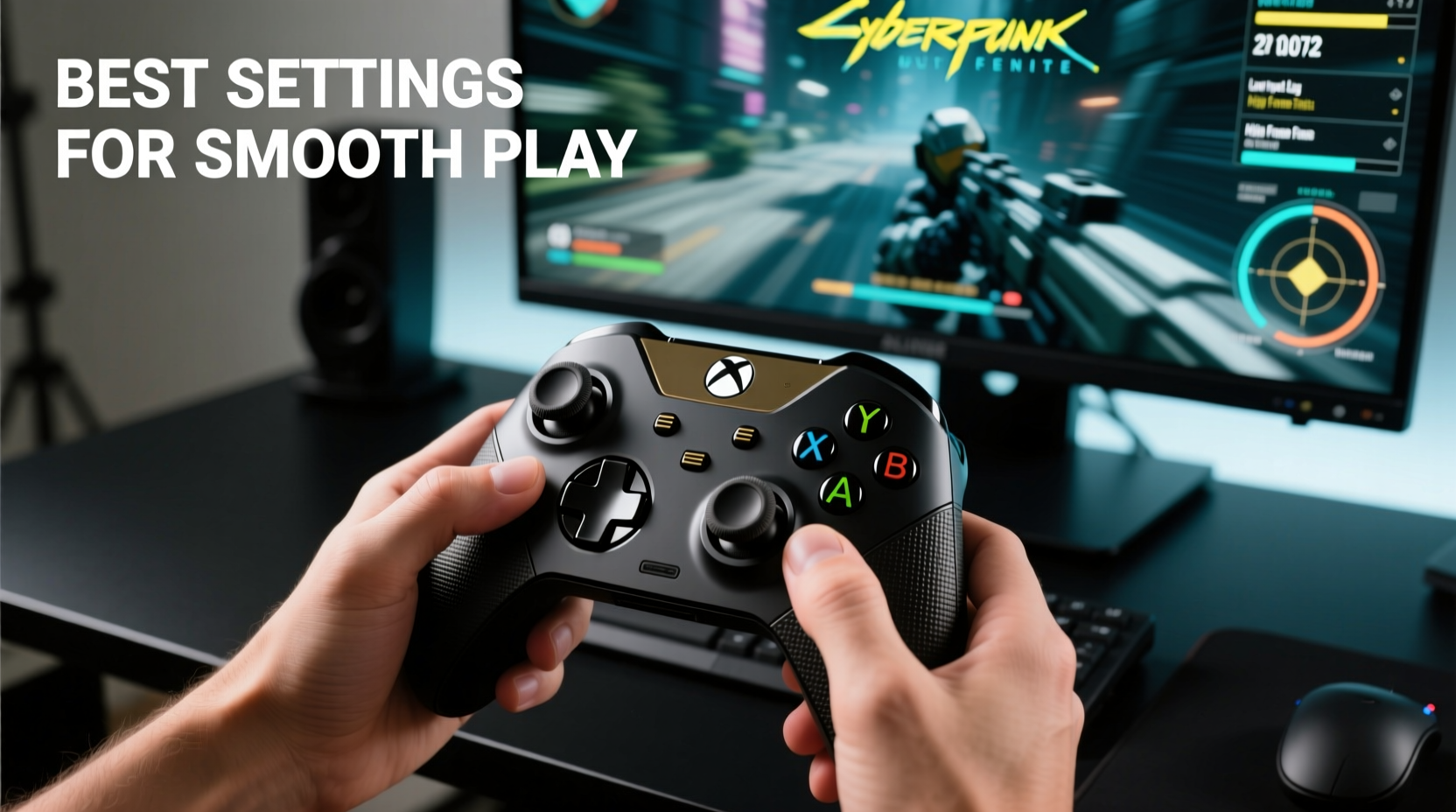
The Xbox Elite Controller Series 2 stands apart due to its modular design and deep software integration via the Xbox Accessories app. Key features include interchangeable thumbstick heights, remappable paddles, adjustable trigger tension, and sensitivity curves for analog inputs. These aren’t gimmicks—they’re tools that directly affect performance.
Thumbsticks come in standard and high domes, altering reach and leverage. Paddles on the back allow you to assign critical actions (like crouching or aiming) without lifting your thumbs from the sticks. Triggers offer three tension settings: light for rapid-fire games, medium for balanced response, and heavy for deliberate inputs like braking in racing titles.
But customization doesn’t stop at hardware. The Xbox Accessories app enables per-profile sensitivity adjustments, dead zones, and even stick-to-button remapping. These digital tweaks are where most players unlock their true potential.
Optimizing Thumbstick Sensitivity and Curves
One of the most impactful settings is thumbstick sensitivity. Many players assume higher sensitivity equals better performance, but that often leads to over-rotation and shaky aim. Instead, fine-tune the response curve to match your muscle memory and game genre.
In the Xbox Accessories app, choose “Adjust sensitivity” under each thumbstick. You’ll see options from 1x to 5x, but also access to custom curves. For FPS games like Halo Infinite or Call of Duty, a moderate base sensitivity (2.5x–3.5x) with a “Linear” or “Dynamic” curve works best. A linear curve delivers consistent turn speed relative to stick movement, while dynamic adjusts responsiveness based on how far you push the stick—faster at full deflection, slower near center.
Avoid aggressive exponential curves unless you're struggling with micro-adjustments. They amplify small movements, which can make tracking enemies jittery. Instead, consider reducing the inner dead zone slightly (around 5–10%) to eliminate unintended drift while preserving responsiveness.
“Players who master stick curves gain finer control than those relying solely on high DPI mice.” — Jordan Lee, Esports Hardware Analyst at GameFrame Labs
Mapping Paddles for Maximum Efficiency
The rear paddles are arguably the Elite Controller’s greatest asset. When configured correctly, they eliminate unnecessary hand movement and keep your thumbs locked on directional input.
Default assignments often map paddles to View and Menu buttons, which wastes their potential. Reassign them to frequently used actions such as:
- Paddle 1: Aim Down Sights (LT)
- Paddle 2: Jump (A)
- Paddle 3: Crouch/Slide (B)
- Paddle 4: Reload (X)
This setup keeps your index and middle fingers free to manage triggers while executing mobility and combat actions instantly. In fast-paced matches, milliseconds saved by not moving your thumb to the face buttons can mean the difference between victory and respawn.
Step-by-Step: Configure Paddle Layout
- Open the Xbox Accessories app on your console or Windows PC.
- Select your connected Elite Controller.
- Click “Configure” to launch the layout editor.
- Under “Rear Paddles,” click each one and assign a new function.
- Test the mapping in-game using a training mode or practice range.
- Save the profile directly to the controller using Profile Slot 1–3.
Trigger Tuning: Balancing Speed and Precision
The adaptive triggers on the Elite Series 2 aren't just about resistance—they're about timing. Adjusting trigger stops and tension changes how quickly you can fire or accelerate.
For shooting games, shortening the pull distance (via the switch inside the trigger housing) reduces activation time. Combine this with a light spring setting for rapid response. In contrast, racing games benefit from longer pulls and heavier tension to simulate brake feel and prevent accidental acceleration.
Some players disable the auto-shoot feature (where holding RT fires continuously) and instead use a half-pull for aiming assist and full pull for firing. This requires precise tuning but allows smoother target acquisition in games like Forza Motorsport or Gears 5.
| Game Genre | Trigger Length | Spring Tension | Recommended Use |
|---|---|---|---|
| FPS / Battle Royale | Short | Light | Faster shot initiation |
| Racing Sim | Long | Heavy | Granular throttle control |
| Fighting Games | Medium | Medium | Balanced special move execution |
| Platformers | Short | Light | Responsive jump inputs |
Real-World Example: Competitive Shooter Optimization
Consider Marcus, a ranked player in Destiny 2 PvP Crucible matches. He struggled with inconsistent hip-fire accuracy and slow peeking mechanics. After analyzing his gameplay, he adjusted his Elite Controller settings:
- Set left stick sensitivity to 3.0x with a Dynamic curve
- Reduced inner dead zone to 7%
- Mapped paddles to Jump (P1), Crouch (P2), Aim (P3), and Melee (P4)
- Switched to short trigger pulls with light springs
- Used high-dome thumbsticks for improved grip during intense sprays
Within two weeks, his K/D ratio improved by 0.8, and he reported feeling “more connected” to his character’s movement. The ability to jump and aim simultaneously using paddles allowed him to execute advanced techniques like flick shots and slide-canceling more consistently.
Essential Settings Checklist
Before entering any serious gaming session, verify these key configurations:
- ✅ Thumbstick sensitivity optimized for game type (not maxed out)
- ✅ Dead zones minimized but not eliminated (5–10% ideal)
- ✅ Paddles mapped to essential actions (jump, aim, reload, etc.)
- ✅ Trigger length and tension matched to gameplay needs
- ✅ High- or standard-dome sticks installed based on hand size
- ✅ Profile saved directly to controller memory
- ✅ Firmware updated in Xbox Accessories app
Frequently Asked Questions
Can I use different profiles for different games?
Absolutely. The Elite Controller supports up to three onboard profiles. Assign one for shooters, one for racing, and one for platformers. Switch between them using the profile button on the front of the controller.
Do sensitivity settings sync across devices?
No. While the controller stores hardware profiles (including paddle maps and stick mods), sensitivity and button remaps made in the Xbox Accessories app are device-specific unless manually replicated. On PC, ensure you’re using the official Xbox app to maintain consistency.
Are third-party thumbsticks worth it?
While Microsoft’s included sticks are excellent, some players prefer aftermarket options like ShiftPad or Kontrol Freek for extended reach or textured grip. These can enhance comfort but may alter throw distance—always recalibrate sensitivity after installation.
Final Recommendations for Lasting Performance
The best Xbox Elite Controller settings aren’t universal—they’re personalized. Start with moderate sensitivity, prioritize paddle utility, and tailor triggers to your genre. Then refine through actual gameplay. Record clips of your sessions to analyze input lag, over-rotation, or missed actions. Small tweaks compound into major advantages over time.
Remember, the goal isn’t to mimic pro settings exactly—it’s to build a configuration that feels natural, responsive, and repeatable under pressure. Whether you're climbing leaderboards or simply enjoying a smoother single-player journey, the Elite Controller gives you the tools. Mastery comes from deliberate, informed adjustment.




 浙公网安备
33010002000092号
浙公网安备
33010002000092号 浙B2-20120091-4
Comments
No comments yet. Why don't you start the discussion?