
Players diving into the intense multiplayer action of *Call of Duty: Black Ops 6* are reporting widespread lag, stuttering, and inconsistent ping—issues that can turn a competitive edge into frustrating defeat. Whether you're playing on PC, PlayStation, or Xbox, performance problems like frame drops, rubberbanding, and delayed inputs degrade the experience. The good news is that most of these issues can be resolved with targeted fixes. This guide provides actionable solutions to reduce latency, stabilize your connection, and optimize game performance.
Understanding the Root Causes of BO6 Lag
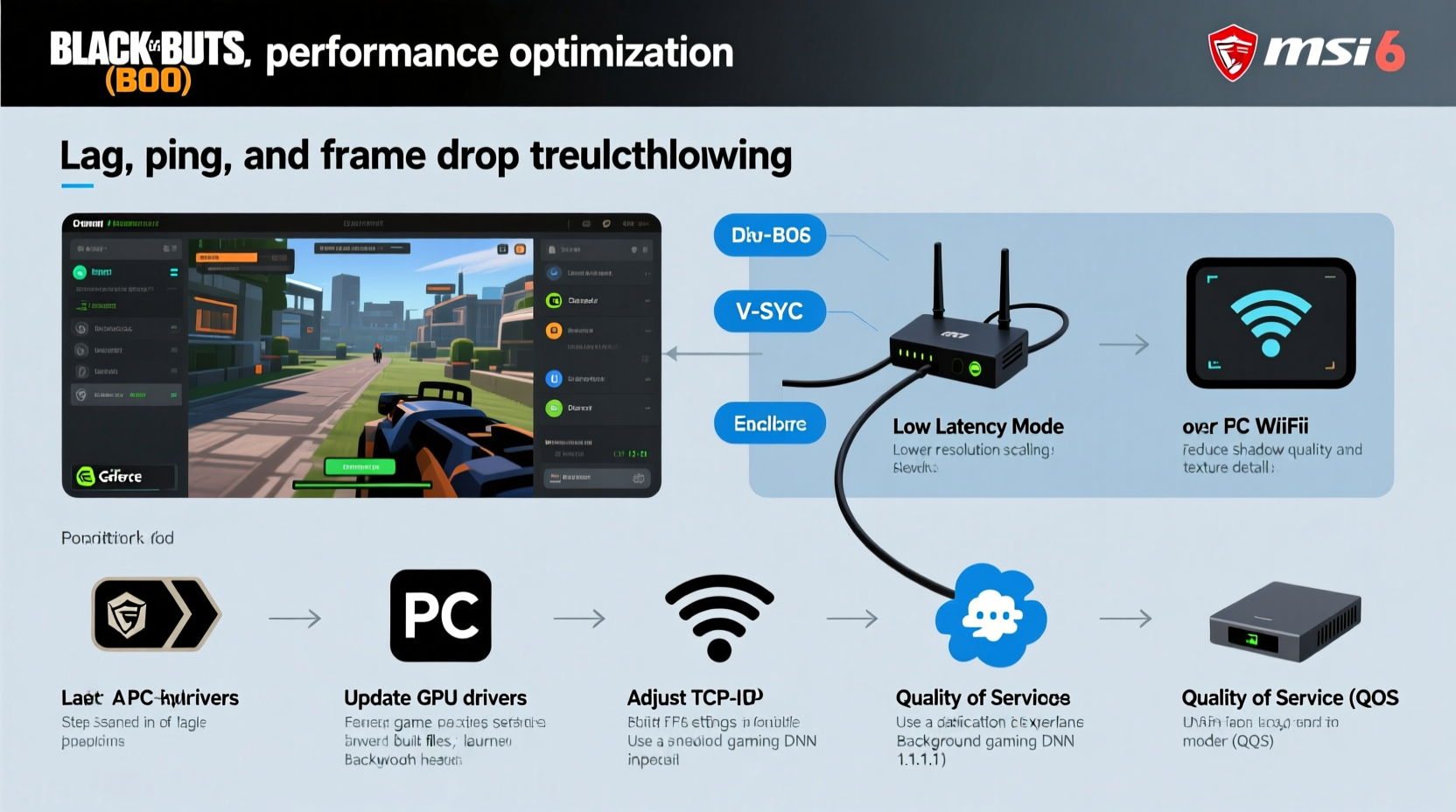
Lag in *Black Ops 6* isn't always due to a single factor. It’s often a combination of network instability, hardware limitations, software conflicts, or server-side congestion. Recognizing the source is critical before applying fixes.
- Network Latency (Ping): High ping means delays between your actions and server response, causing rubberbanding and hit registration issues.
- Packet Loss: Data packets failing to reach the server result in choppy movement and desync.
- Frame Rate Drops: Low FPS leads to stuttering, especially during explosive scenes or large-scale combat.
- Server Congestion: Peak hours can overload Activision’s servers, increasing matchmaking times and latency.
- Background Processes: Downloads, updates, or streaming apps consume bandwidth and CPU resources.
“Even with top-tier internet, poor routing or ISP throttling can cripple online gaming performance.” — Jordan Lee, Network Optimization Specialist
Step-by-Step Guide to Fix BO6 Lag and Improve Performance
Follow this structured approach to systematically eliminate causes of lag and improve your overall gameplay experience.
- Check Your Internet Connection
Run a speed test using tools like Speedtest.net. For optimal BO6 performance:- Download speed: At least 25 Mbps
- Upload speed: Minimum 5 Mbps
- Ping: Below 60 ms is ideal; over 100 ms may cause noticeable lag
- Use a Wired Ethernet Connection
Wi-Fi introduces variable latency due to interference and signal strength. Connect your console or PC directly via Ethernet cable to minimize packet loss and jitter. - Restart Your Router and Console/PC
Power cycle your network hardware. Turn off your router, modem, and gaming device. Wait 60 seconds, then power them back on in order: modem → router → console/PC. - Close Background Applications
On PC, use Task Manager to shut down bandwidth-heavy apps (e.g., Steam downloads, Discord screen sharing, cloud sync tools). On consoles, ensure no background downloads are active. - Update Game and System Software
Ensure *Black Ops 6* is updated to the latest patch. Also, update your console firmware or GPU drivers (on PC) to prevent compatibility-related stutters. - Optimize In-Game Graphics Settings
Lower settings such as shadows, render resolution, and particle effects to boost FPS. Prioritize “High Frame Rate” mode if available. - Enable Game Mode on Router
Many modern routers support QoS (Quality of Service) or “Gaming Mode,” which prioritizes traffic from your device. Assign your console or PC the highest priority.
Do’s and Don’ts: Optimizing BO6 Performance
| Do | Don't |
|---|---|
| Use a wired connection instead of Wi-Fi | Rely on public or congested Wi-Fi networks |
| Set your device as DMZ or assign static IP for port forwarding | Ignore NAT type—keep it Open or Moderate |
| Monitor ping and packet loss using tools like PingPlotter | Run torrents or video calls while gaming |
| Lower graphics settings for consistent frame rates | Overclock GPU without proper cooling |
| Play during off-peak hours if possible | Assume the issue is entirely server-side without testing locally |
Real-World Example: Resolving Persistent Lag on PS5
A player in Chicago reported severe lag in *Black Ops 6*, with ping fluctuating between 70–200 ms despite having a 100 Mbps fiber connection. After testing, they discovered their Wi-Fi was interfering with neighboring networks on the 2.4 GHz band. Switching to a 5 GHz network improved stability slightly, but only when they connected via Ethernet did their ping stabilize at 48 ms with zero packet loss. They also disabled automatic updates on their PS5 during gameplay sessions. The result? Consistent matchmaking, smooth aiming, and no more rubberbanding deaths.
This case underscores that even strong internet plans can underperform without proper hardware configuration. Physical connections and traffic management often make the biggest difference.
Advanced Fixes for PC Gamers
PC players have more control over system optimization. Here are advanced techniques to squeeze out every bit of performance:
- Adjust NVIDIA/AMD Settings: In NVIDIA Control Panel, set “Power management mode” to “Prefer maximum performance” and disable V-Sync in driver settings (use in-game V-Sync instead).
- Disable Fullscreen Optimizations: Right-click the BO6 .exe file → Properties → Compatibility → Check “Disable fullscreen optimizations.”
- Set High Process Priority: Open Task Manager → Details → Right-click *bo6.exe* → Set priority to “High” (not Realtime).
- Clear Shader Cache: Navigate to
Documents\\Call of Duty\\Black Ops 6\\cacheand delete shader files if experiencing graphical stutters. - Use DirectX 12 (if available): Often provides better resource management than DX11 on modern GPUs.
Troubleshooting Checklist
Use this checklist before each gaming session to ensure peak performance:
- ✅ Restart router and gaming device
- ✅ Connect via Ethernet (if possible)
- ✅ Close background apps and downloads
- ✅ Verify internet speed and ping
- ✅ Update game, drivers, and system firmware
- ✅ Enable Game Mode on router
- ✅ Lower in-game settings for higher FPS
- ✅ Confirm NAT type is not Strict (Open or Moderate preferred)
- ✅ Disable voice chat or streaming overlays if lag persists
- ✅ Test on different servers via regional matchmaking settings
Frequently Asked Questions
Why is my ping high in Black Ops 6 even with fast internet?
High ping doesn’t always reflect your internet speed. It can result from suboptimal routing between your location and Activision’s servers, Wi-Fi interference, or ISP throttling during peak hours. Using a wired connection and changing DNS may help improve routing efficiency.
Does lowering graphics settings reduce lag?
Yes. While graphics settings don’t affect network latency directly, they improve frame rate and system responsiveness. Smoother FPS reduces input delay and makes gameplay feel more fluid, even if ping remains unchanged.
Is there a way to change Black Ops 6 server regions?
There is no in-game option to manually select servers. Matchmaking automatically assigns you to the nearest available region. However, using a gaming VPN with low-latency routes (e.g., ExitLag or WTFast) may help connect to better-performing servers, though this carries risks and may violate ToS if not permitted.
Final Thoughts: Take Control of Your Gaming Experience
Lag in *Black Ops 6* is frustrating, but rarely unavoidable. Most performance issues stem from correctable local factors—network setup, hardware tuning, or software conflicts. By methodically addressing each potential bottleneck, you can achieve stable ping, higher frame rates, and a more responsive combat experience. Don’t accept constant lag as inevitable. Apply these fixes, monitor your results, and refine your setup until gameplay feels sharp and fair.




 浙公网安备
33010002000092号
浙公网安备
33010002000092号 浙B2-20120091-4
Comments
No comments yet. Why don't you start the discussion?