
If your Blink camera has stopped recording, you're not alone. Many users experience unexpected gaps in footage, failed motion triggers, or complete recording blackouts. While frustrating, most recording problems stem from simple, fixable causes — from Wi-Fi instability to incorrect settings. Understanding the root cause is key to restoring reliable surveillance. This guide walks through actionable diagnostics, common pitfalls, and real-world solutions to get your Blink system back on track.
Why Your Blink Camera Isn’t Recording
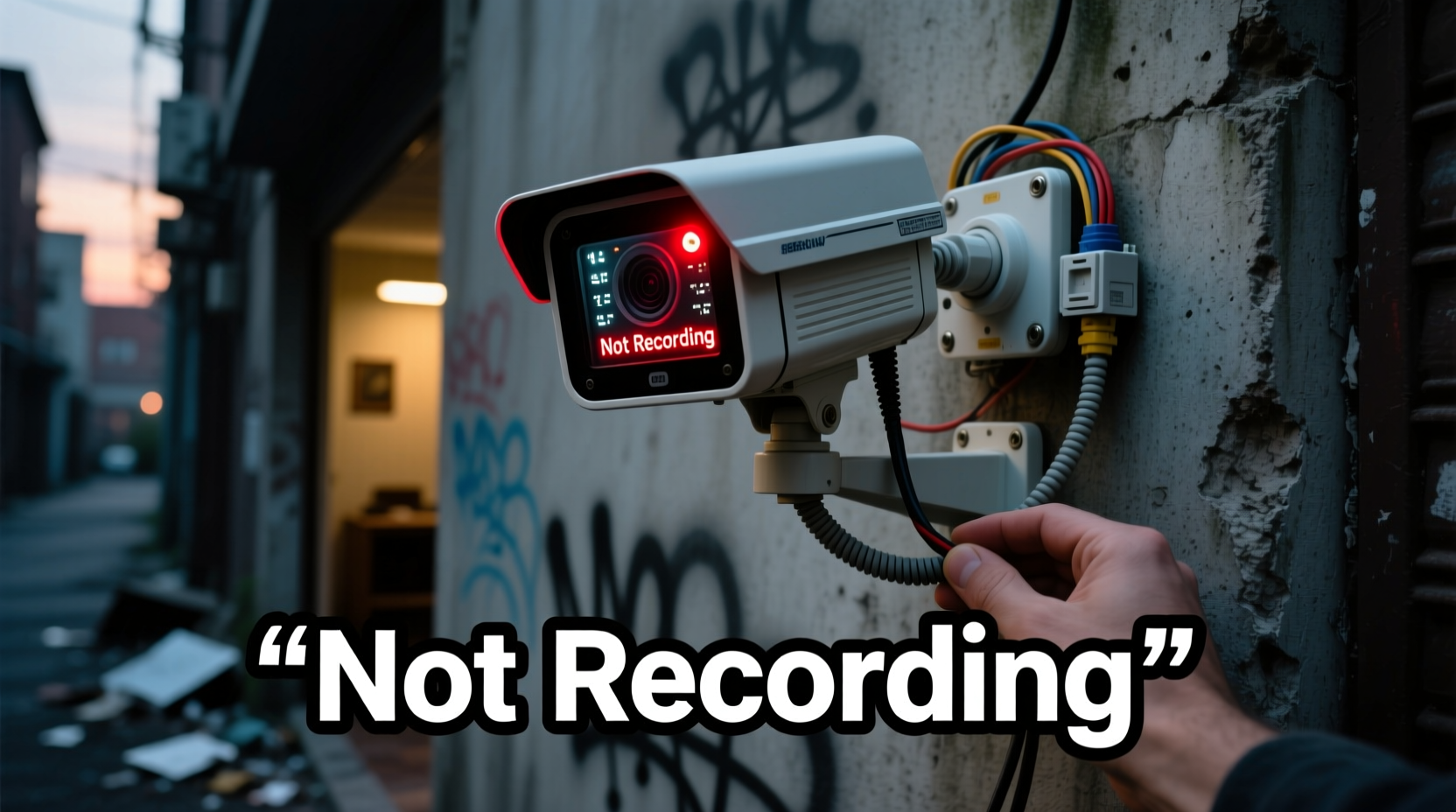
Blink cameras rely on a precise ecosystem: stable power, strong Wi-Fi, correct app settings, and functional hardware. When one component fails, recording often stops without warning. The most frequent culprits include:
- Weak or unstable Wi-Fi signal
- Motion detection turned off or set too low
- Camera offline or out of sync with the Sync Module
- Low battery (for battery-powered models)
- Subscription lapse affecting cloud recording
- Firmware out of date
- Incorrect arm/disarm status
Before assuming hardware failure, methodically rule out software and configuration issues. Most fixes are quick and don’t require replacing equipment.
Step-by-Step Troubleshooting Guide
Follow this sequence to identify and resolve the issue efficiently. Skipping steps may lead to misdiagnosis.
- Verify Arm Status: Ensure the system is armed. A disarmed system won’t record, even with motion. In the Blink app, confirm the mode is set to “Armed.”
- Check Wi-Fi Connection: Open the app and review the camera’s network status. If it shows “Offline,” restart your router and wait 5 minutes. Recheck connection.
- Test Motion Detection Settings: Go to Device Settings > Motion Detection. Confirm sensitivity is at least Medium. Test by waving in front of the camera while monitoring live events.
- Inspect Battery Level: For battery-powered units, ensure charge is above 30%. Low voltage can disable recording to preserve power.
- Restart the Sync Module: Unplug the Sync Module for 30 seconds, then reconnect. Wait up to 2 minutes for all cameras to re-sync.
- Update Firmware: In the app, navigate to System Health. If a firmware update is pending, install it immediately. Outdated firmware often causes recording bugs.
- Reboot the App: Close the Blink app completely and relaunch. Sometimes cached data prevents accurate status reporting.
If the camera still isn’t recording after these steps, move to deeper diagnostics.
Common Configuration Mistakes
Many users unknowingly disable recording through subtle setting changes. Here are the top oversights:
| Issue | How It Happens | Solution |
|---|---|---|
| Motion zones disabled | User accidentally turns off detection in specific areas | Go to Motion Settings and enable all zones or adjust coverage |
| Clip length set to zero | Custom clip duration changed to 0 seconds | Set clip length to at least 5 seconds under Device Settings |
| Active hours limited | Schedule restricts recording to certain times | Review schedule settings; set to “Always On” if needed |
| Local storage full (if using USB) | Sync Module’s USB drive has no free space | Format or replace the drive via the app’s Storage section |
“Over 60% of Blink support tickets related to ‘no recording’ are resolved by adjusting motion sensitivity or re-arming the system.” — Blink Technical Support Team, Internal Report 2023
Mini Case Study: Resolving Intermittent Recording
Sarah in Austin installed two Blink Indoor cameras to monitor her home office. After two weeks, she noticed one camera wasn’t capturing motion events consistently. She confirmed it was armed and had full battery, but clips were missing.
She checked Wi-Fi and found the signal strength was -74 dBm — below Blink’s recommended -60 dBm threshold. By relocating her router closer and removing a metal bookshelf blocking the signal, her camera stabilized. She also increased motion sensitivity from Low to High. Within hours, recordings resumed reliably.
This case illustrates how environmental factors and overlooked settings combine to disrupt performance — and how simple adjustments restore function.
Expert Tips to Prevent Future Recording Failures
Prevention is more effective than repair. Incorporate these habits into your routine:
- Use 2.4 GHz Wi-Fi only: Blink does not support 5 GHz networks. Ensure your router broadcasts a separate 2.4 GHz SSID and connect to that.
- Enable push notifications: Get alerts when a camera goes offline or battery runs low.
- Replace batteries proactively: Even if above 30%, consider changing lithium batteries every 12–18 months for consistent performance.
- Avoid thick walls or metal obstructions: These degrade signal between camera and Sync Module.
FAQ: Common Blink Recording Questions
Does Blink record without a subscription?
Yes, but only locally if you have a Sync Module 2 and a USB drive. Without a plan or local storage, clips aren’t saved. Live view still works.
Why does my camera show live view but not record?
This usually means motion detection is disabled or the system is disarmed. Check both in the app. Also confirm the camera isn’t in “Privacy Mode.”
Can I manually trigger a recording?
No, Blink cameras only record when motion is detected and the system is armed. You cannot force a clip on demand, though you can view live feed anytime.
Final Checklist: Fix Blink Camera Not Recording
Use this checklist as a quick reference when troubleshooting:
- ✅ Is the system armed in the Blink app?
- ✅ Is the camera online and synced with the Sync Module?
- ✅ Is Wi-Fi signal strong (preferably -60 dBm or better)?
- ✅ Are motion detection settings enabled and sensitivity adjusted?
- ✅ Is the battery level sufficient (above 30%)?
- ✅ Is firmware up to date?
- ✅ Is there available cloud or local storage?
- ✅ Has the Sync Module been restarted recently?
Conclusion: Restore Confidence in Your Home Security
A Blink camera that isn’t recording undermines the entire purpose of having a smart security system. But in most cases, the solution lies in careful attention to settings, connectivity, and maintenance — not replacement. By following the steps outlined here, you can diagnose the issue accurately and restore uninterrupted recording. Don’t ignore small warning signs like delayed notifications or weak signal indicators. Address them early to prevent gaps in coverage. Your peace of mind depends on consistent performance. Take action today to ensure your Blink system works exactly as promised.




 浙公网安备
33010002000092号
浙公网安备
33010002000092号 浙B2-20120091-4
Comments
No comments yet. Why don't you start the discussion?