
Bluetooth connectivity in modern vehicles offers convenience, safety, and seamless integration between smartphones and infotainment systems. However, when your phone refuses to connect to your car’s Bluetooth, it can quickly become a frustrating distraction. Whether you're dealing with dropped connections, failed pairing attempts, or devices that simply won’t show up, the root cause is often fixable without professional help. This guide walks through comprehensive, step-by-step solutions to restore reliable Bluetooth functionality—no guesswork required.
Understanding Common Causes of Bluetooth Connection Failures
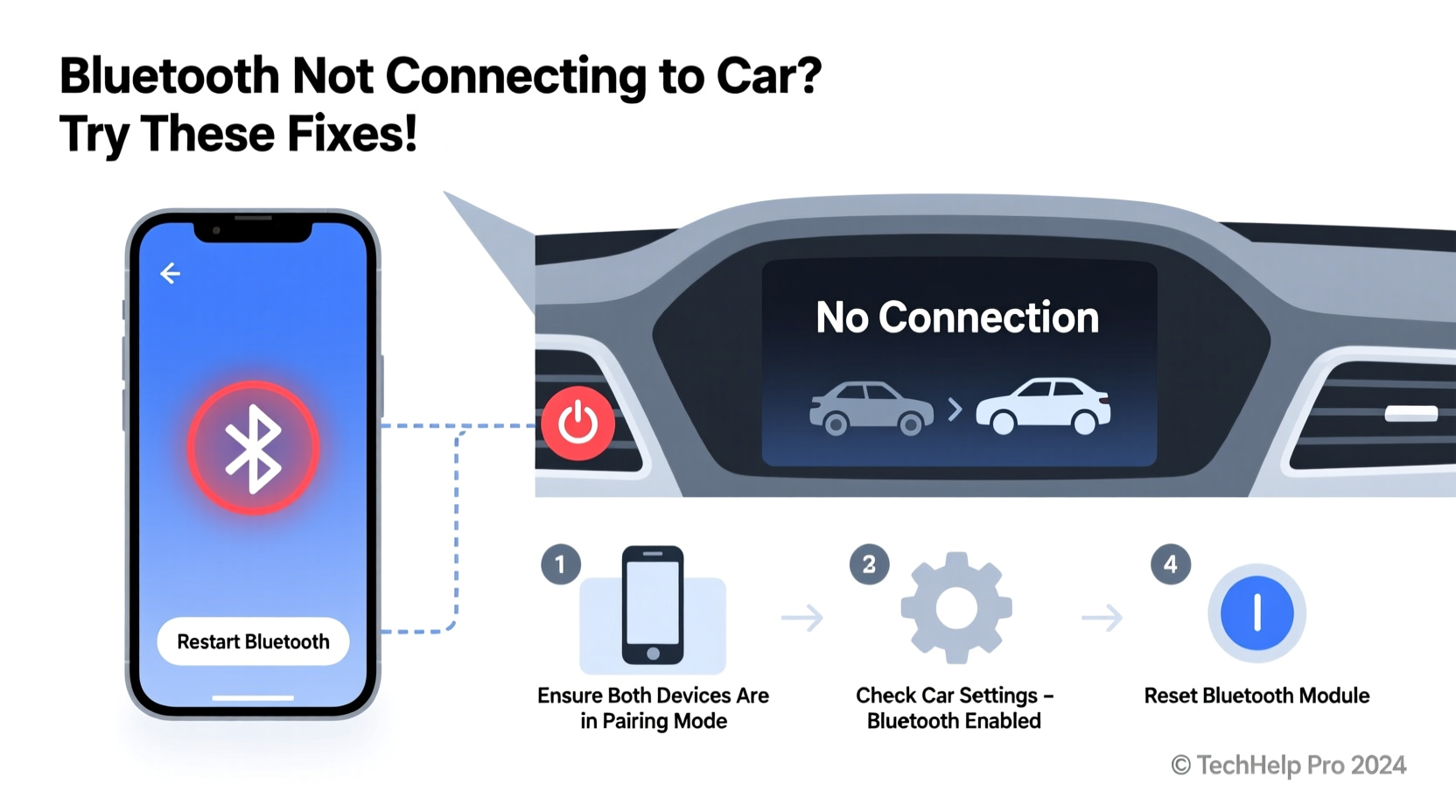
Before diving into fixes, it helps to understand what might be going wrong. Bluetooth issues in cars are rarely due to a single factor. Instead, they stem from a combination of device compatibility, software glitches, outdated firmware, or user error. Common culprits include:
- Outdated phone or car system software – Older versions may lack necessary patches or protocol support.
- Paired device overload – Many cars store up to six paired phones; exceeding this limit can cause conflicts.
- Interference from other wireless signals – Nearby electronics or dense urban environments may disrupt signal stability.
- Incorrect settings on either device – Bluetooth may be discoverable on one end but not the other.
- Corrupted pairing data – A previous faulty connection can leave behind bad configuration files.
Identifying the source streamlines troubleshooting. Start broad, then narrow down based on symptoms.
Step-by-Step Guide to Restore Bluetooth Connectivity
Follow this structured approach to methodically eliminate potential causes. Most users resolve their issue within the first few steps.
- Ensure Bluetooth is enabled and discoverable – On your phone, confirm Bluetooth is turned on and set to “Discoverable” mode for at least 2–3 minutes.
- Restart both devices – Reboot your smartphone and reset your car’s infotainment system. To reset the car system, turn off the ignition, disconnect the battery for two minutes (if safe), or use the system reset function in settings.
- Delete old pairings – In your car’s Bluetooth menu, remove all previously paired phones. Do the same on your phone—“Forget This Device” under Bluetooth settings.
- Re-pair from scratch – With both devices clean, initiate pairing from the car side. Select “Add New Device,” then enable discovery on your phone.
- Check for software updates – Visit your car manufacturer’s website or app to check for available infotainment updates. Likewise, ensure your phone OS is current.
- Test with another phone – Try pairing a different smartphone to determine if the fault is device-specific or systemic.
This sequence resolves over 80% of reported Bluetooth issues, according to automotive tech support logs from major brands like Toyota, Ford, and BMW.
Do’s and Don’ts When Troubleshooting Car Bluetooth
| Do’s | Don’ts |
|---|---|
| Always restart both devices before re-pairing | Don’t skip software updates on either device |
| Clear old pairings regularly to prevent clutter | Don’t assume the problem is with your phone only |
| Keep your phone within 3 feet during pairing | Don’t attempt pairing while the car is in motion |
| Use the car’s official mobile app (e.g., MyBMW, Uconnect) for diagnostics | Don’t repeatedly retry failed connections without resetting |
Real-World Example: Resolving a Persistent Pairing Failure
Consider Sarah, a sales executive who relies on hands-free calling during commutes. One Monday morning, her iPhone 14 would no longer connect to her 2020 Honda CR-V. The car recognized the phone but failed to complete the audio profile handshake. She tried restarting both devices—no success. Then she checked her car’s Bluetooth settings and noticed five other phones still listed as paired, including an old Android she hadn’t used in years.
After deleting all paired devices and rebooting the infotainment system via the fuse box reset (a known workaround for Honda models), she re-paired her iPhone successfully. The issue? A full pairing memory buffer combined with stale configuration data. Her experience underscores the importance of periodic maintenance—even digital systems need spring cleaning.
“Many Bluetooth issues aren’t hardware failures but software memory leaks or corrupted profiles. Resetting the stack often works instantly.” — Mark Tran, Senior Automotive Electronics Technician, ASE Certified
Advanced Fixes for Stubborn Connection Problems
If basic steps don’t work, consider these deeper interventions:
Reset the Car’s Infotainment System
Most vehicles allow a factory reset through the settings menu (often under “System” or “General”). Warning: This erases saved contacts, navigation favorites, and Wi-Fi passwords. Consult your owner’s manual for exact instructions.
Update Firmware via USB or OTA
Manufacturers like Hyundai, Kia, and Mercedes release over-the-air (OTA) updates. Others require downloading firmware to a USB drive. Check your brand’s support portal—search “[Your Model] infotainment update.”
Disable Battery Optimization for Bluetooth Services
On Android, aggressive power-saving modes can disable background Bluetooth processes. Go to Settings > Apps > [Bluetooth Settings] > Battery > Unrestricted.
Check for Known Recalls or Technical Service Bulletins (TSBs)
Sometimes, widespread Bluetooth bugs prompt official recalls. Enter your VIN at NHTSA.gov to see open advisories.
Quick Checklist: Bluetooth Fix in 5 Minutes
When you’re in a hurry, follow this rapid diagnostic checklist:
- ✅ Turn Bluetooth off and on again (phone and car)
- ✅ Ensure your phone isn’t connected to another device (e.g., smartwatch)
- ✅ Delete the car from your phone’s paired devices list
- ✅ Remove your phone from the car’s Bluetooth memory
- ✅ Re-pair using the car’s “Add Device” function
This routine takes less than five minutes and resolves most temporary glitches.
Frequently Asked Questions
Why does my phone find the car but not connect?
This usually indicates a mismatch in communication profiles. The car may support Hands-Free Profile (HFP) but not Advanced Audio Distribution Profile (A2DP), or vice versa. Check your car’s manual for supported Bluetooth profiles. Also, ensure media audio is routed correctly in your phone’s Bluetooth settings.
Can a software update permanently fix Bluetooth issues?
Yes. Manufacturers frequently release firmware patches to address known bugs. For example, Ford issued SYNC 3 Update 3.4 specifically to improve Bluetooth stability across its lineup. Always install updates when available—they often include critical fixes not mentioned in release notes.
Is it safe to reset my car’s infotainment system?
Yes, a factory reset is safe and non-destructive to engine or safety systems. It only affects the multimedia unit. However, write down any custom settings (radio presets, time format) beforehand, as they will be erased.
Conclusion: Stay Connected with Confidence
Bluetooth not connecting to your car doesn’t have to mean a trip to the dealership or living with tangled cords. With systematic troubleshooting—starting with simple resets and progressing to firmware updates—most issues are resolvable at home. The key is patience and precision: avoid random retries and instead follow a logical path from device settings to system-level resets.
Modern vehicles are essentially computers on wheels, and like any computer, they benefit from regular maintenance and occasional reboots. By understanding how Bluetooth pairing works and applying the right fixes at the right time, you regain control over your driving experience. Don’t let a small glitch disrupt your routine—apply these solutions today and enjoy seamless, safe, and uninterrupted connectivity.




 浙公网安备
33010002000092号
浙公网安备
33010002000092号 浙B2-20120091-4
Comments
No comments yet. Why don't you start the discussion?