
Bluetooth technology has become a staple in daily life—connecting headphones, speakers, keyboards, and smart devices wirelessly. Yet nothing is more frustrating than when your device refuses to pair or suddenly disconnects without warning. Whether you're using a smartphone, laptop, or smartwatch, Bluetooth connectivity problems can disrupt productivity and enjoyment. The good news: most issues have simple, effective solutions. This guide walks through the most reliable troubleshooting methods, explains why connections fail, and provides actionable steps to restore seamless pairing.
Why Bluetooth Fails to Connect
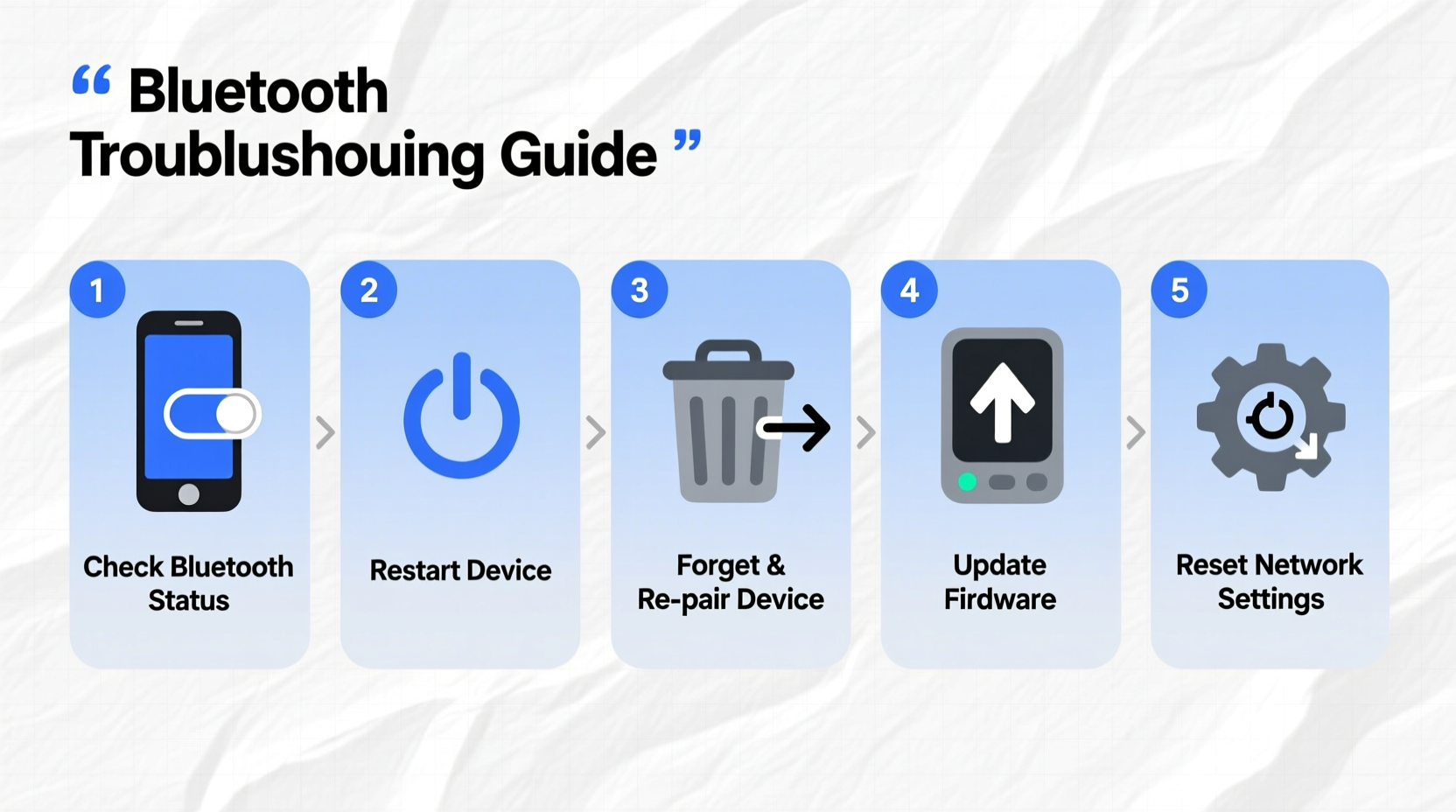
Bluetooth relies on short-range wireless communication between two devices using radio waves. While convenient, this system is sensitive to interference, outdated software, and hardware limitations. Common reasons for failed connections include:
- Out of range: Devices too far apart lose signal strength.
- Interference: Wi-Fi routers, microwaves, and other electronics emit signals that disrupt Bluetooth frequencies.
- Low battery: Many devices disable Bluetooth when power is critically low.
- Software bugs: Operating system glitches or firmware issues prevent proper pairing.
- Pairing limits: Some devices only support a limited number of paired devices.
- Hardware damage: Physical damage to antennas or internal components can impair function.
Understanding these root causes helps narrow down potential fixes and avoid unnecessary replacements.
Step-by-Step Troubleshooting Guide
Follow this logical sequence to diagnose and repair Bluetooth connection problems efficiently. Begin with basic checks and progress to advanced solutions if needed.
- Check Power & Range: Ensure both devices are powered on and within 30 feet (10 meters) of each other, with no major obstructions.
- Enable Bluetooth: Confirm Bluetooth is turned on in both devices’ settings. Look for the Bluetooth icon or menu option.
- Restart Both Devices: Reboot the source (e.g., phone) and receiver (e.g., speaker). This clears temporary memory errors.
- Forget and Re-Pair: On your primary device, go to Bluetooth settings, select the problematic device, and choose “Forget.” Then re-initiate pairing mode on the accessory and reconnect.
- Update Software: Install the latest OS updates for phones, tablets, or computers. Firmware updates for accessories (like earbuds) often fix known bugs.
- Clear Bluetooth Cache (Android): Go to Settings > Apps > Show System Apps > Bluetooth > Storage > Clear Cache. This removes corrupted pairing data.
- Reset Network Settings (iOS/Android): This wipes saved Wi-Fi, Bluetooth, and cellular settings. Use as a last resort before deeper resets.
- Test with Another Device: Try pairing the accessory with a different phone or tablet. If it fails there too, the issue likely lies with the accessory.
- Check for Physical Damage: Inspect ports, buttons, and casings. Damaged hardware may require professional repair.
- Factory Reset Accessory: Refer to the user manual for reset instructions (often involves holding buttons for 10+ seconds).
Do’s and Don’ts When Fixing Bluetooth Issues
| Do | Don't |
|---|---|
| Keep devices updated with the latest firmware | Ignore persistent error messages |
| Maintain close proximity during pairing | Overload Bluetooth with multiple active connections |
| Use official charging cables and power sources | Expose devices to moisture or extreme temperatures |
| Remove unused paired devices from history | Force restart repeatedly without allowing cooldown |
| Consult manufacturer support for unresolved issues | Disassemble devices yourself unless qualified |
Real-World Example: Resolving Headphone Pairing Failure
Sarah, a remote worker, found her wireless earbuds wouldn’t connect to her laptop each morning. She could hear audio briefly, then the sound cut out. Initially assuming battery issues, she charged them fully—but the problem persisted. Following structured troubleshooting, she discovered her Wi-Fi router was placed directly beside her desk, causing signal interference. After relocating the router and forgetting/re-pairing the earbuds, the connection stabilized. Additionally, she updated her laptop’s Bluetooth drivers via system preferences, which eliminated occasional dropouts during video calls. This case highlights how environmental factors combined with outdated software can create recurring issues—even when hardware appears functional.
“Many Bluetooth failures aren’t due to broken hardware but poor signal management or outdated protocols. A methodical approach catches 90% of cases.” — Dr. Raj Mehta, Wireless Systems Engineer at Nordic Semiconductor
Essential Checklist for Quick Fixes
Bluetooth Connection Recovery Checklist:
- ✅ Verify both devices are charged above 20%
- ✅ Turn Bluetooth off and on again
- ✅ Restart both source and target devices
- ✅ Move closer together, avoiding walls or metal barriers
- ✅ Remove and re-pair the device
- ✅ Check for OS or firmware updates
- ✅ Disable airplane mode and ensure no active call interference
- ✅ Test accessory with another device to isolate fault
Frequently Asked Questions
Why does my phone see the Bluetooth device but won’t connect?
This usually indicates a pairing conflict or authentication failure. The device may be already connected to another gadget, or its memory is full. Try turning off Bluetooth on other nearby devices, forget the accessory on your phone, and reboot both units before retrying.
Can too many paired devices cause Bluetooth problems?
Yes. Most smartphones store up to 100 paired devices, but performance degrades when exceeding 10–15 active or recent connections. Old, unused entries consume resources and can interfere with new pairings. Regularly clean your Bluetooth list by removing devices you no longer use.
Does Bluetooth version matter for compatibility?
Absolutely. Newer versions (like Bluetooth 5.0+) offer better range, speed, and stability. However, they remain backward compatible. If you’re experiencing frequent disconnects between older and newer gear, ensure both support similar profiles (e.g., A2DP for audio streaming). Mismatched capabilities can lead to unstable links.
When to Seek Professional Help
If all standard fixes fail, consider deeper diagnostics. For laptops, outdated or missing Bluetooth drivers can prevent detection entirely—visit the manufacturer’s website to download the correct driver. Mobile devices with persistent issues may need service if hardware components like the antenna are damaged. Also, some third-party accessories use proprietary pairing methods; contacting customer support ensures you follow the right protocol. Never attempt internal repairs unless under warranty or guided by a technician.
Final Thoughts and Next Steps
Bluetooth connectivity issues are common but rarely permanent. With systematic troubleshooting, most problems resolve quickly—often within minutes. The key is patience and process: start simple, rule out obvious causes, and escalate only when necessary. By maintaining updated software, minimizing interference, and managing paired devices wisely, you can enjoy stable, high-quality wireless performance across all your gadgets.




 浙公网安备
33010002000092号
浙公网安备
33010002000092号 浙B2-20120091-4
Comments
No comments yet. Why don't you start the discussion?