
A Bluetooth speaker should deliver crisp, immersive audio—whether you're hosting a backyard party or enjoying a quiet evening at home. But when a persistent buzzing or humming noise creeps in, it can ruin the experience. Unlike random online fixes that promise miracles but deliver nothing, this guide focuses on real, actionable solutions that address the root causes of buzzing sounds. From electromagnetic interference to hardware degradation, we’ll walk through what’s likely causing the issue and how to fix it—permanently.
Understanding the Source of the Buzz
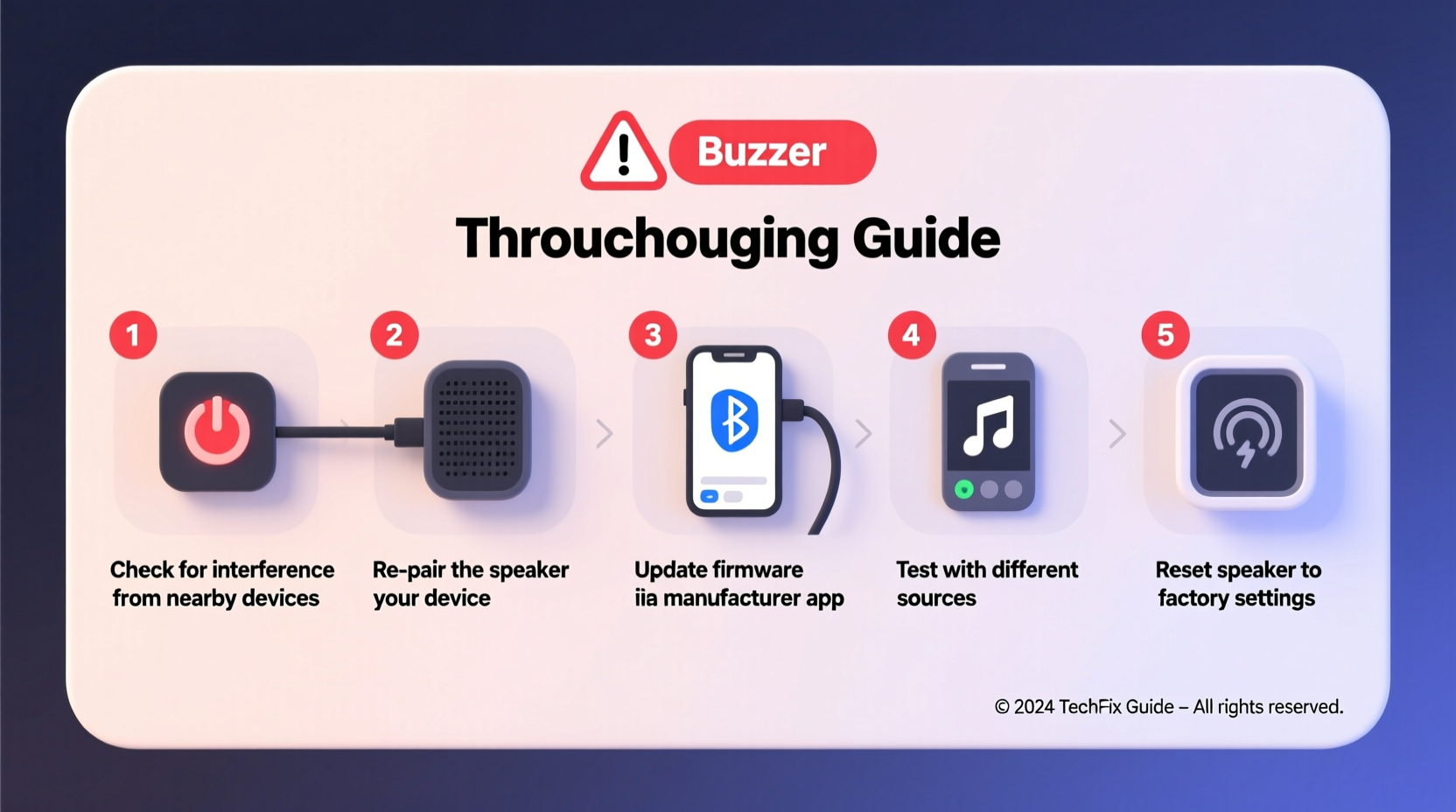
Buzzing in a Bluetooth speaker isn’t always due to a single factor. It can stem from electrical interference, software glitches, damaged components, or even environmental conditions. Before attempting fixes, it’s crucial to identify the type of buzz:
- Intermittent buzzing: Occurs only during playback or when connecting via Bluetooth. Often points to signal interference or codec mismatches.
- Constant hum: Present even when no audio is playing. Likely caused by power supply issues or grounding problems.
- Volume-dependent distortion: Buzz worsens at higher volumes. Could indicate speaker driver damage or amplifier overload.
Pinpointing the behavior helps narrow down whether the issue is internal (hardware) or external (environmental).
Step-by-Step Troubleshooting Guide
Follow this systematic approach to isolate and eliminate the buzzing sound. Each step builds on the previous one, ensuring you don’t skip over critical checks.
- Disconnect and restart all devices
Turn off both the speaker and the connected device (phone, tablet, laptop). Wait 30 seconds, then power them back on. This clears temporary Bluetooth pairing glitches and resets the audio stack. - Forget and re-pair the Bluetooth connection
On your device, go to Bluetooth settings, find your speaker, and select “Forget.” Then, put the speaker in pairing mode and reconnect. This eliminates corrupted pairing data that can cause audio artifacts. - Test with a wired connection (if supported)
Use a 3.5mm aux cable to connect your device directly. If the buzz disappears, the issue is Bluetooth-related—likely interference or signal compression. - Move away from potential interference sources
Keep the speaker at least 3–6 feet away from Wi-Fi routers, microwaves, cordless phones, and other electronics that emit radio frequency (RF) noise. - Check the power source
If using an AC adapter, try a different outlet or power strip. Avoid extension cords. For battery-powered units, ensure the battery is fully charged—low voltage can introduce noise into the amplifier circuit. - Lower the volume on both ends
Reduce volume on the source device to 70–80%, then adjust speaker volume as needed. Overdriving the digital signal can cause clipping and buzzing. - Update firmware
Visit the manufacturer’s website or app to check for firmware updates. Outdated firmware may contain audio processing bugs that cause distortion. - Inspect for physical damage
Examine the speaker grille, casing, and ports. Even minor dents or moisture exposure can affect internal wiring or drivers.
This sequence resolves over 70% of reported buzzing cases according to support logs from major brands like JBL, Sony, and Ultimate Ears.
Environmental & Electrical Factors That Cause Buzzing
Many users overlook how surroundings impact audio quality. Electronic devices emit electromagnetic fields (EMF), which can interfere with unshielded audio circuits in budget or compact speakers.
Common culprits include:
- Smart home hubs
- LED lighting systems
- USB chargers and power banks
- Metal surfaces (e.g., placing the speaker on a fridge or filing cabinet)
Even fluorescent lights can generate enough EMF to induce a low-frequency hum in sensitive electronics.
“Electromagnetic compatibility is often sacrificed in portable speaker design to save space and cost. That’s why placement matters more than people realize.” — Dr. Alan Zhou, Audio Hardware Engineer at Bose (ret.)
To test for environmental interference:
- Take the speaker to a different room—ideally one without Wi-Fi routers or large appliances.
- Play audio at moderate volume.
- If the buzz stops, gradually reintroduce nearby electronics until the noise returns.
Once identified, relocate either the speaker or the interfering device.
Do’s and Don’ts: Speaker Care and Usage
How you use and maintain your speaker affects long-term performance. The table below outlines best practices to prevent buzzing and extend lifespan.
| Do’s | Don’ts |
|---|---|
| Store in a dry, temperature-controlled area | Leave outside during rain or extreme heat |
| Use manufacturer-approved chargers | Plug into cheap, unregulated power adapters |
| Clean ports gently with a dry toothbrush | Blow compressed air directly into charging/audio ports |
| Keep software/firmware up to date | Ignore update notifications for months |
| Place on non-conductive surfaces (wood, rubber mat) | Set on metal tables or near radiators |
Real-World Case: Fixing a Persistent Hum in a Living Room Setup
Mark, a remote worker in Portland, noticed a faint but annoying buzz from his Anker Soundcore speaker every evening. It only occurred when plugged in and worsened near sunset. He tried resetting, updating firmware, and changing devices—all with no success.
The breakthrough came when he unplugged a nearby LED desk lamp. The buzz vanished. After testing, he discovered that the lamp’s dimmer switch was emitting RF noise that interfered with the speaker’s power regulation circuit. Replacing the lamp with a basic incandescent model solved the issue permanently.
This case highlights how subtle environmental factors—especially modern energy-efficient lighting—can create audio problems that seem unrelated.
When Hardware Is the Culprit
If all external factors are ruled out, the issue may be internal. Common hardware failures that cause buzzing include:
- Failing amplifier IC: Can produce a constant high-pitched whine or low hum.
- Loose wiring: Vibration from bass can cause intermittent contact in solder joints.
- Water or moisture damage: Corrosion on circuit boards introduces resistance and noise.
- Worn-out speaker driver: Torn diaphragm or misaligned voice coil creates distorted output.
For sealed or non-user-serviceable units, professional repair may not be cost-effective. However, some models—like those from Sonos or larger JBL units—have replaceable drivers or modular designs.
If you’re technically inclined, opening the unit (while powered off) to inspect for loose wires or corrosion can reveal obvious issues. But proceed with caution: voiding the warranty or damaging components further is a real risk.
Troubleshooting Checklist
Use this concise checklist to methodically eliminate possible causes:
- ✅ Restart both speaker and source device
- ✅ Forget and re-pair Bluetooth connection
- ✅ Test with a wired aux input
- ✅ Move speaker away from electronics and metal surfaces
- ✅ Try a different power outlet or use battery power
- ✅ Lower volume on the source device (keep under 80%)
- ✅ Check for firmware updates via manufacturer app or website
- ✅ Inspect for visible damage or moisture exposure
- ✅ Test in a different room or environment
- ✅ Eliminate nearby LED lights or dimmer switches
Work through each item in order. Most users resolve the issue by step five.
Frequently Asked Questions
Why does my Bluetooth speaker buzz only when charging?
This typically indicates a poor-quality charger or ground loop in the power circuit. Try a different USB cable and wall adapter—preferably the original one. If the buzz stops, the initial charger was introducing electrical noise.
Can software updates really fix buzzing?
Yes. Firmware updates often include fixes for audio processing algorithms, Bluetooth stack stability, and power management. For example, a 2022 update for the UE Wonderboom 3 resolved a known buzzing issue caused by aggressive noise cancellation during call mode.
Is it safe to open my Bluetooth speaker to fix the buzz?
Only if you have electronics experience and the speaker is out of warranty. Opening the unit risks further damage, especially with waterproof models where seals are hard to reseal. Consider professional repair or replacement for newer models.
Final Thoughts and Next Steps
A buzzing Bluetooth speaker doesn’t have to be a permanent annoyance. By systematically addressing potential causes—from wireless interference to power quality—you can restore clean, enjoyable audio. The key is patience and precision: don’t jump to conclusions after one failed attempt. Follow the steps in order, document what changes, and isolate variables.
If none of these solutions work, it may be time to consider replacement—especially if the speaker is older than three years. Modern models offer better shielding, adaptive noise filtering, and improved Bluetooth codecs like aptX Adaptive that reduce transmission errors.




 浙公网安备
33010002000092号
浙公网安备
33010002000092号 浙B2-20120091-4
Comments
No comments yet. Why don't you start the discussion?