
Bluetooth speakers offer convenience, portability, and wireless freedom—until they refuse to connect. Whether you're trying to play music at a gathering or enjoy a quiet evening at home, a pairing failure can be frustrating. The good news is that most Bluetooth connection problems stem from common, fixable causes. Understanding the root of the issue—and knowing the right steps to take—can save time and restore your listening experience in minutes.
Why Bluetooth Pairing Fails: Common Causes
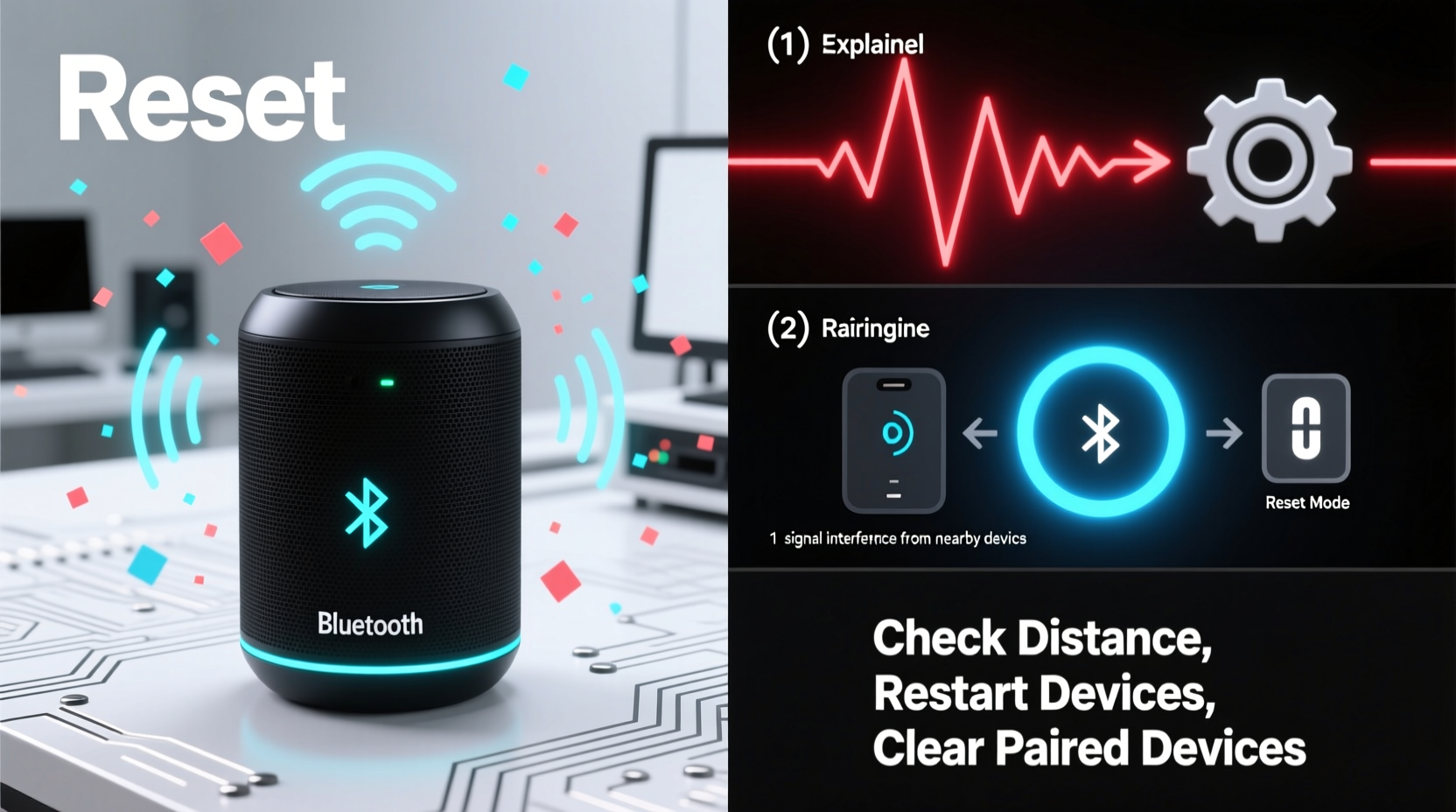
Bluetooth technology relies on short-range radio signals to transmit audio between devices. While generally reliable, several factors can disrupt this process. Recognizing these causes helps pinpoint solutions faster.
- Out of range: Bluetooth typically works within 30 feet (10 meters) under ideal conditions. Walls, furniture, or interference can reduce effective range.
- Interference from other devices: Wi-Fi routers, microwaves, cordless phones, and even other Bluetooth devices can cause signal disruption.
- Low battery: A weak charge in either the speaker or source device may prevent stable connections.
- Pairing history conflicts: Speakers often remember multiple devices. If too many are stored, or if an old connection lingers, new pairings may fail.
- Firmware bugs: Outdated or corrupted firmware on the speaker or smartphone can interfere with Bluetooth protocols.
- Device compatibility: Older Bluetooth versions may not support newer features like multipoint pairing or high-quality codecs.
- Software glitches: Temporary bugs in the operating system or Bluetooth stack can cause unexpected disconnections.
Step-by-Step Guide to Fix Pairing Problems
When your speaker won’t connect, follow this logical sequence to diagnose and resolve the issue efficiently.
- Check power and proximity: Ensure both devices are charged and within close range (within 3–5 feet initially).
- Enable Bluetooth on the source device: Go to Settings > Bluetooth and confirm it’s turned on.
- Put the speaker in pairing mode: Most speakers indicate this with a blinking blue light. Refer to the manual for model-specific instructions.
- Forget previous connections: On your phone or tablet, locate the speaker in the Bluetooth list, tap the gear icon (or “i”), and select “Forget This Device.”
- Restart both devices: Power cycle your smartphone/tablet and the speaker. Wait 10 seconds before turning them back on.
- Attempt re-pairing: With both devices awake, initiate pairing again through the Bluetooth menu.
- Test with another device: Try connecting the speaker to a different phone or tablet to isolate whether the problem lies with the speaker or the original source.
If the speaker pairs successfully with a second device, the issue likely resides in the first device’s software settings or Bluetooth module. If it fails across all devices, the speaker itself may need servicing or a reset.
Advanced Fixes: Resetting and Updating
When basic troubleshooting doesn’t work, deeper interventions are necessary. Two key strategies—resetting the speaker and updating firmware—can resolve persistent issues.
How to Perform a Factory Reset
A factory reset clears all saved pairing data and restores default settings. This is especially useful when dealing with corrupted memory or conflicting connections.
Steps vary by brand, but general methods include:
- Press and hold the Power and Volume Down buttons simultaneously for 10–15 seconds.
- Hold the Bluetooth and Play/Pause buttons together until lights flash rapidly.
- Use a paperclip to press a recessed reset button (common in JBL, Ultimate Ears, and Sony models).
Consult your user manual for exact instructions. After resetting, the speaker will enter pairing mode automatically.
Firmware Updates
Manufacturers regularly release firmware updates to improve stability, fix bugs, and enhance compatibility. These are often distributed via companion apps.
For example:
- JBL Portable app for JBL speakers
- BOSE Connect or BOSONE app for Bose devices
- Sony | Music Center app for Sony speakers
Connect your speaker to the app while both are on the same Wi-Fi network. If an update is available, follow the prompts to install it. Do not interrupt the process—power loss during an update can permanently damage the device.
“Over 60% of recurring Bluetooth issues I see in customer support logs are resolved with a firmware update or reset.” — Daniel Reeves, Senior Audio Technician at SoundSync Labs
Do’s and Don’ts of Bluetooth Speaker Maintenance
Preventing future issues starts with proper usage habits. The following table outlines best practices and common mistakes.
| Do’s | Don’ts |
|---|---|
| Keep your speaker clean and dry; wipe down after outdoor use | Expose the speaker to rain or extreme humidity unless it’s rated IPX7 or higher |
| Update firmware every few months | Ignore update notifications or skip multiple versions |
| Limit stored paired devices to 3–4 maximum | Pair with every nearby device out of curiosity |
| Store in a cool place away from direct sunlight | Leave the speaker in a hot car or near heating vents |
| Charge fully before long-term storage | Store with a dead battery for weeks or months |
Real-World Example: Fixing a Stubborn JBL Flip 6
Mark, a freelance designer, couldn’t get his JBL Flip 6 to reconnect after using it at a friend’s house. His iPhone showed “Not Connected,” despite repeated attempts.
He followed these steps:
- He checked that Bluetooth was enabled and the speaker was in pairing mode (blinking blue LED).
- His iPhone remembered the speaker but wouldn’t reconnect. He tapped the “i” next to the speaker name and selected “Forget This Device.”
- After forgetting, he restarted both the phone and speaker.
- Upon reboot, the speaker didn’t appear immediately. He opened the JBL Portable app, which detected the speaker and prompted a firmware update.
- After a 90-second update, the speaker paired instantly.
The root cause? A pending firmware update had created a handshake conflict between the speaker and iOS. Without the app, the update wouldn’t have been visible. Mark now checks the app monthly.
Troubleshooting Checklist
Use this checklist the next time your Bluetooth speaker won’t connect. Work through each item systematically.
- ✅ Charge both devices to at least 50%
- ✅ Move closer—within 3 feet of the speaker
- ✅ Confirm Bluetooth is on and discoverable
- ✅ Put speaker in pairing mode (refer to manual)
- ✅ Forget the device on your phone/tablet
- ✅ Restart both devices
- ✅ Test with a second source device
- ✅ Check for firmware updates via manufacturer app
- ✅ Perform a factory reset if all else fails
- ✅ Contact support if hardware appears faulty
Frequently Asked Questions
Why does my speaker show up but won’t connect?
This usually indicates a pairing memory conflict or software glitch. Try forgetting the device, restarting both units, and re-pairing. If the problem persists, a firmware update or reset may be needed.
Can a Bluetooth speaker pair with multiple devices at once?
Some modern speakers support multipoint pairing (e.g., Bose SoundLink Revolve+, JBL Charge 5). These can maintain active connections with two devices—like switching between a laptop and phone. However, most budget models only allow one active connection at a time.
How do I know if my phone’s Bluetooth is broken?
Test by connecting to other Bluetooth devices—earbuds, headphones, or a car system. If none work, the issue is likely with your phone. If only the speaker fails, the problem is isolated to that device or its pairing history.
Conclusion: Stay Connected with Confidence
Bluetooth speaker pairing issues are rarely permanent. Most problems stem from simple oversights—low battery, outdated firmware, or lingering connections—that can be resolved in under ten minutes. By understanding the underlying causes and applying systematic fixes, you regain control over your audio experience without unnecessary frustration.
Regular maintenance, timely updates, and mindful pairing habits go a long way in ensuring seamless performance. Don’t let a momentary disconnect ruin your mood. With the right knowledge, you’re always one restart—or reset—away from perfect sound.




 浙公网安备
33010002000092号
浙公网安备
33010002000092号 浙B2-20120091-4
Comments
No comments yet. Why don't you start the discussion?