
When it comes to typing comfort, few decisions matter more than the keyboard you use every day. For many professionals, writers, coders, and remote workers, the tactile feedback, key travel, and overall typing rhythm define not just productivity but also long-term hand health. Two popular choices dominate this conversation: budget mechanical keyboards—often praised for their customization and responsiveness—and the Logitech MX Keys, a premium wireless option known for its sleek design and smart features. But when it comes down to pure typing feel, which one truly delivers a better experience?
This isn’t just about price or aesthetics. It’s about how your fingers interact with each key press—how much resistance you feel, how far the keys go down, and how quickly they rebound. The answer depends heavily on personal preference, usage context, and expectations from daily typing.
The Typing Experience: What “Feels Better” Really Means
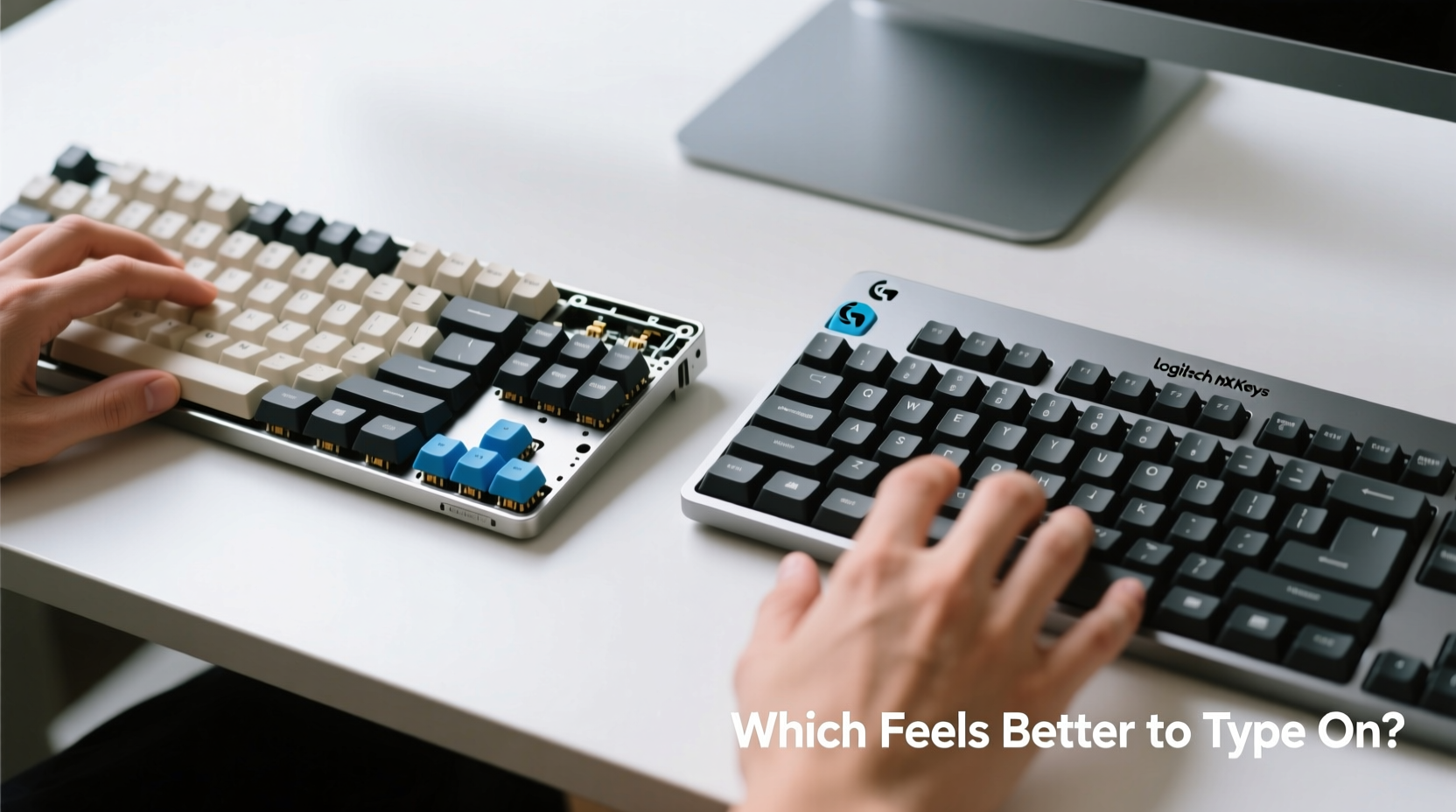
“Feeling better” while typing is subjective, but several measurable factors influence that sensation:
- Actuation force: How much pressure is needed to register a keystroke.
- Key travel distance: How far the key moves downward before bottoming out.
- Tactile feedback: Whether you feel a bump (tactile), hear a click (clicky), or experience smooth linear motion.
- Noise level: Important in shared environments or quiet offices.
- Consistency across keys: Uniformity in resistance and response.
The Logitech MX Keys uses low-profile scissor-switch mechanisms, similar to those found in high-end laptops. These offer shallow travel (about 1.5mm) and a soft, cushioned top-out feel. In contrast, most budget mechanical keyboards use full-size mechanical switches with deeper travel (typically 3.5–4mm) and more defined actuation points.
For touch typists who rely on muscle memory, deeper travel can improve accuracy by providing clearer confirmation of input. However, others prefer the speed and compactness of shorter throws, especially during fast bursts of writing or editing.
“Typing feel is deeply personal—like choosing between running shoes and dress shoes. One supports endurance; the other prioritizes precision and form.” — Daniel Tran, Ergonomic Design Consultant
Build Quality and Materials: Premium vs Practical
The Logitech MX Keys exudes premium craftsmanship. Its aluminum top plate, rounded edges, and minimalist aesthetic make it a centerpiece on any desk. The keys have a slightly domed profile designed to guide fingertips naturally, and the surface coating resists fingerprints better than most plastics.
Budget mechanical keyboards, typically priced between $40 and $70, often use ABS or PBT plastic for keycaps. While some entry-level models skimp on materials, many now include metal plates, detachable cables, and even RGB lighting without inflating cost. Brands like Redragon, Keychron (in non-premium lines), and Drop’s budget offerings deliver surprising durability for the price.
Where the MX Keys shines is in consistency and finish. Every unit behaves the same way. With budget mechanicals, there can be slight variance in switch performance due to manufacturing tolerances—though this rarely affects usability.
Switch Types and Customization: Mechanical Flexibility Wins
This is where mechanical keyboards pull ahead decisively. Most budget models let you choose from three main switch types:
- Linear (e.g., Red switches): Smooth press with no bump. Ideal for fast typists or gamers.
- Tactile (e.g., Brown switches): Subtle bump halfway through the stroke. Offers feedback without noise.
- Clicky (e.g., Blue switches): Audible click and tactile bump. Loved by enthusiasts, distracting in quiet spaces.
You can pick based on your sensitivity to noise, typing rhythm, or finger strength. Some advanced users even swap switches entirely using hot-swappable sockets—a feature increasingly common even in sub-$60 boards.
The MX Keys, meanwhile, uses proprietary low-profile dome switches. They’re tuned for quiet operation and comfort over long sessions, but there's no variation available. You get one feel, period. While refined, it lacks the personalization that mechanical fans cherish.
Moreover, mechanical keyboards allow for full key remapping via software or onboard firmware. Need to turn Caps Lock into Escape? Done. Want to layer functions with a Fn key? Easy. The MX Keys supports limited reprogramming through Logitech Options+, but it’s constrained compared to QMK/VIA-enabled mechanicals.
Real-World Typing Scenarios: Who Benefits From Which?
To understand real-world differences, consider two distinct users:
Case Study: Remote Developer in a Shared Apartment
Alex works remotely as a software developer from a small apartment shared with a partner. He types 6–8 hours daily, writing code and documentation. Noise matters—he doesn’t want to disturb his partner during early mornings.
He tried the MX Keys first. Appreciated the backlighting that adapts to hand movement and the compact layout saving space. But after a week, he noticed fatigue in his forefingers. The shallow travel forced him to be overly precise, and missed keystrokes increased during long coding sprints.
He switched to a $55 mechanical keyboard with Gateron Brown switches—tactile, moderately loud, 2mm actuation point. The difference was immediate. Deeper travel reduced errors, and the bump gave confidence with each press. He added O-rings to dampen sound and found a sweet spot between performance and peace.
Verdict: Despite the MX Keys’ elegance, Alex preferred the mechanical board for sustained productivity.
Case Study: Marketing Executive in a Hybrid Office
Sarah travels frequently between home and office. She values portability, battery life, and seamless multi-device pairing. Her typing is mostly emails, slide decks, and reports—short bursts rather than marathon sessions.
She chose the MX Keys for its cross-device flow, intelligent backlighting, and slim profile. At meetings, she connects it to her iPad and laptop effortlessly. The quiet keys don’t draw attention in conference rooms. Though she occasionally misses the feedback of a mechanical bump, the convenience outweighs that drawback.
For her, the typing feel isn’t the primary concern—it’s workflow integration. The MX Keys enhances her mobility and professionalism without demanding setup time.
Verdict: Sarah finds the MX Keys “good enough” to type on, even if not ideal. Functionality trumps feel.
Detailed Comparison Table
| Feature | Budget Mechanical Keyboard | Logitech MX Keys |
|---|---|---|
| Typing Feel | Deep travel, customizable switch options | Shallow, soft, consistent dome switch |
| Actuation Force | 45–60g (varies by switch) | ~55g (estimated) |
| Travel Distance | 3.5–4.0mm | 1.5mm |
| Noise Level | Low (linear/tactile) to High (clicky) | Very low |
| Customization | Full remapping, swappable switches (on some models) | Limited via Logitech Options+ |
| Build Quality | Plastic body, some with metal plates | Aluminum top plate, premium finish |
| Connectivity | Wired USB or 2.4GHz/Bluetooth (on wireless models) | Bluetooth + USB receiver, multi-device pairing |
| Price Range | $40–$70 | $100–$130 |
| Best For | Long typing sessions, customization lovers, tactile seekers | Mobile professionals, quiet environments, multi-device users |
Step-by-Step: Choosing Based on Your Needs
Follow this decision path to determine which keyboard suits your lifestyle:
- Assess your daily typing volume. Do you write or code for 4+ hours a day? → Lean toward mechanical for reduced fatigue.
- Evaluate your environment. Are you in a shared space or office? → Prioritize quiet keys; avoid clicky switches or consider MX Keys.
- Check device compatibility needs. Do you switch between Mac, Windows, and tablet regularly? → MX Keys excels here.
- Determine customization desire. Want to tweak layouts, add macros, or change switches later? → Only mechanical keyboards offer this.
- Set a budget. Under $80? → Strong value in mechanicals. Over $100 and value convenience? → MX Keys justifiable.
FAQ
Can I make a budget mechanical keyboard quieter?
Yes. Use foam padding inside the case, O-ring dampeners on stems, or choose linear/tactile switches instead of clicky ones. PBT keycaps also reduce hollow sounds.
Is the MX Keys worth twice the price of a mechanical board?
Only if you prioritize design, multi-device pairing, and silent typing over tactile depth and customization. As a typing tool alone, it’s less satisfying for heavy users.
Do mechanical keyboards last longer than membrane ones like the MX Keys?
Generally, yes. Mechanical switches are rated for 50–100 million keystrokes versus ~10 million for most scissor/dome mechanisms. However, the MX Keys is built to higher standards than average membrane boards, so lifespan differences may be smaller in practice.
Action Checklist Before Buying
- ✅ Decide whether deep key travel or thin profile matters more to you
- ✅ Test switch types (via sample kits or videos) if unsure
- ✅ Confirm OS compatibility—especially macOS function key layout
- ✅ Check if wireless latency is acceptable for your use case
- ✅ Read user reviews focusing on long-term comfort, not just first impressions
- ✅ Consider future upgrades—can you mod it later?
Final Verdict: Which Feels Better to Type On?
If \"feels better\" means richer tactile feedback, greater control, and a more engaging typing rhythm, then budget mechanical keyboards generally win. Their deeper actuation, variety of switch options, and superior customizability create a more responsive and satisfying experience—especially over extended periods.
However, the Logitech MX Keys wins in refinement, silence, and ecosystem integration. Its typing feel is competent, consistent, and comfortable for moderate use. It’s not designed to thrill typists—it’s designed to disappear into your workflow while looking elegant doing so.
In essence: The mechanical keyboard invites you to notice each keystroke. The MX Keys helps you forget them altogether.




 浙公网安备
33010002000092号
浙公网安备
33010002000092号 浙B2-20120091-4
Comments
No comments yet. Why don't you start the discussion?