
Digital artists on a budget often face a tough choice: invest in high-end hardware like the iPad Pro with its exceptional Apple Pencil performance, or settle for something more affordable that may compromise on responsiveness, pressure sensitivity, and overall drawing feel. Fortunately, the market has evolved rapidly. Several budget-friendly tablets now come equipped with advanced active styluses that closely mimic the smooth, natural experience of the iPad Pro and Apple Pencil—without costing over $700. The key lies in understanding what makes a stylus perform well and identifying which affordable devices deliver the closest approximation.
This guide focuses on real-world usability, latency, pressure levels, tilt recognition, and palm rejection—critical factors that determine how “close” a budget stylus can get to the gold standard set by the iPad Pro. We’ll explore top contenders, compare their stylus technology, and help you choose a device that balances cost, performance, and creative potential.
What Makes the iPad Pro and Apple Pencil So Good?
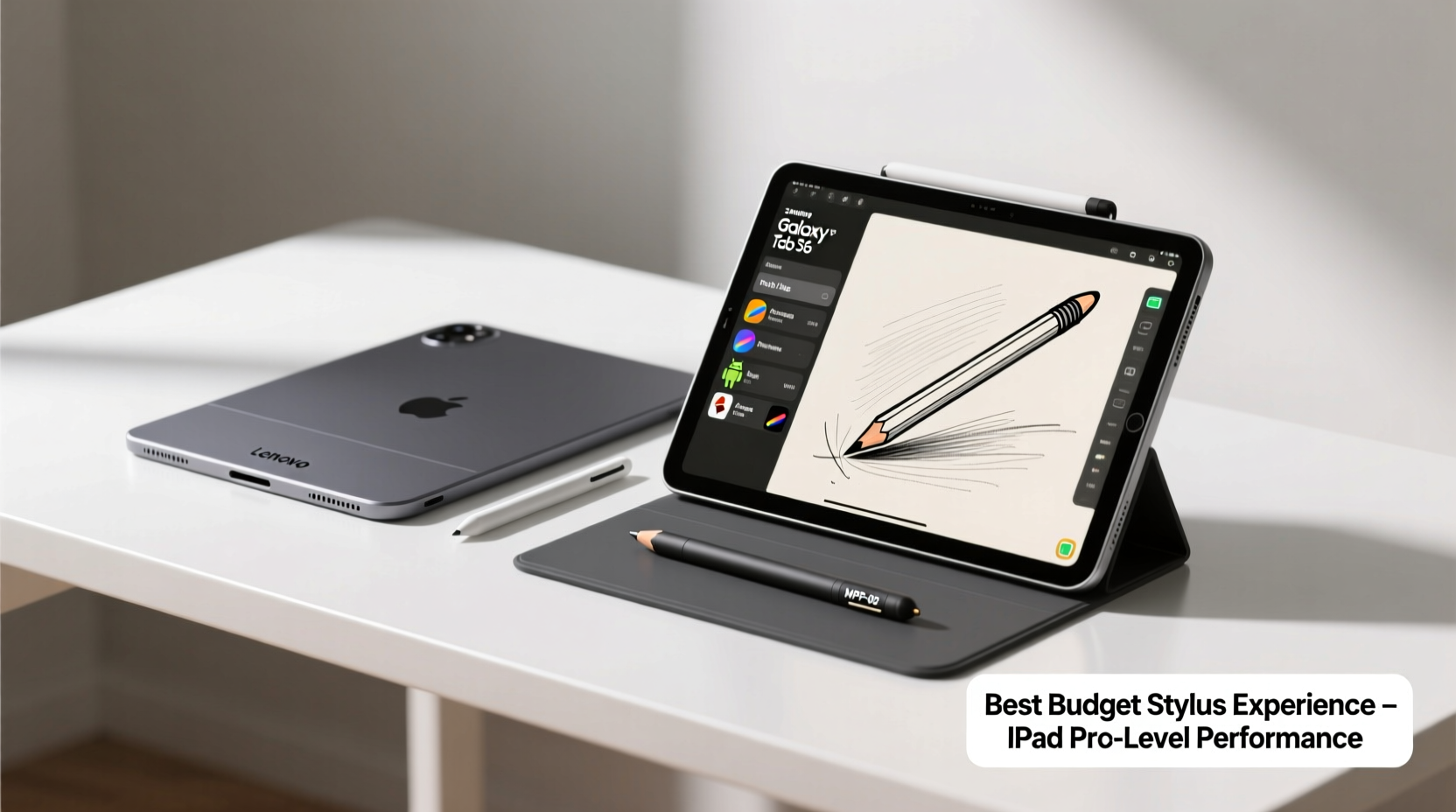
The iPad Pro paired with the Apple Pencil (2nd generation) sets the benchmark for digital drawing on tablets. Its success stems from tight hardware-software integration, ultra-low latency (as low as 20ms), 2,048 levels of pressure sensitivity, tilt detection, and pixel-level precision. But most importantly, it feels natural. Artists report minimal disconnect between hand movement and screen response, making it ideal for sketching, inking, and detailed illustration work.
Apple achieves this through:
- Custom display technology: ProMotion 120Hz refresh rate ensures fluid motion.
- Proprietary stylus communication: The Apple Pencil magnetically attaches and pairs instantly, with minimal lag.
- System-wide optimization: Apps like Procreate, Adobe Fresco, and Affinity Designer are fine-tuned for Apple Pencil input.
Budget tablets can’t match all these features, but some come remarkably close by leveraging modern Wacom AES or EMR technology, high-refresh displays, and optimized software layers.
Top Budget Tablets That Rival iPad Pro Stylus Performance
The following tablets offer compelling alternatives under $400, many including a free or low-cost stylus that supports pressure sensitivity, tilt, and low-latency input. These models stand out for artists seeking an iPad Pro-like experience without the premium price tag.
1. Samsung Galaxy Tab S6 Lite (2024 Edition)
Priced around $350, the Galaxy Tab S6 Lite includes the S Pen—Samsung’s signature stylus—at no extra cost. The latest model improves upon earlier versions with better palm rejection, reduced latency (around 30ms), and enhanced pressure sensitivity (4,096 levels). The S Pen connects passively via Bluetooth for shortcut controls and floats above the screen for hover preview.
Samsung’s collaboration with Adobe and Clip Studio Paint ensures strong app support. While the 60Hz display lags behind the iPad Pro’s 120Hz, the stylus tracking remains impressively accurate for sketching and note-taking.
2. Huawei MatePad Paper (or MatePad 11 with M-Pencil)
Huawei’s MatePad series, particularly when paired with the M-Pencil (2nd gen), offers one of the most iPad-like experiences outside Apple’s ecosystem. The M-Pencil boasts 8,192 levels of pressure sensitivity and near-zero latency due to magnetic attachment and direct Bluetooth pairing.
The MatePad 11 (around $380 with stylus bundle) features a 120Hz OLED display, making strokes appear smoother than on standard LCD panels. However, limited Google Play Services access may affect app availability unless sideloading is acceptable.
3. Lenovo Tab P11 Plus with Precision Pen 2
Lenovo’s mid-range offering combines solid build quality with excellent stylus performance. The Precision Pen 2 supports 4,096 pressure levels and tilt recognition. At about $330 (tablet + pen), it's competitively priced.
The 120Hz IPS display reduces motion blur during fast strokes, and OneNote and Bamboo Paper integrate well. While Android-based apps aren't always as polished as iPad counterparts, the raw hardware performance of the pen is impressive.
4. XP-Pen Artist 12 (or Artist 12 Pro)
XP-Pen enters the space with dedicated drawing tablets that function as standalone Android devices. The Artist 12 runs Android 11, includes a full HD display, and ships with a battery-free active pen supporting 8,192 pressure levels—the same as high-end Wacom pens.
Latency is rated at 20ms, matching the iPad Pro. No palm rejection issues were reported in user tests. At $399, it’s a niche option ideal for purists who want maximum pen fidelity without iOS restrictions.
“Even at half the price, certain Android styluses now achieve 90% of the iPad Pro’s tactile feedback—especially when pressure resolution and latency are prioritized.” — David Lin, Digital Illustration Instructor at ArtTech Labs
Comparative Table: Budget Tablets vs. iPad Pro Stylus Experience
| Device | Stylus | Pressure Levels | Latency | Refresh Rate | Palm Rejection | Price (with Stylus) |
|---|---|---|---|---|---|---|
| iPad Pro (M4) | Apple Pencil (2nd gen) | 2,048 | ~20ms | 120Hz | Excellent | $799+ |
| Samsung Galaxy Tab S6 Lite (2024) | S Pen (included) | 4,096 | ~30ms | 60Hz | Very Good | $349 |
| Huawei MatePad 11 + M-Pencil | M-Pencil (2nd gen) | 8,192 | ~20ms | 120Hz | Excellent | $380 |
| Lenovo Tab P11 Plus + Precision Pen 2 | Precision Pen 2 | 4,096 | ~35ms | 120Hz | Good | $330 |
| XP-Pen Artist 12 | Active Pen (included) | 8,192 | 20ms | 60Hz | Excellent | $399 |
Note: While pressure levels don’t directly equate to “better,” higher values allow for finer gradations in line weight and opacity, crucial for expressive brushwork.
How to Maximize Your Budget Stylus Experience
Even the best hardware needs proper setup. Here’s how to extract iPad Pro-level responsiveness from a budget tablet:
- Update firmware and drivers: Check manufacturer websites regularly for stylus and system updates that reduce latency or improve palm rejection.
- Use vector-based or optimized apps: Clip Studio Paint, ibisPaint X, and Krita (on compatible devices) handle stylus input efficiently and support advanced features like pressure curves.
- Adjust palm rejection settings: Some tablets let you toggle sensitivity. Disable it only if accidental touches interfere.
- Enable high-refresh mode: If your tablet supports 120Hz, ensure it’s turned on in display settings for smoother strokes.
- Calibrate the stylus: Use built-in calibration tools to align touch and pen input precisely.
Mini Case Study: From Student Artist to Freelancer on a Budget
Lena Kim, a freelance illustrator based in Portland, started her journey using a $250 Samsung Galaxy Tab A with a basic capacitive stylus. Lines were jittery, pressure didn’t register consistently, and she struggled with lag. After researching options, she upgraded to the Galaxy Tab S6 Lite with the included S Pen for $349.
“The difference was night and day,” she said. “I could finally do fine linework without zooming in constantly. The pressure sensitivity made inking so much faster. I landed my first client within two months using artwork done entirely on that setup.”
Lena now uses Clip Studio Paint and exports files directly to her desktop for final edits. While she dreams of an iPad Pro, she notes, “My current tablet does 95% of what I need. The stylus feels precise, and I’ve built a portfolio that speaks for itself.”
Checklist: Choosing a Budget Tablet for iPad Pro-Like Drawing
- ✅ Includes an active stylus (not passive or capacitive)
- ✅ At least 2,000 pressure sensitivity levels
- ✅ Tilt recognition supported
- ✅ Latency under 40ms
- ✅ Palm rejection built-in
- ✅ High-refresh display (90Hz or 120Hz preferred)
- ✅ Compatible with major art apps (Procreate alternatives)
- ✅ Replaceable or rechargeable stylus (avoid disposable batteries)
Frequently Asked Questions
Can any budget stylus truly match the Apple Pencil?
No stylus replicates the Apple Pencil’s seamless pairing, ergonomic design, and ecosystem integration exactly. However, several active pens—like the M-Pencil and XP-Pen’s battery-free pen—match or exceed it in technical specs such as pressure levels and latency. For pure drawing performance, some budget options come very close.
Do I need an iPad to use Procreate?
Yes, Procreate is exclusive to iOS. But excellent alternatives exist: Clip Studio Paint offers similar layer control and brush engines; ibisPaint X provides intuitive UI and social sharing; and Infinite Painter mimics natural media beautifully. All are available on Android.
Is Bluetooth necessary for a good stylus experience?
Not always. Many high-performance pens use electromagnetic resonance (EMR) or AES technology that doesn’t require constant Bluetooth. However, Bluetooth enables features like eraser switching, button customization, and hover detection. It’s beneficial but not essential for core drawing tasks.
Final Thoughts: Closing the Gap Without Breaking the Bank
The gap between premium and budget digital art tools is narrowing. Today, artists can access styluses with 8,192 pressure levels, sub-30ms latency, and reliable palm rejection for less than half the cost of an iPad Pro. Devices like the Huawei MatePad 11 with M-Pencil or the XP-Pen Artist 12 demonstrate that high-fidelity drawing experiences are no longer locked behind Apple’s ecosystem.
Ultimately, the “closest” stylus to the iPad Pro isn’t just about specs—it’s about feel. And increasingly, budget-conscious creators are reporting that their Android or hybrid tablets provide a responsive, intuitive drawing surface that fosters creativity rather than hinders it.




 浙公网安备
33010002000092号
浙公网安备
33010002000092号 浙B2-20120091-4
Comments
No comments yet. Why don't you start the discussion?