
Creating a web browser from scratch may sound like a task reserved for tech giants, but with the right tools and understanding, it's entirely achievable for developers and enthusiasts alike. Whether you're interested in crafting a minimalistic tool for specific tasks or designing a full-featured browser with unique functionality, this guide walks you through the process with practical clarity. By the end, you’ll understand how browsers work under the hood and how to build one that reflects your vision.
Understanding the Core Components of a Web Browser
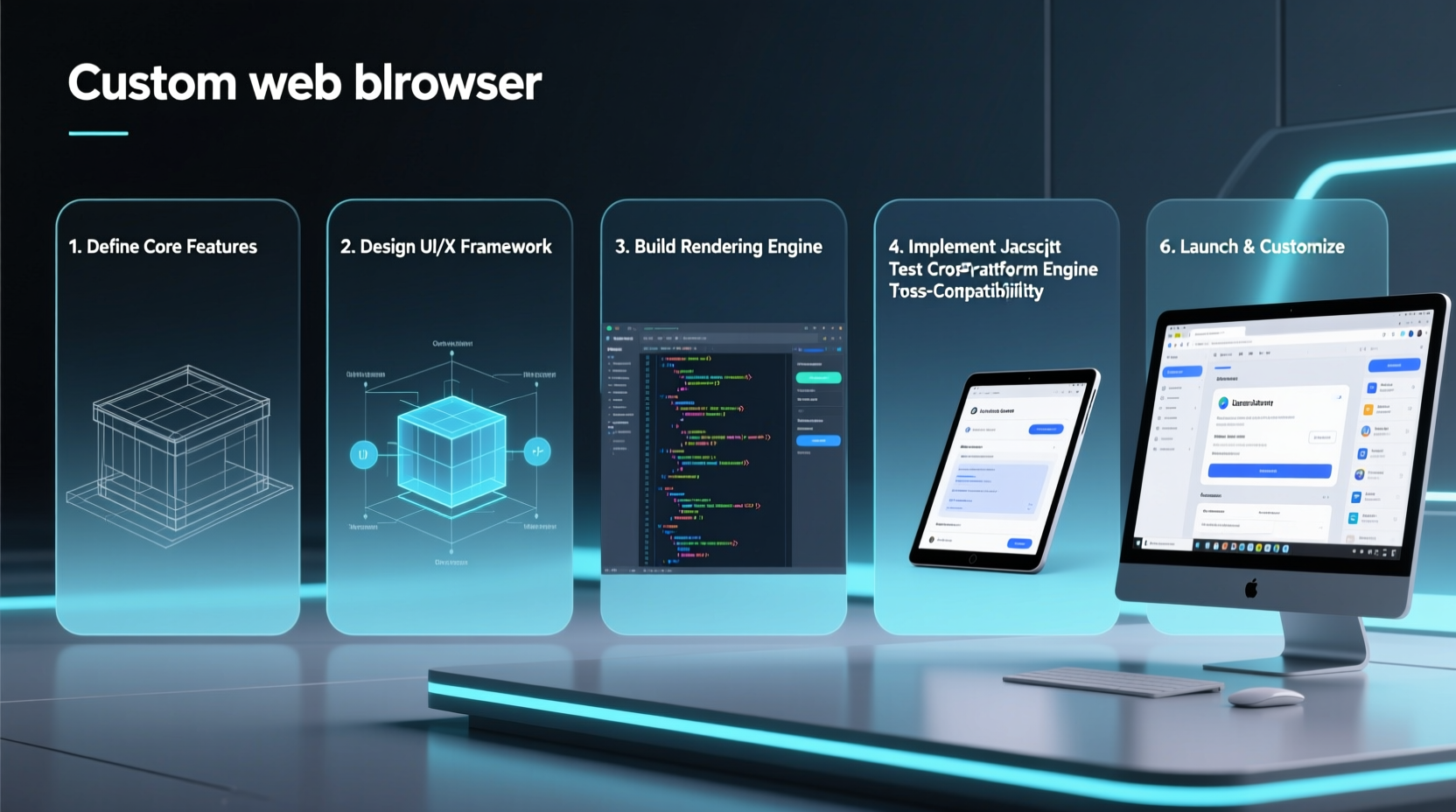
A modern web browser is more than just a window to the internet—it’s a complex application composed of several interconnected systems. Before writing any code, it’s essential to grasp the key components:
- User Interface (UI): Includes the address bar, tabs, back/forward buttons, and bookmarks.
- Browser Engine: Manages interactions between the UI and the rendering engine.
- Rendering Engine: Parses HTML and CSS to display web content (e.g., Blink, WebKit).
- JavaScript Interpreter: Executes JavaScript code (e.g., V8 in Chrome).
- Networking Layer: Handles HTTP requests and responses.
- Data Storage: Manages cookies, cache, and local storage.
While building all these components from zero is impractical for most, leveraging existing frameworks allows you to focus on customization rather than reinvention.
Choosing the Right Framework and Language
The easiest way to create a functional browser is to use a framework that abstracts low-level complexities. Here are the most viable options:
| Framework | Language | Rendering Engine | Best For |
|---|---|---|---|
| Electron | JavaScript/Node.js | Blink (Chromium) | Cross-platform desktop apps |
| CEF (Chromium Embedded Framework) | C++/Python/C# | Blink | High-performance integration |
| WebView2 (Windows) | C#, C++, Python | Edge Chromium | Windows-native applications |
| Qt WebEngine | C++, Python (PyQt) | Blink | Custom UI-heavy applications |
For beginners, Electron is often the best starting point due to its simplicity and vast community support. It powers popular apps like Visual Studio Code and Slack, proving its reliability even in production environments.
“Building a browser isn’t about recreating Chrome—it’s about solving a specific user problem with precision.” — Lena Torres, Open-Source Browser Developer
Step-by-Step Guide to Building Your First Browser
Below is a practical walkthrough using Electron to create a minimal yet functional web browser.
- Set up your development environment: Install Node.js and npm (Node Package Manager).
- Create a project folder: Run
mkdir my-browser && cd my-browser. - Initialize the project: Run
npm init -yto generate a package.json file. - Install Electron: Run
npm install electron --save-dev. - Create the main entry file: Create
main.jsto manage the app window and lifecycle. - Build the UI: Use HTML and CSS to design the interface, including an address bar and navigation controls.
- Integrate the web view: Add an
<iframe>or use Electron’sBrowserViewto load external websites. - Add navigation logic: Implement “Go,” “Back,” “Forward,” and “Reload” functions using event listeners.
- Package the app: Use
electron-packagerto bundle your browser into an executable.
Here’s a snippet of the core logic in main.js:
const { app, BrowserWindow } = require('electron')

function createWindow () {
  const win = new BrowserWindow({
    width: 1200,
    height: 800,
    webPreferences: {
      nodeIntegration: false
    }
  })

  win.loadFile('index.html')
}

app.whenReady().then(() => {
  createWindow()

  app.on('activate', () => {
    if (BrowserWindow.getAllWindows().length === 0) createWindow()
  })
})
This sets up a window and loads a local HTML file where your browser UI resides.
Adding Custom Features for a Unique Experience
One of the main advantages of building your own browser is the ability to tailor it to specific needs. Consider these enhancements:
- Privacy-first defaults: Block trackers, disable telemetry, and clear history automatically.
- Keyboard shortcuts: Enable Vim-like navigation for power users.
- Dark mode toggle: Reduce eye strain with a built-in theme switcher.
- Ad-blocking: Integrate a filter engine like uBlock Origin’s logic.
- Tab grouping: Allow users to organize tabs by project or category.
- Voice commands: Use Web Speech API for hands-free navigation.
Mini Case Study: EduBrowse – A Browser for Students
A team of education technologists developed \"EduBrowse,\" a lightweight browser designed for high school students in remote areas with limited bandwidth. Built with Electron, it included:
- Text-only mode to reduce data usage
- Offline access to educational portals via caching
- Distraction-free reading mode
- Integrated dictionary for instant word lookup
By removing ads, auto-playing videos, and social media integrations, the browser improved focus and reduced data costs by over 60%. The project demonstrated that custom browsers can solve real-world problems beyond what mainstream options offer.
Common Pitfalls and How to Avoid Them
Even experienced developers encounter challenges when building browsers. Here are frequent issues and solutions:
| Pitfall | Solution |
|---|---|
| Security vulnerabilities in embedded content | Use sandboxing and disable Node.js integration in web pages |
| Slow startup time | Lazy-load non-critical features and optimize asset delivery |
| Memory leaks from open tabs | Implement tab suspension and periodic cleanup |
| Inconsistent cross-platform behavior | Test early on Windows, macOS, and Linux using CI/CD pipelines |
“Security isn’t optional. If you’re loading untrusted content, assume every page is hostile.” — Marcus Reed, Cybersecurity Engineer
Checklist: Launch-Ready Browser Features
Before releasing your browser, ensure it includes these foundational elements:
- ✅ Secure handling of HTTPS connections
- ✅ Basic navigation (back, forward, reload, home)
- ✅ Address bar with autocomplete and error feedback
- ✅ Tab management (open, close, switch)
- ✅ Bookmark system or favorites bar
- ✅ Settings menu for privacy, appearance, and defaults
- ✅ Error pages for offline or invalid URLs
- ✅ Update mechanism for future improvements
FAQ
Can I build a browser without knowing C++?
Yes. Tools like Electron, WebView2, and PyQt allow you to build functional browsers using JavaScript, Python, or C#, bypassing the need for low-level languages.
Is it legal to create a custom web browser?
Absolutely. As long as you don’t infringe on trademarks or redistribute proprietary code without permission, building a browser is completely legal and encouraged.
Will my browser be as fast as Chrome or Firefox?
Performance depends on your implementation. While you won’t match optimized engines immediately, focusing on minimalism and efficient code can yield surprisingly fast results for targeted use cases.
Conclusion
Building your own web browser opens doors to innovation, personalization, and deeper technical understanding. You’re not just consuming technology—you’re shaping it. Whether you're streamlining workflows, enhancing privacy, or exploring browser architecture, each line of code brings you closer to a truly custom browsing experience. The tools are accessible, the knowledge is available, and the web is waiting.




 浙公网安备
33010002000092号
浙公网安备
33010002000092号 浙B2-20120091-4
Comments
No comments yet. Why don't you start the discussion?