
Nothing disrupts productivity faster than a calendar that refuses to sync. Whether you're juggling meetings across devices or trying to coordinate team schedules, a broken calendar sync can lead to missed appointments, double bookings, and unnecessary stress. The good news: most sync problems are fixable with the right approach. This guide walks through the root causes of calendar sync failures and provides actionable solutions for Google Calendar, Apple Calendar, Microsoft Outlook, and other common platforms.
Why Calendar Sync Fails: Common Causes
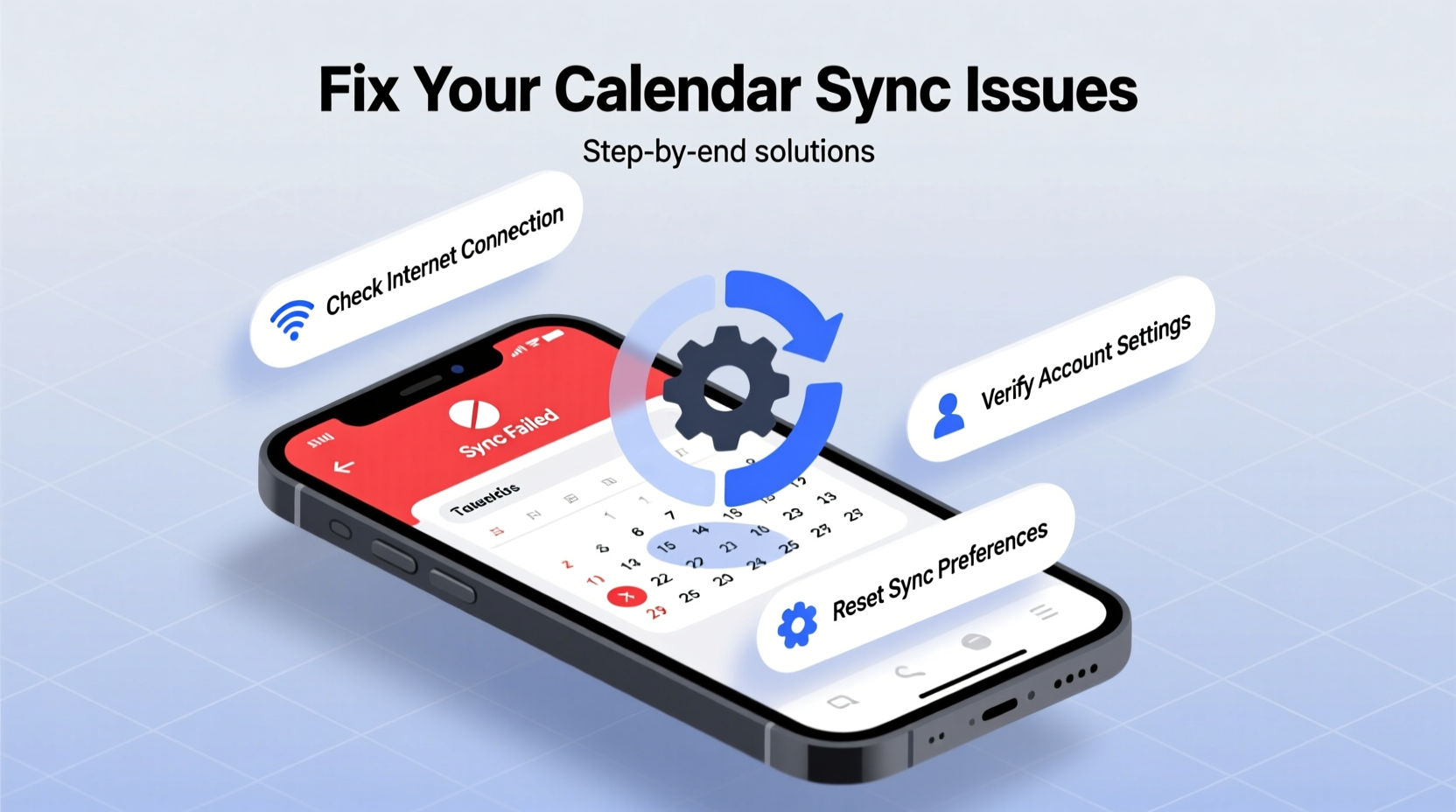
Before diving into fixes, it's essential to understand what typically breaks calendar synchronization. Syncing relies on a stable connection between your device, the app, and the cloud service. When any part of this chain fails, updates don’t propagate across devices.
- Internet connectivity issues: Weak or unstable Wi-Fi or mobile data prevents real-time updates.
- Incorrect account settings: Calendars may be disabled for sync in account preferences.
- Outdated apps or OS: Older versions may lack support for current sync protocols.
- Server outages: Temporary downtime from providers like Google or Apple halts sync.
- Authentication errors: Expired passwords or revoked app permissions block access.
- Conflicting third-party apps: Calendar widgets or duplicate sync tools interfere with normal operation.
Step-by-Step Guide to Restore Calendar Sync
Follow this structured process to diagnose and resolve sync issues efficiently. Start with basic checks and progress to deeper troubleshooting.
- Verify Internet Connection
Ensure your device is connected to a working network. Test by loading a website or using another cloud-based app. - Check Calendar Sync Settings
Navigate to your device’s account settings (e.g., Settings > Mail, Contacts, Calendars on iOS) and confirm that “Calendars” is toggled ON for syncing. - Force Refresh the Calendar App
Close the calendar app completely and reopen it. On iOS, swipe up to close; on Android, clear the app from recent apps. Then pull down to refresh. - Restart Your Device
A reboot clears temporary glitches that may block background sync processes. - Update Software
Install the latest OS and app updates. Outdated systems often lack critical sync patches. - Re-add Your Account
Remove the email/calendar account from your device and re-enter credentials. This resets authentication and forces a fresh sync. - Check Server Status
Visit the provider’s status dashboard (e.g., Google Workspace Status) to rule out outages.
Troubleshooting by Platform
Different services have unique sync behaviors. Below are targeted fixes for the most widely used calendar platforms.
Google Calendar (Android & iOS)
If events aren’t appearing across devices, ensure Google Sync is enabled:
- On Android: Go to Settings > Accounts > Google > [Your Account] > Sync Calendar (toggle ON).
- On iPhone: Open Settings > [Your Name] > iCloud > toggle OFF then ON for Calendar.
- In the Google Calendar app: Tap Menu > Settings > [Your Account] > Sync is enabled by default, but force a refresh.
Apple Calendar (iCloud)
iCloud sync issues often stem from account misconfiguration:
- Go to Settings > [Your Name] > iCloud > ensure Calendar is enabled.
- Toggle off Calendar, wait 30 seconds, then toggle back on.
- Check Date & Time settings: incorrect time zones cause event display errors.
Microsoft Outlook (Windows & Mobile)
Outlook users commonly face sync delays due to cached mode or Exchange misconfigurations:
- In Outlook desktop: Send/Receive > Update Calendar.
- Disable Cached Exchange Mode temporarily under Account Settings > Data Files.
- On mobile: Re-enter your Office 365 password if prompted for re-authentication.
| Platform | Sync Check Location | Common Fix |
|---|---|---|
| Google Calendar | Settings > Accounts > Google > Sync Calendar | Toggle sync off/on, re-authenticate |
| Apple Calendar | Settings > [Name] > iCloud > Calendar | Re-enable iCloud Calendar |
| Outlook (Exchange) | Send/Receive tab > Update Calendar | Reset account password, disable cache |
| Third-party Apps (e.g., Fantastical) | In-app Account Settings | Reconnect calendar source |
Expert Insight: What the Pros Recommend
“Most calendar sync issues stem from outdated tokens or misaligned time zones. Resetting the account connection almost always resolves it.” — Daniel Reyes, IT Support Lead at TechFlow Solutions
According to Reyes, enterprise environments often see sync failures after password rotations. “When a user changes their password but doesn’t update it on all devices, the calendar token becomes invalid. The app won’t crash—it just stops syncing silently.”
Mini Case Study: Recovering a Stalled Work Calendar
Sarah, a project manager at a remote marketing firm, suddenly stopped seeing new meeting invites on her iPad. Her phone and laptop showed the correct schedule, but her tablet lagged by three days. She followed these steps:
- Confirmed Wi-Fi was active and strong.
- Checked iPad Settings > Sarah’s Name > iCloud > Calendar: found it was turned off.
- Turned it on and waited two minutes—events began syncing immediately.
The root cause? A recent iOS update had automatically disabled iCloud Calendar during installation. Re-enabling it restored full functionality without data loss.
Calendar Sync Checklist
Use this checklist to quickly identify and fix sync issues:
- ✅ Internet connection is stable
- ✅ Calendar sync is enabled in account settings
- ✅ Device date, time, and time zone are correct
- ✅ Calendar app and OS are up to date
- ✅ No reported outages from the provider
- ✅ Account password is current and properly entered
- ✅ Background app refresh is allowed (iOS/Android)
- ✅ Third-party calendar apps are reconnected if used
Frequently Asked Questions
Why does my calendar only sync on some devices?
This usually means sync is disabled on the affected device. Check the account settings on that specific device and ensure the calendar toggle is ON. Also verify that the same account is being used across devices.
How long should calendar sync take?
Under normal conditions, changes should appear within seconds to a few minutes. Delays beyond 15 minutes suggest a configuration issue, poor connectivity, or server-side problems.
Can I recover deleted calendar events after a sync error?
Yes, in many cases. Google and Apple retain deleted event data for 30 days. In Google Calendar, go to Settings > Trash to restore events. For iCloud, use the \"Recover Calendars\" option at iCloud.com.
Conclusion: Stay in Sync, Stay in Control
A reliable calendar is the backbone of personal and professional organization. When sync fails, the ripple effects can be costly—but the solutions are often simple and immediate. By methodically checking connections, settings, and account health, you can restore synchronization across all your devices. Don’t wait for the next missed meeting to act. Apply these fixes today, implement preventive habits like regular updates and password management, and keep your schedule running smoothly.




 浙公网安备
33010002000092号
浙公网安备
33010002000092号 浙B2-20120091-4
Comments
No comments yet. Why don't you start the discussion?