
In the era of flexible workspaces and digital minimalism, many professionals are reevaluating their tech setups. The question arises: can a budget tablet—typically priced under $300—truly handle the workload traditionally reserved for laptops? For remote workers seeking portability, affordability, and simplicity, the answer isn’t a simple yes or no. It depends on your specific tasks, workflow expectations, and willingness to adapt.
While high-end tablets like the iPad Pro or Samsung Galaxy Tab S9 blur the line between mobile devices and computers, budget models face significant limitations. Yet, for certain roles—freelance writers, virtual assistants, customer support agents, or students—these devices may offer a surprisingly capable alternative. Let’s explore the realities, trade-offs, and strategies that determine whether a budget tablet can genuinely replace your laptop.
Understanding the Capabilities of Budget Tablets
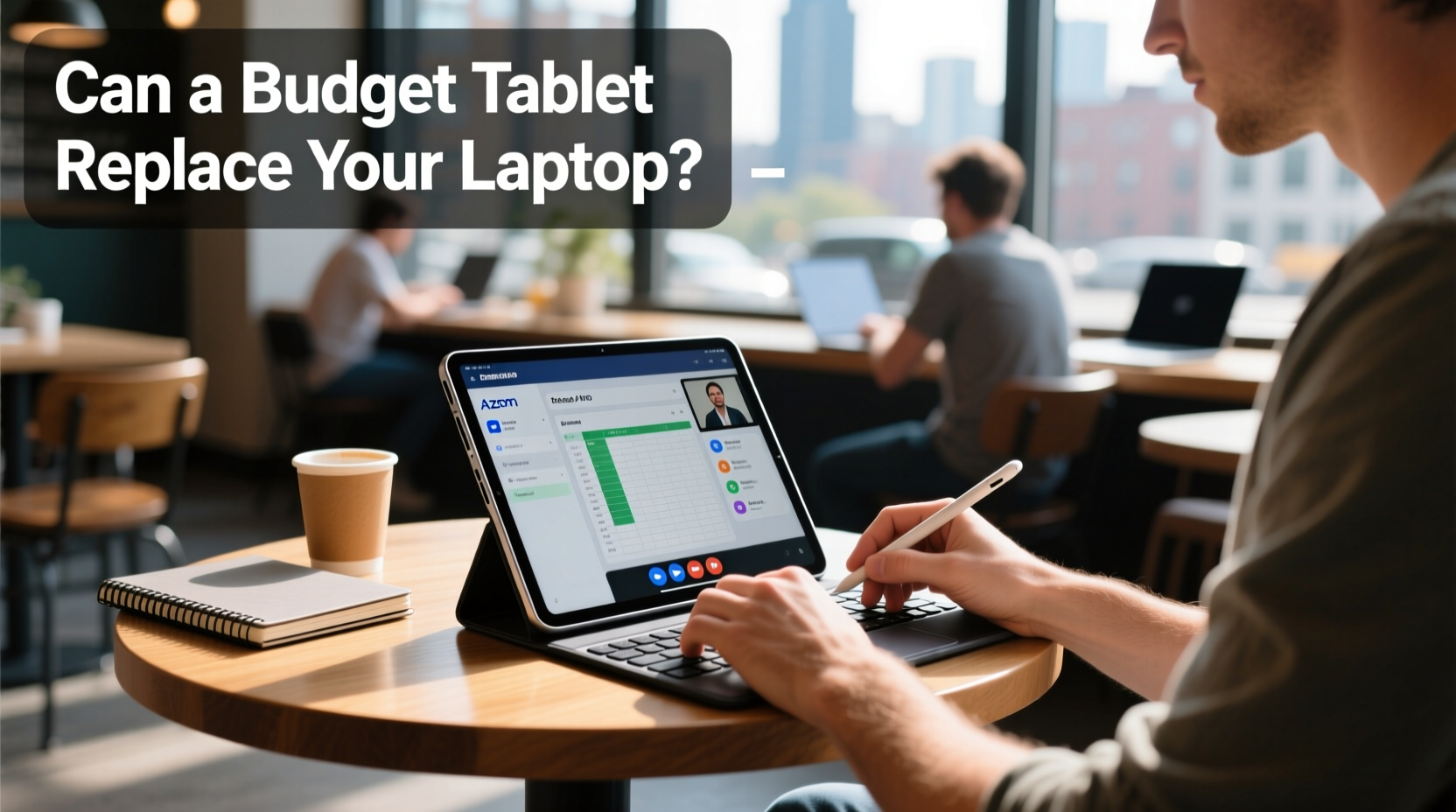
Budget tablets typically run on Android (or occasionally ChromeOS) and are equipped with mid-tier processors, 3–4GB of RAM, and limited internal storage (32–64GB). They lack physical keyboards by default, rely on touchscreen interfaces, and often support only basic multitasking. While they excel at media consumption, web browsing, and light app usage, their ability to manage complex workflows is constrained.
That said, modern operating systems have evolved. Android 13+ supports resizable windows, drag-and-drop file handling, and improved keyboard/mouse integration. ChromeOS devices in the same price range offer desktop-style browser experiences and access to Linux apps. These advancements make it possible to perform meaningful work—but only if your needs align with the device’s strengths.
Key factors determining suitability include:
- Task complexity: Can your work be done primarily through web apps and mobile-optimized tools?
- Input method: Are you willing to use an external keyboard and stylus?
- Connectivity: Do you need USB ports, HDMI output, or SD card slots?
- Software compatibility: Is your required software available on mobile platforms?
Tasks a Budget Tablet Can Handle Well
Not all remote work requires heavy computing power. Many common professional activities translate well to mobile environments. Here are several job functions where a budget tablet performs reliably:
Email Management & Calendar Coordination
Managing Outlook, Gmail, or Google Calendar is seamless on most tablets. Touch-friendly interfaces often enhance navigation, and push notifications ensure timely responses. With cloud sync across devices, staying on top of schedules and correspondence is straightforward.
Web-Based Communication
Zoom, Microsoft Teams, Google Meet, and Slack all have robust mobile apps. Video calls function smoothly on tablets with front-facing cameras, and screen sharing—while limited—is often sufficient for client check-ins or team standups.
Content Creation (Text-Heavy)
Writing blogs, drafting reports, or editing documents via Google Docs, Microsoft Word, or Notion works adequately. External keyboards make typing comfortable, and cloud autosave ensures data safety. However, formatting long documents or working with tables and references may feel clunky compared to desktop versions.
Online Research & Data Entry
Chromebooks and Android tablets with full desktop-mode browsers allow efficient tab management. Tools like Trello, Airtable, and web-based CRMs are fully accessible. Form filling, survey analysis, and database updates can be completed without issue.
Light Design & Note-Taking
With a stylus, apps like Samsung Notes, OneNote, or Markup enable quick sketches, annotations, and brainstorming. Canva’s mobile app allows basic graphic design for social media posts. While not ideal for professional-grade illustration, it supports creative ideation.
“Mobile-first workflows are becoming more viable every year. For roles centered on communication and documentation, the gap between tablets and laptops is narrowing.” — Lisa Tran, Remote Work Consultant at FlexWork Labs
Where Budget Tablets Fall Short
Despite improvements, fundamental limitations remain. These constraints become critical when dealing with specialized software, multitasking demands, or file-heavy projects.
Limited Multitasking
Even with split-screen or freeform window support, managing three or more apps simultaneously is awkward. Dragging files between apps can fail unexpectedly, and background processes are frequently suspended to conserve memory.
File System Limitations
Android’s file management remains less intuitive than Windows or macOS. Locating downloads, moving files between folders, or accessing external drives via OTG adapters can confuse users accustomed to desktop environments.
Software Incompatibility
Professional tools like Adobe Photoshop, Final Cut Pro, AutoCAD, or advanced Excel macros either don’t exist on mobile or offer severely reduced functionality. Even lightweight alternatives may lack batch processing, scripting, or plugin support.
Ergonomic Challenges
Using a tablet flat on a desk strains the neck over time. Without a proper stand or docking solution, prolonged typing leads to discomfort. Additionally, on-screen keyboards reduce usable screen space and slow input speed.
Peripheral Support
Budget tablets rarely support multiple USB devices, Ethernet connections, or external monitors at high resolution. This limits their utility for developers, data analysts, or anyone reliant on multi-monitor setups.
Comparison: Laptop vs. Budget Tablet for Common Work Tasks
| Task | Laptop Performance | Budget Tablet Performance | Verdict |
|---|---|---|---|
| Email & Calendar | Excellent | Excellent | ✅ Comparable |
| Video Conferencing | Excellent (with webcam/audio control) | Good (limited camera positioning) | 🟡 Acceptable with accessories |
| Document Editing | Excellent (full software features) | Fair (limited formatting, no offline advanced tools) | 🟡 Possible with compromises |
| Spreadsheet Analysis | Excellent (pivot tables, macros) | Poor (no macro support, small screen) | ❌ Not recommended |
| Graphic Design | Excellent (professional tools) | Fair (basic editing only) | 🟡 Limited to simple tasks |
| Programming | Excellent (IDEs, terminals) | Poor (no native development environment) | ❌ Not feasible |
| Web Browsing & Research | Excellent | Very Good (desktop mode available) | ✅ Mostly equivalent |
Real-World Example: A Freelance Writer’s Experience
Sarah Kim, a freelance content writer based in Portland, decided to test a $250 Android tablet as her sole work device during a two-week travel stint. She paired it with a magnetic keyboard case and used Google Drive, Grammarly, and Trello for her workflow.
Initially, she found typing manageable but slower than on her MacBook. Formatting articles in Google Docs was frustrating due to missing shortcut keys and inconsistent menu behavior. However, for drafting and light editing, the setup worked. She accessed client emails via Gmail, joined Zoom calls using the tablet’s speaker and camera, and submitted work through Dropbox.
Her main pain points were difficulty exporting PDFs with custom margins and inability to efficiently compare two documents side-by-side. After returning home, she resumed using her laptop for final edits but continues using the tablet for brainstorming and writing first drafts while commuting.
“It won’t replace my laptop,” Sarah said, “but it handles about 60% of my daily tasks. For someone just starting out or working on the go, it could be enough.”
Step-by-Step Guide to Optimizing a Budget Tablet for Work
If you’re considering making the switch—or testing it temporarily—follow this sequence to maximize effectiveness:
- Choose the Right Device: Prioritize models with at least 4GB RAM, Android 12+, and expandable storage. Chromebooks in this range often provide better multitasking.
- Add Essential Accessories: Invest in a Bluetooth keyboard (~$30), a passive stylus (~$10), and a adjustable stand (~$20).
- Install Core Productivity Apps: Download Microsoft Office, Google Workspace, Zoom, Slack, and any industry-specific tools available on mobile.
- Enable Desktop Mode in Browser: Use Chrome or Firefox and request desktop sites for full website functionality.
- Set Up Cloud Sync: Link Google Drive, Dropbox, or OneDrive to automatically back up files and enable cross-device access.
- Organize Your Home Screen: Create folders for “Work,” “Communication,” and “Reference” to minimize distractions.
- Test Before Committing: Run a full day of actual work on the tablet before retiring your laptop.
Checklist: Is a Budget Tablet Right for You?
Before deciding, ask yourself the following:
- ☑️ Do I primarily use web-based applications (Gmail, Google Docs, Zoom)?
- ☑️ Am I comfortable typing on a touchscreen or attaching a portable keyboard?
- ☑️ Do I need to run desktop-only software (e.g., Excel macros, coding IDEs)?
- ☑️ Will I be working in environments without desks (e.g., cafes, public transit)?
- ☑️ Can I accept occasional syncing delays or interface glitches?
- ☑️ Am I willing to carry additional accessories (keyboard, charger, stylus)?
If you answered “yes” to the first four and “no” to needing specialized software, a budget tablet may serve as a functional primary device—at least part-time.
Frequently Asked Questions
Can I connect a budget tablet to an external monitor?
Some higher-end budget models support HDMI via USB-C adapter (e.g., Samsung Galaxy Tab A series), but most do not. Even when supported, desktop mode is limited. True desktop extension is rare outside premium devices.
Is Microsoft Office fully functional on a budget tablet?
The mobile versions of Word, Excel, and PowerPoint are usable for viewing and light editing. However, advanced features like mail merge, pivot tables, VBA macros, and track changes are either missing or restricted without a Microsoft 365 subscription and compatible screen size.
How long will a budget tablet last for daily work use?
With moderate use, expect 2–3 years of reliable performance. After that, software updates may cease, battery degradation increases, and newer apps may run slowly. Regular factory resets can extend usability by clearing accumulated clutter.
Conclusion: A Strategic Supplement, Not a Universal Replacement
A budget tablet can replace a laptop for remote work—but only under specific conditions. If your role revolves around communication, content creation, scheduling, and light data handling, and you're open to adapting your workflow, a tablet offers a cost-effective, portable solution. However, for technical, analytical, or design-intensive professions, the limitations outweigh the benefits.
The smartest approach is hybrid: use the tablet as a secondary device for mobility and reserve the laptop for complex tasks. This balances convenience with capability. Technology continues to evolve, and future budget devices may close the gap further. For now, assess your actual needs—not aspirations—and equip yourself accordingly.




 浙公网安备
33010002000092号
浙公网安备
33010002000092号 浙B2-20120091-4
Comments
No comments yet. Why don't you start the discussion?