
Dark mode has become more than just a design trend—it's now a default setting on many smartphones, laptops, and apps. Advocates praise it for reducing eye strain, minimizing blue light exposure, and potentially saving battery life. But how much truth is there in the claim that dark mode conserves power? And does it work the same way across all screen technologies? The answer isn’t universal. Whether dark mode saves battery depends heavily on the type of display your device uses, the content you view, and how long you use your screen.
To understand the real impact of dark mode on battery life, we need to dive into the mechanics of modern display technologies—particularly OLED, AMOLED, and LCD—and examine how they render light and color. Only then can we determine when dark mode delivers tangible energy savings and when it makes little to no difference.
How Screen Technology Affects Power Consumption
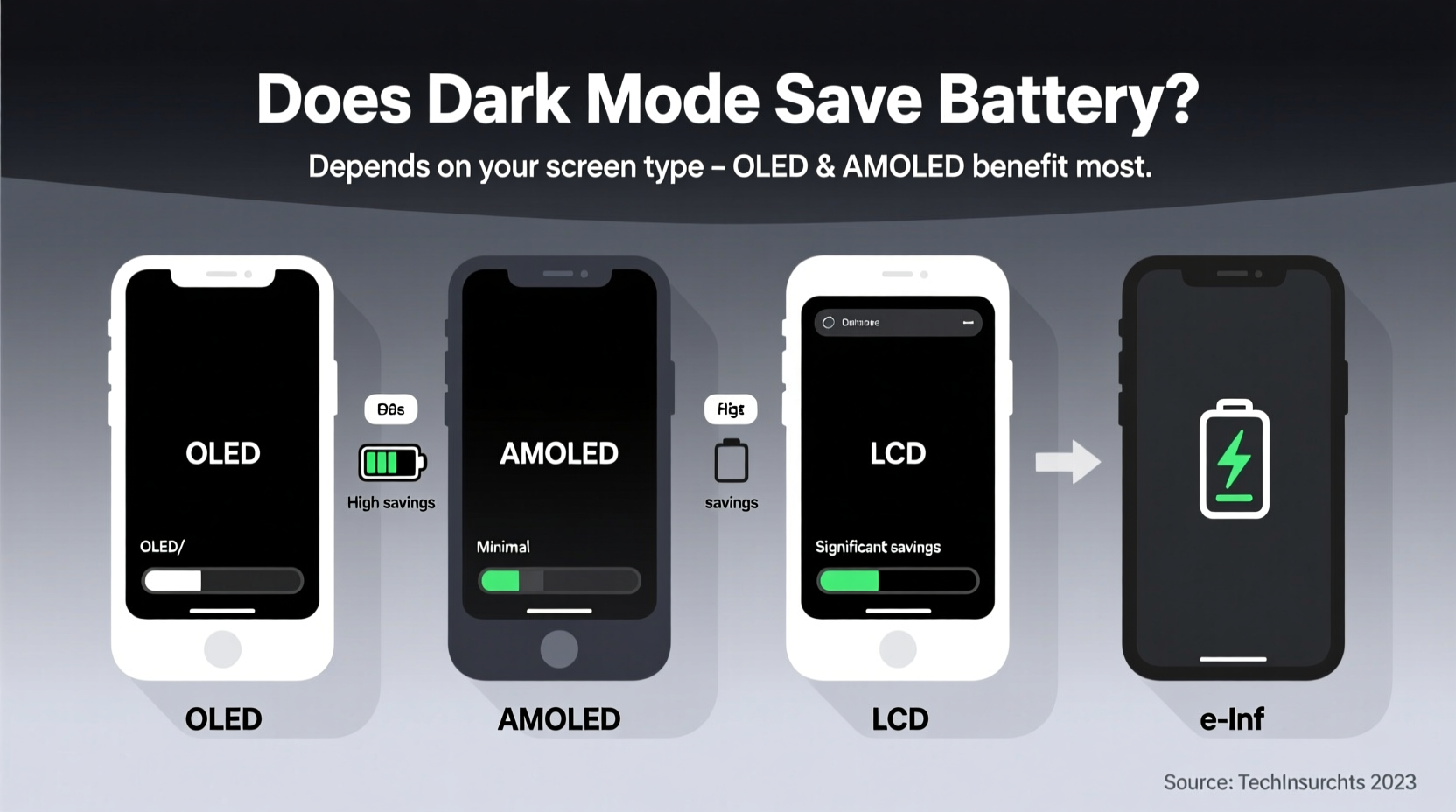
The key to understanding whether dark mode saves battery lies in how individual pixels produce light. Not all screens are created equal. The two dominant display types in consumer electronics today are:
- OLED (Organic Light-Emitting Diode)
- LCD (Liquid Crystal Display), including IPS and LED-backlit variants
These technologies differ fundamentally in how they generate images and manage brightness, which directly impacts energy usage under dark mode.
OLED and AMOLED: Pixels That Light Themselves
OLED displays are built with organic compounds that emit light when an electric current passes through them. Each pixel is self-illuminating, meaning that black pixels are truly off—they emit no light and consume no power. This is the core reason why dark mode can significantly reduce battery consumption on OLED screens.
When a screen shows a completely black image, nearly all pixels may be turned off, especially on devices like smartphones where the interface often features large dark areas. Studies have shown that switching from white backgrounds to black in common apps like YouTube or Google Maps can reduce power draw by 30% to 60%, depending on screen brightness and content.
“On OLED panels, black pixels consume zero power. That’s a game-changer for battery life when using dark interfaces.” — Dr. Lena Park, Display Technology Researcher at MIT Media Lab
LCD: Always-On Backlighting
In contrast, LCD screens rely on a constant backlight—usually LED—to illuminate the entire display. Liquid crystals act as shutters to block or allow light through colored filters to create images. Even when displaying black, the backlight remains on, and the liquid crystals attempt to block the light. However, perfect black is difficult to achieve, and some light always leaks through.
Because the backlight operates continuously regardless of on-screen content, switching to dark mode on an LCD screen has minimal effect on power consumption. Whether the screen shows a white webpage or a black wallpaper, the underlying light source remains active and draws roughly the same amount of energy.
Comparing Battery Impact Across Devices
To illustrate the disparity in energy savings, consider the following comparison based on real-world testing conducted by Android Authority and XDA Developers using identical tasks across different screen types.
| Device Type | Screen Technology | Battery Drain (30 min browsing, white theme) | Battery Drain (30 min browsing, dark theme) | Power Saved |
|---|---|---|---|---|
| Google Pixel 6 | OLED | 12% | 7% | ~42% |
| Samsung Galaxy S23 | AMOLED | 11% | 6% | ~45% |
| iPhone 14 (base model) | OLED | 10% | 5.5% | ~45% |
| Amazon Fire HD 10 (2021) | LCD | 9% | 8.5% | ~6% |
| Lenovo IdeaPad 3 Laptop | IPS LCD | 8% | 7.8% | ~3% |
The data clearly shows that OLED-based devices benefit substantially from dark mode, while LCD screens see negligible improvements. This doesn’t mean dark mode is useless on LCDs—it still helps with glare reduction and nighttime readability—but its role in extending battery life is limited.
Real-World Example: A Day in the Life of Two Smartphones
Consider two users: Alex and Jamie. Both use their phones for about four hours daily—browsing social media, checking email, reading news, and using navigation apps.
Alex owns a Samsung Galaxy S22 with an AMOLED display. They’ve enabled system-wide dark mode. During a typical commute, Alex opens Twitter (dark UI), checks Gmail (dark theme), and uses Google Maps with dark navigation mode. Because most pixels—especially around the edges and backgrounds—are black or near-black, the screen consumes significantly less power.
Jamie uses a mid-range Android phone with an LCD screen. Even with dark mode enabled in apps, the backlight remains fully powered. While the interface looks similar visually, the underlying hardware doesn’t shut off any components. After a full day, Jamie notices only a slight improvement in battery longevity compared to previous months—nowhere near the gains reported by friends with OLED phones.
This scenario illustrates that user experience and hardware capabilities are deeply intertwined. Dark mode’s benefits are not purely aesthetic; they’re technological—and conditional.
When Dark Mode Makes the Biggest Difference
Even on OLED devices, the effectiveness of dark mode varies based on usage patterns. Here are the situations where dark mode delivers the greatest battery savings:
- High-contrast apps with large dark areas: Messaging apps, email clients, e-readers, and note-taking tools often feature dark text on light backgrounds by default. Inverting this reduces active pixels.
- Nighttime usage: When ambient light is low, users often lower screen brightness. On OLED, combining lower brightness with dark mode amplifies efficiency.
- Always-on displays: Smartphones with wake-on-approach or clock widgets benefit greatly from dark mode, as static elements like time and notifications appear in white on black—activating only a fraction of pixels.
- Video streaming with dark UIs: Platforms like YouTube and Netflix use dark player interfaces. While video content itself contains varied colors, surrounding menus and controls stay dark, reducing overall load.
Limitations and Misconceptions About Dark Mode
Despite its popularity, dark mode is sometimes overhyped. It’s important to clarify what it can and cannot do:
- It won’t double your battery life: While savings can reach 40–60% in ideal conditions, average usage sees closer to 15–30% improvement.
- Not all “dark” themes are equal: Some apps use dark gray instead of true black (#000000). On OLED screens, dark gray still activates pixels and consumes more power than pure black.
- System-level support matters: If only some apps support dark mode, the benefit diminishes. Full system integration (Android, iOS, Windows) yields better results.
- Other factors dominate battery life: CPU usage, network connectivity, GPS, and background apps have far greater impact than display theme.
Do’s and Don’ts of Using Dark Mode for Battery Savings
| Do | Don't |
|---|---|
| Use true black backgrounds on OLED devices | Assume dark gray saves as much as black |
| Enable system-wide dark mode if available | Expect major gains on LCD screens |
| Pair with low brightness in dim environments | Keep screen timeout longer just because dark mode is on |
| Use dark mode in text-heavy apps (e.g., reading, messaging) | Rely solely on dark mode to extend battery without managing other settings |
Step-by-Step Guide to Maximizing Battery Efficiency with Dark Mode
If you're looking to get the most out of dark mode, follow these steps tailored to your device type:
- Determine your screen type: Check your device specifications online. Look for OLED, AMOLED, Super AMOLED, or Retina OLED. If it says LCD, IPS, or LED-backlit, dark mode will have limited impact.
- Enable system-wide dark mode: On Android, go to Settings > Display > Dark Theme. On iOS, go to Settings > Display & Brightness > Dark. On Windows and macOS, enable dark appearance in system preferences.
- Verify app compatibility: Open frequently used apps (browser, email, social media) and ensure they support dark mode. Manually enable it if necessary.
- Optimize for true black: On rooted Android devices or via custom launchers, use apps like \"Night Mode Enforcer\" or themes with #000000 backgrounds. On iPhones, Safari and Mail automatically adapt.
- Adjust brightness dynamically: Use adaptive brightness to ensure the screen isn’t brighter than needed, compounding the savings from dark mode.
- Monitor battery usage: After one week, review battery stats in Settings. Compare screen-on time and discharge rate before and after enabling dark mode.
Frequently Asked Questions
Does dark mode save battery on iPhones?
Yes, but only on iPhone models with OLED displays—specifically the iPhone X and later (except iPhone XR and 11, which use LCD). On OLED iPhones, dark mode can reduce power consumption by up to 45% during typical use, especially when viewing dark-themed apps or using the always-on display feature.
Is dark mode bad for your eyes?
No, dark mode is not inherently harmful. For most people, it reduces eye strain in low-light environments by lowering overall screen brightness and minimizing glare. However, in brightly lit rooms, high-contrast white text on black backgrounds can cause halation (glow effect), making reading harder for some. Adjust based on lighting conditions.
Can I force dark mode on all websites in my browser?
Most modern browsers offer forced dark mode. Chrome and Edge have flags or extensions like \"Dark Reader\" that invert colors on all sites. However, this can distort images and reduce readability. Use selectively, and prefer websites with native dark mode support.
Checklist: Is Dark Mode Worth It for Your Device?
- ✅ My device has an OLED, AMOLED, or similar self-emissive display
- ✅ I use my phone primarily in apps with dark-mode support (e.g., Gmail, WhatsApp, Reddit)
- ✅ I browse the web or read at night under low lighting
- ✅ I’ve enabled system-wide dark theme and adjusted app-specific settings
- ✅ I combine dark mode with other battery-saving practices (auto-lock, Wi-Fi toggling, etc.)
If you checked most of these, dark mode is likely benefiting your battery. If not, its impact may be minimal—especially if you’re using an LCD screen.
Conclusion: Use Dark Mode Wisely, Not Blindly
Dark mode can save battery—but not universally. Its effectiveness hinges on display technology. On OLED and AMOLED screens, it delivers measurable, sometimes substantial, power savings by turning off pixels. On LCDs, the benefits are mostly ergonomic, not energetic.
Understanding your device’s hardware allows you to make informed decisions about settings. Rather than treating dark mode as a one-size-fits-all solution, adopt it strategically. Pair it with brightness management, app optimization, and mindful usage habits for real gains.




 浙公网安备
33010002000092号
浙公网安备
33010002000092号 浙B2-20120091-4
Comments
No comments yet. Why don't you start the discussion?