
In an age where digital multitasking is the norm, many professionals are turning to dual-monitor setups in hopes of boosting efficiency. Yet, for every advocate praising the expanded screen real estate, there’s another warning about visual clutter and cognitive overload. So, what’s the truth? Does adding a second monitor genuinely enhance productivity, or does it simply turn your workspace into a chaotic maze of open windows? The answer isn’t binary—it depends on how you use the technology, your workflow, and your personal habits.
Research, anecdotal evidence, and ergonomic studies suggest that dual monitors can significantly improve output in certain roles—but they can also backfire if not implemented thoughtfully. This article breaks down the benefits, pitfalls, and best practices to help you decide whether a second screen will elevate your performance or just add unnecessary noise to your desk.
The Productivity Potential of Dual Monitors
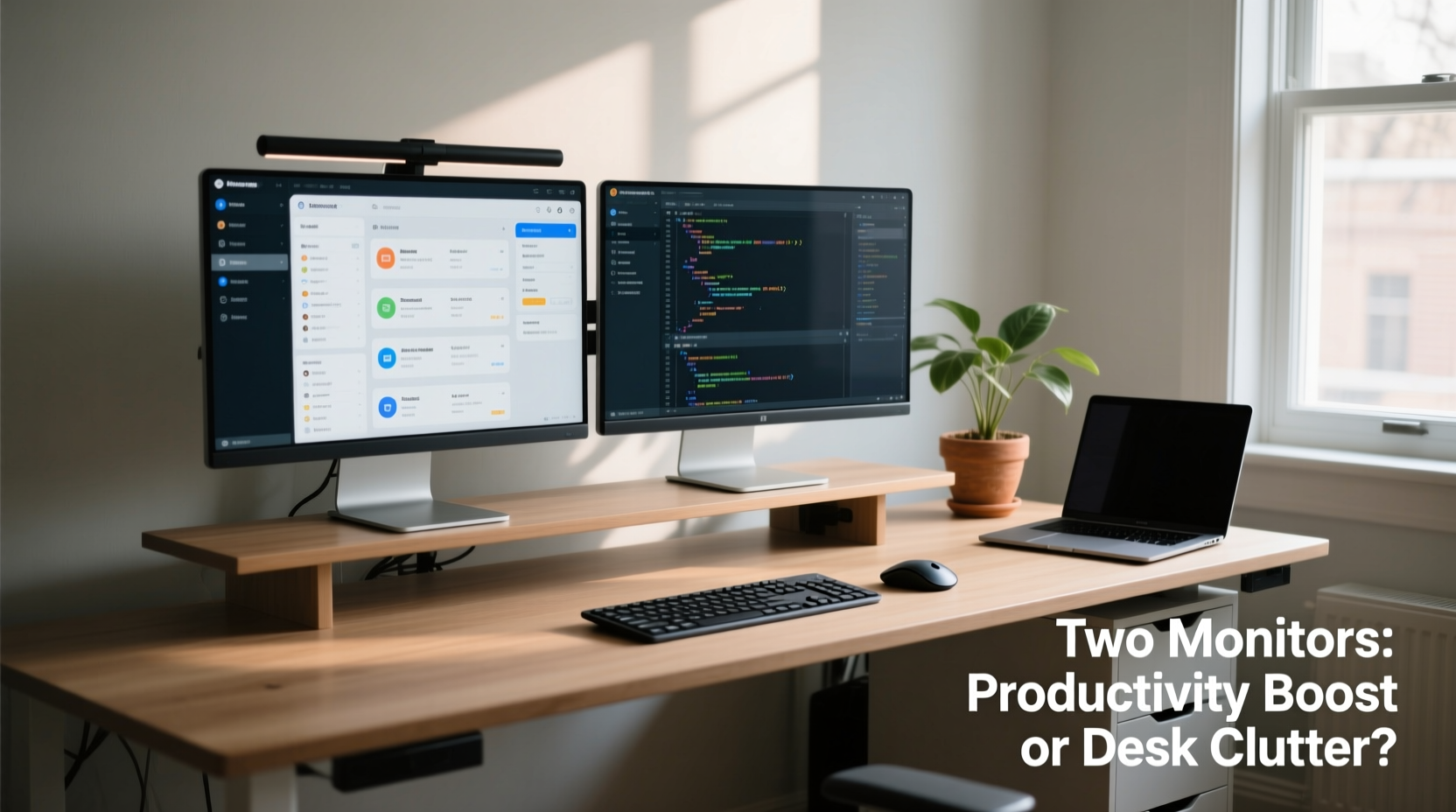
Multiple studies have demonstrated that dual monitors can lead to measurable gains in productivity. A landmark study by the University of Utah, commissioned by NEC, found that workers using two monitors were 30% more productive than those using a single display. Tasks like data entry, coding, financial analysis, and graphic design showed particularly strong improvements when users could spread their tools and references across two screens.
The core advantage lies in reducing context switching. Instead of constantly minimizing and maximizing windows, users can keep reference materials—such as emails, spreadsheets, or documentation—on one screen while actively working on another. This minimizes mental load and keeps momentum during complex workflows.
For example, video editors can preview footage on one monitor while editing timelines on the other. Programmers often run code on one screen and view documentation or debugging logs on the second. Writers might research on one side and draft content on the other. In each case, the spatial separation supports task segmentation and reduces distractions.
“Dual monitors allow knowledge workers to operate in a more natural, fluid way—similar to how we use physical desks with multiple documents laid out.” — Dr. Sarah Lin, Human-Computer Interaction Researcher, MIT Media Lab
When Dual Monitors Backfire: The Clutter Factor
Despite the potential, dual monitors aren’t universally beneficial. For some users, especially those without structured digital habits, a second screen becomes a liability rather than an asset. The same flexibility that empowers focused multitasking can enable distraction.
Common issues include:
- Window sprawl: Too many open applications across both screens make it harder to locate active tasks.
- Notification overload: Email, Slack, calendar alerts, and social media pop-ups now occupy twice the visual space.
- Reduced focus: The temptation to check unrelated tabs or messages increases when they’re always in peripheral vision.
- Ergonomic strain: Poor monitor alignment forces constant head turning, leading to neck and eye fatigue.
Moreover, not all jobs benefit equally. Roles centered around deep concentration—like writing, strategic planning, or meditation-based work—may suffer from the added visual stimuli. In such cases, minimalism often trumps expansion.
Who Benefits Most from Dual Monitors?
Not everyone gains the same value from a dual-screen setup. The key determinant is task type. Jobs involving frequent data comparison, multitasking between applications, or managing complex software interfaces tend to see the greatest return.
| Job Type | Productivity Benefit | Key Use Case |
|---|---|---|
| Software Developers | High | Code editor on one screen, terminal/docs on the other |
| Financial Analysts | High | Spreadsheet modeling + live market data feeds |
| Graphic Designers | High | Design canvas vs. layers/tool panels |
| Customer Support Agents | Moderate | Ticket system + knowledge base side-by-side |
| Writers & Editors | Low to Moderate | Research browser + word processor (if well-managed) |
| Strategic Planners | Low | Often require uninterrupted focus; minimal window switching |
The table illustrates that high-benefit roles typically involve rapid toggling between sources. In contrast, deep-thinking professions gain less—or even lose focus—when forced to manage additional visual inputs.
Setting Up Your Dual-Monitor System for Success
A second monitor alone won’t boost productivity. How you configure and use it matters far more. Thoughtful setup transforms clutter into clarity.
Step-by-Step Guide to Optimizing a Dual-Screen Workspace
- Choose the right monitor placement: Position the primary monitor directly in front of you, aligned with your line of sight. The secondary should be placed adjacent, angled slightly inward to reduce neck strain. Avoid placing it too far to the side.
- Select matching or complementary hardware: Ideally, both monitors should have the same resolution and size. Mismatched specs can cause scaling issues and visual inconsistency.
- Assign roles to each screen: Define a purpose for each monitor. Example: left = communication (email, chat), right = creation (writing, design). Stick to this layout consistently.
- Use operating system features: Windows Snap, macOS Mission Control, or third-party tools like DisplayFusion let you organize windows efficiently. Learn keyboard shortcuts to move apps between screens quickly.
- Limit open applications: Just because you have more space doesn’t mean you need more windows. Keep only essential tools visible. Close or minimize background apps.
- Adjust brightness and color settings: Ensure both monitors have similar brightness and color temperature to avoid eye fatigue when shifting gaze.
- Take regular visual breaks: Follow the 20-20-20 rule—every 20 minutes, look at something 20 feet away for 20 seconds—to prevent digital eye strain.
Checklist: Is Your Dual-Monitor Setup Effective?
- ✅ Monitors are ergonomically aligned
- ✅ Each screen has a defined function
- ✅ No more than 3–4 active windows at once
- ✅ Notifications are managed or silenced
- ✅ You’re not constantly turning your head excessively
- ✅ You feel more efficient, not overwhelmed
Real-World Example: From Chaos to Clarity
Consider Mark, a freelance data analyst who initially set up a dual-monitor system hoping to speed up his reporting. At first, he opened every tool—Excel, SQL client, browser tabs, Slack, and email—across both screens. Within days, he felt more scattered than before. Simple tasks took longer because he kept losing track of which window was active.
After reading about intentional screen zoning, Mark restructured his setup. He designated his left monitor exclusively for communication (Slack, email, calendar) and muted non-urgent notifications. His right monitor became his “deep work” zone—used only for analytics software and reports. He also enabled \"Do Not Disturb\" mode during focused hours.
The change was immediate. He completed client reports 25% faster and reported feeling less mentally drained at the end of the day. The second monitor didn’t increase productivity by default—it did so only after he imposed structure on its use.
Frequently Asked Questions
Does using two monitors use more computer resources?
Running two monitors does increase GPU and memory usage slightly, especially at higher resolutions. However, for most modern computers handling office applications, web browsing, and light multimedia, the impact is negligible. Only graphics-intensive tasks like 4K video editing or 3D rendering may require a stronger graphics card.
Is a larger single monitor better than two smaller ones?
It depends on your needs. A single ultrawide monitor (e.g., 34-inch) offers seamless horizontal space ideal for timelines, spreadsheets, or coding. However, it lacks the psychological separation of tasks that two distinct screens provide. Some users report fewer distractions with a single large display, while others miss the ability to isolate functions. Try both if possible.
Can dual monitors cause eye strain or fatigue?
Yes—if poorly configured. Mismatched brightness, incorrect positioning, or excessive screen time without breaks can contribute to eye strain. To mitigate this, ensure both monitors are at eye level, properly spaced, and used with regular breaks. Consider using blue light filters in the evening.
Conclusion: Intentionality Over Expansion
Dual monitors are neither inherently productive nor inherently distracting. Their value lies entirely in how they are used. For roles demanding simultaneous access to multiple applications, the second screen can be a powerful accelerator. But without discipline, it becomes a magnet for digital clutter and attention fragmentation.
The goal isn’t to add more screens—it’s to create a workspace that supports your cognitive flow. Whether you choose one monitor or two, the key is designing a setup that aligns with your work patterns, reduces friction, and protects your focus.
If you're considering a second monitor, start with a trial period. Use it deliberately, define its purpose, and assess whether it truly enhances your output. And if you already have two screens but feel overwhelmed, take a step back. Reorganize, declutter, and reintroduce only what serves your goals.




 浙公网安备
33010002000092号
浙公网安备
33010002000092号 浙B2-20120091-4
Comments
No comments yet. Why don't you start the discussion?