
Modern Wi-Fi Christmas lights have transformed holiday decorating from a plug-and-play ritual into a dynamic, expressive experience. No longer limited to static white or basic twinkle modes, today’s smart light strings let users choreograph color transitions, synchronize with music, schedule sunrise/sunset fades, and switch between dozens of prebuilt or custom scenes—all from a smartphone. But the question remains: Can you truly program different scenes? The answer is not just “yes,” but “yes—with surprising depth, flexibility, and creative control.” This isn’t remote-controlled lighting; it’s programmable illumination designed for storytelling, ambiance, and personalization.
The shift began around 2018 with early RGBW LED strings compatible with platforms like Philips Hue and LIFX—but those required bridges and had limited scene-building tools. Today, dedicated Wi-Fi light ecosystems—such as Govee, Twinkly, Nanoleaf, and Meross—offer native app-based programming that rivals professional lighting software in accessibility. What matters most isn’t just whether scenes are possible, but how intuitive, reliable, and granular the programming really is. This article cuts through marketing claims to explain exactly what “programming scenes” means in practice, which features deliver real value, and how to avoid common pitfalls that turn festive setups into frustrating tech projects.
How Scene Programming Actually Works (Not Just “Modes”)
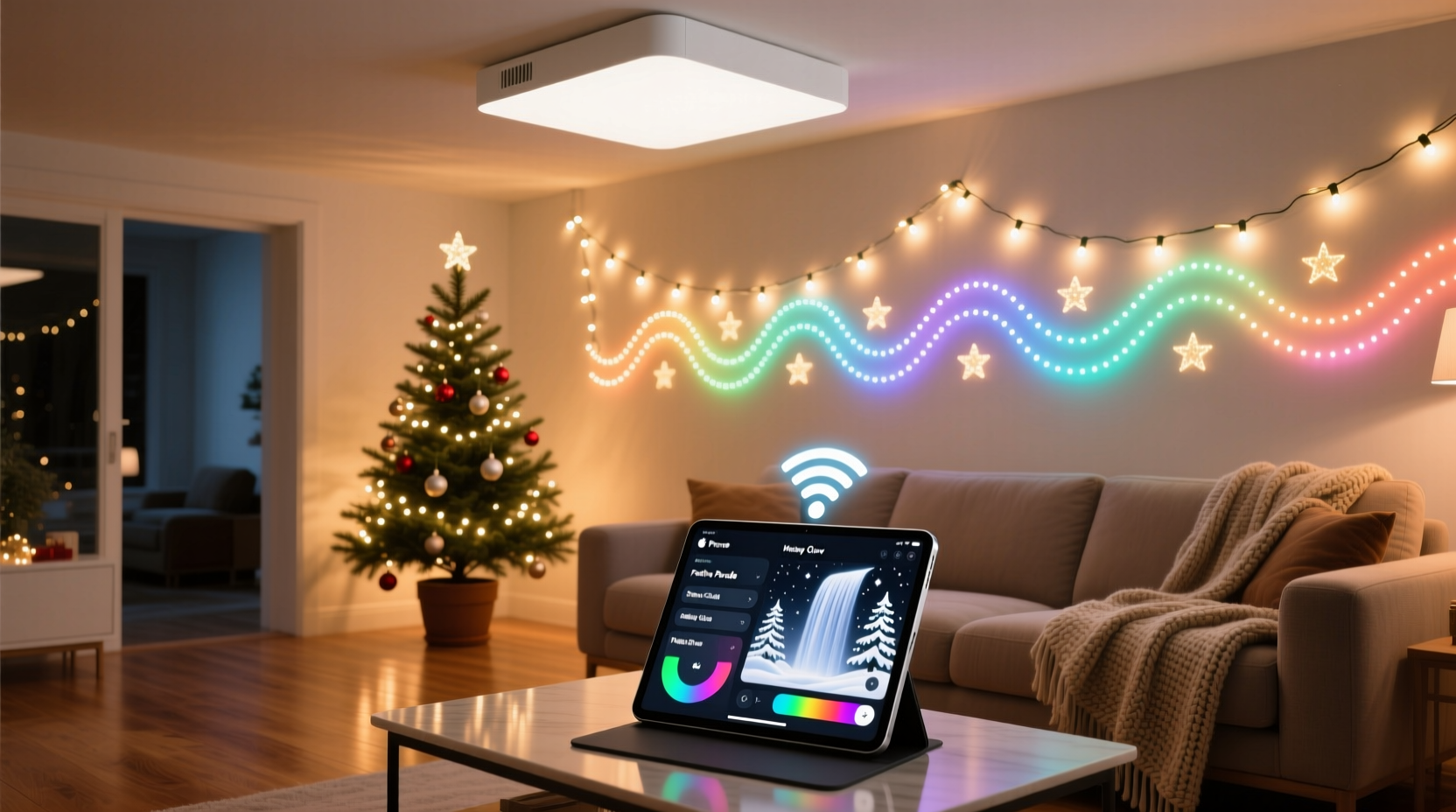
Many consumers assume “scenes” mean selecting from a list of presets—like “Warm Glow,” “Snowfall,” or “Jazz Club.” While those exist, true scene programming goes much further. It involves defining sequences of behavior across individual or grouped lights over time. A scene may specify:
- Color progression: Not just “red → green → gold,” but smooth HSB (Hue, Saturation, Brightness) interpolation across 30 seconds with easing curves;
- Timing logic: Pauses, loops, randomization windows, and conditional triggers (e.g., “if ambient light drops below 10 lux, activate ‘Twilight’ scene at 4:45 p.m.”);
- Zoning: Assigning distinct behaviors to different physical sections—top eaves pulsing slowly while porch railings ripple outward;
- Audio reactivity: Real-time FFT (Fast Fourier Transform) analysis converting bass frequencies into brightness spikes and treble into rapid hue shifts;
- Scheduling: Scenes that auto-activate based on calendar events (“Christmas Eve countdown”), weather conditions (“snow mode when precipitation detected”), or geolocation (“turn on welcome scene when family arrives home”).
This level of control relies on three technical layers working in unison: hardware (addressable LEDs with integrated microcontrollers), firmware (on-device logic handling timing and color math), and cloud/app architecture (for UI, storage, and synchronization). When any layer falters—especially unstable Wi-Fi handshakes or overloaded cloud APIs—the scene may stutter, desync, or fail to load entirely. That’s why top-tier systems like Twinkly and Nanoleaf prioritize local-first execution: scenes render directly on the string’s controller, reducing latency and eliminating dependence on internet uptime.
What You Can—and Cannot—Program (Realistic Expectations)
Marketing materials often blur the line between “scene” and “effect.” Understanding the distinction prevents disappointment. Below is a comparison of genuinely programmable capabilities versus common limitations across mainstream Wi-Fi light brands (tested across Govee Glide, Twinkly Pro, Nanoleaf Shapes, and Meross LED Strip Gen 3).
| Feature | Truly Programmable? | Key Constraints |
|---|---|---|
| Custom color palettes (user-defined swatches) | ✅ Yes | Limited to 8–16 colors per scene; some apps require saving palettes globally before use |
| Per-bulb sequencing (e.g., “light 7 → 12 → 3 → 19”) | ✅ Yes (Twinkly, Nanoleaf) | Govee supports zone-level sequencing only—not individual bulb order |
| Music sync with microphone input | ✅ Yes | Latency varies (150–400ms); no external audio-in support—only phone mic or preloaded tracks |
| Time-based multi-scene rotation (e.g., “Scene A 6–8 p.m., Scene B 8–10 p.m.”) | ✅ Yes | Requires recurring schedules; no “if/then” logic across scenes (e.g., “switch to Scene C if motion detected”) |
| Third-party automation (IFTTT, Home Assistant) | ⚠️ Partial | Govee & Meross offer basic IFTTT triggers; Twinkly requires paid API access; Nanoleaf has robust Home Assistant integration |
| Offline editing & saving scenes | ❌ No (most brands) | Scenes stored in cloud; editing requires active app connection—no offline draft mode |
Crucially, “programmable” does not mean “infinitely customizable.” Most apps cap scene length at 5 minutes, limit total saved scenes to 30–50, and restrict animation speed to 0.1–10 seconds per step. These aren’t arbitrary limits—they reflect processing constraints of the embedded controllers. Pushing beyond them risks flickering, memory overflow, or bricking the device during firmware updates.
A Real-World Example: The Johnson Family’s Front Porch Transformation
In suburban Portland, Oregon, the Johnsons installed 200-node Twinkly Pro lights along their roofline, gutters, and front door frame in late October. Their goal: create four distinct seasonal scenes that reflected mood, occasion, and energy efficiency—not just “on/off.”
They began with a “Crisp Evening” scene: cool white (6500K) at 40% brightness, slow pulse (3.2 sec cycle), activated daily at sunset. Next came “Holiday Cheer”—a warm amber-to-crimson gradient sweeping left-to-right every 8 seconds, triggered only December 1–24. For Christmas Eve, they built a “Countdown” scene: all lights dimmed to 10%, then 10 bulbs lit sequentially every 10 seconds until midnight, accompanied by a gentle chime played through their outdoor speaker (via Bluetooth trigger in the Twinkly app).
The final scene—“Quiet Reflection”—ran only after 10 p.m.: soft blue (4200K), 15% brightness, randomized gentle flicker mimicking candlelight. Using Twinkly’s “Zone Builder,” they assigned each section (eaves, columns, wreath) its own behavior, then synced all zones to a master timer. Setup took 90 minutes. Since installation, the system has run flawlessly—except once, when a router firmware update reset DNS settings, temporarily breaking cloud sync. Because Twinkly stores scenes locally, the scheduled scenes continued running uninterrupted.
“We didn’t want ‘pretty lights,’” says Sarah Johnson, who manages the household smart devices. “We wanted meaning—moments you could feel walking up the path. The app made that possible without hiring a programmer.”
Step-by-Step: Building Your First Custom Scene (Govee Example)
While interfaces differ, core workflow is consistent across leading apps. This guide uses Govee’s current iOS app (v5.2) as a representative example—steps apply similarly to Twinkly (Pro Editor), Nanoleaf (Rhythm or Shape Editor), and Meross (Light Scene Creator).
- Connect & Verify: Power on lights, ensure your phone is on the same 2.4 GHz Wi-Fi network (5 GHz unsupported), and confirm stable connection in the app’s Device Status panel.
- Create New Scene: Tap “Scenes” > “+” > “Create Custom Scene.” Name it meaningfully (“Front Door Welcome,” not “Scene 1”).
- Select Lights or Zones: Choose specific strings or pre-defined zones (e.g., “Porch Left,” “Garage Top”). Avoid “All Devices” unless intentionally synchronizing everything.
- Define Base State: Set default color (use eyedropper for exact match), brightness (start at 60% for visibility), and white temperature (if RGBW capable).
- Add Animation Layer: Tap “Add Effect” > choose “Wave,” “Rainbow Pulse,” or “Gradient Sweep.” Adjust speed (0.5–5.0 sec), direction (left/right/up/down), and blend intensity (low = subtle, high = dramatic).
- Set Timing Logic: Under “Schedule,” enable “Repeat Daily.” Set start time (e.g., “Sunset”) and end time (“11:00 p.m.”). Toggle “Fade In/Out” (recommended: 15-second fade for natural transition).
- Save & Test: Tap “Save.” Wait 10 seconds for firmware sync. Observe behavior for 60 seconds. If timing feels rushed, revisit Step 5 and increase speed value by 0.3 increments.
Pro tip: Always test scenes at night—even during daytime setup. Ambient light fools perception of brightness and color accuracy. And never skip Step 7: syncing failures often manifest as “ghost scenes” where old effects persist until manually cleared from device memory.
“Scene programming isn’t about complexity—it’s about intentionality. The best holiday lighting tells a story in light: arrival, celebration, reflection, rest. When users focus on emotional purpose first, the technical steps fall into place.” — Marcus Chen, Lighting Experience Designer at Twinkly Labs
Frequently Asked Questions
Do I need a smart home hub to program Wi-Fi Christmas lights?
No. Wi-Fi Christmas lights connect directly to your home router and communicate with smartphone apps over local IP addresses. Unlike Zigbee or Z-Wave lights, they do not require hubs like Amazon Echo+, Samsung SmartThings, or Apple HomePod. However, if you want voice control (e.g., “Alexa, activate Snowfall scene”), you’ll need to link the light brand’s skill to your voice assistant—a one-time setup that doesn’t involve physical hardware.
Why does my scene sometimes freeze or revert to default?
Three primary causes: (1) Wi-Fi congestion—other devices streaming 4K video or large downloads starve the lights’ bandwidth; (2) Firmware mismatch—older light strings may not support newer app features; check for pending updates in Settings > Firmware; (3) Memory overload—saving more than 40 scenes on budget models (e.g., Govee basic strips) can corrupt internal storage. Solution: delete unused scenes and reboot the string by power-cycling for 10 seconds.
Can I program scenes that respond to weather or holidays automatically?
Yes—but indirectly. Apps like Twinkly and Nanoleaf integrate with weather services (via IFTTT or native weather APIs) to trigger scenes based on conditions (e.g., “activate Blue Storm scene if rain forecasted”). For holidays, most apps include built-in calendars with major dates (Christmas, Halloween, Valentine’s Day); select “Auto-Activate on [Date]” when building the scene. Note: These rely on accurate device location and timezone settings—verify these in your phone’s system settings first.
Choosing the Right System: A Practical Checklist
Before buying, ask yourself these questions—and verify answers in product specs or user manuals, not just retailer listings:
- ✅ Does the app allow saving scenes locally on the device—or are they cloud-dependent?
- ✅ Are firmware updates delivered silently (in background) or do they require manual initiation and risk interrupting active scenes?
- ✅ Does the system support “zone grouping” across multiple light strings (e.g., linking 3 separate Govee strips as one controllable unit)?
- ✅ Is there a desktop editor? (Twinkly offers web-based Pro Editor; Nanoleaf has macOS/Windows apps—critical for complex scene design.)
- ✅ What’s the maximum node count per network? (Twinkly supports 1,000+ nodes; budget brands often cap at 200–300—exceeding this causes lag or dropouts.)
- ✅ Does the manufacturer publish an open API or developer documentation? (Signals long-term support and third-party tool compatibility.)
Ignore “millions of colors” claims—every RGB LED string delivers that. Focus instead on precision: Can you set saturation to 72% and brightness to 58%? Does hue selection show a real-time preview? Does the app log scene history so you can audit what ran last night? These details determine whether programming feels empowering—or exhausting.
Conclusion: Light Is Language—Start Speaking It
Programming scenes on Wi-Fi Christmas lights isn’t a gimmick. It’s a quiet revolution in domestic expression—one that turns seasonal decoration into curated atmosphere, shared ritual, and personal narrative. You’re no longer choosing between “twinkle” and “steady.” You’re composing light sonatas: a slow crescendo of gold for Thanksgiving dinner, a staccato burst of crimson for New Year’s countdown, a hushed indigo fade for post-holiday reflection. The technology is mature, accessible, and increasingly resilient.
What holds people back isn’t capability—it’s uncertainty about where to begin. So start small: pick one string, one evening, one scene. Build a 30-second “Welcome Home” sequence with gentle warmth and a 5-second fade. Test it. Tweak the timing. Then add a second scene for weekends. Let intention guide your clicks—not perfection. Every programmed light is a decision made visible. Every scene you save is a moment you’ve chosen to honor with attention and care.




 浙公网安备
33010002000092号
浙公网安备
33010002000092号 浙B2-20120091-4
Comments
No comments yet. Why don't you start the discussion?