
Gaming laptops have long been associated with high-performance hardware—powerful CPUs, advanced GPUs, and fast memory. But as more creators turn to portable setups for video editing, a pressing question emerges: can these machines handle demanding editing workflows without stuttering or lag? The short answer is yes—but with important caveats. While gaming laptops are technically capable of supporting professional-grade video editing, their effectiveness depends on specific configurations, software optimization, thermal management, and user expectations.
Unlike traditional office or ultrabook laptops, gaming models are built to sustain heavy computational loads. This makes them strong candidates for tasks like rendering 4K timelines in Adobe Premiere Pro, applying effects in DaVinci Resolve, or exporting multi-track projects in Final Cut Pro. However, raw power alone doesn’t guarantee smooth performance. Understanding how components interact under sustained workloads is key to avoiding bottlenecks that lead to lag, dropped frames, or system crashes.
The Hardware Advantage: Why Gaming Laptops Are Built for Power
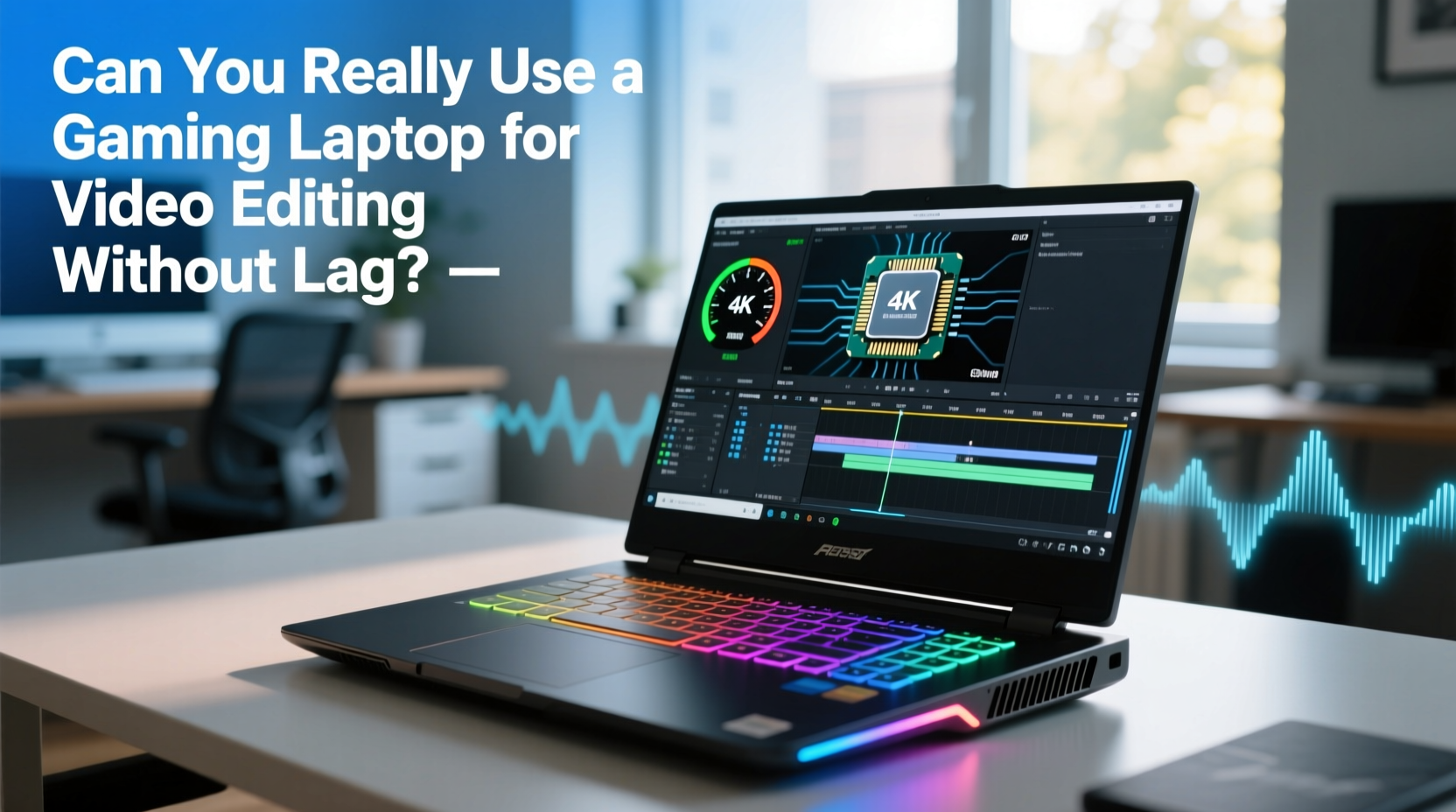
Gaming laptops typically come equipped with high-end processors such as Intel Core i7/i9 or AMD Ryzen 7/9 series chips. These CPUs offer multiple cores and threads, which directly benefit multitasking and parallel processing during timeline scrubbing, color grading, and encoding. Paired with dedicated graphics cards from NVIDIA’s RTX series (e.g., RTX 3060, 3070, 4070), they provide GPU acceleration essential for modern editing software.
Many video editing applications now leverage CUDA (NVIDIA) or OpenCL (AMD) to offload rendering tasks to the GPU. This means effects like motion blur, noise reduction, and H.265 decoding run significantly faster when supported by a capable discrete GPU—something most gaming laptops deliver out of the box.
RAM capacity is another critical factor. Most mid-to-high-end gaming laptops ship with at least 16GB of DDR4 or DDR5 RAM, while premium models offer 32GB or more. For editing 1080p or even 4K footage, especially with layered compositions, 32GB ensures smoother playback and reduces reliance on disk-based virtual memory, which can slow down performance.
Thermal Throttling: The Hidden Enemy of Sustained Performance
One of the biggest misconceptions about gaming laptops is that peak benchmark performance reflects real-world usage. In reality, compact chassis with aggressive cooling solutions often struggle to maintain maximum clock speeds over extended periods. During long editing sessions, CPUs and GPUs generate significant heat. If not properly dissipated, this leads to thermal throttling—where the processor automatically reduces its speed to prevent overheating.
This phenomenon can result in inconsistent timeline responsiveness, delayed effect previews, and longer export times than expected based on specs. A laptop might perform well during a five-minute test render but falter during a two-hour session due to degraded cooling efficiency.
To mitigate this, look for models with robust cooling systems: multiple heat pipes, vapor chamber designs, and efficient fan layouts. Brands like ASUS ROG, Lenovo Legion, and MSI have made strides in balancing performance with thermals. Additionally, using your laptop on a hard, flat surface—and ideally with an external cooling pad—can improve airflow and reduce throttling risks.
“Just because a laptop has an RTX 4070 doesn’t mean it will sustain that performance in DaVinci Resolve for hours. Thermal design matters as much as raw specs.” — Jordan Lee, Senior Video Engineer at FrameLab Studios
Storage Speed and Configuration Matter More Than You Think
Video editing is highly dependent on storage read/write speeds. Working with large media files—especially 4K, 6K, or RAW footage—requires fast access to data. Many gaming laptops include NVMe SSDs, which offer excellent sequential and random read speeds compared to older SATA drives. However, not all NVMe drives are created equal.
Entry-level gaming laptops may use slower PCIe Gen3 SSDs, while higher-end models feature PCIe Gen4 or even Gen5 drives. The difference impacts project loading times, cache performance, and overall system responsiveness. For example, scrubbing through a 10-minute 4K timeline feels fluid on a Gen4 SSD but may exhibit stutter on a lower-tier drive.
Equally important is drive configuration. Editors benefit greatly from separating operating system, application, project files, and media caches across different drives. Some gaming laptops support dual SSD slots, allowing users to install a secondary drive specifically for media scratch disks—an effective way to minimize lag during playback.
| Storage Type | Read Speed (Approx.) | Suitability for Video Editing |
|---|---|---|
| SATA III SSD | 550 MB/s | Fair – acceptable for 1080p, not ideal for 4K+ |
| PCIe Gen3 NVMe | 2,200–3,500 MB/s | Good – handles most 4K workflows |
| PCIe Gen4 NVMe | 5,000–7,000 MB/s | Excellent – optimal for high-bitrate formats |
| PCIe Gen5 NVMe | 10,000+ MB/s | Outstanding – future-proof for 8K editing |
Software Optimization: Not All Apps Treat Gaming Hardware Equally
Even with top-tier hardware, software compatibility plays a crucial role in determining whether a gaming laptop runs video editing apps smoothly. Applications like Adobe Premiere Pro, DaVinci Resolve, and Sony Vegas are optimized to utilize both CPU and GPU resources effectively—especially when configured correctly.
For instance, enabling Mercury Playback Engine (GPU Accelerated) in Premiere Pro leverages the NVIDIA GPU for real-time playback and effects rendering. Similarly, DaVinci Resolve relies heavily on GPU VRAM for color processing and Fusion compositing. If your gaming laptop has sufficient VRAM (8GB or more), complex timelines remain responsive.
However, poorly optimized third-party plugins or outdated drivers can introduce instability. Always ensure your graphics drivers are up to date and tailored for creative workloads. NVIDIA offers Studio Drivers alongside their standard Game Ready versions—these are specifically tested for stability in professional applications and often yield better results in editing environments.
Real-World Example: Editing 4K Footage on a Mid-Range Gaming Laptop
Consider a freelance editor named Maya who uses a three-year-old ASUS TUF Gaming A15 with a Ryzen 7 5800H, RTX 3060 (6GB VRAM), 32GB RAM, and a 1TB PCIe Gen3 SSD. She regularly edits travel vlogs shot in 4K at 30fps using H.265 compression.
Initially, she experienced lag when applying Lumetri Color adjustments and transitions. After investigating, she realized her project settings weren't optimized. By creating proxy files in Premiere Pro and moving her cache to a secondary external SSD, playback became smooth. She also updated to NVIDIA Studio Drivers and disabled unnecessary background apps.
While the laptop lacks the latest Gen4 storage or 8GB+ VRAM, smart workflow adjustments allowed her to edit efficiently without upgrading hardware. This case illustrates that success isn't just about specs—it's about aligning tools, settings, and habits to match the machine’s capabilities.
Step-by-Step Guide to Optimizing Your Gaming Laptop for Lag-Free Editing
Maximizing your gaming laptop’s potential for video editing requires deliberate setup and maintenance. Follow this sequence to minimize lag and enhance performance:
- Update System Drivers: Install the latest chipset, audio, network, and especially GPU drivers. Prefer NVIDIA Studio Drivers over Game Ready for creative work.
- Configure Power Settings: Set Windows Power Plan to “High Performance” or “Ultimate Performance” to prevent CPU throttling during intensive tasks.
- Enable GPU Acceleration: In your editing software (e.g., Premiere Pro Preferences > General > Renderer), select “CUDA” or “Metal” depending on your GPU.
- Use Proxy Files for High-Resolution Media: Generate lower-resolution copies of 4K/6K clips for smoother scrubbing. Reconnect to originals before export.
- Separate Cache and Media Drives: If possible, dedicate one SSD for OS/apps, another for project files, and a third (internal or external) for media cache.
- Close Background Applications: Disable startup bloatware, RGB control panels, and non-essential services consuming CPU or RAM.
- Monitor Temperatures: Use tools like HWInfo or MSI Afterburner to check CPU/GPU temps. Sustained temps above 90°C indicate cooling issues.
- Regular Maintenance: Clean dust from vents every 3–6 months and reapply thermal paste annually for consistent thermal performance.
Checklist: Is Your Gaming Laptop Ready for Professional Editing?
- ✅ CPU: Intel i7/i9 or AMD Ryzen 7/9 (or higher)
- ✅ GPU: NVIDIA RTX 3060 or better with at least 6GB VRAM
- ✅ RAM: 32GB recommended; 16GB minimum for 1080p work
- ✅ Storage: At least 1TB NVMe SSD (PCIe Gen3 or newer)
- ✅ Cooling: Verified low thermal throttling under load
- ✅ Drivers: Updated to latest Studio or production-ready versions
- ✅ Software: Properly configured for GPU acceleration and proxy workflows
Frequently Asked Questions
Can a gaming laptop handle 4K video editing smoothly?
Yes, provided it has a modern multi-core CPU, a dedicated GPU with at least 6GB VRAM, 32GB RAM, and a fast NVMe SSD. With proper optimization—including proxy editing and updated drivers—most mid-to-high-end gaming laptops can edit 4K footage without noticeable lag.
Do I need a workstation laptop instead of a gaming model?
Not necessarily. Workstation laptops (like Dell Precision or HP ZBook) offer certified drivers and superior build longevity, but they come at a premium. For many independent creators and small studios, a well-chosen gaming laptop delivers comparable performance at a lower cost—especially when optimized for creative workflows.
Why does my gaming laptop lag when previewing effects?
Lag during previews usually stems from insufficient GPU VRAM, outdated drivers, or lack of proxy files. Ensure your editing software is set to use GPU acceleration, update to Studio Drivers, and consider generating lower-resolution proxies for complex timelines.
Conclusion: Yes, You Can—But Smart Setup Is Key
A gaming laptop can absolutely serve as a powerful tool for video editing without lag—if chosen and configured wisely. Its high-performance components give it a natural edge over consumer-grade machines. However, unlocking that potential requires attention to thermal design, storage speed, driver selection, and software settings.
Instead of treating it solely as a gaming device, reframe your approach: optimize it as a mobile workstation. Update drivers, manage heat, use proxy workflows, and separate storage functions. With these steps, even a mid-tier gaming laptop can deliver professional-grade editing experiences.




 浙公网安备
33010002000092号
浙公网安备
33010002000092号 浙B2-20120091-4
Comments
No comments yet. Why don't you start the discussion?