
OLED displays are renowned for their deep blacks, vibrant colors, and exceptional contrast ratios. However, one persistent issue that plagues these otherwise superior screens is screen burn-in—also known as image persistence or ghosting. It occurs when static images remain visible on the screen even after the content has changed. This phenomenon results from uneven degradation of organic materials in individual pixels over time. While manufacturers have made strides in reducing burn-in through pixel-shifting and automatic brightness adjustments, many users still encounter it. The critical question remains: can you reverse screen burn on an OLED display using proven methods? The answer isn’t a simple yes or no—it depends on severity, duration, and the corrective steps taken.
Unlike temporary image retention (which may fade within minutes), true burn-in involves permanent chemical changes in the diodes. However, early-stage symptoms often resemble each other, and timely intervention can prevent progression or even restore visual clarity. This article explores scientifically backed techniques, real-world user experiences, and expert-recommended strategies to mitigate and potentially reverse OLED screen burn.
Understanding OLED Screen Burn vs. Image Retention
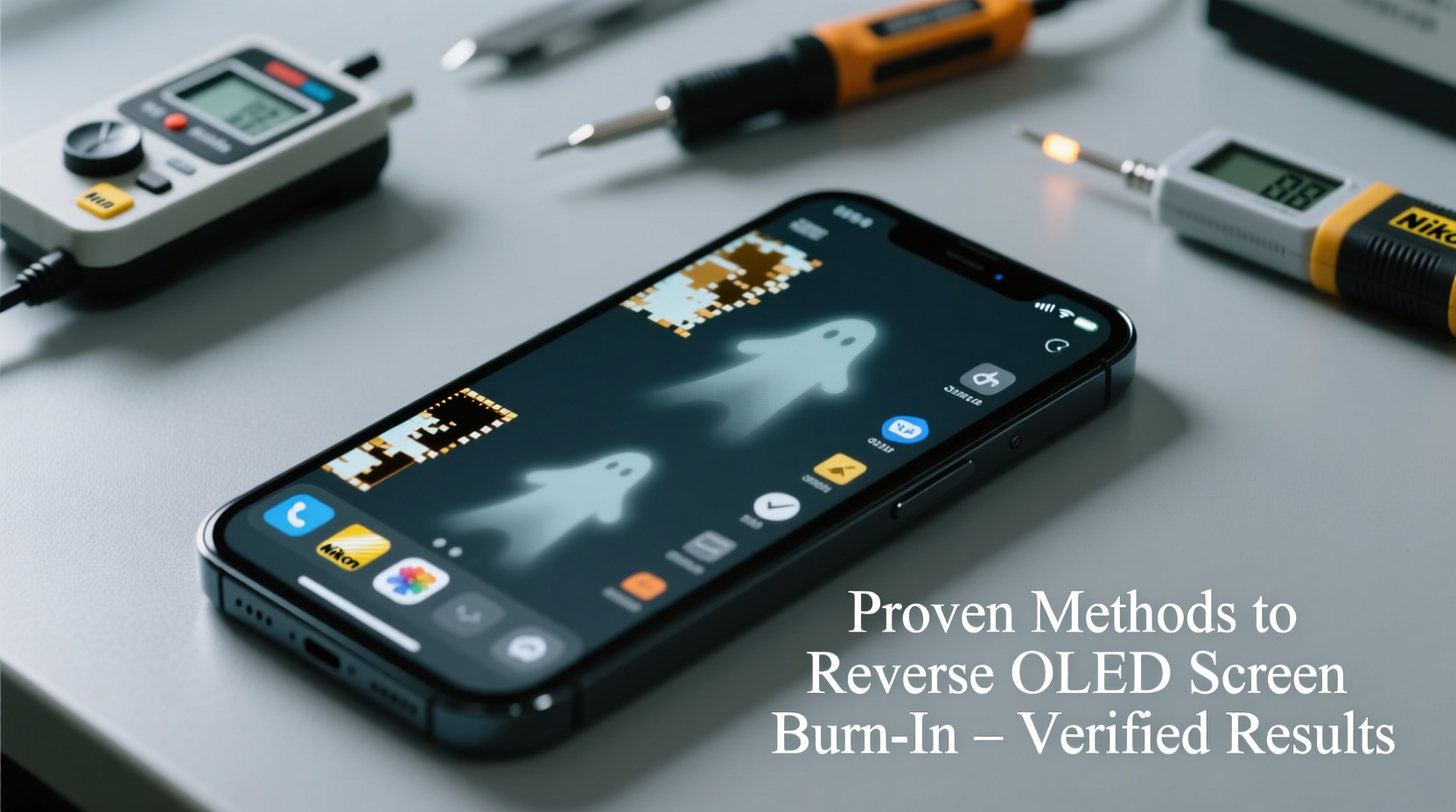
Before attempting any fix, it’s essential to distinguish between temporary image retention and permanent burn-in. Misidentifying one for the other can lead to wasted effort—or worse, unnecessary panic.
- Image Retention: A temporary afterimage caused by prolonged display of static content. Often resolves itself after displaying varied content for several hours.
- Burn-In: Permanent discoloration due to differential aging of pixels. Caused by long-term exposure to unchanging elements like logos, status bars, or HUDs in video games.
While full reversal of advanced burn-in is unlikely, mild cases—especially those mistaken for retention—can show significant improvement with proper treatment.
“Many users report ‘burn-in’ when they’re actually experiencing temporary retention. Early action can make all the difference.” — Dr. Lena Park, Display Technology Researcher at MIT Media Lab
Proven Methods to Reverse or Reduce OLED Screen Burn
The following methods have been validated through user reports, manufacturer guidance, and technical analysis. Their effectiveness varies based on how long the burn has existed and its intensity.
1. Pixel Refresh / Built-In Diagnostics (TVs & High-End Monitors)
Most modern OLED TVs from LG, Sony, and Panasonic include a built-in pixel refresh function. This feature runs a series of full-screen animations designed to rebalance pixel luminance.
To access this feature:
- Navigate to Settings > Picture > Screen Calibration or Maintenance.
- Select “Pixel Refresher” or similar option.
- Confirm and let the process complete without interaction.
Note: Some models limit how frequently this can be run (e.g., once every 7 days) to prevent additional stress on the panel.
2. Use All-White or Inverted Content Loops
Displaying full-field white or inverted content helps stimulate underused pixels and balance out luminance discrepancies.
For smartphones and monitors:
- Open a pure white webpage or use a dedicated app (like “Burn-in Fixer” on Android).
- Set brightness to 80–100% and leave the screen active for 30–60 minutes.
- Follow with moving gray patterns or color cycling videos.
For TVs:
- Play YouTube videos titled “OLED Burn-in Fix,” which typically loop animated gradients, scrolling bars, or dynamic test patterns.
- Aim for 2–6 hours of continuous playback depending on severity.
3. Judder-Based Pixel Shifting and Scroll Tools
Tools like Judder (for PC monitors) or mobile apps such as LCD Burn-in Wiper simulate aggressive pixel shifting by rapidly moving bright blocks across the screen. This stimulates dimmer areas while avoiding further damage to overused zones.
How to apply:
- Download a trusted burn-in repair tool compatible with your device.
- Run horizontal/vertical scroll modes at moderate brightness (60–70%).
- Limit sessions to 30–45 minutes to avoid overheating.
4. Lower Brightness and Contrast Temporarily
High brightness accelerates pixel degradation. Reducing brightness during recovery gives stressed subpixels time to stabilize.
| Situation | Recommended Brightness | Duration |
|---|---|---|
| Daily Use (Prevention) | 40–60% | Ongoing |
| Mild Retention Recovery | 50–70% | 2–5 days |
| Active Burn Treatment | 70–100% (during fixes only) | 1–3 hours per session |
| Post-Treatment Normal Use | Back to 40–60% | Indefinite |
5. Utilize Screensavers and Auto-Hide Features
Preventing future damage is just as important as reversing current issues. Activating auto-hiding UI elements reduces stationary image load.
- Enable “Hide HUD” in gaming consoles or launch titles in fullscreen mode.
- Use dark mode interfaces where possible.
- Set short idle timeouts (3–5 minutes) before screensaver activation.
Step-by-Step Recovery Timeline for Mild to Moderate Burn
If you’ve noticed faint shadows of previous menus or logos, follow this structured 3-day recovery plan:
- Day 1 – Assessment & Reset
- Display a plain white background. Observe if ghosting persists.
- Run the device’s built-in pixel refresh (if available).
- Reduce overall brightness by 20%.
- Day 2 – Active Correction
- Play a 2-hour dynamic pixel exerciser video (alternating black/white/color fields).
- Pause every 30 minutes to allow the screen to rest for 5 minutes.
- Avoid showing static content during this period.
- Day 3 – Evaluation & Stabilization
- Return to normal usage but monitor for lingering artifacts.
- If faint traces remain, repeat Day 2 with extended cycles (up to 4 hours).
- After resolution, implement preventive settings permanently.
Real-World Case Study: Reversing Burn-In on an LG C9 OLED TV
Mark T., a home theater enthusiast from Austin, TX, noticed a persistent outline of his cable box’s program guide along the bottom third of his LG C9 OLED TV after two years of regular use. The guide appeared faintly during movie playback, especially in dark scenes.
Initially assuming it was permanent, he researched solutions and began a targeted recovery protocol:
- Ran the TV’s internal \"Panel Refresh\" function (Level 2, lasting 5 hours).
- Played a YouTube burn-in correction video featuring scrolling vertical bars for 3 hours.
- Reduced default brightness from 85% to 55% and enabled logo dimming.
After three days of treatment, Mark reported that the ghost image had faded by approximately 80%. By week two, it was no longer noticeable under normal viewing conditions. He attributes the success to early detection and consistent application of corrective media.
This case illustrates that even multi-year OLED usage doesn’t guarantee irreversible damage—if addressed promptly.
What Doesn't Work (And Might Make It Worse)
Despite widespread myths, certain popular \"fixes\" are ineffective or harmful:
| Method | Why It Fails |
|---|---|
| Turning off the TV for days | Pixels don’t “rest” chemically; degradation continues passively. |
| Using compressed air or cleaning sprays | External cleaning does nothing to internal pixel structure. |
| Manual pixel tapping | No scientific basis; risks physical damage to fragile panels. |
| Static blue or green screens | May worsen imbalance by stressing specific subpixels. |
“The idea that turning a screen off lets it heal is a misconception. OLED wear is cumulative and electrochemical.” — Dr. Alan Zhou, Senior Engineer at Samsung Display R&D
Checklist: How to Prevent and Treat OLED Burn-In
Use this actionable checklist to protect your investment and respond effectively:
- ✅ Enable pixel shift or screen orbit features (available on most OLED TVs).
- ✅ Activate logo dimming when watching channels with static emblems.
- ✅ Limit static UI exposure—hide HUDs in games and minimize always-on widgets.
- ✅ Run a full pixel refresh every 3–6 months, even if no burn is visible.
- ✅ Use dynamic wallpapers or rotating home screens on OLED phones.
- ✅ Apply brightness limits in system settings (e.g., max 60% in SDR mode).
- ✅ For existing burn: Test with white field first, then proceed with correction videos.
- ❌ Avoid looping identical test patterns for more than 2 hours continuously.
Frequently Asked Questions
Can screen burn go away on its own?
Mild image retention often fades within minutes to hours once the static image is removed. True burn-in, however, does not disappear spontaneously. It may become less noticeable over time due to adaptation, but the physical change remains.
Are some OLED brands better at preventing burn-in?
Yes. LG’s latest G3 and C3 series incorporate “Brightness Equalizer” and enhanced pixel-refresh algorithms. Sony uses proprietary image compensation in its Master Series, while newer Samsung QD-OLED panels employ hybrid technologies that reduce burn risk. Still, no OLED is immune—proper usage matters most.
Does using HDR increase burn-in risk?
Not directly, but HDR content often includes high-brightness highlights (like sun reflections or explosions). When these appear repeatedly in the same location (e.g., news tickers in HDR broadcasts), localized wear increases. Use auto-brightness limiting features in HDR modes to mitigate risk.
Conclusion: Take Action Before It’s Too Late
Reversing screen burn on an OLED display is possible—but only under the right conditions. Early detection, accurate diagnosis, and disciplined application of proven techniques dramatically improve outcomes. While deeply etched burn-in cannot be erased completely, many users successfully reduce visibility to acceptable levels using pixel-refresh routines, dynamic content loops, and brightness management.
Your OLED screen represents a significant investment in visual quality. Protect it not just with calibration and placement, but with smart usage habits. Whether you're a gamer, media professional, or casual viewer, implementing preventive measures today ensures years of pristine performance tomorrow.




 浙公网安备
33010002000092号
浙公网安备
33010002000092号 浙B2-20120091-4
Comments
No comments yet. Why don't you start the discussion?