
Chromebooks were once seen as lightweight devices limited to web browsing and basic productivity. But with Google’s official support for Linux applications through Project Crostini, that perception has shifted dramatically. Thousands of users now leverage their Chromebooks for coding, system administration, and even machine learning—tasks traditionally reserved for full-fledged desktops. The question isn’t just whether you *can* run Linux on a Chromebook anymore; it’s whether doing so transforms your device into a capable development machine—and if the trade-offs are worth it.
The answer depends heavily on your needs, technical comfort level, and hardware. For students, developers, or tinkerers looking for an affordable yet flexible environment, enabling Linux may be one of the most impactful upgrades available. However, it's not without caveats: performance bottlenecks, limited driver access, and storage constraints can all affect usability.
How Linux Runs on Chromebooks: The Role of Crostini
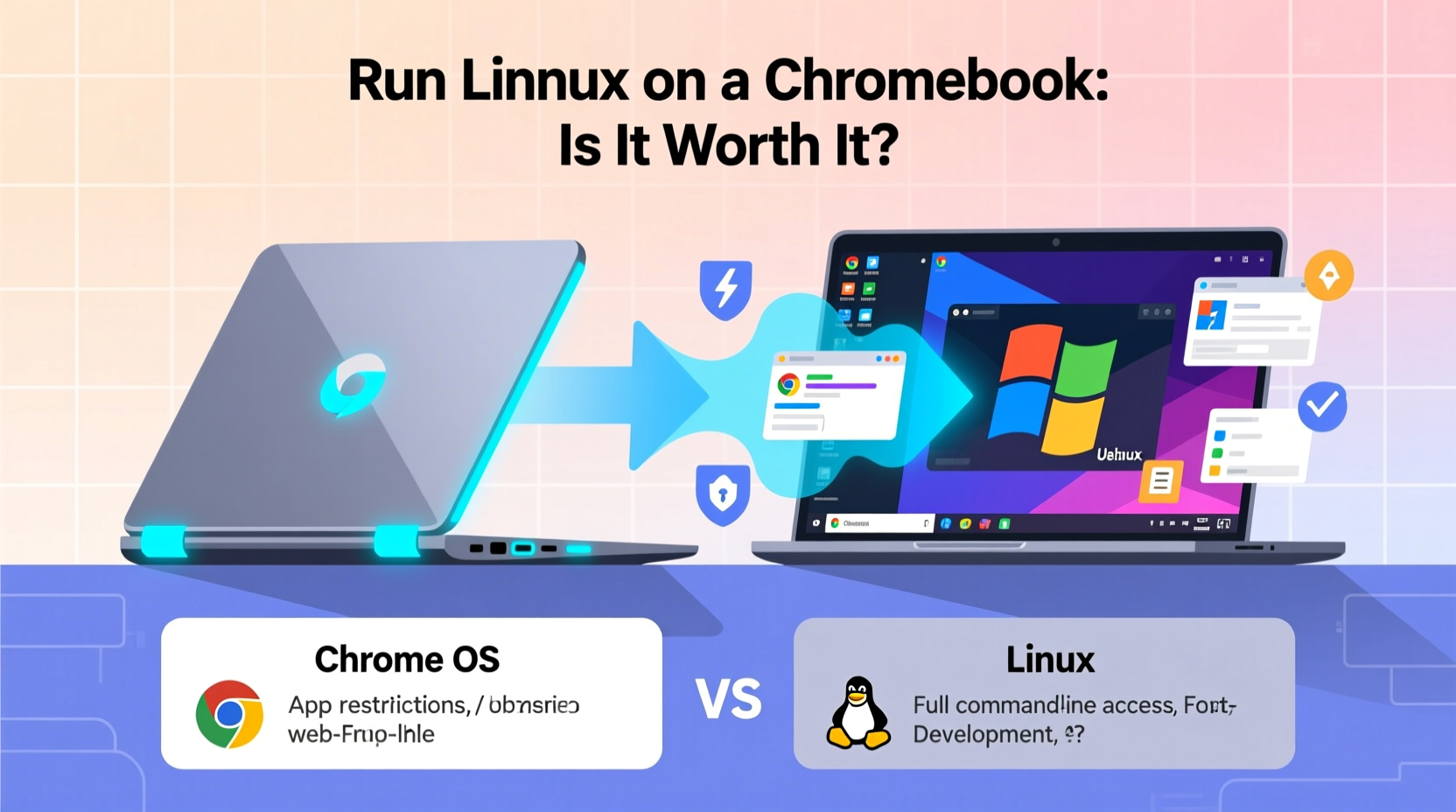
Starting in 2018, Google introduced Project Crostini—a secure, container-based method for running Linux apps directly within Chrome OS. Unlike early hacks involving developer mode and dual-booting, Crostini integrates seamlessly with the operating system. It uses a Debian-based Linux container (by default) running inside a virtual machine called Termina, which isolates the environment from the core OS for security.
This architecture allows users to install popular command-line tools like Git, Python, Node.js, and even GUI applications such as GIMP, VS Code, and LibreOffice—all without compromising system stability or automatic updates.
Crostini works out of the box on most mid-to-high-end Chromebooks released after 2019. Devices based on Intel or AMD processors generally offer better compatibility than ARM-based models, particularly when using software that hasn't been compiled for ARM64.
Step-by-Step Guide to Enabling Linux on Your Chromebook
Activating Linux doesn't require complex terminal commands or risky modifications. Here's how to do it safely through the built-in settings:
- Open Settings – Click the system tray (bottom-right corner), then the gear icon.
- Navigate to \"Advanced\" > \"Developers\" > \"Linux development environment\".
- Click \"Turn On\" – This triggers a download of the necessary components (~300–500MB).
- Follow the Setup Wizard – You'll be prompted to set up a username and allocate disk space (default: 1GB, expandable later).
- Launch the Terminal App – Once complete, a new app named \"Terminal\" appears in your launcher.
From here, you're inside a Debian 11 (or newer) container. Use standard APT commands to install packages:
sudo apt update && sudo apt install python3 pip git
Files created in the Linux environment appear under the \"Linux Files\" section in the Chrome OS Files app, enabling easy cross-platform file sharing.
What You Can (and Can’t) Do with Linux on ChromeOS
While Crostini unlocks significant functionality, it operates under intentional limitations designed to preserve Chromebook simplicity and security.
| Capability | Supported? | Notes |
|---|---|---|
| Install CLI tools (e.g., curl, ssh, rsync) | ✅ Yes | Fully functional; ideal for scripting and remote server management. |
| Run GUI applications (e.g., VS Code, GIMP) | ✅ Yes | Most X11/Wayland apps work but may feel sluggish on low-RAM devices. |
| Access USB devices (cameras, microcontrollers) | ⚠️ Partial | Requires manual configuration; not all devices are exposed by default. |
| Use Docker or systemd services | ❌ No (by default) | Possible via Crouton or custom VMs, but breaks security model. |
| Kernel-level programming or drivers | ❌ No | No root access to host kernel; containerized environment only. |
| GPU acceleration | ⚠️ Limited | Some OpenGL support exists, but CUDA/OpenCL are unavailable. |
For everyday coding, writing scripts, managing cloud infrastructure, or learning Linux fundamentals, the environment is more than sufficient. However, tasks requiring direct hardware control—like embedded systems development with Arduino or Raspberry Pi debugging—are often hindered by restricted I/O access.
Real Example: A Student Developer’s Workflow
Sophia, a computer science student at the University of Oregon, uses a $349 Acer Chromebook Spin 513 for her coursework. She enables Linux to run Python for data analysis projects and installs Jupyter Notebook via pip. Using the integrated terminal, she clones GitHub repositories, manages virtual environments, and compiles LaTeX documents for reports.
\"I was skeptical at first,\" Sophia says. \"But being able to write code, take notes in Google Docs, and attend Zoom lectures—all on one device—has made my workflow seamless. The only time I miss Windows is when I need MATLAB, which still won’t run natively.\"
Her experience reflects a growing trend: budget-conscious learners achieving near-desktop functionality without sacrificing portability or battery life.
Is It Worth Switching? Weighing the Pros and Cons
Adding Linux expands what your Chromebook can do—but it also introduces complexity. Consider these factors before deciding:
- Pros:
- Free access to thousands of open-source development tools.
- No need for a second machine or dual-boot setup.
- Secure sandboxing protects the main OS from misconfigurations.
- Ideal for learning Linux, bash scripting, or web development.
- Cons:
- Limited resources: Most Chromebooks have 4–8GB RAM; heavy IDEs can slow performance.
- No native support for Docker, making modern DevOps workflows difficult.
- Storage is constrained; the Linux container shares space with Android and Chrome apps.
- Some niche tools (e.g., Wireshark, certain kernel debuggers) either don’t work or require advanced tweaks.
“Crostini brings real utility to Chromebooks, especially for education and entry-level development. It won’t replace a MacBook Pro for serious software engineering, but it closes the gap significantly.” — Dr. Marcus Lin, Computer Science Educator and Chromebook Advocate
If your primary goals involve learning programming, automating tasks, or experimenting with open-source software, Linux on a Chromebook offers tremendous value. But if you rely on resource-heavy applications like video editing suites, Docker containers, or machine learning frameworks, even with GPU acceleration, you’ll likely hit hard limits.
When You Should (and Shouldn’t) Enable Linux
To help decide, consider this checklist based on common user profiles:
✅ Do Enable Linux If You:
- Write code in Python, JavaScript, Ruby, or Go.
- Need command-line access for networking, automation, or DevOps basics.
- Want to experiment with Linux without buying new hardware.
- Are a student or educator needing affordable, durable tech.
- Prefer lightweight environments over bloated desktops.
🚫 Avoid Linux (or Look Beyond Crostini) If You:
- Require Docker, Kubernetes, or full systemd support.
- Work extensively with low-level hardware (USB, GPIO, serial ports).
- Depend on proprietary software like Adobe Creative Suite or AutoCAD.
- Have a Chromebook with less than 4GB RAM or 32GB storage.
- Expect desktop-grade performance for intensive compilation tasks.
Frequently Asked Questions
Can I run any Linux distribution on my Chromebook?
Officially, Chrome OS supports only Debian within the Crostini container. However, advanced users can sideload other distros using tools like Crouton or manually configuring LXC/LXD containers. These methods require disabling OS verification (developer mode), which reduces security and voids warranties on some models.
Does enabling Linux slow down my Chromebook?
It can, depending on your hardware. On devices with 8GB RAM and a modern processor (e.g., Intel i3/i5, Ryzen C series), the impact is minimal. But on older or entry-level models (e.g., MediaTek MT8173, 4GB RAM), running multiple Linux GUI apps alongside Chrome tabs may lead to lag and thermal throttling.
Will enabling Linux erase my data?
No. The process is non-destructive and reversible. You can disable Linux at any time through Settings > Advanced > Developers, which removes the container and all its contents—but leaves your personal files intact.
Final Verdict: A Smart Upgrade for the Right User
Running Linux on a Chromebook is no longer a hack—it’s a supported, stable feature that adds meaningful flexibility. For writers, coders, students, and hobbyists, it transforms an inexpensive device into a capable tool for real work. The integration is smooth, the security robust, and the ecosystem rich with accessible tools.
However, it’s not a magic fix. Hardware limitations remain the biggest barrier. A Chromebook with 4GB RAM and a sluggish CPU will struggle regardless of software enhancements. Likewise, professionals dependent on specialized toolchains may find themselves hitting walls where a traditional laptop wouldn’t.
The true value lies in alignment: if your computing needs center around text, terminals, and lightweight applications, then yes—switching to Linux on your Chromebook is absolutely worth it. You gain a portable, efficient, and surprisingly powerful environment that challenges outdated assumptions about what these devices can do.




 浙公网安备
33010002000092号
浙公网安备
33010002000092号 浙B2-20120091-4
Comments
No comments yet. Why don't you start the discussion?