
Running macOS on non-Apple hardware has long been a topic of fascination and controversy. Many users wonder if it’s possible to install Apple’s operating system on a standard Windows PC — whether for curiosity, cost savings, or access to macOS-exclusive software like Final Cut Pro or Xcode. While the short answer is “technically possible,” the full picture involves navigating complex legal restrictions, significant technical hurdles, and potential security risks.
This article examines both the legal framework established by Apple and the real-world technical feasibility of installing macOS on non-Apple hardware. It also explores safer, compliant alternatives that deliver similar functionality without violating licensing agreements.
Understanding Apple’s Licensing Restrictions
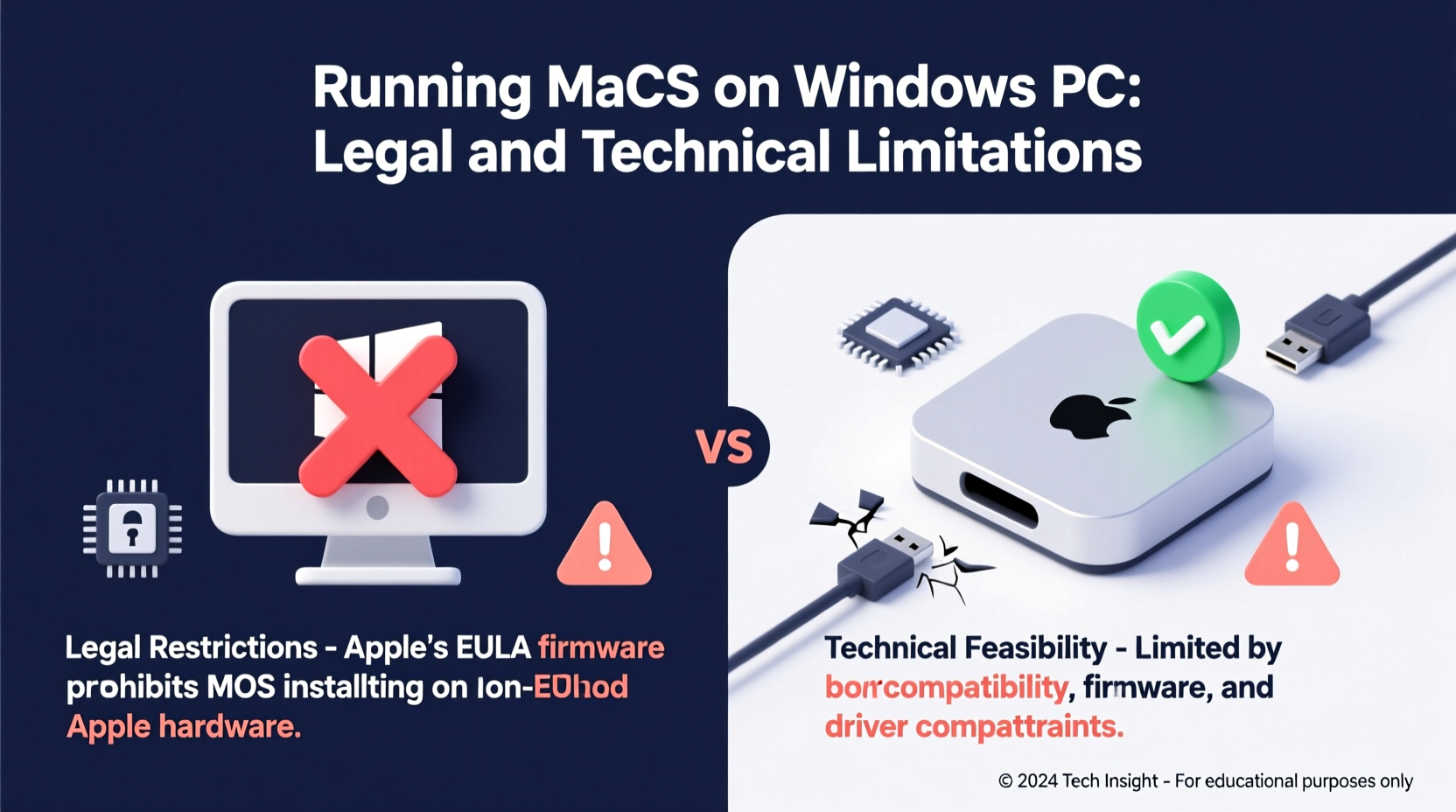
The legality of running macOS on non-Apple hardware hinges on one key document: the macOS End User License Agreement (EULA). This legally binding contract governs how users can install and use Apple’s operating system.
According to Apple’s EULA, macOS may only be installed on Apple-branded computers. Specifically, Section 2B of the agreement states:
“…you may install, use and run one (1) copy of the Apple Software on a single Apple-branded computer at a time.”
This means that even if you own a legitimate copy of macOS, installing it on a Windows PC — commonly referred to as creating a “Hackintosh” — violates Apple’s licensing terms. While Apple rarely pursues individual users legally, the act remains a breach of contract.
Moreover, distributing modified versions of macOS or tools designed specifically to bypass activation checks (such as certain bootloaders or kernel extensions) may also infringe on copyright law under the Digital Millennium Copyright Act (DMCA), particularly if encryption or digital rights management (DRM) protections are circumvented.
Technical Challenges of Running macOS on Non-Apple Hardware
While some technically skilled users have successfully built PCs capable of running macOS, the process is far from plug-and-play. Unlike Windows or Linux, macOS is tightly integrated with Apple’s proprietary hardware architecture, firmware, and drivers.
Here are the primary technical obstacles:
- Lack of native drivers: macOS does not include built-in support for most consumer-grade PC components such as network cards, GPUs, audio chipsets, or Wi-Fi adapters from brands like Intel, Realtek, or NVIDIA.
- Firmware incompatibility: Apple uses Unified Extensible Firmware Interface (UEFI) in a specific configuration. Many PCs use legacy BIOS or non-standard UEFI implementations that require patching.
- Secure Boot & SIP conflicts: System Integrity Protection (SIP) and Secure Boot features often block unauthorized modifications needed to get macOS running.
- Activation and updates: macOS may fail to activate or receive future updates due to missing Apple-specific identifiers (like ROM, MLB, or UUID).
- Performance instability: Even when functional, systems may suffer from crashes, sleep mode failures, or poor battery management (on laptops).
To overcome these issues, users typically rely on community-developed tools such as OpenCore or Clover — open-source bootloaders that emulate Apple’s boot environment. However, configuring them requires deep knowledge of system firmware, ACPI tables, and kernel patching.
Hardware Compatibility Is Extremely Limited
Not all PC components work with macOS. For example:
| Component | Compatible? | Notes |
|---|---|---|
| Intel CPUs (8th–10th Gen) | ✅ Yes (with patches) | Newer AMD or 11th+ Gen Intel chips face major compatibility issues. |
| AMD Ryzen Processors | ⚠️ Partial | Unofficial support exists but lacks stability and full feature parity. |
| NVIDIA Graphics Cards | ❌ No (modern) | Only older Kepler-series GPUs have limited driver support. |
| Realtek Audio | ⚠️ Patched only | Requires third-party kexts; prone to glitches. |
| Wi-Fi/Bluetooth (Non-Apple) | ❌ No native | Users must replace cards with Broadcom-based models used in Macs. |
In practice, building a Hackintosh often ends up costing more than buying a used Mac due to the need for compatible parts and potential trial-and-error replacements.
Mini Case Study: A DIY Enthusiast’s Journey
Mark, a video editor from Toronto, wanted to run Final Cut Pro without purchasing a new MacBook Pro. He built a custom PC using an Intel i7-9700K, ASUS Z390 motherboard, and AMD Radeon RX 570 — all common in gaming builds. After weeks of research, he installed macOS Catalina using OpenCore.
Initial boot succeeded, but Wi-Fi didn’t work, audio was distorted, and sleep mode crashed the system. He replaced his Wi-Fi card with a Broadcom BCM94360CD and reconfigured ACPI tables to fix CPU power management. The system eventually became stable enough for light editing.
However, when macOS Big Sur released, the update failed due to kernel extension signing requirements. Mark spent another week troubleshooting before giving up. Frustrated, he sold his components at a loss and bought a refurbished Mac mini instead — which worked flawlessly out of the box.
His experience reflects a common outcome: the time, effort, and hidden costs often outweigh the initial savings.
Legal vs. Ethical Considerations
While Apple’s EULA clearly prohibits installing macOS on non-Apple hardware, enforcement is rare. There is no known case of Apple suing an individual Hackintosh user. However, companies that build and sell pre-configured Hackintosh systems — such as Psystar in the late 2000s — have faced swift legal action.
“The concept of interoperability is important, but it doesn’t override explicit contractual terms.” — James Chen, Technology Law Analyst at Stanford CIS
From an ethical standpoint, some argue that owning a copy of macOS should allow installation on any hardware you own. Others counter that Apple’s tight integration between software and hardware enables superior performance and security — benefits funded by hardware sales.
Ultimately, choosing to create a Hackintosh involves accepting both legal risk and technical uncertainty.
Safer and Legal Alternatives to Running macOS on Windows PCs
For users who need access to macOS environments without violating licensing terms, several compliant options exist.
1. Use Apple’s Official Virtualization Tools
With the release of macOS Ventura and later versions, Apple now permits virtualization of macOS on Apple Silicon Macs via tools like Parallels Desktop and UTM. However, this license still restricts virtualization to Apple-branded hardware.
You cannot legally virtualize macOS on a Windows PC — even using VMware or VirtualBox — under current terms.
2. Rent Cloud-Based Macs
Solutions like MacStadium, AWS EC2 Mac Instances, or CloudMyMac offer remote access to real Mac hardware hosted in data centers. You pay hourly or monthly for usage, gaining full access to macOS without owning physical hardware.
This is ideal for developers needing to test iOS apps or run Xcode in a CI/CD pipeline.
3. Dual-Boot with a Genuine Mac
If you own a Mac (even an older model), you can use Boot Camp to run Windows alongside macOS. This is fully supported and legal. Some users maintain an old Mac solely for macOS tasks while using a powerful Windows PC for gaming or other applications.
4. Cross-Platform Software Substitutes
Many macOS-exclusive applications have Windows equivalents:
- Final Cut Pro → DaVinci Resolve or Adobe Premiere Pro
- Xcode → Visual Studio with Xamarin or Android Studio
- GarageBand → Cakewalk by BandLab or Audacity
- Preview PDF editing → PDF-XChange Editor or Adobe Acrobat Reader DC
These tools provide comparable functionality and are actively developed for Windows.
Step-by-Step Guide: Evaluating Your Options
Follow this decision timeline to determine the best path forward:
- Define your purpose: Why do you need macOS? Is it for development, design, or personal use?
- Check software availability: Can your required apps run on Windows via alternatives or emulation?
- Assess budget: Would a used Mac (e.g., Mac mini, MacBook Air) cost less than the time and parts needed for a Hackintosh?
- Consider cloud solutions: Are you comfortable accessing a remote Mac over the internet?
- Evaluate technical skill: Do you have experience with low-level system configuration and troubleshooting?
- Accept the risks: If proceeding with a Hackintosh, understand that future updates may break functionality and support will be community-only.
FAQ
Is it illegal to run macOS on a PC?
Yes, according to Apple’s End User License Agreement (EULA), macOS can only be installed on Apple-branded hardware. Doing otherwise violates the license, though individuals are rarely targeted legally.
Can I virtualize macOS on my Windows PC using VMware?
No, not legally. While technically possible with patches and workarounds, Apple’s licensing explicitly prohibits running macOS in a virtual machine on non-Apple hardware.
Are Hackintoshes safe to use?
They can be, but come with risks: system instability, lack of updates, potential hardware damage from improper power management, and exposure to unverified third-party code. Security patches may be delayed or unavailable.
Conclusion
While it is technically feasible to run macOS on a Windows PC through methods like Hackintosh builds, the practice sits firmly outside the bounds of Apple’s licensing agreement. The technical complexity, hardware limitations, and long-term maintenance burden make it impractical for most users. Moreover, safer, legal alternatives — including cloud-based Mac rentals, cross-platform software, and affordable used Mac hardware — often provide better value and reliability.
Rather than circumventing restrictions, consider aligning your workflow with compliant solutions that respect intellectual property and deliver consistent performance. Investing in the right tool for the job pays dividends in productivity, peace of mind, and system longevity.




 浙公网安备
33010002000092号
浙公网安备
33010002000092号 浙B2-20120091-4
Comments
No comments yet. Why don't you start the discussion?