
In 2025, Chromebooks have evolved significantly. With improved processors, increased RAM availability, and expanded app ecosystems, many users are asking whether these lightweight laptops can handle tasks once reserved for high-end desktops—like video editing. The short answer is yes, but with important caveats. Whether a Chromebook suits your editing needs depends on the complexity of your projects, your workflow, and your willingness to adapt.
While Chromebooks still aren’t ideal for professional 4K color-graded timelines or multi-cam productions, they’ve become surprisingly capable for casual, educational, and even semi-professional editing. This article breaks down what’s possible today, where the limitations lie, and how to get the most from your Chromebook if you're serious about creating videos on one.
Understanding Chromebook Capabilities in 2025
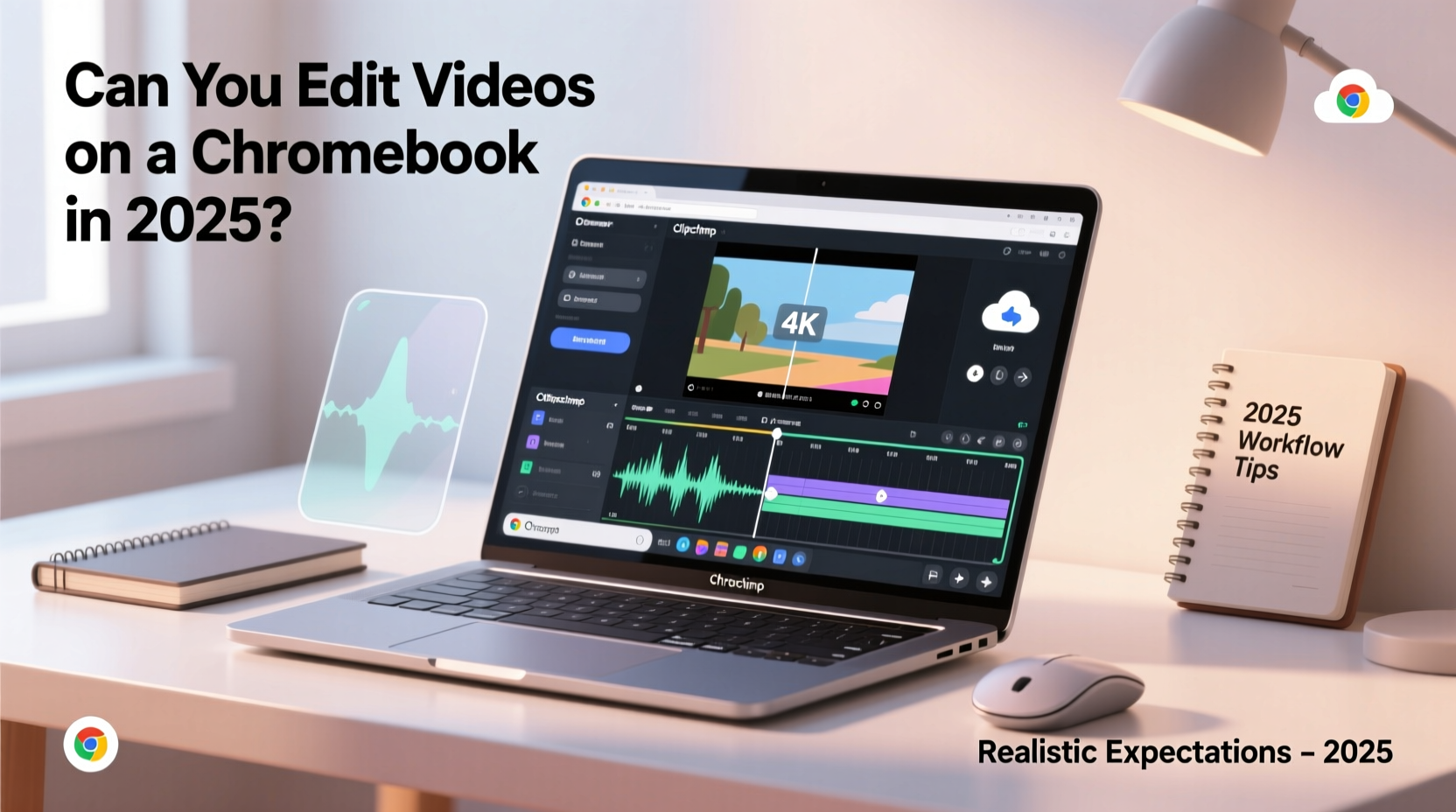
Modern Chromebooks no longer rely solely on web apps. Thanks to support for Android apps, Linux environments, and increasingly powerful hardware, their functionality has broadened dramatically. High-end models now feature Intel Core i3/i5 processors, up to 16GB of RAM, and solid-state storage—specs that rival entry-level Windows laptops.
However, Chrome OS remains optimized for efficiency, not raw performance. It excels at multitasking light applications, cloud-based workflows, and streaming—but intensive tasks like rendering high-resolution video push its boundaries. Most Chromebooks lack dedicated GPUs, which are essential for smooth playback and effects processing in demanding editing software.
The key to successful video editing on a Chromebook lies in managing expectations. Think of it as a tool for quick cuts, social media clips, vlogs, school projects, or YouTube shorts—not Hollywood-grade documentaries. If your goal is to edit 1080p footage with basic transitions, audio syncing, and subtitles, a modern Chromebook can absolutely deliver. But if you’re working with 4K RAW files, motion graphics, or complex compositing, you’ll hit performance walls quickly.
Available Video Editing Tools on Chromebooks
The ecosystem of editing tools on Chromebooks has grown beyond simple web apps. Here’s a breakdown of what’s available and how each performs:
- WeVideo – A cloud-based editor with drag-and-drop functionality. Offers multi-track editing, green screen effects, and royalty-free music. Best suited for students and content creators doing light editing. Requires a stable internet connection and subscription for full features.
- Clipchamp – Acquired by Microsoft, Clipchamp is now accessible via browser on Chromebooks. Includes templates, voiceovers, and stock assets. Performance varies based on upload speed and file size, but it handles 1080p well on mid-tier devices.
- KineMaster (Android) – A mobile-first app available on supported Chromebooks via Google Play. Excellent for vertical video editing (TikTok, Reels). Supports layers, blending modes, and real-time preview. Lags slightly on longer timelines.
- DaVinci Resolve (Linux via Crostini) – Possible to install on select Chromebooks with Linux enabled. However, due to lack of GPU acceleration and limited RAM, performance is extremely slow—even with 1080p files. Not recommended for regular use.
- Canva Video Editor – Simpler than dedicated NLEs, but effective for quick social posts. Great for combining text, images, and short clips with animations.
No native Chrome app matches the power of Adobe Premiere Pro or Final Cut Pro. But for streamlined workflows, these tools offer enough functionality to produce polished content without leaving the device.
Hardware Requirements for Smooth Editing
Not all Chromebooks are created equal. To ensure a usable editing experience, certain hardware thresholds should be met. Below is a comparison of recommended specs versus minimum acceptable levels:
| Component | Minimum Viable | Recommended for 2025 Use |
|---|---|---|
| CPU | Intel Celeron N4500 / MediaTek Kompanio 520 | Intel Core i3-1215U / AMD Ryzen 3 C50 |
| RAM | 4GB | 8GB (16GB preferred) |
| Storage | 64GB eMMC | 128GB+ SSD (NVMe if possible) |
| Display | 1080p TN panel | 1080p IPS or OLED (for accurate color) |
| OS Features | Android & Linux support (optional) | Full Android + Linux with hardware acceleration |
Chromebooks below the minimum spec will struggle with anything beyond 720p editing. Even rendering a two-minute clip may take several minutes. Devices meeting the recommended specs can handle 1080p timelines with moderate effects, provided files are optimized beforehand.
“Editing isn’t just about software—it’s about system responsiveness. On lower-end Chromebooks, every scrub of the timeline feels like wading through mud.” — Jordan Lee, Digital Media Instructor at Austin Tech Academy
Workflow Optimizations for Chromebook Editors
To maximize productivity, adopt a lean editing workflow tailored to Chromebook limitations. Follow this step-by-step approach:
- Shoot in optimized formats: Record in H.264 at 1080p rather than high-bitrate codecs. Avoid HEVC unless your model supports hardware decoding.
- Transcode before importing: Use a phone or another device to convert 4K or RAW files to 1080p proxies. Smaller files reduce lag during playback.
- Edit in the cloud: Store project files in Google Drive or Dropbox. Use WeVideo or Clipchamp, which auto-save progress and allow collaboration.
- Use external storage: Connect a USB-C SSD to offload media. Prevents filling internal storage and improves read speeds.
- Export in stages: Preview exports at lower resolution first. Once satisfied, render final versions overnight if needed.
- Leverage AI tools: Use built-in features like auto-captioning, noise removal, and smart trimming to reduce manual work.
Avoid keeping large media libraries on the device. Chromebooks typically have limited local storage, and fragmented drives slow down app responsiveness. Instead, stream footage directly from cloud storage or an external drive when editing.
Real-World Example: A Student Vlogger’s Setup
Meet Maya, a college student producing weekly vlogs for her sustainability channel. She uses a $450 Acer Chromebook Enterprise CX5 with 8GB RAM and a Core i3 processor. Her workflow illustrates what’s realistically achievable:
- Records primary footage on her iPhone in 1080p.
- Edits using KineMaster (Android version) installed on her Chromebook.
- Stores raw clips on a 512GB SanDisk USB-C drive.
- Uses Canva to create thumbnails and overlays.
- Exports videos at 1080p30 and uploads directly to YouTube via Wi-Fi.
Maya reports minor lag when applying multiple filters but says the setup works well for her needs. She avoids long timelines (keeps videos under 5 minutes), doesn’t use multicam angles, and relies on natural lighting to minimize post-production color correction. Her total production time averages 90 minutes per episode—slower than on a MacBook, but feasible.
This case highlights a critical truth: success on a Chromebook isn’t about replicating desktop workflows, but redefining them for efficiency and simplicity.
Limitations You Can’t Work Around
Despite improvements, some barriers remain firm in 2025:
- No GPU acceleration: Most Chromebooks lack discrete graphics, making real-time effects, stabilization, and 4K scrubbing impractical.
- Thermal throttling: Sustained workloads cause fans to spin and CPUs to downclock, leading to inconsistent performance.
- Limited offline capability: Cloud-based editors require internet access. If your connection drops mid-edit, unsaved changes may be lost.
- No plugin support: Extensions for audio mastering, visual effects, or advanced color grading aren’t available on Chromebook-compatible apps.
- Audio editing constraints: Multi-track audio mixing, noise reduction, and voice leveling are rudimentary at best.
If your work demands precise color wheels, motion tracking, or integration with After Effects, a Chromebook won’t suffice. These are not temporary gaps—they stem from fundamental architectural choices in Chrome OS design.
Frequently Asked Questions
Can I edit 4K video on a Chromebook?
Technically, yes—if the device supports 4K display and decoding. However, editing 4K footage is sluggish even on high-end models. Most users report choppy playback and long export times. For practical purposes, downscale to 1080p before editing.
Is DaVinci Resolve usable on a Chromebook?
Only in theory. While you can install it via Linux (Crostini), performance is severely hampered by lack of GPU drivers and low memory bandwidth. Simple corrections might work, but expect crashes and unresponsiveness. Not viable for serious color grading.
Do Chromebooks support external monitors for editing?
Yes, most modern Chromebooks support external displays via HDMI or USB-C. Using a second screen helps organize timelines and preview windows. Just ensure your model outputs at least 4K@30Hz for clarity.
Action Checklist: Getting Started with Video Editing on Your Chromebook
Follow this checklist to set up an efficient, frustration-free editing environment:
- ✅ Confirm your Chromebook supports Android and/or Linux apps
- ✅ Install a capable editor (WeVideo, Clipchamp, or KineMaster)
- ✅ Connect an external SSD for media storage
- ✅ Organize clips into dated folders with clear naming
- ✅ Test a short project end-to-end before starting larger ones
- ✅ Enable offline mode in your editor if available
- ✅ Back up completed videos to cloud storage immediately
Final Thoughts: Realistic Expectations for 2025 and Beyond
Using a Chromebook for video editing in 2025 is entirely possible—if you align your ambitions with the device’s strengths. It shines in accessibility, portability, and ease of use, making it ideal for learners, educators, bloggers, and social media creators. But it does not replace a workstation.
The future looks promising. With Google investing in better Linux integration, ARM-based chips improving efficiency, and web-based editors adopting WebAssembly for faster performance, Chromebooks may eventually handle more complex workflows. For now, though, treat them as capable companions, not primary editing rigs.
If you're on a budget, repurposing an old Chromebook for drafting storyboards or assembling rough cuts is smart. Students can complete assignments without needing expensive gear. Casual creators can maintain consistent output without lugging around heavy laptops.




 浙公网安备
33010002000092号
浙公网安备
33010002000092号 浙B2-20120091-4
Comments
No comments yet. Why don't you start the discussion?