
Many people assume that gaming mice are built exclusively for intense sessions of first-person shooters or real-time strategy games. With their high DPI sensors, customizable buttons, and flashy RGB lighting, they seem over-engineered for routine office work, web browsing, or document editing. But is that really the case? Can you comfortably—and efficiently—use a gaming mouse for everyday computer tasks without experiencing slowdowns, discomfort, or unnecessary complexity?
The short answer is yes. A gaming mouse can be used effectively for daily computing with no performance penalties. In fact, many users find that the precision, ergonomics, and programmable features enhance productivity. However, there are trade-offs to consider depending on your workflow, hand size, and personal preferences.
Understanding Gaming Mouse Technology
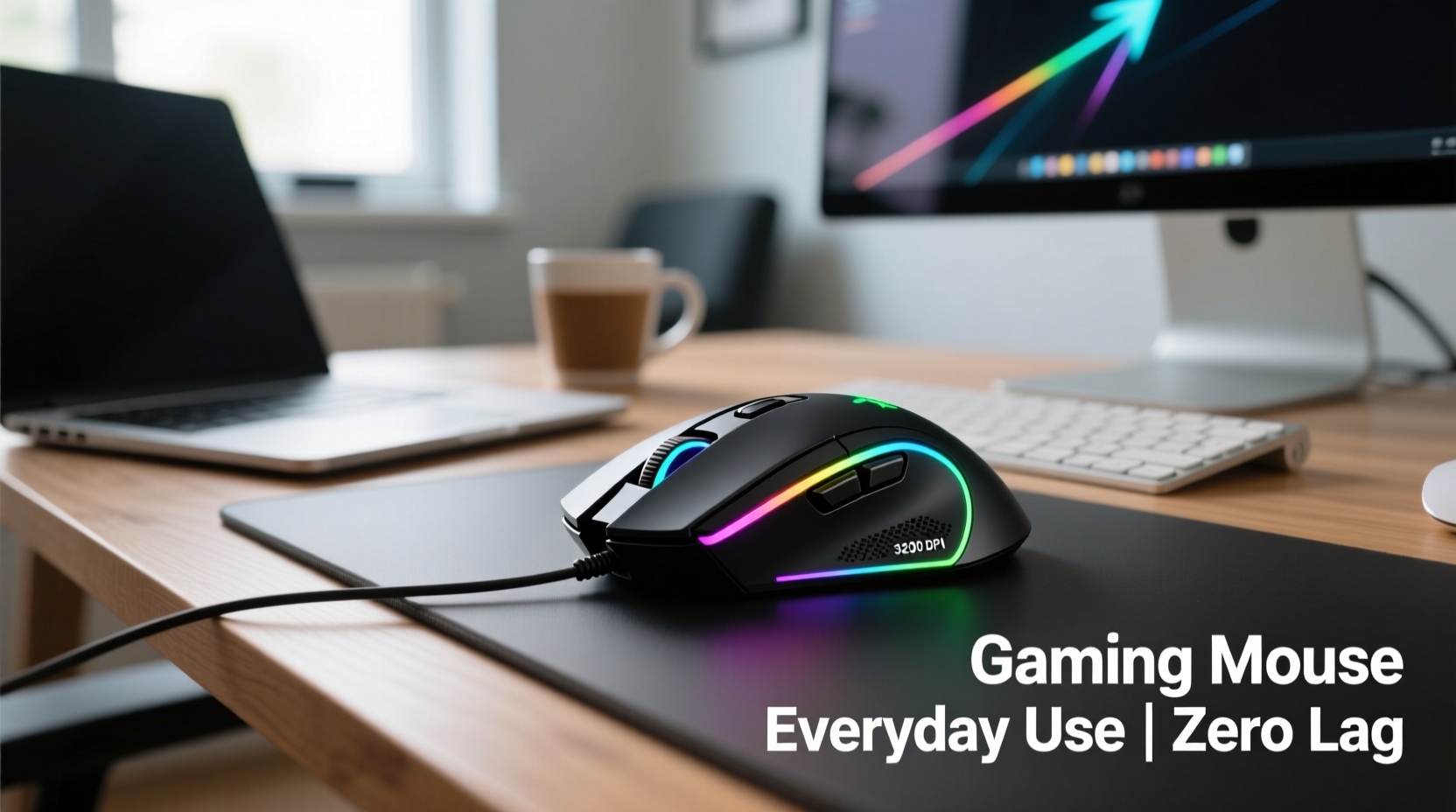
Gaming mice are engineered with components designed to deliver speed, accuracy, and responsiveness. Key features include high-DPI (dots per inch) optical sensors, polling rates up to 1000Hz, mechanical switches rated for millions of clicks, and onboard memory for profile storage. These specs ensure minimal input lag and pixel-perfect cursor control during fast-paced gameplay.
For everyday tasks like scrolling through emails, clicking links, or dragging files, this level of precision may seem excessive. However, it doesn’t translate into system slowdowns. The mouse itself does not burden your CPU or RAM; instead, it communicates more frequently with your computer via USB polling. At 1000Hz, the mouse reports its position 1000 times per second—compared to 125Hz on standard mice—which results in smoother cursor movement but negligible impact on system resources.
“Modern gaming peripherals are optimized for low-latency communication. Using one for general computing won’t slow your PC—it might actually improve pointer accuracy.” — David Lin, Hardware Engineer at Peripheral Dynamics Inc.
In reality, the performance advantage of a gaming mouse often benefits non-gaming activities. For example, designers appreciate pixel-level control when editing images, while spreadsheet users benefit from smooth scrolling and rapid navigation across large datasets.
Ergonomics and Comfort in Daily Use
One of the most important factors in choosing any mouse is long-term comfort. Many gaming mice are larger than average, featuring contoured grips and textured surfaces to support extended usage. While these designs excel during marathon gaming sessions, they may not suit everyone for eight-hour workdays.
Hand size and grip style play a significant role. Users with smaller hands may find oversized gaming mice awkward or tiring. Similarly, those who prefer fingertip or claw grips might feel constrained by deep palm rests. On the other hand, individuals with medium to large hands often report better wrist alignment and reduced strain due to improved ergonomic shaping.
Battery life is another consideration for wireless gaming mice. While modern models offer excellent power efficiency, heavy feature usage (like RGB lighting and high polling rates) can drain batteries faster than basic办公 mice. Turning off unnecessary lights and reducing polling rate when not needed can extend battery life significantly.
Customization Benefits Beyond Gaming
One of the standout advantages of gaming mice is their software-driven customization. Most brands provide intuitive apps that allow users to remap buttons, create macros, adjust DPI on the fly, and save profiles. This flexibility extends well beyond gaming scenarios.
Consider these practical applications:
- Assigning a side button to \"Back\" in your browser for quicker navigation.
- Programming a macro to paste a frequently used email signature or code snippet.
- Setting different DPI levels for fine editing (low DPI) and fast window switching (high DPI).
- Using dedicated buttons to control media playback or mute/unmute during video calls.
These customizations can streamline workflows across various professions—from writers and programmers to accountants and educators. Unlike generic plug-and-play mice, gaming models adapt to your habits rather than forcing you to adapt to them.
Real Example: From Gamer to Remote Worker
Take Mark, a former competitive gamer turned freelance graphic designer. After transitioning to full-time remote work, he hesitated to keep using his Razer Basilisk X HyperSpeed for client projects, fearing it was too bulky and distracting. But after two weeks of testing, he realized the mouse’s 11 programmable buttons eliminated repetitive keyboard shortcuts, and the adjustable DPI made zooming in Photoshop effortless.
He disabled the RGB lighting, lowered the polling rate to 500Hz to conserve battery, and assigned one thumb button to toggle between layers. Over time, he found himself completing tasks 15% faster than with his old compact mouse. His only regret? Not optimizing the setup sooner.
Performance Comparison: Gaming vs. Standard Mice
To clarify misconceptions, here's a direct comparison of key specifications and real-world implications:
| Feature | Gaming Mouse | Standard Office Mouse | Impact on Everyday Use |
|---|---|---|---|
| DPI Range | 800–16,000+ | 800–2400 | Higher DPI allows faster cursor movement; useful for multi-monitor setups. |
| Polling Rate | 500–1000Hz | 125Hz | Smoother tracking, especially noticeable on high-refresh displays. |
| Button Count | 6–18 | 2–5 | More buttons enable automation and shortcut access. |
| Switch Lifespan | 50–70 million clicks | 3–10 million clicks | Greater durability under frequent use. |
| Software Support | Advanced customization suite | Limited or none | Enables personalized workflows and macro creation. |
| Weight & Size | Heavier, bulkier | Lightweight, compact | Potential fatigue over long periods; depends on hand size. |
This table shows that while gaming mice outperform standard models in technical aspects, the actual benefit depends on user needs. For someone managing spreadsheets and attending Zoom meetings, ultra-high DPI may go unused. But for multitaskers juggling multiple applications, every millisecond saved adds up.
Common Misconceptions Debunked
Despite growing adoption, several myths persist about using gaming mice outside of gaming environments:
- Myth: Gaming mice consume more system resources.
Reality: They do not run background processes unless software is open. Polling rate affects USB communication, not CPU load. - Myth: High DPI causes jittery cursor movement.
Reality: Jitter is usually due to surface interference or sensor calibration, not DPI alone. Adjusting sensitivity settings resolves this. - Myth: RGB lighting drains laptop battery rapidly.
Reality: LED power draw is minimal (~0.1W). Disabling lighting saves only marginal energy. - Myth: Gaming mice are fragile because of extra buttons.
Reality: Most use durable mechanical switches tested for tens of millions of actuations.
Ultimately, perceived drawbacks often stem from improper setup rather than inherent flaws.
Optimizing Your Gaming Mouse for Productivity
If you decide to use a gaming mouse for daily tasks, follow this step-by-step guide to maximize efficiency and comfort:
- Install the manufacturer’s software (e.g., Logitech G Hub, Razer Synapse, Corsair iCUE).
- Disable RGB lighting if not needed—this reduces distractions and slightly improves battery life on wireless models.
- Set default DPI to 800–1600, which balances speed and precision for desktop use.
- Remap side buttons to functions like Copy, Paste, Undo, or Browser Back/Forward.
- Create a macro for repetitive text entries (e.g., your address, login URL, or signature).
- Lower polling rate to 500Hz if using wirelessly and prioritizing battery over maximum responsiveness.
- Test the mouse on your primary surface—some sensors struggle on glossy desks or glass.
- Adjust weight (if supported) to find a balance between stability and ease of movement.
Checklist: Is Your Gaming Mouse Ready for Daily Use?
- ✅ Software installed and updated
- ✅ Unnecessary RGB effects turned off
- ✅ DPI preset adjusted for productivity (800–1600)
- ✅ Side buttons mapped to useful commands
- ✅ Polling rate optimized (500Hz recommended for wireless)
- ✅ Clean surface or mousepad in use
- ✅ Firmware updated (check manufacturer website)
Frequently Asked Questions
Does using a gaming mouse slow down my computer?
No. Gaming mice communicate efficiently with your system and do not consume meaningful CPU or memory resources. Even at 1000Hz polling, the data transfer is minimal and handled by the USB controller without affecting overall performance.
Are gaming mice suitable for small hands?
Some are, but many are designed for medium to large hands. Look for compact or ambidextrous models like the Logitech G Pro X Superlight, Razer DeathAdder Essential, or Glorious Model O– if you have smaller hands. Trying the mouse in person is ideal, but reading hand-size reviews online can help.
Can I use a gaming mouse on a laptop?
Absolutely. Wireless gaming mice connect via USB dongle or Bluetooth (depending on model), and their enhanced tracking works well on external monitors or laptop screens. Just ensure your laptop has available USB ports or supports the required connection type.
Final Thoughts: A Smart Tool for Modern Workflows
The idea that gaming mice are unsuitable for everyday computing is outdated. Today’s high-performance peripherals offer tangible benefits in precision, durability, and customization—qualities that enhance both gaming and professional environments. There is no technical downside to using a gaming mouse for regular tasks, provided it fits your hand and is configured appropriately.
Whether you're editing documents, managing emails, coding, or designing visuals, leveraging programmable buttons and accurate sensors can reduce reliance on keyboard shortcuts and improve workflow fluidity. The initial learning curve is minor, but the long-term gains in efficiency are measurable.
Instead of viewing gaming mice as niche tools, consider them versatile input devices capable of adapting to diverse digital lifestyles. With thoughtful configuration and ergonomic awareness, they can become indispensable companions—not just for gamers, but for anyone seeking greater control over their digital experience.




 浙公网安备
33010002000092号
浙公网安备
33010002000092号 浙B2-20120091-4
Comments
No comments yet. Why don't you start the discussion?