
In 2025, the line between tablets and traditional laptops continues to blur. With powerful processors, advanced operating systems, and enhanced peripheral support, tablets have evolved from media consumption devices into credible contenders for full-time professional use. For remote workers, creatives, field technicians, and even some corporate employees, the question is no longer whether a tablet *can* be used for work—but whether it should be the default choice.
The answer depends on your role, workflow, and expectations. While tablets still face limitations in multitasking depth and software compatibility compared to desktop-class machines, they now offer enough functionality to serve as primary devices for many users—provided they’re equipped and configured correctly.
Performance and Hardware: Are Tablets Powerful Enough?
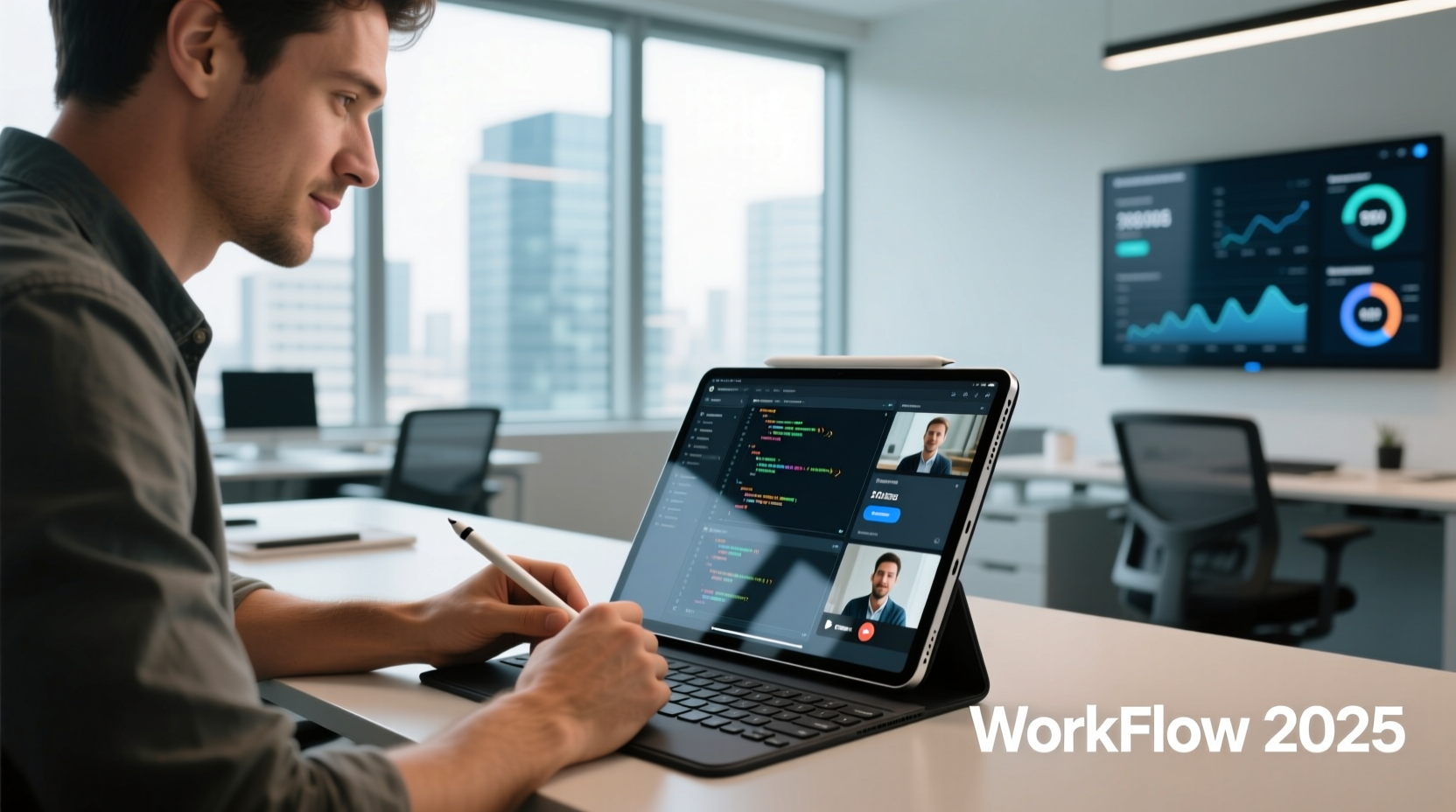
Modern flagship tablets are equipped with chipsets that rival or exceed mid-tier laptop processors. Apple’s M-series chips in the iPad Pro deliver desktop-grade performance, while Qualcomm’s Snapdragon X Elite powers Windows tablets with ARM-based efficiency and speed. These advancements mean that tasks like video editing, coding, graphic design, and data analysis are now feasible on tablet hardware.
RAM capacities have also increased, with high-end models offering up to 16GB, enabling smoother multitasking. Storage options now reach 2TB, eliminating concerns about running out of space for large files or applications.
However, thermal throttling remains a challenge. Unlike laptops with active cooling systems, tablets rely on passive dissipation, which can limit sustained performance during long computational tasks. This makes them less ideal for continuous rendering, virtual machines, or heavy software development environments.
Operating Systems and Software Ecosystems
The operating system determines how much productivity a tablet can unlock. In 2025, three platforms dominate: iPadOS, Android (with productivity enhancements), and Windows on ARM.
- iPadOS has matured significantly. With Stage Manager, external display support, drag-and-drop across apps, and improved file management via the Files app, it now supports complex workflows. However, it still lacks true windowed multitasking and deep file system access, limiting its flexibility for power users.
- Android remains best suited for light productivity. Samsung’s DeX mode offers a desktop-like interface when connected to a monitor, but app optimization varies widely, and ecosystem fragmentation limits reliability.
- Windows on ARM, particularly on devices like Microsoft Surface Pro X or upcoming OEM hybrids, delivers near-full Windows compatibility with excellent battery life. Emulation allows x64 apps to run smoothly, though performance dips with resource-heavy programs.
For roles dependent on specialized software—such as CAD, 3D modeling, or enterprise ERP systems—compatibility remains a bottleneck. Many legacy business tools are not optimized for touch-first interfaces or ARM architecture, requiring workarounds like remote desktop connections.
“Tablets won’t replace desktops for every job, but they’ve reached a tipping point where they can handle most knowledge-worker tasks effectively.” — Dr. Lena Patel, Human-Computer Interaction Researcher at MIT
Accessories That Turn Tablets Into Workstations
A tablet alone is rarely sufficient. The real transformation happens with accessories that bridge the gap between mobility and functionality.
| Accessory | Purpose | Recommended For |
|---|---|---|
| Keyboard Folio or Bluetooth Keyboard | Enables fast typing and shortcut usage | Writers, coders, email-heavy roles |
| Active Stylus | Precise input for design, annotation, note-taking | Creatives, educators, architects |
| External Monitor Support | Doubles screen real estate via USB-C or wireless | Multitaskers, developers, analysts |
| Portable SSD | Expands storage and enables quick file transfers | Photographers, videographers |
| Hub/Docking Station | Connects multiple peripherals (mouse, drives, Ethernet) | Hybrid office setups |
With these additions, a tablet can function like a mini-desktop. For example, an iPad Pro with Magic Keyboard, Apple Pencil, and a secondary monitor via Stage Manager mimics a dual-screen workstation. Similarly, a Windows tablet docked with a full keyboard, mouse, and external display becomes nearly indistinguishable from a lightweight laptop setup.
Real-World Viability: A Field Journalist’s Workflow
Consider Sarah Lin, a freelance investigative journalist based in Southeast Asia. Since 2023, she has relied solely on an iPad Air with a slim keyboard case and 512GB storage for all her reporting.
Her typical day starts with voice-to-text interviews recorded using a third-party microphone connected via USB-C. She transcribes them using Otter.ai, edits drafts in Ulysses (a Markdown-focused writing app), and manages sources through Notion. When traveling, she uses cellular data and cloud sync to stay connected. For multimedia stories, she edits short videos in LumaFusion before exporting to clients.
Sarah occasionally hits limitations—she cannot run Adobe Premiere Pro natively and must rely on mobile-optimized alternatives. But by designing her workflow around available tools rather than forcing legacy software onto unsuitable hardware, she maintains high productivity without carrying a laptop.
Her experience illustrates a key principle: success with a tablet-centric workflow isn’t just about hardware—it’s about intentional adaptation.
Step-by-Step: Transitioning to a Tablet-Only Work Setup
Moving from a traditional computer to a tablet requires deliberate planning. Follow this timeline to ensure a smooth transition:
- Week 1: Assess Your Workflow
Map out daily tasks. Identify which require specific software, external devices, or multitasking capabilities. Categorize activities as “essential,” “occasional,” or “optional.” - Week 2: Test Compatibility
Install tablet versions of your core apps. Try editing documents, sending emails, managing calendars, and opening project files. Note any missing features or performance lags. - Week 3: Acquire Key Accessories
Purchase a quality keyboard, stylus (if needed), and a docking solution. Test connectivity with monitors and peripherals. - Week 4: Simulate a Full Workday
Spend one full day using only the tablet. Avoid fallback devices. Document pain points and bottlenecks. - Month 2: Optimize and Automate
Use shortcuts, scripting tools (like Shortcuts on iPadOS or MacroDroid on Android), and cloud integrations to streamline repetitive tasks. - Ongoing: Review Monthly
Evaluate efficiency gains or losses. Adjust tools and habits accordingly.
Do’s and Don’ts of Using a Tablet as a Primary Device
| Do | Don't |
|---|---|
| Use cloud storage (iCloud, OneDrive, Google Drive) for seamless syncing | Rely solely on local storage without backups |
| Leverage cross-platform apps (Notion, Slack, Zoom, Obsidian) | Assume all desktop apps have functional mobile equivalents |
| Enable biometric login and encryption for security | Neglect software updates or use untrusted third-party apps |
| Organize apps into focused workspaces or folders | Overload the home screen with unused tools |
| Use automation to reduce manual input | Expect flawless performance under heavy multitasking loads |
Who Should (and Shouldn’t) Make the Switch
Tablets excel in specific professional niches:
- Freelancers and solopreneurs who manage communications, invoicing, and content creation.
- Creative professionals such as illustrators, photographers, and video editors using optimized mobile suites.
- Field workers including inspectors, healthcare providers, and sales reps who need portability and instant-on access.
- Students and educators relying on digital notes, presentations, and collaboration tools.
Conversely, the following roles will likely struggle:
- Software developers needing IDEs like Visual Studio or IntelliJ with debugging tools.
- Data scientists running Python scripts in Jupyter notebooks or handling large datasets in R/SQL.
- Enterprise IT staff managing servers, networks, or deploying legacy internal systems.
- Engineers using AutoCAD, SolidWorks, or MATLAB, which lack robust mobile versions.
The distinction often comes down to input complexity and software depth. If your work involves frequent keyboard shortcuts, terminal commands, or layered application windows, a tablet may hinder more than help.
Frequently Asked Questions
Can I connect my tablet to an external monitor for better multitasking?
Yes, most premium tablets support external displays. iPadOS allows extended desktop mode via Stage Manager on compatible iPads. Windows tablets natively support multiple monitors. Android devices vary by manufacturer—Samsung DeX offers strong desktop integration, while others may only mirror the screen.
Is file management still a problem on tablets?
It has improved significantly. iPadOS now includes a full-featured Files app with network drive access, zip compression, and third-party cloud integrations. Windows tablets offer near-identical file explorer functionality. Android still lags slightly but works well with file manager apps like Solid Explorer.
How secure are tablets for handling sensitive business data?
Top-tier tablets offer enterprise-grade security: AES encryption, biometric authentication, remote wipe, and compliance with standards like HIPAA or GDPR. However, always enable automatic updates, avoid sideloading apps, and use a reputable mobile device management (MDM) solution if handling corporate data.
Final Verdict: Yes—With Conditions
In 2025, using a tablet as a primary work device is not only possible but increasingly practical—for the right user. Technological progress has closed critical gaps in processing power, software capability, and accessory support. What once felt like a compromise now feels like a strategic choice.
The key lies in alignment: aligning your device choice with your actual workload, not industry norms or nostalgia for traditional computing forms. A tablet shines when prioritizing mobility, responsiveness, and simplicity. It falters when forced to mimic a machine it’s not designed to be.
Professionals who embrace the tablet’s strengths—long battery life, instant wake, touch precision, silent operation, and ultra-portability—can achieve remarkable productivity. Those who demand granular control over their environment or depend on niche desktop software will still benefit from keeping a laptop nearby.




 浙公网安备
33010002000092号
浙公网安备
33010002000092号 浙B2-20120091-4
Comments
No comments yet. Why don't you start the discussion?