
In today’s multitasking-driven digital environment, screen real estate is more valuable than ever. Whether you're editing video, coding, managing spreadsheets, or juggling multiple communication apps, having an extra display can dramatically improve workflow efficiency. But what if you don’t have a spare monitor lying around? The good news: you likely already own one — in the form of your tablet.
Modern tablets, especially those with high-resolution screens and strong processors, are perfectly capable of serving as secondary displays. With the right software and a few simple steps, you can turn your iPad, Android tablet, or even a Microsoft Surface into a functional second monitor — wirelessly or via USB. This setup not only saves desk space but also reduces hardware costs while boosting productivity.
Why Use a Tablet as a Second Monitor?
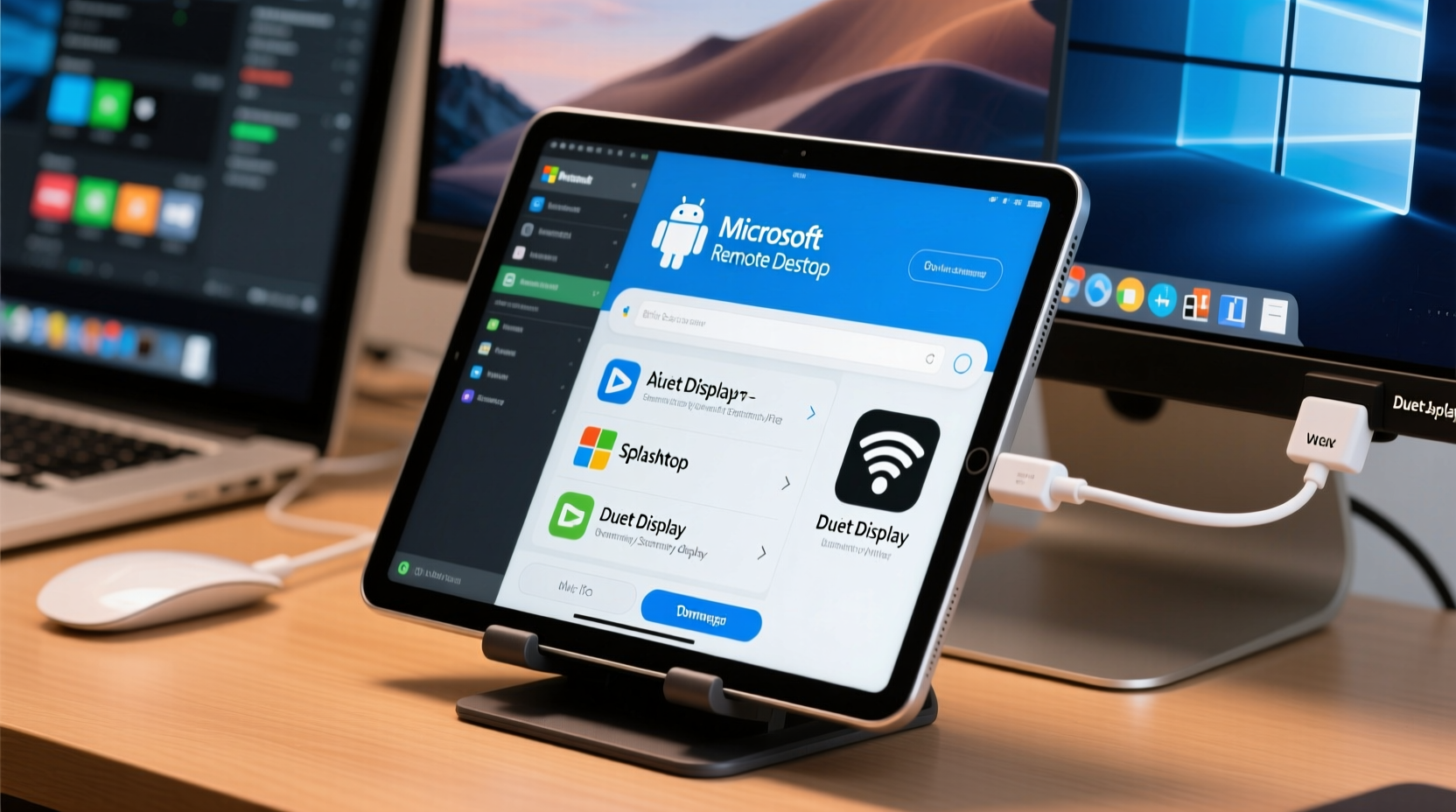
The appeal of using a tablet as a second monitor goes beyond convenience. It's about flexibility, portability, and intelligent resource utilization. Instead of investing in an additional physical monitor, you repurpose a device that’s often underused during desktop work.
- Cost-effective: No need to buy a new monitor if you already own a tablet.
- Portable: Easily detach and carry your “monitor” when moving between workspaces.
- Dual-purpose: Use the same device for entertainment, reading, or note-taking when not mirroring your desktop.
- Touch-enabled input: On many setups, the tablet becomes a touch interface, allowing for intuitive interaction with creative tools like Photoshop or Illustrator.
For digital artists, writers, developers, and remote workers, this hybrid approach offers a streamlined way to manage complex workflows without cluttering their workspace.
How It Works: The Technology Behind Tablet-as-Monitor
Using a tablet as a second monitor relies on screen-sharing technology. Specialized apps establish a connection between your primary computer and the tablet, streaming the display output in real time. Some apps mirror the entire screen; others extend the desktop, treating the tablet as a separate display area managed by your operating system’s display settings.
There are two main methods:
- Wireless Connection: Uses Wi-Fi to transmit the display signal. Convenient and cable-free, but performance depends on network stability.
- Wired Connection (USB): Offers lower latency and higher reliability, ideal for graphic design or video editing where timing matters.
Most modern solutions support features like touch input, stylus compatibility (especially useful for drawing), and automatic orientation switching (portrait/landscape).
“Extending your workspace to a tablet isn’t just a workaround — it’s a smart adaptation to mobile-first computing.” — David Lin, Productivity Tech Analyst at WorkFlow Insights
Step-by-Step Setup Guide for Popular Devices
Setting up your tablet as a second monitor varies slightly depending on your devices' operating systems. Below is a comprehensive guide covering the most common combinations.
Option 1: iPad + Mac or Windows (Using Duet Display)
Duet Display is one of the most reliable cross-platform solutions, offering low-latency performance and pressure-sensitive stylus support.
- Download and install Duet Display from duetdisplay.com on your computer (Mac or Windows).
- Install the Duet Display app from the App Store on your iPad.
- Connect your iPad to your computer via a Lightning-to-USB cable (or use Wi-Fi after initial setup).
- Launch Duet on both devices. The iPad should automatically detect the connection.
- On your computer, go to System Preferences (Mac) or Display Settings (Windows) to arrange the extended screen layout.
Duet supports both mirrored and extended modes. For optimal responsiveness, use the wired mode. If you prefer mobility, switch to Wi-Fi after pairing.
Option 2: Android Tablet + Windows PC (Using Spacedesk)
Spacedesk is a free, lightweight solution ideal for Windows users looking for an open-source option.
- Visit spacedesk.net and download the spacedesk driver for your Windows PC.
- Install and launch the driver. Ensure your PC allows network discovery.
- On your Android tablet, install the spacedesk app from the Google Play Store.
- Make sure both devices are connected to the same Wi-Fi network.
- Open the app on your tablet. It will automatically detect available PCs running spacedesk.
- Select your computer and tap to connect.
- Adjust resolution and orientation in the app settings if needed.
Once connected, your Android tablet appears as a secondary display in Windows’ display settings (Win + P). You can drag windows over just like a physical monitor.
Option 3: Samsung Galaxy Tab + Windows (With Samsung DeX)
If you own a Samsung Galaxy Tab, DeX offers a powerful built-in solution that transforms your tablet into a desktop-like experience — including monitor functionality.
- Ensure your Galaxy Tab and Windows PC are on the same Wi-Fi network.
- On your PC, download and install Samsung Flow or enable “Link to Windows” in Your Phone app (available in Windows 10/11).
- Pair your Galaxy Tab with your PC via Bluetooth or QR code.
- Open DeX on your tablet and select “Extend display to PC.”
- Alternatively, use third-party apps like Microsoft Remote Desktop or scrcpy for advanced control.
This method works best for Samsung ecosystem users and integrates well with Microsoft 365 apps.
Option 4: Native Solutions – Apple Sidecar (iPad + Mac Only)
Apple’s Sidecar is the gold standard for seamless integration between iPad and Mac.
- Ensure both your Mac and iPad support Sidecar (macOS Catalina or later, iPadOS 13 or later).
- Sign in to the same iCloud account on both devices.
- Enable Bluetooth and Wi-Fi on both devices.
- On your Mac, click the Screen Mirroring icon in the Control Center (or go to Displays > AirPlay Display).
- Select your iPad from the list.
You can now choose to extend or mirror your Mac’s display. Bonus: Use Apple Pencil on the iPad to annotate PDFs or draw directly on the extended canvas.
Comparison Table: Top Apps for Tablet-as-Monitor Setups
| App | Platform Support | Connection Type | Free/Paid | Best For |
|---|---|---|---|---|
| Duet Display | iPad, Android, Windows, Mac | Wi-Fi & USB | Paid ($14.99 one-time) | Creative professionals needing low latency |
| Sidecar | iPad + Mac only | Wi-Fi & USB | Free (built-in) | Apple ecosystem users |
| spacedesk | Android, Windows | Wi-Fi | Free | Budget-conscious users |
| Miracast (Windows Wireless Display) | Android, Windows | Wi-Fi Direct | Free | Quick mirroring without apps |
| TwomonUSB / TwomonAIR | iPad, Android, Windows, Mac | USB & Wi-Fi | Paid (~$30) | High-performance tasks |
Real-World Example: A Freelance Designer’s Workflow
Sophie, a freelance graphic designer based in Portland, uses her iPad Pro as a second monitor daily. Her small home office doesn’t allow room for dual monitors, but she needs space to keep Photoshop tools open while viewing full-size previews.
She uses Sidecar in extended mode, placing her layers and brushes panel on the iPad. With her Apple Pencil, she sketches directly on the tablet while her main Mac screen shows the timeline and color picker. This setup has reduced her reliance on keyboard shortcuts and improved precision in client projects.
“It feels natural,” she says. “The iPad responds instantly, and I can take it to meetings as a standalone device. It’s like having two machines in one.”
Common Pitfalls and How to Avoid Them
While the process is straightforward, some issues can hinder performance. Awareness helps prevent frustration.
- Lag or Delay: Often caused by weak Wi-Fi. Solution: Use a 5GHz network or switch to USB connection.
- Resolution Mismatch: The tablet may default to a stretched or pixelated view. Fix: Manually adjust resolution in your OS display settings.
- Battery Drain: Streaming video consumes power quickly. Always plug in your tablet during extended use.
- Firewall Blocking: Some security software blocks screen-sharing ports. Temporarily disable or whitelist the app if connection fails.
Checklist: Setting Up Your Tablet as a Second Monitor
Follow this quick checklist to ensure a smooth setup:
- ✅ Confirm both devices meet app requirements (OS version, model compatibility)
- ✅ Install the correct software on both computer and tablet
- ✅ Connect both devices to the same Wi-Fi network (for wireless)
- ✅ Use a USB cable if available for faster, more stable performance
- ✅ Enable Bluetooth and Wi-Fi on both devices (required for discovery)
- ✅ Log in to the same account (iCloud, Microsoft, etc.) if required
- ✅ Open display settings on your computer to position the extended screen correctly
- ✅ Test touch input and stylus functionality if applicable
Frequently Asked Questions
Can I use any tablet as a second monitor?
Most modern tablets (iPad, Android, and Windows-based) can function as a second monitor, provided they run compatible software and meet minimum OS requirements. Older models may struggle with latency or lack app support.
Is a wired or wireless connection better?
A wired connection (via USB) typically offers lower latency, higher reliability, and consistent frame rates — ideal for creative or professional work. Wireless is more convenient for casual use or when mobility is key, but performance depends heavily on network quality.
Does using a tablet as a monitor drain the battery fast?
Yes, especially during prolonged screen streaming. It’s highly recommended to keep the tablet plugged in during use to avoid unexpected shutdowns and maintain peak performance.
Maximize Your Workspace Without Extra Hardware
Turning your tablet into a second monitor is no longer a niche hack — it’s a practical, widely supported feature that fits seamlessly into modern digital workflows. Whether you’re a student taking notes alongside research articles, a developer monitoring servers while coding, or a designer refining visuals with tactile input, this setup enhances focus and efficiency.
The tools are accessible, the process is user-friendly, and the benefits are immediate. With free and paid options available across platforms, there’s no barrier to trying it out. Once configured, many users find it hard to go back to a single-screen experience.




 浙公网安备
33010002000092号
浙公网安备
33010002000092号 浙B2-20120091-4
Comments
No comments yet. Why don't you start the discussion?