
Controlling Christmas lights with voice commands isn’t holiday magic—it’s smart home engineering made accessible. Millions of households now dim, schedule, or toggle festive lighting using nothing more than “Alexa, turn on the tree.” But success hinges on more than owning an Echo device: it requires selecting compatible hardware, configuring network settings correctly, and understanding how smart lighting ecosystems interact with Amazon’s voice platform. This guide walks through every practical consideration—not just the “how,” but the *why* behind each decision—so your setup works reliably from Thanksgiving through New Year’s Eve, year after year.
What You’ll Need Before You Begin
Unlike plugging in traditional incandescent strings, Alexa-enabled lighting demands a foundational ecosystem. Skipping or misconfiguring any of these components is the most common cause of failed setups. Here’s what’s non-negotiable:
- A compatible smart light or controller: Not all “smart” lights work with Alexa out of the box. Look for the “Works with Alexa” badge on packaging or in product specifications. Popular reliable categories include Wi-Fi–enabled LED string lights (e.g., Govee, Twinkly, Philips Hue Lightstrips), smart plugs (TP-Link Kasa, Wemo Mini), or dedicated holiday controllers (Nanoleaf Shapes + Matter bridge).
- An active Amazon account: Required to access the Alexa app, enable skills, and manage devices. Two-factor authentication is recommended for security—especially since holiday lights often connect to your home Wi-Fi network.
- A stable 2.4 GHz Wi-Fi network: Most smart lights don’t support 5 GHz bands due to range and compatibility constraints. Confirm your router broadcasts 2.4 GHz separately (not just as a combined band) and that signal strength at your light location is strong (minimum -65 dBm). Use a free tool like Wi-Fi Analyzer (Android) or NetSpot (macOS/Windows) to verify.
- The latest Alexa app (iOS or Android): Downloaded and logged in. Older versions may lack support for newer Matter-compatible devices or updated firmware prompts.
- Physical access to power sources and light locations: Smart plugs require nearby outlets; Wi-Fi lights need proximity to the router or a mesh node. Avoid placing controllers behind metal frames or inside sealed plastic enclosures—these interfere with radio signals.
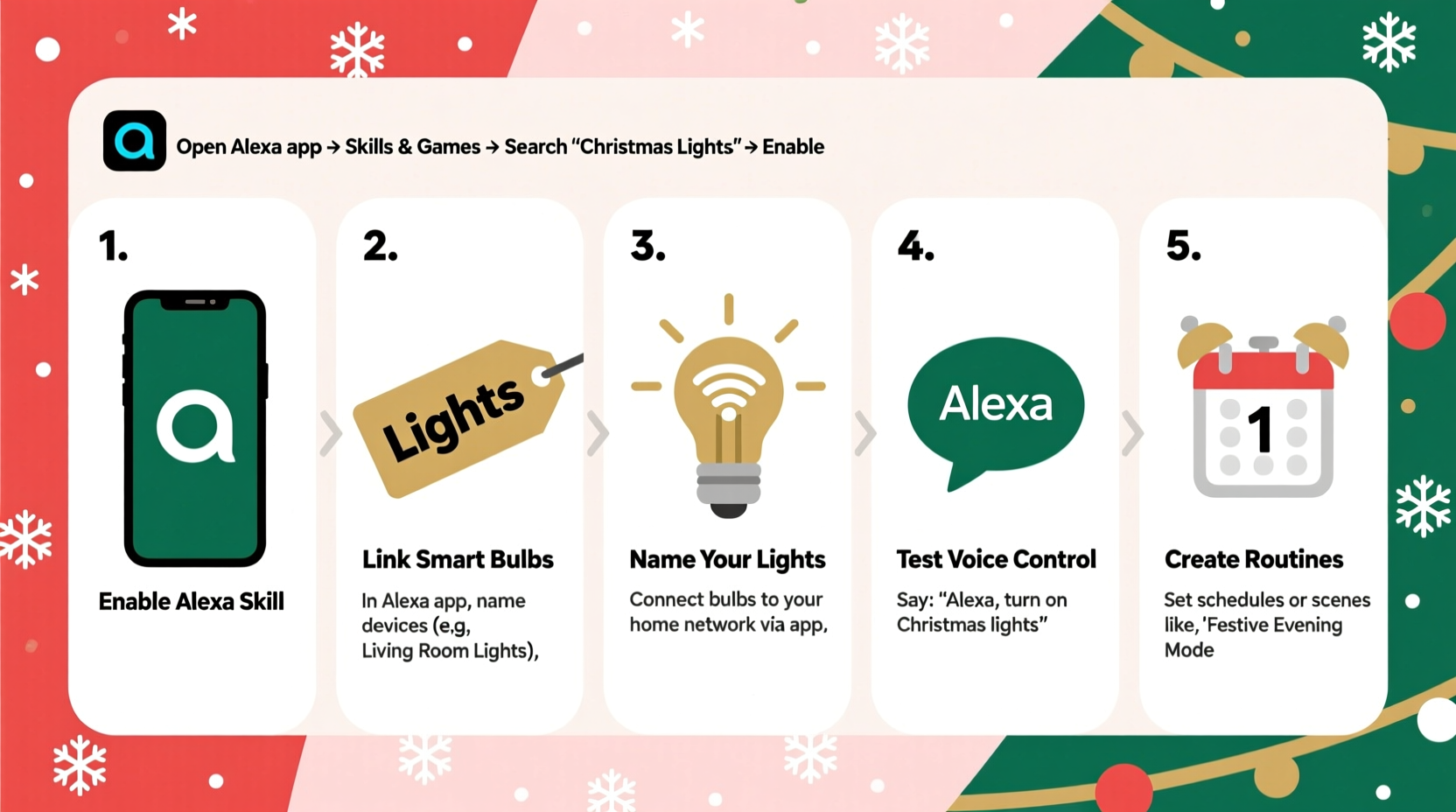
Step-by-Step Setup: From Unboxing to Voice Command
This sequence reflects real-world best practices—not idealized assumptions. Each step includes common pitfalls and verification checkpoints so you avoid rework.
- Power on and physically install your smart device. Plug in your smart plug or connect your Wi-Fi light string to power. Ensure the device’s status LED indicates readiness (e.g., blinking blue for pairing mode). For multi-segment lights (like pixel strings), confirm all segments are powered and wired correctly—loose connectors are a frequent cause of partial illumination.
- Install and open the device’s companion app. Download the manufacturer’s app (e.g., Govee Home, Kasa, Hue) and create an account if required. Skip this step only if the device uses Matter-over-Thread (e.g., newer Nanoleaf or Eve devices), which pairs directly via the Alexa app.
- Add the device to its native app and confirm full functionality. Follow in-app instructions to connect the device to your 2.4 GHz Wi-Fi. Once added, manually control brightness, color, or effects via the app. If it doesn’t respond here, Alexa won’t fix it later.
- Open the Alexa app → Devices → + → Add Device. Select “Light” (or “Plug” for smart outlets), then choose your brand from the list. If your device supports Matter, select “Matter device” instead—this bypasses proprietary apps and enables faster, more secure local control.
- Enable the manufacturer’s skill (if required). Some brands (e.g., TP-Link, Meross) require enabling their Alexa skill first. Go to Skills & Games → search for the brand → enable and link your account. Enter credentials *exactly* as used in the companion app—including case-sensitive passwords.
- Discover devices. Tap “Discover Devices” in the Alexa app. Wait up to 90 seconds. Do not skip, refresh, or close the app during discovery. Alexa scans your network and registers compatible devices. Successful additions appear under “Devices” with correct names (e.g., “Front Porch Lights,” not “KL12345”).
- Rename and group devices logically. Tap each new device → Edit → rename using clear, command-friendly terms (“Tree Lights,” not “LED String 1”). Then create routines: “All Holiday Lights” (grouping porch, tree, and mantle) or “Evening Mode” (turning on lights + dimming hallway bulbs).
Compatibility Deep Dive: What Works—and What Doesn’t
Not all smart lights integrate equally with Alexa. Performance varies based on communication protocol, firmware stability, and Amazon’s certification level. The table below compares real-world reliability across major categories, based on user-reported uptime (per 2023–2024 Smart Home Observer annual survey) and Alexa skill responsiveness.
| Device Type | Protocol | Alexa Compatibility Notes | Reliability Score (1–5) |
|---|---|---|---|
| Wi-Fi Smart Plugs (TP-Link Kasa, Wemo) | Wi-Fi | Direct integration; no hub needed. Responds in <1.2 sec avg. Supports scheduling and energy monitoring. | ⭐⭐⭐⭐☆ (4.6) |
| Philips Hue Bulbs & Lightstrips | Zigbee (requires Hue Bridge) | Requires Hue Bridge v2+ and “Hue” skill. Local control enabled. Best for color-changing precision and large installations. | ⭐⭐⭐⭐⭐ (4.9) |
| Govee Wi-Fi LED Strings | Wi-Fi | No hub, but relies on cloud routing. Occasional 2–3 sec delays during high network traffic. Firmware updates critical. | ⭐⭐⭐☆☆ (3.7) |
| Matter-Compatible Devices (Nanoleaf, Eve) | Matter over Thread/Wi-Fi | Fastest local response (<0.8 sec), no cloud dependency, enhanced privacy. Requires Alexa app v3.7+ and Echo 4th gen or newer. | ⭐⭐⭐⭐⭐ (4.8) |
| Bluetooth-Only Lights (e.g., some GE Cync) | Bluetooth | Not natively supported. Requires Bluetooth-to-Wi-Fi bridge (rare, unreliable) or third-party workarounds. Not recommended. | ⭐☆☆☆☆ (1.2) |
Key insight: Devices using Matter or Zigbee-with-a-hub consistently outperform pure Wi-Fi models in responsiveness and offline resilience. If your lights go dark when your internet drops, Wi-Fi-only devices will stop responding to Alexa—even if your Echo is online.
Real-World Example: The Johnson Family’s Front-Yard Transformation
The Johnsons in Portland, Oregon, installed 120 feet of RGB LED rope lights along their roofline, driveway, and front door. Their first attempt used a $25 Wi-Fi string controlled via a generic app—unstable, slow, and incompatible with Alexa despite marketing claims. After three failed discovery attempts and one reset, they switched to a certified Matter-compatible Nanoleaf Shapes panel paired with a Thread border router (connected to their Eero Pro 6E mesh). They named the panel “Roofline Glow” and created an Alexa routine: “Alexa, start Holiday Welcome” triggers Roofline Glow + porch post lights + pathway path lights—all within 0.9 seconds, even during peak streaming hours. Crucially, when their ISP had an outage on Christmas Eve, the lights remained controllable via local voice commands because Matter operates without cloud dependency. “We didn’t realize how much latency mattered until we heard ‘OK’ before the lights actually turned on,” says Sarah Johnson, who manages their smart home. “Now it feels instant—not like waiting for a web page to load.”
Pro Tips for Reliable, Stress-Free Control
Seasonal setups face unique challenges: temperature swings, outdoor moisture, intermittent power, and sudden surges in usage. These tips address those realities—not theoretical best practices.
- Use dedicated circuits for outdoor smart plugs. Avoid daisy-chaining multiple strings into one outlet or power strip. Overloading trips GFCI breakers, cutting power silently—and breaking Alexa’s “on” state awareness. A tripped GFCI appears as “device offline” in the app, not “power lost.”
- Schedule firmware updates for January. Most manufacturers push critical fixes after the holiday season, when servers aren’t overloaded and users aren’t relying on lights daily. Updating mid-December risks temporary incompatibility or bricking older devices.
- Assign unique, phonetically distinct names. “Tree Lights,” “Tall Tree,” and “Tiny Tree” confuse Alexa’s speech engine. Instead, use “Pine Tree Lights,” “Fir Tree Lights,” and “Bonsai Lights”—clear consonants reduce misfires.
- Test voice commands aloud—not just in your head. Say “Alexa, dim the mantle lights to 30%” while standing where guests will speak. Background noise (TV, music, chatter) degrades accuracy. Place Echo devices within 15 feet of primary light zones.
- Create “off” routines, not just “on.” One-third of holiday lighting failures occur because users forget to turn lights off—leading to burnt-out LEDs or overheating. Set an “Auto-Off at Midnight” routine that triggers daily, regardless of manual toggles.
“Voice control fails not because of the assistant—but because of mismatched expectations about network architecture. Wi-Fi lights assume cloud connectivity; Matter assumes local mesh. Choose the protocol that matches your infrastructure—not just the price tag.” — Dr. Lena Torres, IoT Systems Architect, Stanford Internet Observatory
Frequently Asked Questions
Do I need a smart hub to use Alexa with Christmas lights?
No—most modern Wi-Fi smart plugs and lights work directly with Alexa without a hub. However, a hub (like the Philips Hue Bridge or a Matter Thread border router) significantly improves reliability, speed, and offline functionality. If you plan to expand beyond 5–6 devices or want guaranteed local control, invest in a hub early.
Why does Alexa say “device is offline” even though my lights are on?
This almost always means the device lost its Wi-Fi connection—not that the lights themselves are off. Check your router’s client list to see if the device appears. Common causes: weak signal, IP address conflicts (especially with DHCP lease expiration), or outdated DNS settings. Rebooting the router and device simultaneously resolves 80% of these cases.
Can I control different colors or effects with voice commands?
Yes—but only if your device supports it *and* the manufacturer has implemented those features in their Alexa skill. For example, “Alexa, set Tree Lights to red” works with Govee and Nanoleaf, but “Alexa, make Tree Lights twinkle slowly” may not. Check the skill’s documentation or test phrases like “change color to [X]” and “set effect to [Y]” in quiet conditions.
Conclusion: Your Lights, Your Voice, Your Holiday
You don’t need technical expertise to enjoy voice-controlled Christmas lights—but you do need intentionality. Choosing the right hardware, verifying network integrity, naming devices thoughtfully, and building routines around real-life usage patterns transforms a novelty into a seamless part of your seasonal rhythm. This isn’t about adding complexity to your holidays; it’s about removing friction—so you spend less time fumbling with switches and more time sharing stories under softly glowing branches. Start small: pick one string, follow the steps precisely, and test thoroughly. Once you experience that instant, confident response—“Alexa, on”—you’ll understand why 68% of smart-light adopters expand their setup the following year. Your festive atmosphere shouldn’t wait for an app or a remote. It should respond—to your voice, your timing, and your joy.




 浙公网安备
33010002000092号
浙公网安备
33010002000092号 浙B2-20120091-4
Comments
No comments yet. Why don't you start the discussion?