
For professionals, creatives, and students alike, screen real estate is a premium resource. A dual-monitor setup can dramatically improve productivity, allowing you to keep reference materials open, manage multiple applications, or expand creative workspaces. If you own both an iPad and a MacBook, you already have the tools to create a powerful extended display system—without buying additional hardware.
Apple’s Sidecar feature, introduced in macOS Catalina and later, turns your iPad into a fully functional second monitor for your Mac. Whether you're editing video, designing in Procreate, coding across environments, or managing emails while researching, using your iPad as a secondary screen offers flexibility and mobility that traditional monitors can’t match.
This guide walks through everything you need to know: compatibility requirements, setup steps, performance tips, troubleshooting, and alternatives when Sidecar isn’t available. By the end, you’ll be able to extend or mirror your MacBook display onto your iPad with confidence and efficiency.
Understanding Sidecar: Apple’s Native Solution
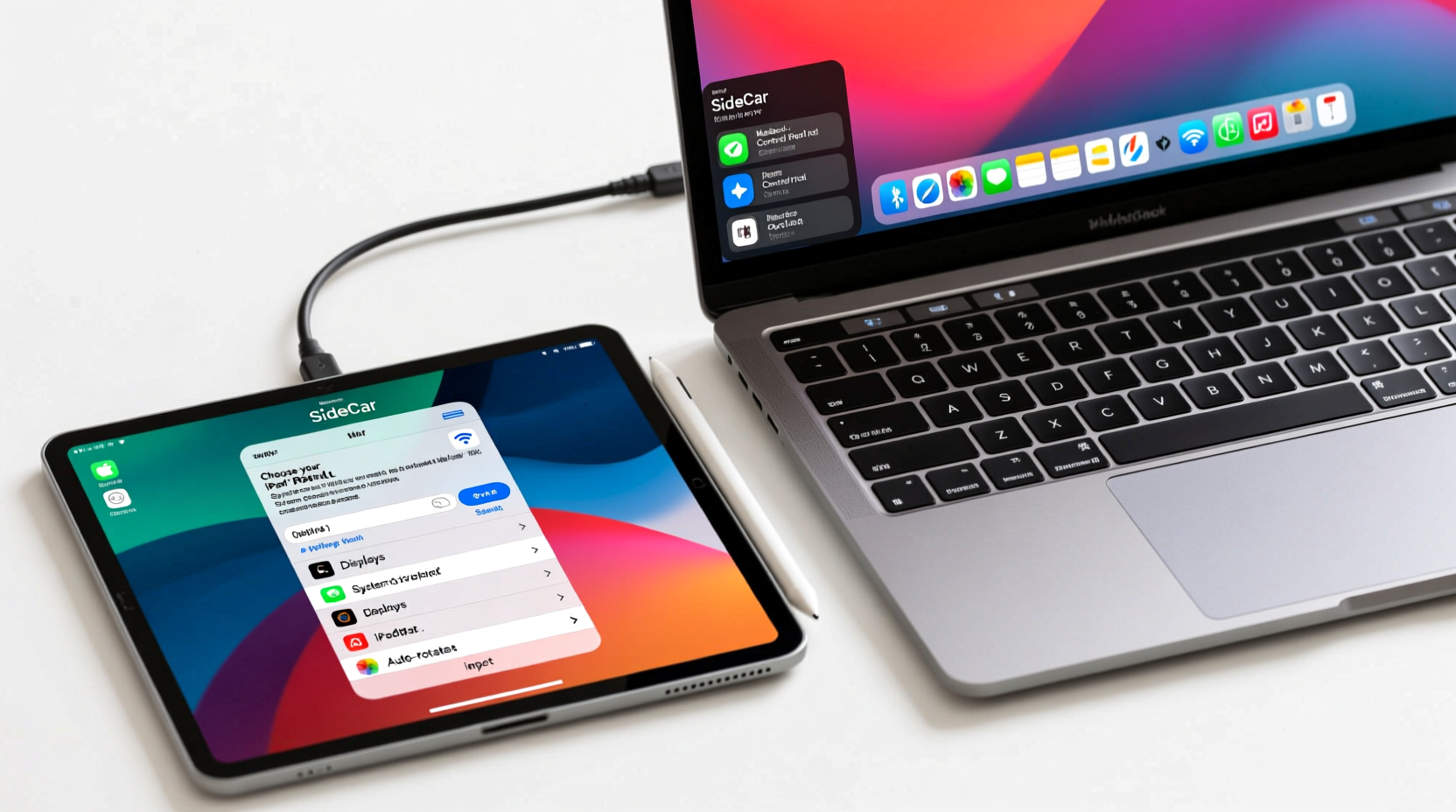
Sidecar is Apple’s built-in technology that allows seamless integration between a compatible iPad and Mac. It enables either extending your desktop to the iPad or mirroring the main display—all with low latency, responsive touch input, and support for the Apple Pencil.
Unlike third-party solutions, Sidecar is deeply integrated into macOS and iPadOS, meaning it supports Handoff-style interactions, secure authentication via iCloud, and automatic device discovery. When properly configured, the connection feels native, not like an app tacked on after the fact.
The feature works over Wi-Fi or via a USB-C cable, giving users options based on their priorities: wireless convenience versus stable, high-performance wired connections.
“Sidecar blurs the line between mobile and desktop computing. For digital artists and multitaskers, it transforms the iPad from a consumption device into a true productivity tool.” — David Lin, UX Architect at StudioNova Design
Compatibility Requirements
Not all Macs and iPads support Sidecar. Both devices must meet specific hardware and software criteria to function correctly. Below is a complete breakdown:
Supported Mac Models
- MacBook Pro (2016 and later)
- MacBook Air (2018 and later)
- Mac mini (2018 and later)
- iMac (2017 and later, including iMac Retina 4K/5K models)
- iMac Pro (all models)
- Mac Pro (2019 and later)
All these Macs must run macOS Catalina (10.15) or later. Performance improves significantly on machines with Apple Silicon (M1 and newer chips).
Supported iPad Models
- iPad Pro (all generations)
- iPad Air (3rd generation and later)
- iPad (6th generation and later)
- iPad mini (5th generation and later)
The iPad must be running iPadOS 13 or higher. Devices with A12 Bionic chip or better perform best due to improved graphics handling and reduced lag.
Step-by-Step Setup Using Sidecar
Setting up your iPad as a second monitor is straightforward if both devices meet the requirements. Follow this sequence for a smooth experience:
- Update Software: On your Mac, go to System Settings > General > Software Update. On your iPad, go to Settings > General > Software Update. Install any pending updates.
- Enable Bluetooth & Wi-Fi: Both devices must have Bluetooth and Wi-Fi turned on. Even if connecting via cable, initial handshake requires wireless services.
- Unlock Your iPad: Wake and unlock your iPad so it’s discoverable.
- Open Display Settings on Mac: Click the Apple menu > System Settings > Displays.
- Add a New Display: Click “Add Display” or look for the AirPlay icon (a rectangle with an arrow) in the menu bar at the top of your screen.
- Select Your iPad: From the list of available displays, choose your iPad. If prompted, confirm the code shown matches on both screens.
- Choose Mode: Once connected, decide whether to Extend or Mirror your display. Extension is recommended for multitasking.
- Adjust Orientation (Optional): In Sidecar settings, you can rotate the iPad display orientation to match portrait or landscape use.
After successful connection, your iPad becomes an extension of your desktop. You can drag windows between screens just as you would with a physical external monitor.
Using Apple Pencil with Sidecar
If you’re using an iPad Pro or other Pencil-compatible model, Sidecar unlocks precision input capabilities. Applications such as Adobe Photoshop, Final Cut Pro, and Affinity Designer recognize stylus pressure and tilt, making the iPad ideal for detailed photo retouching, sketching storyboards, or annotating documents directly on-screen.
To enable Pencil input, simply start drawing—the system automatically detects active Pencil use and routes input correctly.
Wired vs Wireless Connection: Which Should You Use?
You can connect your iPad to your MacBook wirelessly via Wi-Fi or physically via a USB-C cable. Each method has advantages depending on your environment and needs.
| Feature | Wireless (Wi-Fi) | Wired (USB-C Cable) |
|---|---|---|
| Mobility | High – move iPad freely within range | Limited – tethered by cable length |
| Latency | Low to moderate – depends on network congestion | Very low – near-instant response |
| Setup Speed | Fast – automatic detection | Slightly slower – plug in first |
| Battery Drain | Moderate – uses Wi-Fi and Bluetooth | Minimal – charges iPad during use |
| Best For | Casual browsing, email, general multitasking | Drawing, video editing, latency-sensitive tasks |
Optimizing Performance and Troubleshooting Common Issues
Even with compatible devices, Sidecar doesn’t always connect immediately. Here’s how to resolve frequent problems and maximize reliability.
Connection Fails or iPad Not Showing Up
- Ensure both devices are within 10 meters (30 feet) and free of major obstructions.
- Restart Bluetooth and Wi-Fi on both devices.
- Toggle off and on Airplane Mode on the iPad briefly.
- Check that Handoff is enabled: On Mac, go to System Settings > General > AirDrop & Handoff > Allow Handoff. On iPad, go to Settings > General > AirDrop & Handoff.
High Latency or Screen Tearing
- Switch to a wired connection.
- Close bandwidth-heavy apps (e.g., streaming services, large downloads).
- Avoid crowded Wi-Fi networks; use a less congested channel if possible.
- Lower display resolution temporarily in Sidecar settings.
Apple Pencil Not Responding
- Re-pair the Pencil by attaching it magnetically to the iPad.
- Ensure the Pencil firmware is updated (done automatically when charging).
- Test Pencil in another app like Notes to verify functionality.
Alternatives to Sidecar
If your devices don’t support Sidecar—or you want more advanced features—you can consider third-party apps. These often provide cross-platform compatibility and extra customization.
Top Third-Party Options
- Duet Display: Works over USB or Wi-Fi. Offers high refresh rates and pressure-sensitive input. Supports older Macs and iPads beyond Apple’s official list.
- TwomonUSB / TwomonAIR: Provides dual-monitor simulation with gesture controls and adjustable compression settings.
- Spacedesk: Free option that streams your Mac display via network, though setup is more technical and performance varies.
While these tools offer broader compatibility, they typically lack the seamless integration and Apple Pencil optimization found in Sidecar. They also require installing additional software on both devices, which may raise privacy concerns for some users.
Mini Case Study: Graphic Designer Boosts Workflow
Sophia Chen, a freelance illustrator based in Vancouver, uses her 12.9-inch iPad Pro as a secondary monitor for her M1 MacBook Air. She initially relied on a portable HDMI monitor but found it bulky and limited in interactivity.
After switching to Sidecar, she extended her workspace to preview client feedback on one side while drawing in Procreate on the other. Using the Apple Pencil directly on the iPad allowed her to make real-time edits without switching devices. Her project turnaround time dropped by nearly 30%, and she reported less neck strain from constantly looking back and forth between separate screens.
“The ability to draw naturally on the iPad while seeing my file browser and color palette on the Mac side changed how I work,” Sophia said. “It feels like my tools finally speak the same language.”
Frequently Asked Questions
Can I use my iPad as a second monitor if it's not on the same Wi-Fi network?
No. For wireless Sidecar, both devices must be on the same Wi-Fi network. However, when using a USB cable, network alignment isn’t required—just ensure both devices trust each other when prompted.
Does using Sidecar drain the iPad battery quickly?
Over Wi-Fi, yes—expect about 3–4 hours of continuous use. But when connected via USB-C, the iPad charges while functioning as a display, effectively eliminating battery concerns during long sessions.
Can I use keyboard and mouse input on the iPad screen?
You can control the iPad display using your Mac’s keyboard and trackpad/mouse. However, touch gestures on the iPad directly affect only apps that support touch input. For example, you can scroll web pages with your finger but cannot click buttons outside supported contexts unless using a stylus or direct interaction mode.
Checklist: Setting Up iPad as Second Monitor
Use this checklist before starting your setup:
- ✅ Confirm Mac model supports Sidecar
- ✅ Verify iPad generation and OS version
- ✅ Update both devices to latest OS
- ✅ Sign in to same iCloud account on both
- ✅ Enable Bluetooth and Wi-Fi
- ✅ Unlock iPad and keep awake
- ✅ Locate AirPlay icon or go to Displays settings
- ✅ Select iPad from available displays
- ✅ Choose Extend or Mirror mode
- ✅ Test touch and Pencil input (if applicable)
Conclusion: Unlock Seamless Dual-Screen Power
Using your iPad as a second monitor for your MacBook isn’t just possible—it’s one of the most intuitive and effective ways to enhance your digital workspace. With Sidecar, Apple delivers a polished, secure, and responsive solution that leverages the ecosystem you already own.
Whether you're drafting reports, editing photos, coding complex scripts, or teaching online, extending your display to an iPad adds versatility without clutter. And because no extra purchase is needed, it’s one of the most cost-effective upgrades available to Mac users today.




 浙公网安备
33010002000092号
浙公网安备
33010002000092号 浙B2-20120091-4
Comments
No comments yet. Why don't you start the discussion?