
Software updates are a routine part of smartphone ownership. Whether it’s a new version of Android, iOS, or a manufacturer-specific patch, these updates bring security fixes, performance improvements, and new features. But one question consistently arises: can you use your phone while updating software? The short answer is no—and there are compelling reasons why interrupting or interacting with your device during this process can lead to serious consequences.
Understanding the risks behind using your phone mid-update isn’t just about avoiding minor glitches—it’s about protecting your data, ensuring system stability, and preventing irreversible damage to your device. This article dives deep into what happens during a software update, the dangers of interference, and how to safely manage the entire process from start to finish.
What Happens During a Software Update?
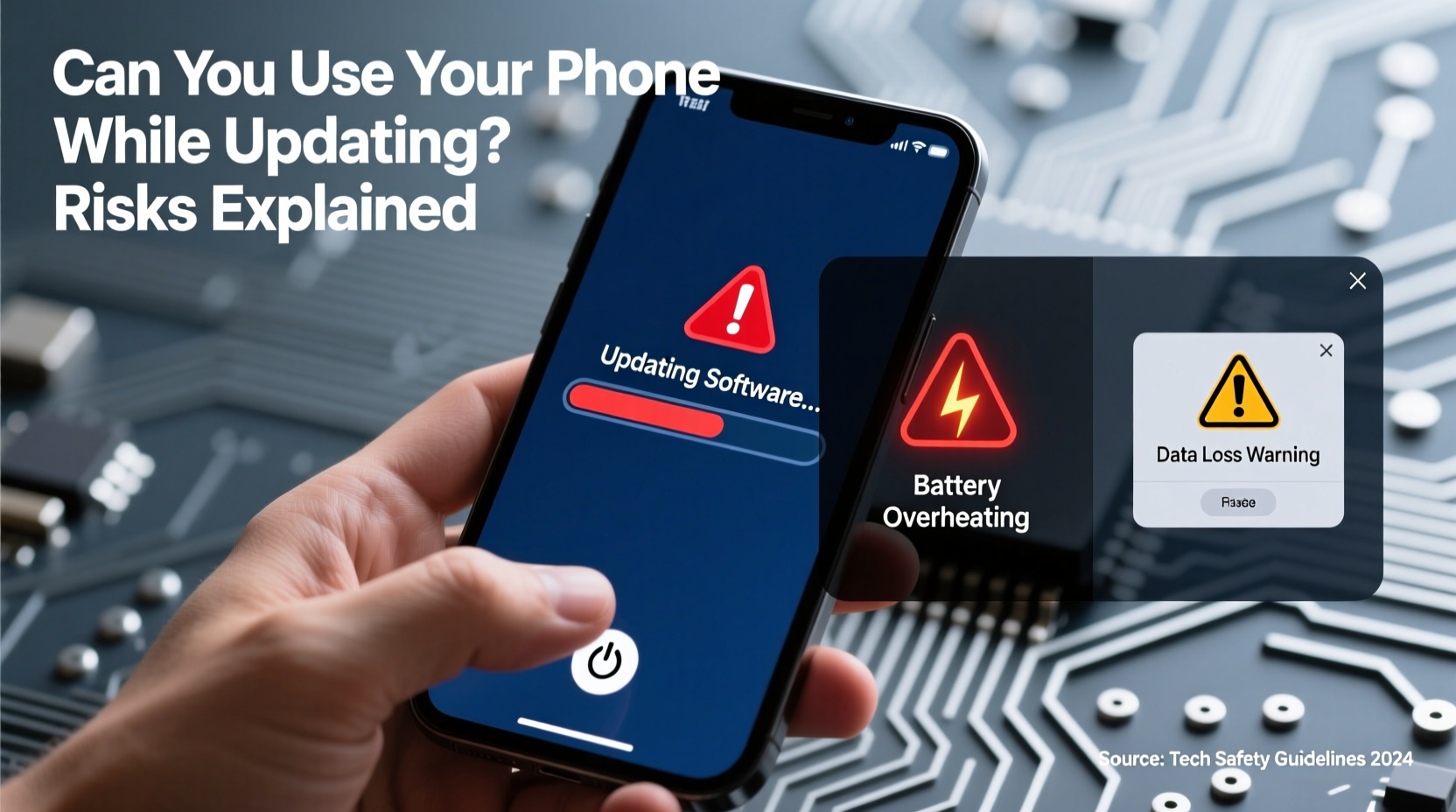
A software update is not simply downloading a few files and restarting your phone. It involves a complex sequence of operations that modify the operating system at a foundational level. When you install an update, your phone:
- Downloads compressed system files from the manufacturer or OS provider.
- Verifies the integrity and authenticity of those files using cryptographic signatures.
- Backs up critical system partitions (in some cases).
- Overwrites existing system components with new code.
- Reconfigures settings, drivers, and firmware as needed.
- Performs a final validation before rebooting into the updated OS.
This process requires exclusive access to core system areas. If another application—or even user input—interrupts this flow, the consequences can be severe. Think of it like rebuilding the foundation of a house while people are still walking on the floors above. Any disturbance could compromise structural integrity.
Risks of Using Your Phone During a Software Update
The temptation to check messages, browse social media, or take a call while your phone updates is understandable—but doing so puts your device in jeopardy. Here are the most common risks:
Data Corruption
When the system writes new files over old ones, any interruption—such as switching apps or receiving a notification—can result in incomplete file transfers. This leads to corrupted system files, which may render apps unusable or prevent the OS from booting entirely.
Boot Looping
If critical boot components are partially overwritten and then interrupted, the phone may enter a boot loop: turning on, starting the OS, crashing, and restarting repeatedly. In many cases, this requires advanced troubleshooting or factory restoration.
Bricking the Device
In extreme cases, especially with custom or interrupted firmware flashes, the phone can become “bricked”—completely non-functional, unresponsive, and unable to turn on or enter recovery mode. While soft bricks can sometimes be recovered, hard bricks often require professional repair or replacement.
Security Vulnerabilities
An incomplete update may leave your phone in a hybrid state—partially patched but not fully secured. This opens doors for exploits that the update was designed to fix, leaving you more vulnerable than before.
“Once an update begins, the system enters a fragile state. User interaction increases the risk of write errors, which can cascade into total system failure.” — Dr. Lena Park, Mobile Systems Engineer at OpenOS Labs
Do’s and Don’ts During a Software Update
| Action | Recommended? | Reason |
|---|---|---|
| Use apps or browse during update | No | Interrupts system processes; high risk of corruption |
| Let the phone sit idle during update | Yes | Ensures uninterrupted file writing and verification |
| Keep the phone plugged in | Yes | Prevents shutdown due to battery drain |
| Press buttons unnecessarily | No | May trigger unintended reboots or mode switches |
| Place phone face-down or in pocket | No | Blocks ventilation; increases heat buildup |
| Ensure strong Wi-Fi connection | Yes | Reduces download failures and timeouts |
Step-by-Step Guide to Safely Updating Your Phone
To minimize risks and ensure a smooth update process, follow this reliable procedure:
- Check available storage: Ensure at least 2–3 GB of free space. Updates need room to unpack and stage files.
- Connect to Wi-Fi: Avoid cellular data, which can be unstable or metered.
- Charge your phone: Plug it into a charger and confirm the battery is at least 50% charged (ideally 80% or higher).
- Close all running apps: Swipe away open applications to reduce background activity.
- Start the update: Go to Settings > System > Software Update (or equivalent) and begin the installation.
- Let it run undisturbed: Place the phone on a flat, cool surface. Do not touch it until the process completes and the device restarts.
- Verify the update: After rebooting, go back to the system settings to confirm the latest version is installed.
This sequence may seem overly cautious, but it mirrors the protocols used by IT departments and mobile technicians. A few minutes of patience can save hours—or days—of recovery work.
Real-World Example: The Cost of Impatience
Consider the case of Mark T., a freelance photographer who received a prompt for a critical Android security update. He started the download while waiting for a client call. The update began installing, but when his phone rang, he answered it immediately. Mid-conversation, the screen flashed, restarted, and never booted again.
He later learned that answering the call triggered a system-level audio service that conflicted with the active firmware write process. The result? A soft brick that required a full factory reset using a computer and OEM tools. All unsynced photos, notes, and app data were lost permanently.
Mark’s experience is not unique. Tech support forums are filled with similar stories where users thought a quick glance at a text message wouldn’t matter—only to find their phones unresponsive moments later.
Myths About Phone Updates Debunked
Misinformation often leads users to make risky decisions during updates. Let’s clarify some common misconceptions:
- Myth: “Updates only affect apps, so I can keep using my phone.”
Truth: System updates modify the OS kernel, drivers, and firmware—areas that control basic functionality. - Myth: “If it’s just a small patch, it’s safe to multitask.”
Truth: Even minor updates can involve critical system files. Size doesn’t correlate with safety. - Myth: “My phone has never had issues, so I’m immune.”
Truth: Luck is not reliability. One failed update can erase years of data.
What to Do If You Accidentally Use Your Phone During an Update
If you’ve already interacted with your phone mid-update, don’t panic—but act quickly:
- Stop all input: Put the phone down and do not press any buttons.
- Monitor for signs of progress: Some devices display a progress bar or flashing logo. If it continues moving, the system may recover.
- Wait at least 20–30 minutes: Premature intervention can worsen the situation.
- If frozen: Try a forced restart (usually Volume Down + Power for 10+ seconds).
- Enter recovery mode: If the device boots into recovery, select “Apply update from ADB” or “Wipe cache partition” as a first step.
- Use manufacturer tools: Samsung Kies, Huawei HiSuite, or Apple iTunes/Finder can restore firmware if the phone connects to a computer.
However, if the device shows no signs of life after multiple attempts, professional assistance may be necessary. Data recovery services exist but are costly and not always successful.
FAQ: Common Questions About Phone Updates
Can I turn off my phone during a software update?
No. Turning off your phone during an update is one of the most dangerous actions you can take. It almost guarantees file corruption and significantly increases the risk of bricking. Always wait for the process to complete naturally.
How long should a software update take?
Download time varies based on update size and internet speed—anywhere from 5 minutes to over an hour. Installation typically takes 10–30 minutes. Larger OS upgrades (e.g., iOS 17 to iOS 18) may take longer. If your phone remains stuck on the same screen for more than 45 minutes, investigate further.
Is it safe to use my phone after the update finishes but before the final reboot?
No. The final reboot is essential for applying changes. Skipping it or forcing a shutdown can leave the system in an inconsistent state. Wait for the device to restart on its own.
Conclusion: Protect Your Device with Smart Habits
Your smartphone holds personal memories, sensitive information, and daily tools you rely on. Treating software updates with care isn’t optional—it’s a fundamental part of digital hygiene. While it might feel inconvenient to set your phone aside for half an hour, that brief pause safeguards months of data and seamless performance.
By understanding the inner workings of updates, respecting the process, and following best practices, you dramatically reduce the risk of catastrophic failure. Make it a habit: when an update starts, let it finish. No calls, no games, no exceptions.




 浙公网安备
33010002000092号
浙公网安备
33010002000092号 浙B2-20120091-4
Comments
No comments yet. Why don't you start the discussion?