
As holiday seasons grow more tech-savvy, the tradition of decorating with Christmas lights has evolved from simple plug-and-play strands to fully customizable, app-controlled, and voice-enabled smart lighting systems. Today’s smart Christmas lights don’t just blink in sequence — they shift colors, respond to music, and most importantly, can be controlled hands-free using voice commands. Whether you’re lounging on the couch, cooking in the kitchen, or settling into bed, you can adjust brightness, switch colors, or turn off your lights without lifting a finger.
The short answer is yes — you absolutely can use voice commands to dim or change smart Christmas lights. But how well it works depends on several factors: the brand and model of your lights, your smart home ecosystem (Amazon Alexa, Google Assistant, Apple HomeKit), and proper setup. This guide walks through everything you need to know to get voice-controlled holiday lighting working seamlessly in your home.
How Voice Control Works with Smart Christmas Lights
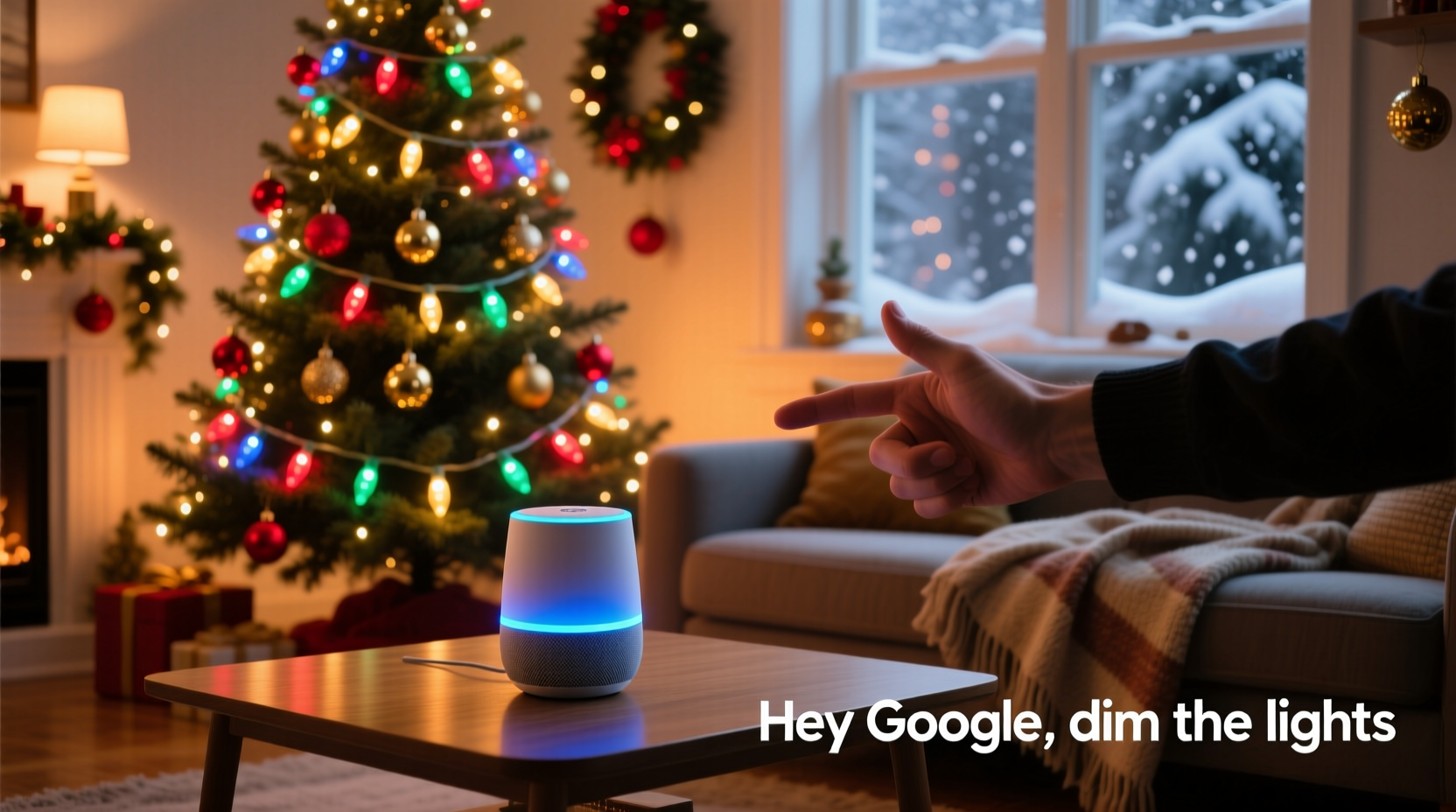
Smart Christmas lights connect to your home Wi-Fi network or via a hub (like Philips Hue Bridge or LIFX) and integrate with virtual assistants such as Amazon Alexa, Google Assistant, or Apple’s Siri. Once connected, these assistants interpret your spoken commands and send instructions to the light system through their respective cloud services.
For example, saying “Alexa, dim the tree lights to 30%” triggers a signal that travels from your Echo device to Amazon’s servers, then to the smart lighting platform (e.g., TP-Link Kasa, Nanoleaf, or Govee), which adjusts the brightness accordingly. The same applies when changing colors — “Hey Google, set the porch lights to blue” results in an instant hue shift across compatible strands.
This integration relies on compatibility between devices. Not all smart lights support every assistant, and some require additional configuration steps before voice control becomes available.
Compatible Platforms and Assistants
To use voice commands effectively, your smart lights must work within one or more major smart home ecosystems. Here's how the top platforms stack up:
| Platform | Supported Assistants | Setup Method | Dimming Support | Color Changing |
|---|---|---|---|---|
| Amazon Alexa | Alexa (Echo devices) | Alexa app + skill enablement | Yes | Full RGB control |
| Google Assistant | Google Nest, Android devices | Google Home app | Yes | Yes, including custom scenes |
| Apple HomeKit | Siri (iPhone, HomePod) | Home app + QR code pairing | Yes | Limited by brand; full on select models |
| SmartThings (Samsung) | Bixby, Alexa, Google Assistant | SmartThings app | Yes | Yes, with multi-brand support |
Most modern smart Christmas lights support at least two of these platforms. Brands like Govee, Philips Hue, LIFX, and Nanoleaf offer broad compatibility, while budget options may only work with Alexa or Google Assistant.
Step-by-Step Guide to Enable Voice Control
Setting up voice control isn’t complicated, but skipping steps can lead to failed connections or unresponsive commands. Follow this timeline to ensure smooth operation:
- Install and power on your smart lights. Plug in the strand and confirm it powers up. Some models flash during setup mode.
- Download the manufacturer’s app. Examples include Govee Home, Kasa Smart, or Hue Bluetooth. Create an account if required.
- Connect lights to Wi-Fi or hub. Use the app to pair the lights. Ensure your phone is on the same 2.4GHz network (most smart lights don’t support 5GHz).
- Test app control. Before moving to voice, verify you can turn on/off, dim, and change colors via the app.
- Link to your voice assistant.
- For Alexa: Open the Alexa app → Devices → Add Device → Light → Choose brand → Log in to service.
- For Google Assistant: Open Google Home → Add → Set up device → Have something already set up? → Search for brand name.
- For Siri: In the Home app, tap “+”, scan the HomeKit code (if supported), or follow in-app prompts.
- Assign a room and name. Name your lights clearly — e.g., “Tree Lights” or “Front Porch Strip.” Avoid generic names like “Light 1.”
- Test voice commands. Say, “Alexa, turn on the tree lights,” or “Hey Google, make the porch lights red.”
If voice control fails, revisit step 5. Common issues include incorrect login credentials, firewall restrictions, or outdated firmware. Re-linking the account often resolves connectivity problems.
Tips for Optimal Voice-Controlled Lighting
Once your lights are voice-enabled, refine your experience with these practical strategies:
- Create routines for automatic control. Set your lights to turn on at sunset and dim at bedtime using scheduled routines in Alexa or Google Home.
- Use scene presets. Save favorite combinations like “Cozy Glow” (warm white, 40% brightness) or “Festive Flash” (multi-color pulse) for instant recall.
- Group multiple lights together. If you have several strands on your tree or around windows, group them under a single name so one command controls all.
- Minimize background noise. Issue voice commands in quiet environments to reduce misinterpretation, especially with similar-sounding words like “dim” and “red.”
- Update firmware regularly. Manufacturers release updates that improve responsiveness, add new features, and fix bugs affecting voice integration.
“Voice control transforms seasonal decor from static displays into dynamic experiences. Users report higher satisfaction when they can personalize ambiance effortlessly.” — Dr. Lena Patel, Smart Home Technology Researcher, MIT Media Lab
Mini Case Study: The Johnson Family’s Holiday Upgrade
The Johnsons in Portland, Oregon, used traditional incandescent Christmas lights for over a decade. Each year, adjusting brightness meant fumbling with a physical dimmer switch behind the tree stand. Last holiday season, they upgraded to a Govee Wi-Fi LED strip with app and voice control.
After linking the lights to their Google Nest Hub, they created a routine called “Holiday Mode” that activates at 5 PM daily, setting the living room lights to a soft gold glow. Their youngest child, who uses a wheelchair, now controls the color theme independently using voice commands like “Hey Google, make it rainbow!”
“It’s not just convenient — it’s inclusive,” says Sarah Johnson. “Everyone in the house feels involved in decorating now.”
Their setup also integrates with their security system; when the doorbell rings, the lights briefly flash green to alert them, even from another room.
Common Issues and How to Fix Them
Voice control doesn’t always work perfectly out of the box. Here are frequent problems and solutions:
- Assistant doesn’t recognize the device: Re-link the skill or service in the assistant app. Make sure the device appears in the list of smart devices.
- Lights respond slowly: Check Wi-Fi signal strength near the lights. A weak connection causes lag. Consider using a Wi-Fi extender.
- Command misunderstood (e.g., “blue” vs. “glow”): Speak clearly and use precise phrasing. Instead of “make it brighter,” say “increase brightness by 20%.”
- No dimming option available: Confirm the lights support variable brightness. Some cheaper models only offer on/off and preset modes.
- Works via app but not voice: Ensure the correct device name is used. Also, check if the assistant supports advanced commands for that brand.
Checklist: Ready Your Smart Lights for Voice Control
Before expecting flawless performance, run through this checklist:
- ✅ Smart lights are powered and connected to Wi-Fi
- ✅ Manufacturer’s app is installed and functional
- ✅ Lights appear and respond in the app
- ✅ Voice assistant device (Echo, Nest, etc.) is online
- ✅ Skill/service is enabled and linked in the assistant app
- ✅ Lights are named clearly and assigned to a room
- ✅ Test basic commands: “Turn on,” “Set to red,” “Dim to 50%”
- ✅ Firmware is up to date
Completing each step ensures a stable foundation for reliable voice interaction throughout the holiday season.
Frequently Asked Questions
Can I dim smart Christmas lights with Siri?
Yes, if the lights are HomeKit-compatible. Models from Nanoleaf, Philips Hue (with bridge), and certain Eve Systems lights support Siri voice commands for dimming and color changes. Simply say, “Hey Siri, dim the tree lights to 30%.”
Do all smart Christmas lights support voice commands?
No. Only lights designed for smart home integration support voice control. Basic Wi-Fi strips without app support or older Zigbee-only models without a compatible hub will not work with Alexa, Google Assistant, or Siri.
Can I schedule my smart lights to dim automatically?
Absolutely. Both Alexa and Google Assistant allow scheduling through routines. You can set lights to dim at a specific time, fade out gradually, or respond to sunrise/sunset. In Apple Home, use Automations for similar functionality.
Conclusion: Embrace the Future of Holiday Lighting
Voice-controlled smart Christmas lights represent more than convenience — they offer accessibility, creativity, and a personalized touch to seasonal celebrations. From subtle evening glows to vibrant party effects, the ability to dim or change lights with simple spoken words enhances both atmosphere and ease of use.
With the right setup, any homeowner can transform their holiday display into an intelligent, responsive environment. Whether you're managing decorations for comfort, safety, or sheer fun, voice commands put full control at your fingertips — or rather, on the tip of your tongue.




 浙公网安备
33010002000092号
浙公网安备
33010002000092号 浙B2-20120091-4
Comments
No comments yet. Why don't you start the discussion?