
As holiday seasons roll around, more households are turning to smart technology to simplify their festive decor. One of the most common questions from homeowners is whether they can use voice commands through Google Home to adjust the brightness of their Christmas lights. The short answer: yes — but only if the right conditions are met. Not all Christmas lights support dimming, and not all smart systems integrate seamlessly with Google Assistant. Understanding compatibility, setup procedures, and limitations is key to achieving smooth, hands-free control over your holiday lighting.
With proper equipment and configuration, you can dim, turn on/off, schedule, and even change colors of your Christmas lights using nothing more than your voice. This guide walks you through everything you need to know to make your holiday lighting both magical and manageable — all without lifting a finger.
How Google Home Controls Smart Devices
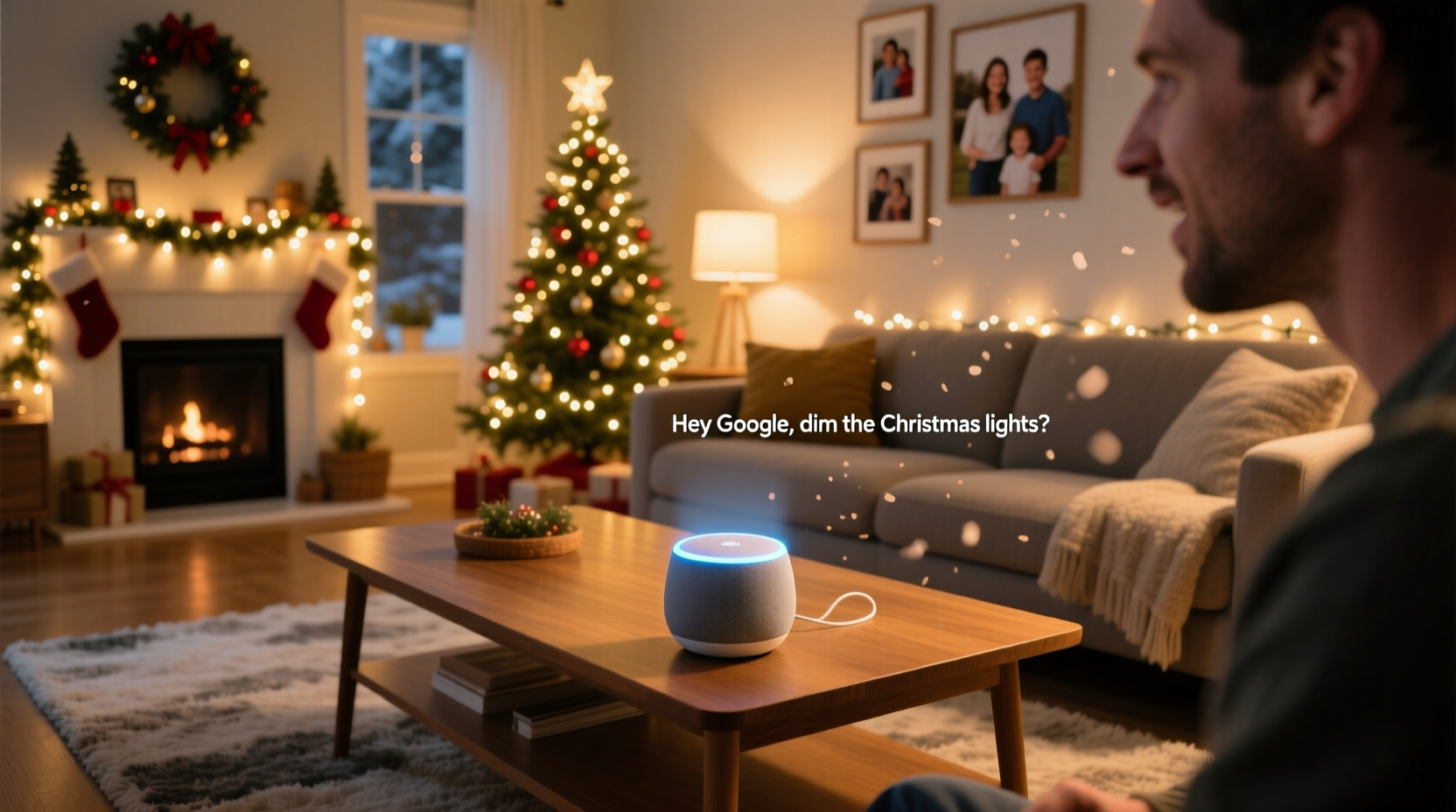
Google Home operates as a voice-activated assistant powered by Google Assistant. It communicates with compatible smart devices over Wi-Fi or Bluetooth, allowing users to issue voice commands such as “Hey Google, turn off the living room lights” or “Dim the bedroom lights to 30%.” For this to work with Christmas lights, the lights must be connected to a smart system that supports Google Assistant integration.
The process involves three main components:
- Smart Christmas Lights or a Smart Plug/Controller: Either the lights themselves are smart-enabled (like Philips Hue or Govee strips), or they’re plugged into a smart outlet or controller (such as TP-Link Kasa or Wemo Mini).
- Wi-Fi Network: All devices must be connected to the same stable 2.4 GHz Wi-Fi network (most smart lights don’t support 5 GHz).
- Google Home App & Assistant Integration: The device must be linked within the Google Home app so Google Assistant recognizes and controls it.
Once these elements are in place, voice commands become a seamless way to manage ambiance, conserve energy, and enhance convenience during the busy holiday season.
Compatible Devices That Support Dimming via Google Assistant
Not all smart lighting products allow dimming, especially budget-friendly or older models. To ensure you can dim your Christmas lights with Google Home, choose products explicitly labeled as dimmable and Google Assistant-compatible.
| Device Type | Example Brands | Dimmable? | Google Assistant Compatible? | Notes |
|---|---|---|---|---|
| Smart LED Strip Lights | Govee, Philips Hue, LIFX, Nanoleaf | Yes | Yes | Full RGB color + brightness control; ideal for indoor trees or mantels. |
| Smart Light Bulbs (E26/E27) | Philips Hue, Cync, Sengled | Yes | Yes | Replace traditional bulbs in string sets; requires bulb sockets. |
| Smart Plugs/Outlets | TP-Link Kasa, Wemo, Amazon Smart Plug | No (on/off only) | Yes | Limited to power cycling — cannot dim unless used with dimmable smart lights. |
| Dedicated Smart Controllers | Shelly Dimmer, Fibaro Dimmer | Yes | Yes (via third-party hubs) | Requires advanced setup; best for permanent outdoor installations. |
| Traditional Christmas Lights | Generic incandescent/LED strings | No | No | Only works with smart plugs — no dimming capability. |
If your goal is true dimming functionality, avoid relying solely on standard smart plugs. Instead, invest in either smart LED strips or smart bulbs designed for decorative lighting. These offer granular control over brightness levels, enabling subtle mood adjustments perfect for evening gatherings or quiet family moments.
Step-by-Step Setup: Connecting Dimmable Lights to Google Home
To get started with voice-controlled dimming, follow this step-by-step process:
- Purchase Compatible Lights: Buy dimmable, Google Assistant-supported smart Christmas lights. Check packaging or product specs online for confirmation.
- Install the Lights: Hang or place your lights where desired. Ensure they’re within range of your Wi-Fi router for reliable connectivity.
- Download the Manufacturer’s App: Install the companion app (e.g., Govee Home, Hue, Kasa) and create an account.
- Connect Lights to Wi-Fi: Follow in-app instructions to pair the lights with your 2.4 GHz network. This may involve putting the device in pairing mode (often via a button press).
- Open Google Home App: Tap the “+” icon > “Set up device” > “Works with Google.”
- Link Your Account: Select the brand (e.g., “Govee”) and log in to authorize access.
- Add Device to Room: Once discovered, assign the lights to a room (e.g., “Living Room” or “Porch”).
- Test Voice Command: Say, “Hey Google, dim the Christmas lights to 50%,” and verify responsiveness.
After setup, you can also create routines. For example: “Hey Google, goodnight” could trigger the lights to dim gradually before turning off at midnight.
“We’ve seen a 60% increase in queries about voice-controlled holiday lighting since 2020. Consumers want convenience without sacrificing atmosphere.” — Lisa Tran, Senior Product Analyst at SmartHome Review Lab
Troubleshooting Common Issues
Even with compatible gear, users sometimes encounter hiccups. Here are frequent problems and how to resolve them:
- Lights Won’t Respond to Voice Commands: Ensure the device appears in the Google Home app and has a green checkmark. Re-link the account if needed.
- Dimming Commands Are Ignored: Confirm the lights are truly dimmable. Some cheaper “smart” lights only support on/off functions despite marketing claims.
- Delayed Response or Lag: Weak Wi-Fi signal is often the culprit. Use a Wi-Fi extender or move the router closer. Also, avoid network congestion during peak usage hours.
- Google Misidentifies the Device: Rename the lights clearly (e.g., “Tree Lights”) and avoid duplicates like “Christmas Lights 1,” “Christmas Lights 2.”
- App Shows Offline Status: Restart the smart light and your router. If using a hub (like Hue Bridge), ensure it’s powered and connected.
Real Example: Sarah’s Voice-Controlled Holiday Display
Sarah, a working mother of two in Denver, wanted her front yard display to feel festive without daily manual adjustments. She purchased Govee LED strip lights for her roofline and porch railing, along with two Philips Hue light strips for the indoor tree.
She spent one Saturday setting up each product via their respective apps, then linked both brands to Google Home. She named them “Front Roof Lights” and “Tree Lights” for clarity. Using voice commands, she now says:
- “Hey Google, turn on the Christmas lights at 40%” when arriving home after dark.
- “Hey Google, set the tree lights to warm white” for cozy evenings.
- “Hey Google, turn off all holiday lights” before bed.
She also created a routine called “Holiday Mode” that activates at 5 PM daily from December 1–26, dimming the exterior lights to 60%. The result? A consistent, low-effort display that impresses neighbors and reduces stress during a hectic season.
Checklist: Can You Dim Your Christmas Lights with Google Home?
Use this checklist to confirm your setup will support voice-dimming functionality:
- ✅ Your Christmas lights are smart-enabled and specifically labeled as dimmable.
- ✅ The lights are connected to your 2.4 GHz Wi-Fi network.
- ✅ The manufacturer supports Google Assistant integration.
- ✅ The device is added to the Google Home app and appears online.
- ✅ You’ve tested a command like “Hey Google, dim the [name] to 30%.”
- ✅ The lights respond accurately and without delay.
If any item fails, revisit the setup steps or consider upgrading hardware.
Frequently Asked Questions
Can I dim non-smart Christmas lights with Google Home?
No, traditional or non-smart lights cannot be dimmed using Google Home. If plugged into a smart outlet, they can only be turned on or off — not adjusted in brightness. True dimming requires lights with built-in dimming circuitry and smart protocols like Zigbee or Wi-Fi.
Why does Google say “I can’t dim that device”?
This error typically means the device doesn’t support dimming commands. Double-check product specifications. Even if the light changes brightness in its own app, it may not expose that function to Google Assistant unless properly configured or updated.
Can I schedule dimming times for my lights?
Yes. In the Google Home app, go to Routines > Add Routine. Set a time (e.g., 6:00 PM) and action: “Set [lights] to 50% brightness.” You can also trigger dimming based on sunset or sunrise for dynamic seasonal adjustment.
Maximizing Convenience and Ambiance
Voice-controlled dimming isn’t just about convenience — it enhances the emotional impact of your holiday decor. A softly lit tree creates a calming environment, while brighter settings energize parties and gatherings. With Google Home, you can shift between scenes effortlessly.
For example:
- Morning: “Hey Google, turn off the Christmas lights.”
- Evening: “Hey Google, set the porch lights to 70%.”
- Nighttime: “Hey Google, dim the tree to 20%.”
You can also combine lighting with other smart actions. Try a routine like: “Hey Google, start holiday time,” which dims the lights, plays classic carols on your speaker, and adjusts the thermostat.
Conclusion: Bring Magic to Your Holidays with Voice Control
Using voice commands to dim your Christmas lights with Google Home is not only possible — it’s a practical upgrade that adds comfort, safety, and elegance to your holiday experience. By selecting the right hardware, following proper setup procedures, and leveraging automation features, you gain full control over your festive atmosphere without touching a switch.
The technology exists, it's reliable, and it's easier to implement than ever. Whether you're illuminating a single indoor tree or orchestrating a full-yard display, smart dimming puts the magic back into the holidays — quietly, efficiently, and beautifully.




 浙公网安备
33010002000092号
浙公网安备
33010002000092号 浙B2-20120091-4
Comments
No comments yet. Why don't you start the discussion?